


Participant
May 31, 2022
질문

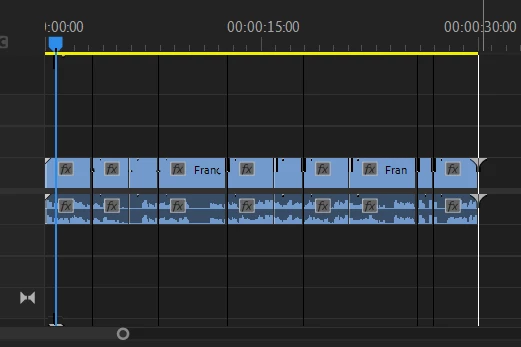
Rayas negras en el timeline.

  • May 31, 2022
  • 2 답변들
  • 844 조회

Buenas! 

Tengo problemas con Premiere, estoy usando la última actualización en una computadora nueva, el SO es Windows 11, tiene una RAM de 16 gb, tarjeta gráfica nvidia geforce rtx 3050 y cuando utilizo la herramienta cuchilla, en los cortes que realizo, se generan en el timeline unas líneas negras que luego se van si cambio de herramienta. Nunca antes me había sucedido tal inconveniente, probé instalando una versión de Premiere anterior y pasa lo mismo.

Un técnico de Windows revisó la computadora y no encontró ningún problema relacionado con los componentes, piensa que quizá el problema sea que Adobe no esté utilizando correctamente los recursos del dispositivo.

Agrego una imagen al cuerpo del mensaje para que se entienda bien cuál es el problema.

¿A alguien más le pasó?


.
Saludos,

Camila.

이 주제는 답변이 닫혔습니다.

2 답변

Peru Bob
Community Expert
Community Expert
May 31, 2022

Delete the Media Cache and Media Cache files:
https://community.adobe.com/t5/premiere-pro/faq-how-to-clear-your-media-cache-in-30-seconds-in-premiere-pro-2020/m-p/11017257/thread-id/260446?page=1

If that doesn't work, try resetting the Workspaces:
Reset a workspace
Reset the current workspace to return to its original, saved layout of panels.
1. Do one of the following:
• Click the Workspace menu icon and select Reset to Saved Layout.
• Choose Window > Workspace > Reset to Saved Layout.
from here:
https://helpx.adobe.com/premiere-pro/using/workspaces.html

If that doesn't work, try Preferences > Audio Hardware and set Input to None.

If that doesn’t work, try updating or rolling back your graphics driver directly from the video card manufacturer’s site. If NVIDIA, do a clean installation of the latest Studio Driver (NOT the Game Driver)

If that doesn't work, try creating a new project and import the old one into it.

Community Expert
May 31, 2022

This is a new one. I'd try resetting preferences: 

  1. Hold down: Alt/Options on Mac or Alt on (Windows).
  2. Keep holding down the Alt key, and click on the Premiere Pro app icon to open it.
  3. In a few seconds, it asks you “Are you sure you want to reset your preferences?”. Click OK.
Cam Silvera작성자
Participant
May 31, 2022

Thanks, I tried that and it still doing the same thing.