Copy link to clipboard
Copied
What are the most efficient and high-quality methods you would recommend for reducing/eliminating the three areas of whiteboard specular glare in this video? The spot near my head might be particularly challenging since my head moves into and out of that area during the video.
Screenshot:
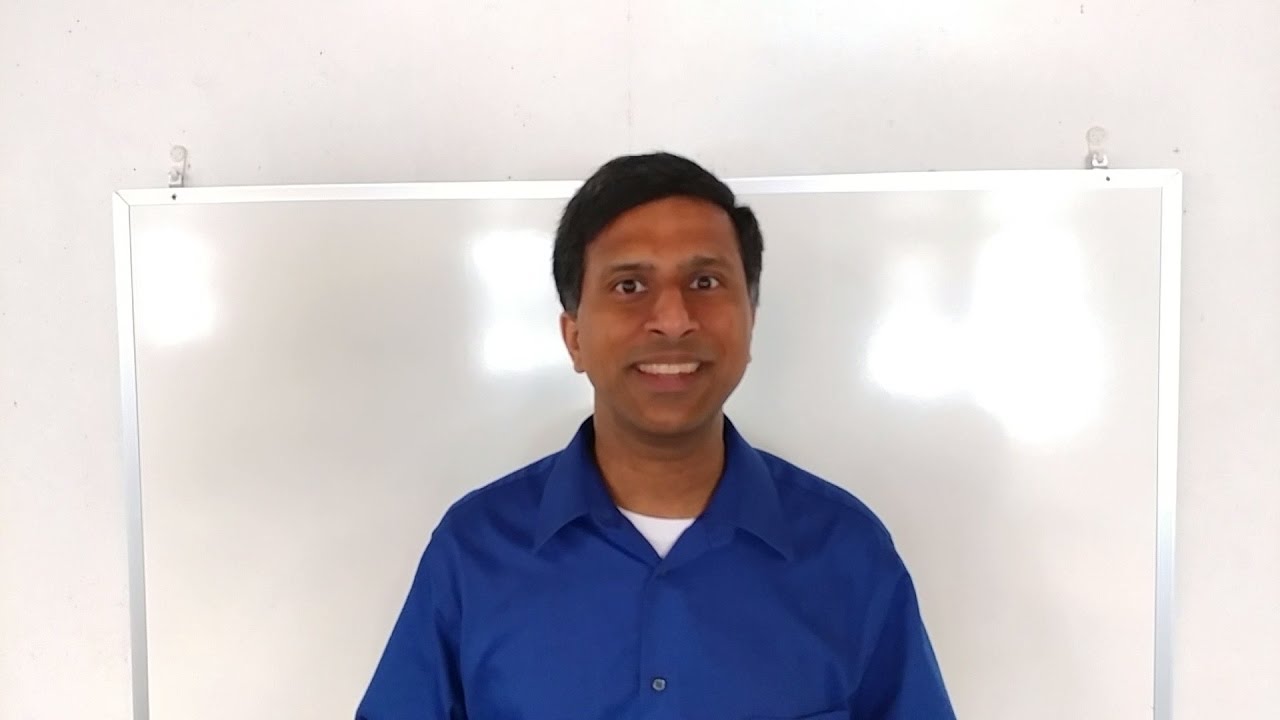
Video:
You generate the background by going to File > New > Color Matte and creating a clip with the color and luminance value you want. Or if you want a more complex background you can create it in Photoshop and import it into Premiere.
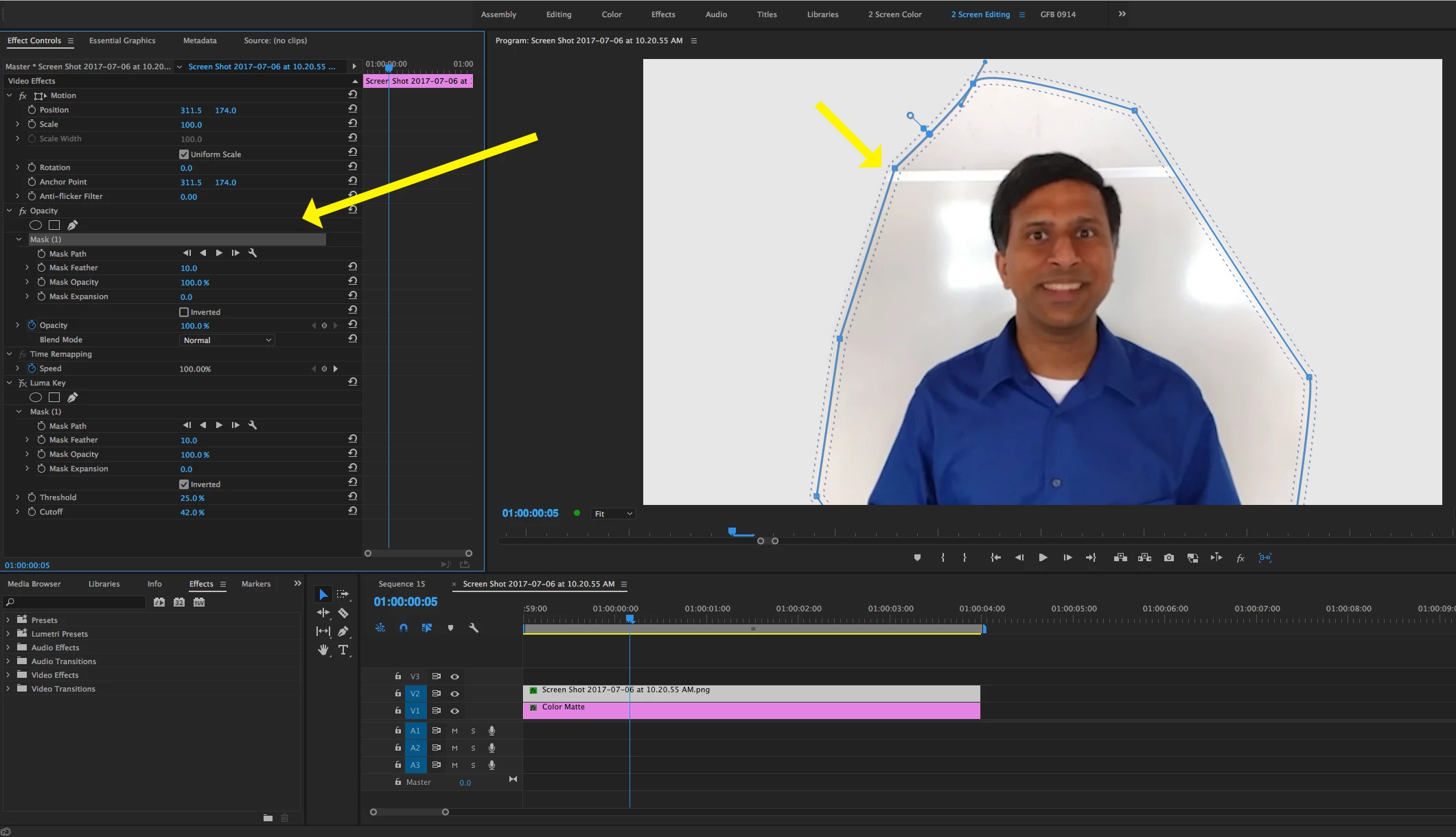
With your video on the track above the background on the timeline, garbage matte most of the scene as described in my first post:

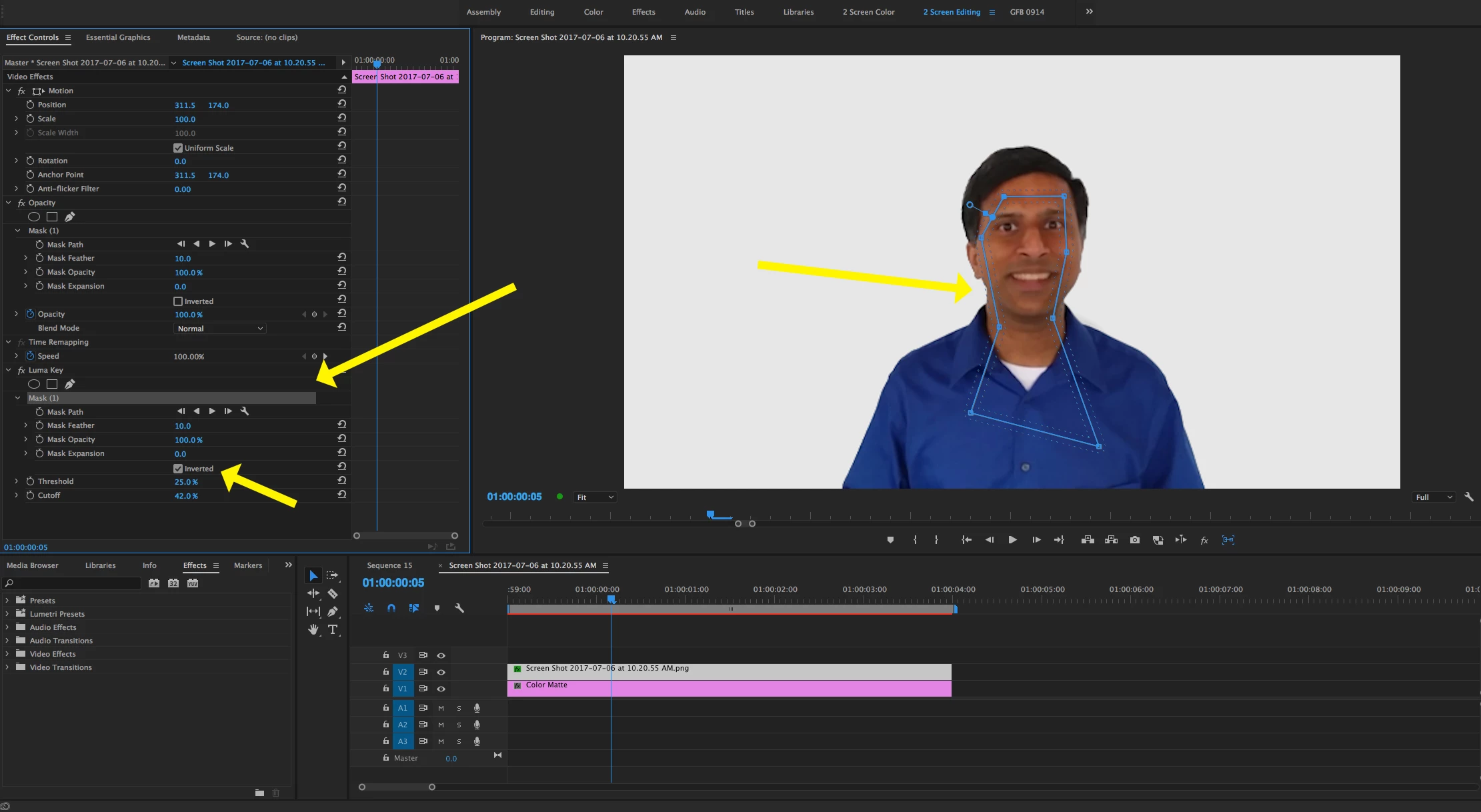
Then add the luma keyer and the (inverted) protection mask:

I didn't watch a whole lot of your sample video, if you pretty much stay in the sa
...Copy link to clipboard
Copied
One way:
Replacement background on V1, your video on V2.
On V2, use the mask under opacity to draw a loose oval around your body to get rid of most of the video background.
Then apply a Luma Key to the clip on V2 and adjust Threshold and Cutoff of the effect to eliminate the rest of the background, while preserving your image.
Using the mask under the Luma key effect, use the pen tool to draw a shape that includes your eyes, mouth and t-shirt. Invert that mask so it protects those areas from being keyed. You may need to track that matte if you move around a great deal:

MtD
Copy link to clipboard
Copied
Cool! Any chance you could share the .prproj file for this? I like how you were able to make the background uniform, but not too bright -- and without interfering with my appearance. If this tracks well, it could be a good solution.
Copy link to clipboard
Copied
You generate the background by going to File > New > Color Matte and creating a clip with the color and luminance value you want. Or if you want a more complex background you can create it in Photoshop and import it into Premiere.
With your video on the track above the background on the timeline, garbage matte most of the scene as described in my first post:

Then add the luma keyer and the (inverted) protection mask:

I didn't watch a whole lot of your sample video, if you pretty much stay in the same position in frame you can use a static protection mask, if you move around a great deal, then you will likely want to have the mask track you, but this will be time consuming.
MtD
Copy link to clipboard
Copied
Kartik: Let us know if this solution helps you out.
Copy link to clipboard
Copied
Stefan -- yes this is very helpful, appreciate the expert insights!
Copy link to clipboard
Copied
Thanks for the detailed explanation Meg -- I was able to reproduce the results successfully. Scrubbing through the video, it looks really good most of the time. There are some corner cases where I'm moving my head around or gesturing with my hands where some artifacts crop up. I'll look into tracking and see how that looks.
I'm wondering whether it might be possible to do some kind of magic wand selection of the person's silhouette based on color/contrast differences on the perimeter (i.e. so I wouldn't have to worry about my eyes, teeth and t-shirt), and use that as an inverse mask for the luma key. Does premiere pro have any kind of capabilities like that?
Copy link to clipboard
Copied
kartik_subbarao wrote
I'm wondering whether it might be possible to do some kind of magic wand selection of the person's silhouette based on color/contrast differences on the perimeter (i.e. so I wouldn't have to worry about my eyes, teeth and t-shirt), and use that as an inverse mask for the luma key. Does premiere pro have any kind of capabilities like that?
Not that I know of. There is much greater flexibility with doing this kind of work in After Effects, but in Premiere, essentially you are using the luma keyer as a kind of magic wand - it is dropping out (selecting for removal) all the nearly white material in the scene, and leaving everything else. You just have to protect (mask) the areas of white that are on your body from being dropped out by the keyer.
MtD
Copy link to clipboard
Copied
Understood, thanks for the quick responses!
Get ready! An upgraded Adobe Community experience is coming in January.
Learn more