


barthélemytcomtugal
New Participant
January 30, 2018
Question

Serious error has occurred - shut down

  • January 30, 2018
  • 18 replies
  • 46024 views

Hello, this happens frequently. I don't know why and don't know how to fix it . Can someone help me ?

Thank you so much.

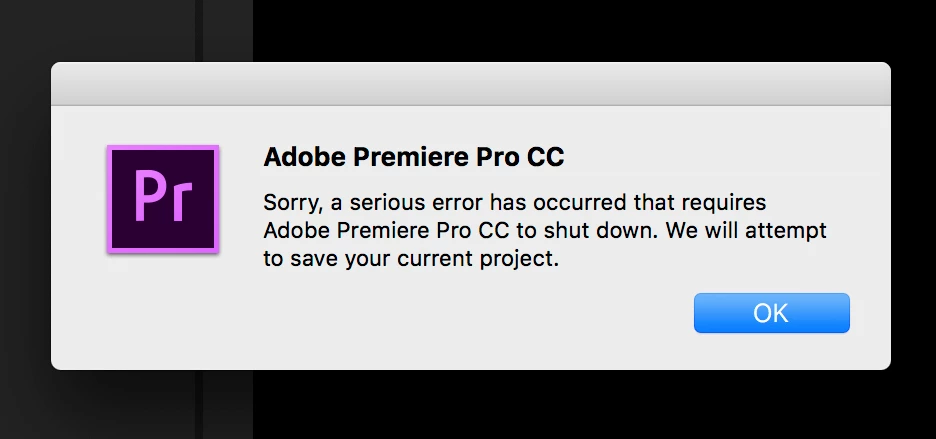
''Sorry, a serious error has occurred that requires Adobe Premiere Pro CC to shut down. We will attempt to save your current project.''
This topic has been closed for replies.

18 replies

New Participant
August 4, 2018

It keeps shutting down after one minute I start to work on the project! I changed from my desktop to my laptop and still same issue....Whatʻs happening?

New Participant
June 4, 2018

Buddy,

I have the solution, unfortunately I did not find a solution through adobe support!


1 - Goes to the folder where Adobe Premiere Pro CC 2018 installed, my tip is to right click on the shortcut you have from the program and click Open File Location.


2 - The file "Adobe Premiere Pro.exe", that is, the executable of the program, renames to something like "Adobe Premiere Pro 2018.exe"


after these steps, the shortcut will stop working, create a new shortcut for this .exe to the desktop, and delete the old one.


If it does not work, it may give the same error or if the video on the preview screen crashes, it has failed, then do the following:


Open the Creative cloud, see if it will appear to update Premiere CC, update, and repeat process 1 and 2 abobe.

happymedeyum
New Participant
May 17, 2018

I just had this happen when exporting. I had updated to the latest version of Premiere and was working in a project that contained several sequences. All the sequences exported with no problem, except for one and the only difference in that sequence was that it contained a morph cut. When I removed the cut and re-rendered, it exported with no error. Sent a crash report to Adobe.

New Participant
April 17, 2018

I am having the same issue. I moved the project files to the desktop. I reset the preferences. Both to no avail. I currently cannot work on my film. Please advise

Kevin-Monahan
Community Manager
Community Manager
April 17, 2018

Do you have any backups or auto save files to work from, samf?

Thanks,
Kevin

Kevin Monahan - Sr. Community & Engagement Strategist – Pro Video and Audio
New Participant
April 19, 2018

samf57303783  wrote

Might you be able to send me a download link to 12.0.1? Thank you. SamF

That is done using the CC Desktop App:

Download Creative Cloud desktop app


Peru Bob,

Will that link allow me to download an earlier version of Premier?

Thanks,

Sam

Kevin-Monahan
Community Manager
Community Manager
April 4, 2018

Still an issue for you, barthélemytcomtugal? Please let us know after trying the new update.

Thanks,
Kevin

Kevin Monahan - Sr. Community & Engagement Strategist – Pro Video and Audio
davidg775751
New Participant
May 14, 2018

This is continuously happening on a current edit. It seems to be an issue with PSD files. Can ADOBE PLEASE HELP PEOPLE WITH THIS ISSUE? There are a number of threads regarding this exact error, that date back some time.

Kevin-Monahan
Community Manager
Community Manager
May 14, 2018

Hi David,

Issues like this often happen after updating projects across major new versions. It is recommended that you remain on existing projects until they are complete.

One thing that may work: Can you try creating a new project and then importing your legacy project into it? That may help.

Thanks,
Kevin

Kevin Monahan - Sr. Community & Engagement Strategist – Pro Video and Audio
valeriedouroux
New Participant
March 6, 2018

Premiere, this is a serious issue that's been happening since November. I used to never get this error notice and now I get it every 1-5 minutes. Even when I'm just doing simple cuts and hitting playback. My husband and I are editors and run the Adobe Creative Cloud with automatic updates. What can we do to fix this?

Peru Bob
Community Expert
March 6, 2018

Try resetting the preferences:

FAQ: How to reset preferences in Premiere Pro?

If that doesn't work, try resetting the Workspaces:

Reset a workspace

Reset the current workspace to return to its original, saved layout of panels.

  1. Do one of the following:
    • Click the Workspace menu icon and select Reset to Saved Layout.
    • Choose Window > Workspace > Reset to Saved Layout.

from here:

https://helpx.adobe.com/premiere-pro/using/workspaces.html

If that doesn’t work,try updating or rolling back your graphics driver directly from the video card manufacturer’s site.

New Participant
March 8, 2018

Thank u so much~fam

u can send new INVOICE for me?

becuz i'll must submit it to the company.

2018-03-07 3:47 GMT+09:00 Peru Bob <forums_noreply@adobe.com>:

Serious error has occurred - shut down created by Peru Bob

<https://forums.adobe.com/people/Peru+Bob> in Premiere Pro CC - View

the full discussion <https://forums.adobe.com/message/10224797#10224797>

c2m
New Participant
February 5, 2018

I found a solution that worked for me. I'm working on a Mac OS High Sierra 10.13.3. I went into "System Preferences" and clicked on the CUDA icon at the bottom left. Updated that driver to 387.128. I then went to NVidia and updated my graphics card driver via this link;

NVIDIA DRIVERS Quadro & GeForce macOS Driver Release 387.10.10.10.25.156

After that reboot, all was working fine! Hope this helps someone. Info current as of 2/5/18.

kulpreet singh
Inspiring
January 30, 2018

Hi barthélemytcomtugal,

I am sorry for this trouble but we need more information to understand & troubleshoot this issue.

FAQ: What information should I provide when asking a question on this forum?

Thanks,

Kulpreet Singh