


- Home
- Premiere Pro
- Discussions
- Re: Shapes behind text won't export with New Essen...
- Re: Shapes behind text won't export with New Essen...

Copy link to clipboard
Copied
I am having trouble with the new responsive design for text backgrounds. During preview the rectangle shape behind my text is visible and looks great but when I export the rectangle shape is simply not there. My opacity is not the issue. Have you encountered this problem?


 1 Correct answer


If users reporting this are Exporting via AME, then they have probably encountered a known AME bug which happens when using pinning in Pro12.0 and AME Export. It's already In Development internally and we hope to have the fix available soon. In the interim, the workaround is to uncheck Import Sequences Natively from AME’s General Preferences, or Export directly from Pr.

 30
Replies
30
30
Replies
30


Copy link to clipboard
Copied
No.
And I'm not sure exactly what/how you're steps go, so how about giving the specific steps & tools you use to create the shape, the text, and so on ...
Neil
Copy link to clipboard
Copied
I created some text with key-framed animation on the vertical scale and opacity sections under Transform. I then added a shape to the same text layer using the essential graphics tab. Using the new Responsive Design-Position function I pinned the shape to the text layer on all sides. During playback the shape does the same animation as the text without adding specific key-frames to the shape. The preview shows the desired animation with both the shape background and text but the exported file does not show the shape background. Only the text shows up on the export and it is difficult to read. Is my understanding of the Responsive Design ability is a little off?

Copy link to clipboard
Copied
When you added animation to your text, did you keyframe at clip level transform tools? Or did you scroll down in the effects controls and animate at the text layer level? I recommend animated layers at the layer level and not at the top controls. Try doing it that way and see if the rectangle disappears. Let me know!
Copy link to clipboard
Copied
Mine was just grabbing an included lower-third, dropping it on the timeline ... and immediately exporting.
Note the examples ... PrPro exported everything, AME left off the graphic. I did another set after changing the pinning to Video Frame as suggested by the OP, then it did go through AME ok.That shouldn't foul up AME.
Weird. Filed that report.
Neil
Copy link to clipboard
Copied
This is the air that Premiere finally gave me.
"A LOW-LEEL EXCEPTION occurred in: AEADBE Shape (GPUVideoFitler::GetFrameDependencies)"
I solved my problem by exporting with the Renderer: Mercury Playback Engine Software Only instead of Mercury Playback Engine GPU Acceleration (OpenCL) I could not get Media Encoder to export it properly. May be a weird bug.
Copy link to clipboard
Copied
Thanks for posting about this ...
Neil

Copy link to clipboard
Copied
Here is my example of the Essential Graphics error. The image on the Right is from my Pr Program monitor and the image on the Left is after encoding in ME. You can see how after encoding that some layers from the EG template simply disappear. It happens if you don't properly "Pin To" the layer under the Responsive Design-Position to the appropriate Main layer, in this case, the Text. Anybody having this issue or have a solution? Thank you!

Copy link to clipboard
Copied
Huh.
@jstrawn ... can you advise?
Neil
Copy link to clipboard
Copied
What I'm saying is that when I drag an Essential Graphics Template, I.e. "Lower Thirds" directly from its browser Window to the Timeline, layers are disappearing (after Encoding) if they are "Pinned to"the parent layer, in this case, the Text layer. The effect only seems to function properly if you manually change it to the Video Frame layer. Unfortunately, this prevents the effect from functioning as intended.
Copy link to clipboard
Copied
I can replicate this in my Win10 system ... dragging a lower third, exporting 'direct' I get the blue box ...
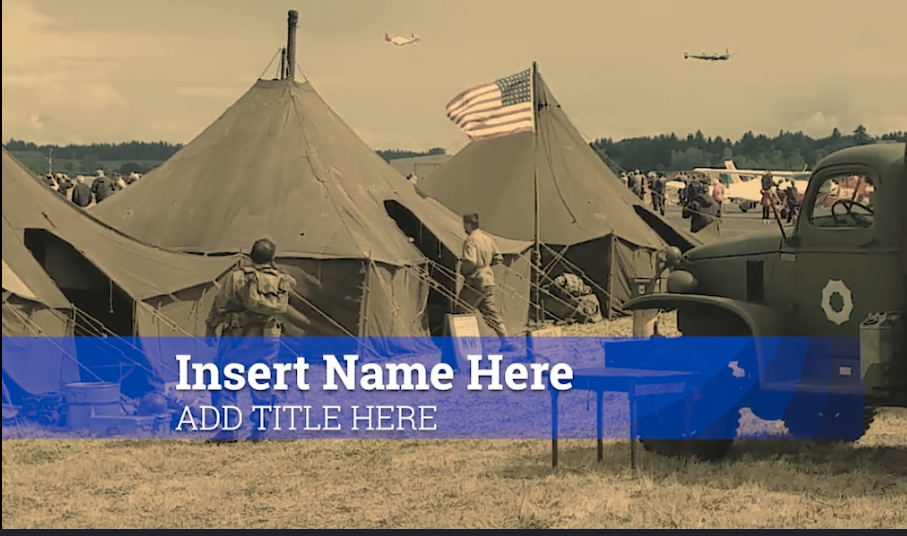
But when going through AME, I ... don't ...
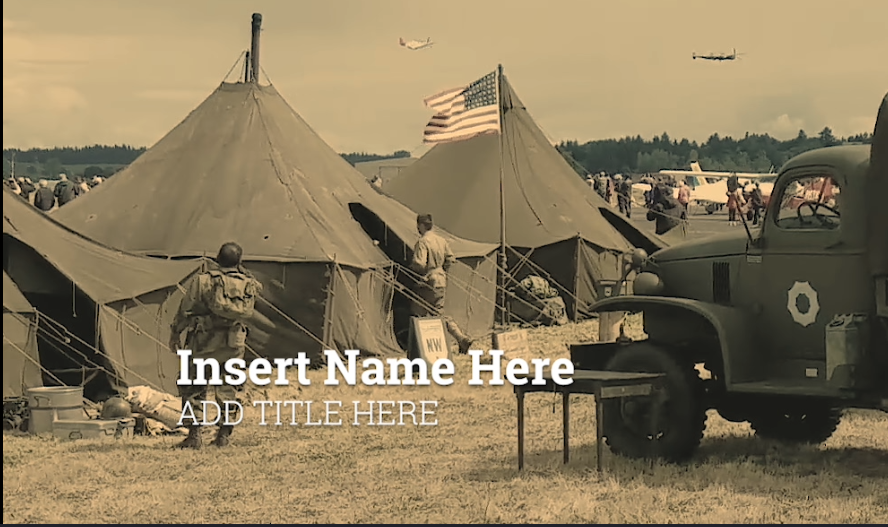
Yes ... jstrawn ... help?
Neil
Copy link to clipboard
Copied
How are you all exporting your Graphics with Responsive Design - Position (aka pinning)?
Via AME or directly from PrPro's Export Settings dialog?
If it's AME, then you have probably encountered a known AME bug which happens when you using pinning in Pro12.0 and AME Export. It's already In Development internally and we hope to have the fix available in the next release. In the interim, the workaround is to Export directly from Pr's Export Settings dialog.
Copy link to clipboard
Copied
Thanks. I was animating the text and then pinning the background to the text so the animation of the background mirrors that of the text.
Copy link to clipboard
Copied
I was working with one of the <included> lower thirds, which comes pinned to a text line.
Re-pin to video frame and AME exported it ok.
Neil
Copy link to clipboard
Copied
Thank you jstrawn , that worked. At least there's a temp solution and I can deliver a solid product to client.
Copy link to clipboard
Copied
jstrawn any idea why the text isn't encoding cleanly? It looks, like a 1/2 resolution. Everything else, including actual video looks great.

Copy link to clipboard
Copied
There is no way for me to tell without knowing exactly how you exported it. It seems like whatever codec/setting you used lost some sharpness in the text. Was your sequence interlaced?

Copy link to clipboard
Copied
Hello, I'm having a similar issues here - shape layers didn't export through AME.
However exporting straight from Premiere Pro rather than AME has fixed it. I have to make two versions for export, one 16:9 and a 1:1 version for Facebook.
The 1:1 version has more issues.
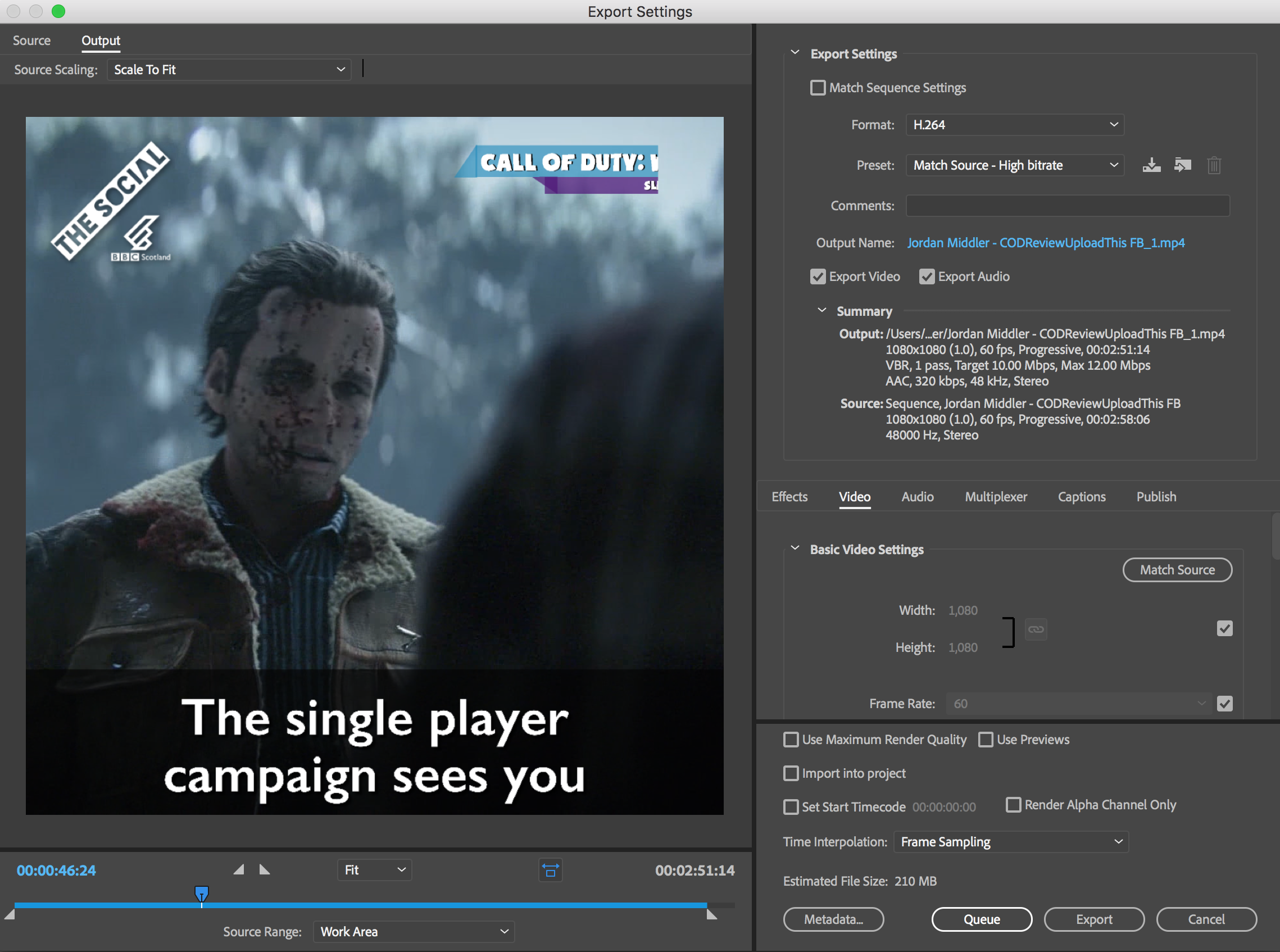
I duplicated the 16:9 sequence and changed the sequence setting to 1080x1080, this cause all the graphics layers to change and go out of proportion to each other. Even if I changed a graphic and resized it then copied within the same sequence. It would revert back to it's state when I changed the sequence settings.
When I exported it, the background shape layers are gone and the text files are all partially off screen. This is apparent in the export settings.
There are three screen shots below, one showing it in the timeline, the second is when when going to export. I can fix this partially be just repositioning the file, however it has also cause some of the graphics to get totally distorted as seen in the third picture.
Any advice on these issues?
Any advice on this issue?
Program Panel screenshot


Copy link to clipboard
Copied
When exporting through AME, try unchecking "import sequences natively" in the preferences for AME.
Neil
Copy link to clipboard
Copied
Sucess!!! Here this trick function!!!!
TKS
Copy link to clipboard
Copied
Glad to help.
Hopefully we'll get a build released at some point with a few things of the EGP and elsewhere like this sorted out.
Neil
Copy link to clipboard
Copied
If users reporting this are Exporting via AME, then they have probably encountered a known AME bug which happens when using pinning in Pro12.0 and AME Export. It's already In Development internally and we hope to have the fix available soon. In the interim, the workaround is to uncheck Import Sequences Natively from AME’s General Preferences, or Export directly from Pr.
Copy link to clipboard
Copied
The issues I raised above are exporting in Premiere. The workaround and solutions all work for a 16:9 sequence but working with 1:1 sequences is so glitchy it makes the Essential Graphics unusable. There seems to be some serious issues with it. Is there any work being done about these issues?
Square video is so prominent on social media, this is a really big issue for anyone working in this area.
Copy link to clipboard
Copied
ryanp30402802 wrote
working with 1:1 sequences is so glitchy it makes the Essential Graphics unusable. There seems to be some serious issues with it. Is there any work being done about these issues?
To answer that, I'll first to see what you mean by 'glitchy' and 'unusable' Graphics. Can you please share with me one or all of the following:
- Details steps for exactly what you did (what you created, what you exported, how you exported... etc)
- A test project (preferably a very simple case with no other media besides the Graphic needed to repro the problem)
- A screenshot or screen movie of your result
- Any other info that may help me repro the same problem myself, from any system
Thank you in advance,
-James
Copy link to clipboard
Copied
I set this out in my first post above on the 16th of November with screen shots and an example. I didn't screen shot the export results but they gave the same result as the preview window when going to export which I screenshotted.
I can set out a different example and potentially screen record it. The above example shows that when duplicating a 16:9 sequence using essential graphics and changing the settings to a 1:1 aspect ratio, it re-sizes all the shapes in a way that's completely out of proportion and causes them to appear off screen. What was really bizarre was that if I re-sized them within essential graphics or using effect controls, it would not retain the changes.
Hope that gives you an idea of the problems I've been having.
Cheers,
Ryan

-
- 1
- 2

Get ready! An upgraded Adobe Community experience is coming in January.
Learn more
 AdChoices