
Inspiring
March 18, 2021
Answered

SRT import with right-to-left language (e.g. Hebrew, Arabic) - text is reversed

  • March 18, 2021
  • 4 replies
  • 18341 views

Hi. I'm creating subtitles in Premiere Pro 2021 by importing prepared SRT files and creating a subtitle track by dragging the SRT files onto the timeline.

The SRT files contain subtitles in several languages, among them are Hebrew and Arabic, which are oriented right-to-left. 

For the left-to-right languages everything works great.

But right-to-left languages are appearing with all characters in reverse order.

"This is not good" appears as "doog ton si sihT"

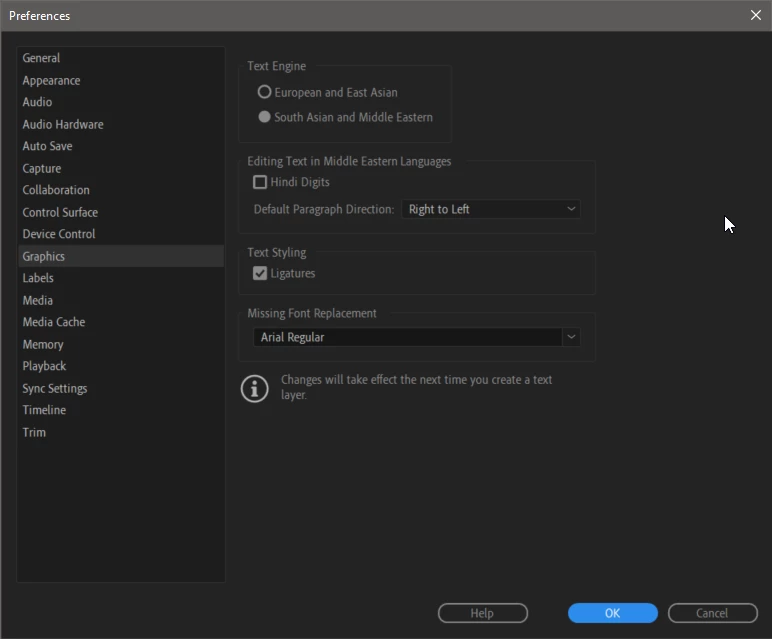
In Preferences > Graphics

I've set Text Engine to "South Asian and Middle Eastern"

I've set Default Paragraph Direction to "Right to Left"

(see image below)

I restarted Premiere and re-imported the SRT file.

These steps did not help.

Does anyone happen to know how to fix this issue?
 

There was a time when Adobe software didn't support right-to-left languages (in Photoshop, Illustrator, etc) and the result was the same as what I'm seeing now in Premiere Pro subtitles. Back when this was happening in Photoshop and Illustrator, I recall having to use 3rd party software to reverse the character order of the text, so when pasted into the applicaitons, the text actually appears correctly. This work-around is not a good option for me this time. I really need some sort of solution that isn't too time-consuming.

Any help here would be highly appreciated. Thanks!

Correct answer Kevin J. Monahan Jr.

Our engineer Trent had the correct answer:

Do you have South Asian and Middle Eastern set in your Caption Track Settings? Right-click on the Caption track header, choose Track Settings... and then under Styling Options > Text Engine, click button for South Asian and Middle Eastern. Then click Ok button.

4 replies

Participant
February 12, 2022

This had worked for me in 2021 and I never had to change anything again. However, it looks like they have removed these options in the 2022 version. Which means if I direct this Discussion Page to someone new, he/she might not be able to do it.

Luis Cameraman
Participant
October 19, 2021

Very hepful! 

Kevin J. Monahan Jr.
Community Manager
Kevin J. Monahan Jr.Community ManagerCorrect answer
Community Manager
March 18, 2021

Our engineer Trent had the correct answer:

Do you have South Asian and Middle Eastern set in your Caption Track Settings? Right-click on the Caption track header, choose Track Settings... and then under Styling Options > Text Engine, click button for South Asian and Middle Eastern. Then click Ok button.

Kevin Monahan - Sr. Community and Engagement Strategist – Adobe Pro Video and Audio
gigi75
Participant
June 3, 2021

Just lost a couple of hours fighting with this same issue.

Thanks so much for the answer! It worked like a charm

Inspiring
March 18, 2021