
SRT import with right-to-left language (e.g. Hebrew, Arabic) - text is reversed
Hi. I'm creating subtitles in Premiere Pro 2021 by importing prepared SRT files and creating a subtitle track by dragging the SRT files onto the timeline.
The SRT files contain subtitles in several languages, among them are Hebrew and Arabic, which are oriented right-to-left.
For the left-to-right languages everything works great.
But right-to-left languages are appearing with all characters in reverse order.
"This is not good" appears as "doog ton si sihT"
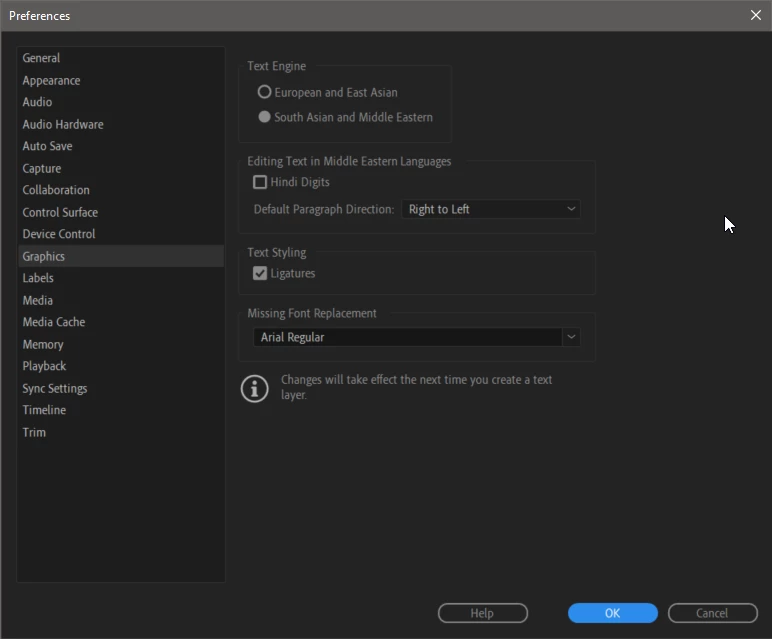
In Preferences > Graphics
I've set Text Engine to "South Asian and Middle Eastern"
I've set Default Paragraph Direction to "Right to Left"
(see image below)
I restarted Premiere and re-imported the SRT file.
These steps did not help.
Does anyone happen to know how to fix this issue?
There was a time when Adobe software didn't support right-to-left languages (in Photoshop, Illustrator, etc) and the result was the same as what I'm seeing now in Premiere Pro subtitles. Back when this was happening in Photoshop and Illustrator, I recall having to use 3rd party software to reverse the character order of the text, so when pasted into the applicaitons, the text actually appears correctly. This work-around is not a good option for me this time. I really need some sort of solution that isn't too time-consuming.
Any help here would be highly appreciated. Thanks!
 AdChoices