Nordic Made Film
Participant
May 3, 2017
Answered

Text is cut in program monitor - Premiere Pro 2017

  • May 3, 2017
  • 13 replies
  • 71171 views

Hi,

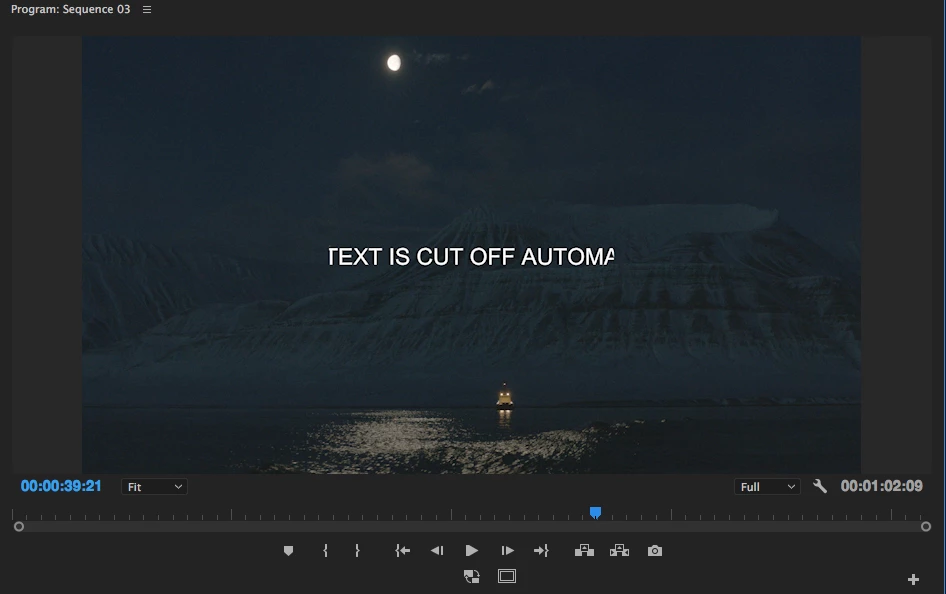
When adding text in the new Adobe Premiere Pro 2017.1  the text gets cut in the program monitor.  It is as if there is a hidden safe zone, which cuts off everything  outside of the center.  If I use the old  "legacy title" tool, there is no problem.  Any way I can remove those "safety borders"  or whatever they are?   As you can see on the added frame grab the text is cut on the left and on the right.   If I move the text further to the left or right it gets cut off even more.

Thanks,  Per

I am on a MacBook Pro 15 " mid 2015
    This topic has been closed for replies.
    Correct answer Ned Suohevets

    I've got it!

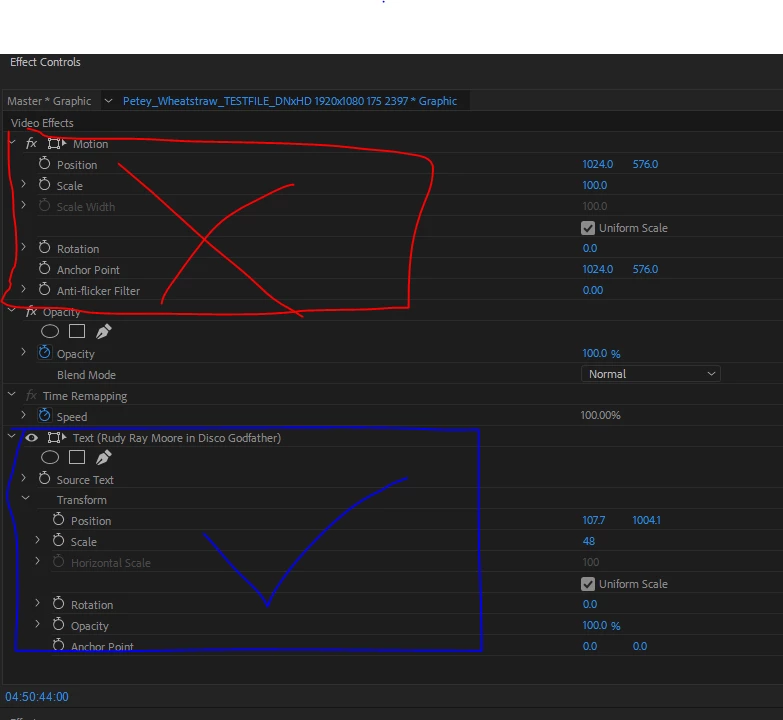
    Simple answer: don't use the Video Effects to control what the text does, but the Text Effects, which appear below in the same Effects Control panel.

    In more detail:

    When the new text clip (an 'fx' clip) is selected,

    ...the Effect Controls will show not only the default Video Effects and any effects you have added, but also...this is key...a SPECIFIC set of controls for the Text itself.  Use THOSE to control position, scale, etc. of the text and there will not be any of this cutting off at the edges nonsense. 


    Many Bothans died (or at least got really frustrated) to bring us this information.  Use it well.

    13 replies

    Participant
    June 11, 2020

    I clicked on the text properties but I cannot find the text transform controls. I can see the position controls under video and motion, but not text.

    R Neil Haugen
    Legend
    June 11, 2020

    You can access those either in the EGP panel or in the ECP.


    In the EGP, edit mode, select the line of that text in the layer stack at the top of the panel. Look down through the panel, and you will see the position and sizing controls along with everything else. This graphic highlights the alignment section, but the location tools are just above ... including location, rotation, sizing, anchor point ...

    You can select the text line in the ECP, make sure to click the drop-down arrow to the left so the whole set of options appears. Down near the bottom are the transform controls ...

    Neil


    Everyone's mileage always varies ...
    Ammar Legato
    Participant
    October 10, 2019

    Found the Solution ...
    I had the same issues with AE sometimes ...

    -From "Effect Controls"

    -Go to Text Effects.

    -Slide the X axis of the Anchor Point to LEFT (if your text is cropped from RIGHT) and vice-versa ...


    Simple trick, probably the software has a default anchor size/position which is causing this issue.

    Cheers ...

    Ned Suohevets
    Ned SuohevetsCorrect answer
    Inspiring
    July 19, 2018

    I've got it!

    Simple answer: don't use the Video Effects to control what the text does, but the Text Effects, which appear below in the same Effects Control panel.

    In more detail:

    When the new text clip (an 'fx' clip) is selected,

    ...the Effect Controls will show not only the default Video Effects and any effects you have added, but also...this is key...a SPECIFIC set of controls for the Text itself.  Use THOSE to control position, scale, etc. of the text and there will not be any of this cutting off at the edges nonsense. 


    Many Bothans died (or at least got really frustrated) to bring us this information.  Use it well.

    jstrawn
    Community Manager
    Community Manager
    July 19, 2018

    This answer, which I marked as correct, is mostly correct. One clarification though: Everything in the ECP is part of Video or Audio effects. It's the intrinsic Motion effect that you want to avoid. Motion controls the whole Graphic track item. So if you scale the Graphics down to, say 30%, and then you scale or move one or more layer(s) inside that Graphic so that it is no longer inside that Graphics bounding box (which is now just 30% of the frame size) it will get clipped. This is as designed and was necessary for performance reasons. We understand that users want/need a way to affect their whole graphic as one thing without getting clipped layers like this. So we will consider this all a + many for that request.

    Participating Frequently
    August 16, 2018

    I have been using .SRT files with the CAPTIONS control panel and I am having trouble with the invisible boundary limiting my text size and even though I anchor my text at center, when I change font size, it scales up the font to the left and not evenly to the left and right from center.

    It seems the CAPTION control panel is not developed completely yet.

    rickschettino
    Participant
    July 12, 2018

    I had the same problem. I found masks in the text settings that I deleted. Solved the problem. I'm not sure why they got added.

    Participant
    July 19, 2018

    I too had that problem today. Tried flush left right and center with no luck.

    The easiest fix I found was to draw a text box then type inside it. I made the text box larger than needed and then just tightened up the boundaries so it wasn't too large. So far it has worked well.

    Participant
    April 23, 2018

    The same thing happened to me in Adobe Premiere Pro 2018.

    damonbiv
    Inspiring
    March 13, 2018

    I've been having this problem for so long.  It was in the motion tab like you said.  thanks.

    Summersville TV
    Participant
    February 15, 2018

    Right click on Text layer and remove attributes. That worked for me.

    fredfoop
    Participant
    September 11, 2020

    THANK YOU! This worked perfectly for me

    Inspiring
    February 12, 2018

    Chanteb's solution in comment 4 worked for me -- thank you!

    Mine was at 87%, and some of you have it at 400% and other random numbers.

    I think I figured out how mine got that way. I was first resizing in the Essential Graphics tab to begin with. Then I was repositioning the graphic in regular Effect Controls and ran into the OP issue. When I went back into EG, there was my 87% scale. I can't recreate it or explain how it happened exactly, but I think the new graphics system is best monitored entirely in Essential Graphics (or Effect Controls but not both?)

    Participant
    November 28, 2017

    I'm having the same issues. I swear it was fine then after I close and open up text is cut off again. I have tried retyping, making new text boxes. Not sure what I'm doing wrong.... See for example the Word Pentra 400 ? The last 0 is cut off also the text on the right and more.

    Here are my settings for the word Pentra 400. Any help would be great!!!!

    thoms005_fsm
    Participant
    January 2, 2018

    I had the same problem. Adjust the anchor point on the Text layer in Effect Controls. Make your Program size 25% and you will see the problem.I had the same problem. Adjust the anchor point on the Text layer in Effect Controls. Make your Program size 25% and you will see the problem.

    Participant
    January 2, 2018

    What I realized is that for some reason if you look at “Scale” it's at 400%. I ended up retyping all my text and making sure it was all at 100% and then I adjusted the font size and that seemed to have solved it. I have no idea why it defaults to 400%. I hope this helps other users as well.

    Thanks!

    zachp19886316
    Participant
    November 27, 2017

    Same thing is happening to me. When text is copied and pasted from one title to another, the resulting image is clipped (see Fig. 1). There's got to be a way to create some kind of distributed user network that aggregates the time and work lost due to half-baked features that DO NOT WORK AS ADVERTISED and dynamically micro-reimburses users that have documentation (probably through subscription discount) << The future. Oh, wait, it's called a lawsuit. Editing for three hours, then opening your project first thing Monday to find your complex titles completely fubar as a result of a dysfunctional program feature is ENRAGING. But I'm good, I'll just go ahead and do these schizophrenic UI acrobatics so that my basic text can display normally, thanks.

    Figure 1.