


Participant
May 26, 2023
해결됨

Unable to remove areas of video I don't need from outside the green screen, Driving me crazy!

  • May 26, 2023
  • 1 답변
  • 1030 조회

Hi all,


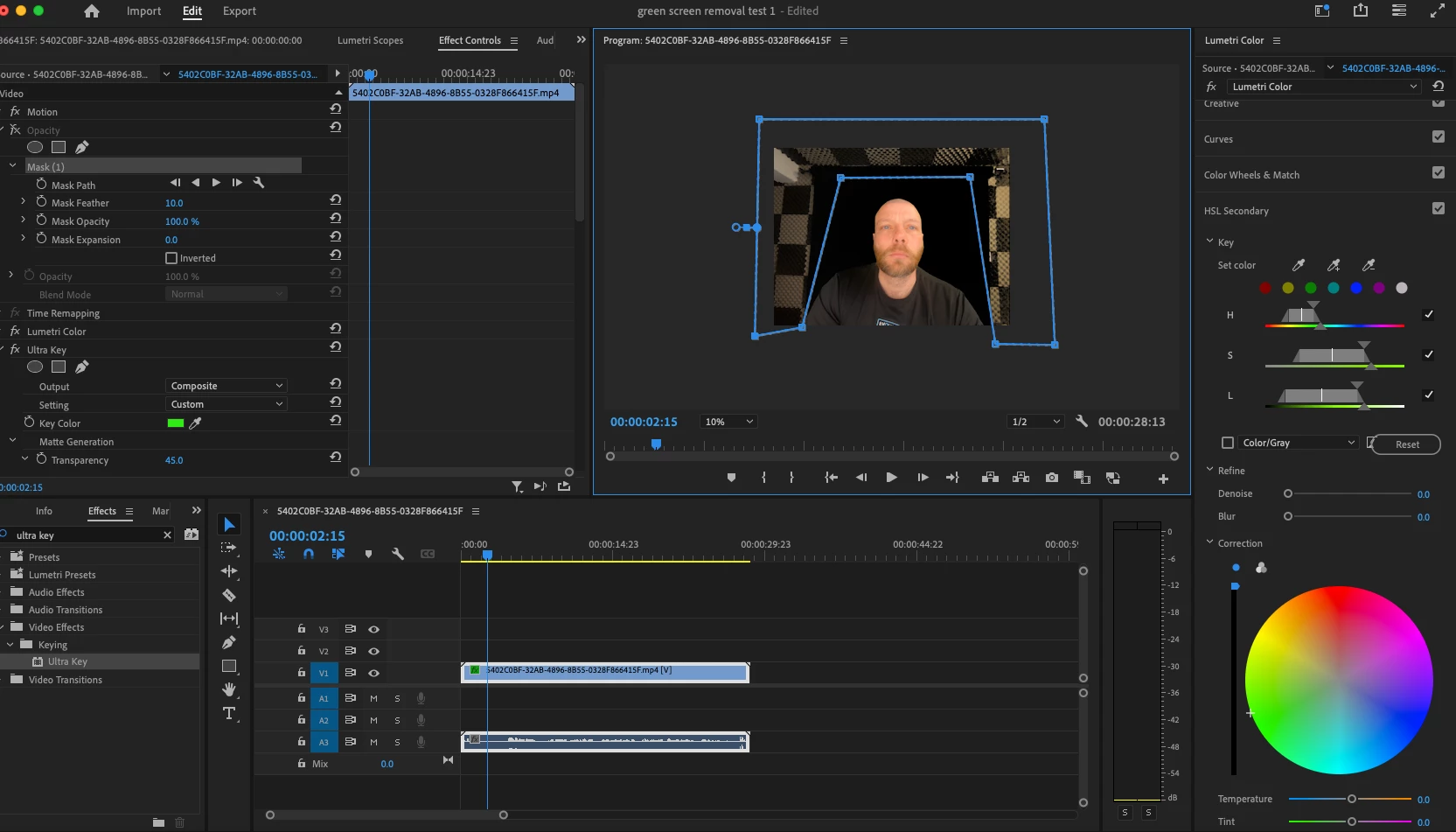
I'm completely new to adobe premier pro and I am struggling with an issue. I have applied an ultra key to my green screen so the background is now black where my green screen was. However, there are areas outside the green screen i'd like to remove without cropping the video. I have watched hours of youtube videos and the way to do this seems to be using the free drawer tool within masks, higliting the area you want to remove with the tool and then it turns black same as the area where the green screen is. The issue i'm having is when I draw the area using the free drawer tool nothing happens (please see image). Does anyone know why the area selected isn't automatically turning black like I see on so many youtube videos. Any help greatly appreciated
최고의 답변: Ann Bens

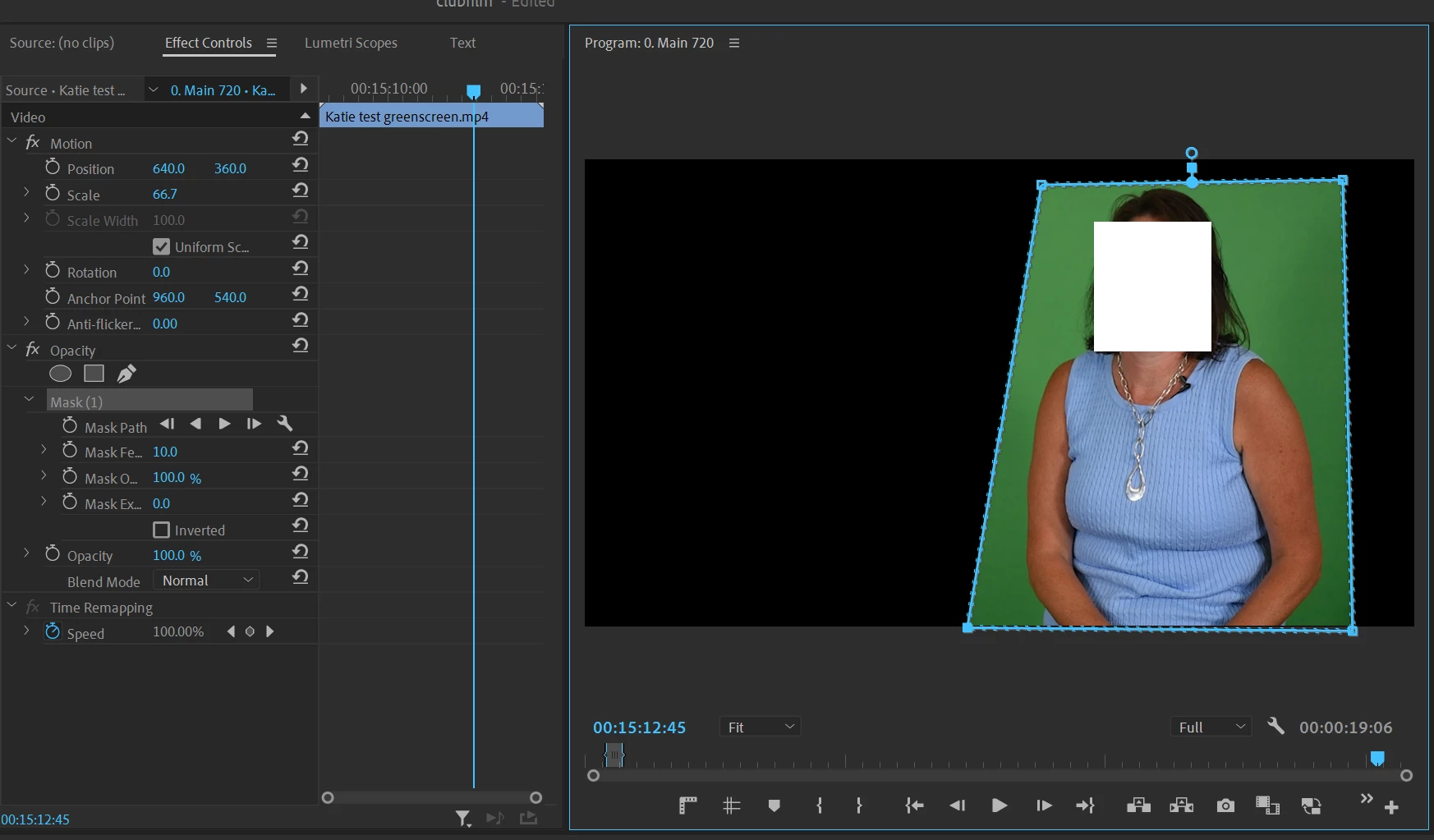
Set Opacity mask around your subject (as of now you have it turned off).

The key out the remaining area.


1 답변

Ann Bens
Community Expert
Ann BensCommunity Expert답변
Community Expert
May 26, 2023

Set Opacity mask around your subject (as of now you have it turned off).

The key out the remaining area.


angelav57002466
Participant
January 29, 2025

Thank you, Ann! I was struggling with this, too...so easy!!


Kevin J. Monahan Jr.
Community Manager
Community Manager
January 30, 2025

My issue you now is the edge between the mask and the replacement background...I tried automatically tracking it but the result was not usable. Is there some setting I'm missing that blends the edge.


The lighting of the greenscreen is a little dark in areas around the table around the elbows. You can light these areas better next time. Otherwise, it works pretty well. I used these settings.


It looks like the area around the hair could use more adjustment, but this should get you in the ballpark. The matte cleanup tools should help; lightly choke and a small bit of feathering could do.

If you have more control over the studio setup, you could play with the lighting, striving for a more evenly lit green screen. Move talent as far from the greenscreen as possible. Lighting the greenscreen separately from talent always helps, if your studio is large enough. Try to prevent fringe in the hair by smoothing it out a bit with some hairspray. Finally, capture video with a higher quality camera, iddeally shooting 10-bit intraframe video like ProRes, which can be achieved with most any DSLR with an Atomos rig. Let me know if you need any other advice. I was a lighting tech before Adobe, so I can help.


I hope this works out. My first gig in video was doing real estate video for a company in Marin County in the late 80s and early 90s. That's in the Bay Area of Northern California. Good luck!

Cheers,
Kevin


Kevin Monahan - Sr. Community and Engagement Strategist – Adobe Pro Video and Audio