


Inspiring
July 10, 2022
Answered

V 22.5--How to clear the Transcript panel in the Text window- when you don't need captions

  • July 10, 2022
  • 3 replies
  • 19567 views

My problem-

I load a clip in the timeline, I invoke the Text window, go ro the Transcript tab, and click Start Transcription. All is well, allowing for the 40% error rate i have to fix- but hey, who's complaining...


The problem is, after I select Export to Text File I'm ready to clear the Transcript window and do it all over again with a new clip. 


And I cannot find any Clear Transcript command of any kind in the immediate universe. Not under the 3-dot popup where by design it OUGHT to be, not anywhere in the immediate vacinity.


I need the transcript for pre-edits, AKA, paper cits-- not captions! Do I seriously have to generate a captions track from the transcript, clear it to clear the Text window, is that the only way? Anybody tested this?


Where is the Clear Transcript buttonWITHIN the Transcript tab???


Best, as always,

Loren
 

Correct answer Warren Heaton10841144

Speech to Text is a Sequence level feature, not a Clip level feature with a specific workflow for the purpose of creating captions.  As such, we're transcribing the Sequence when we click the "Transcribe sequence" button in the Text panel.


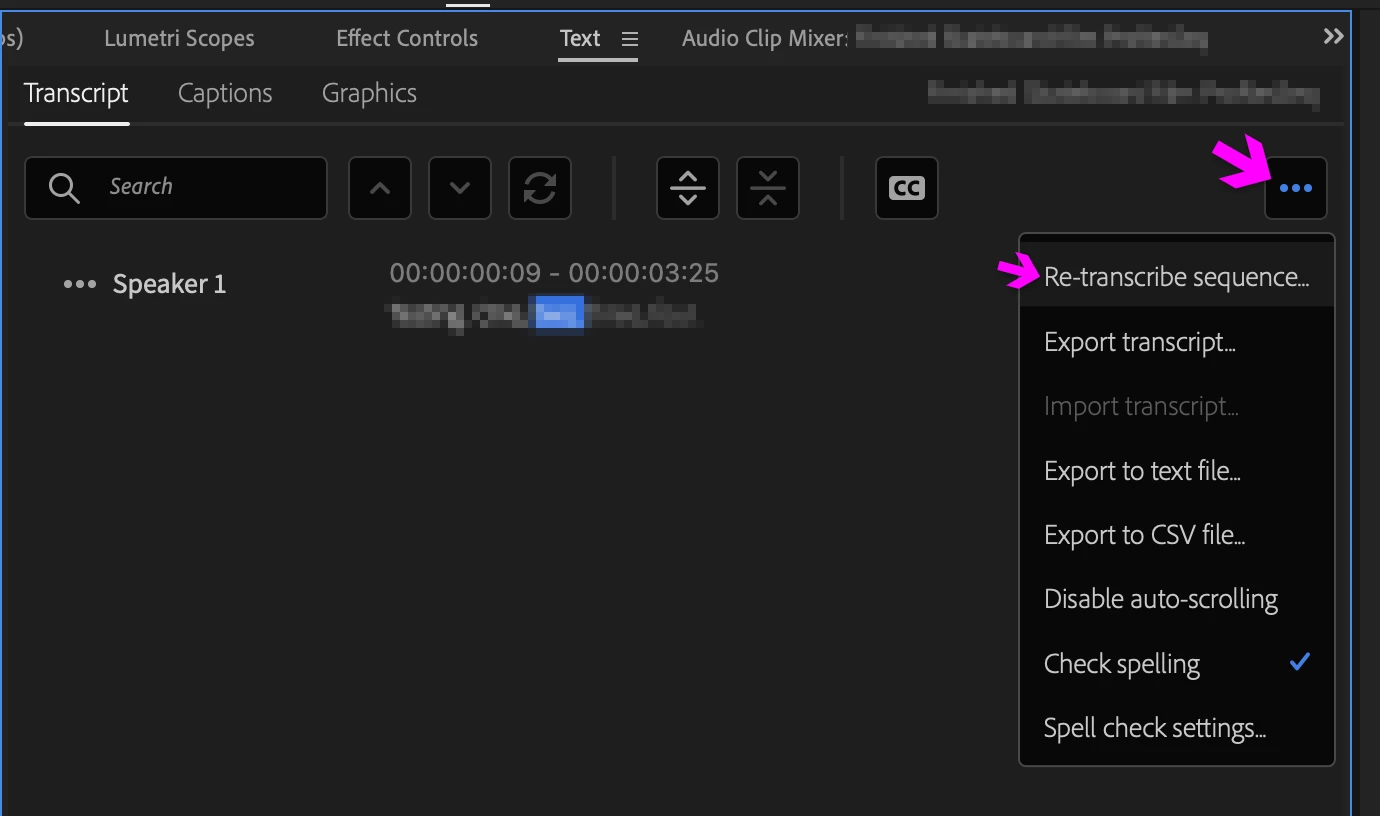
If you wanted to use this feature for transcribing source clips instead, I'd go with creating a new Sequence for each clip as the resulting transcribed Sequences can be used as source later (including the resulting Captions, if created); however, you can delete the current Clip form the Sequence, insert another Clip, and then choose "Re-transcribe Sequence" from the ellipsis pop-up menu from the Transcirpt tab.


3 replies

Inspiring
June 20, 2024

hi there, I solved a similar issue by lassowing all the dialogue clips in my timeline, right click menu and select 'Ignore Transcript'.

This cleared the current text in the text panel and allowed the option to retranscribe the sequence.

IslandFox
Participating Frequently
November 7, 2025

THIS! TY

Stan Jones
Community Expert
Community Expert
July 11, 2022

You can also use the "re-transcribe" option (under the 3 dots menu). Do NOT pick merge. It will create a new transcription.


Depending on how you are setting up your sequence, you can use in and out points. There is an "in - out" bug in 22.4 fixed in 22.5.


Stan


Inspiring
July 18, 2022

 Noted. Thank you, Stan.


Best, as always,

Loren

-Lor -
Warren Heaton10841144Community ExpertCorrect answer
Community Expert
July 10, 2022

Speech to Text is a Sequence level feature, not a Clip level feature with a specific workflow for the purpose of creating captions.  As such, we're transcribing the Sequence when we click the "Transcribe sequence" button in the Text panel.


If you wanted to use this feature for transcribing source clips instead, I'd go with creating a new Sequence for each clip as the resulting transcribed Sequences can be used as source later (including the resulting Captions, if created); however, you can delete the current Clip form the Sequence, insert another Clip, and then choose "Re-transcribe Sequence" from the ellipsis pop-up menu from the Transcirpt tab.


Inspiring
July 13, 2022
Hi, Warren-

Excellent advice, I stumbled onto “Re-Transcribe" after loading a new clip in the timeline, it replaced the existing transcript long ago exported to text file, and now you’ve validated the workaround. My focus at this point is preparing for post, not the end game of captioning. It’s odd Adobe doesn't better support transcription in and of itself, and stop cowing to the services like REV. It’s a huge timesaver- even with the chunk of polishing that’s required.

Thanks again!

Best as always,
Loren S. Miller
NeoTron Cinema Group
-Lor -