


Participant
November 9, 2021
Answered

Video Blown Out in New Version of Premiere Pro

  • November 9, 2021
  • 5 replies
  • 22454 views

I have a problem that just started with the new verison of Premiere Pro. Video (filmed on an iPhone 13 Pro) is imported, it appears fine. When moved to the timeline, it is blown out. Same issue when exporting. Here is a photo for reference. Any help on the fix?
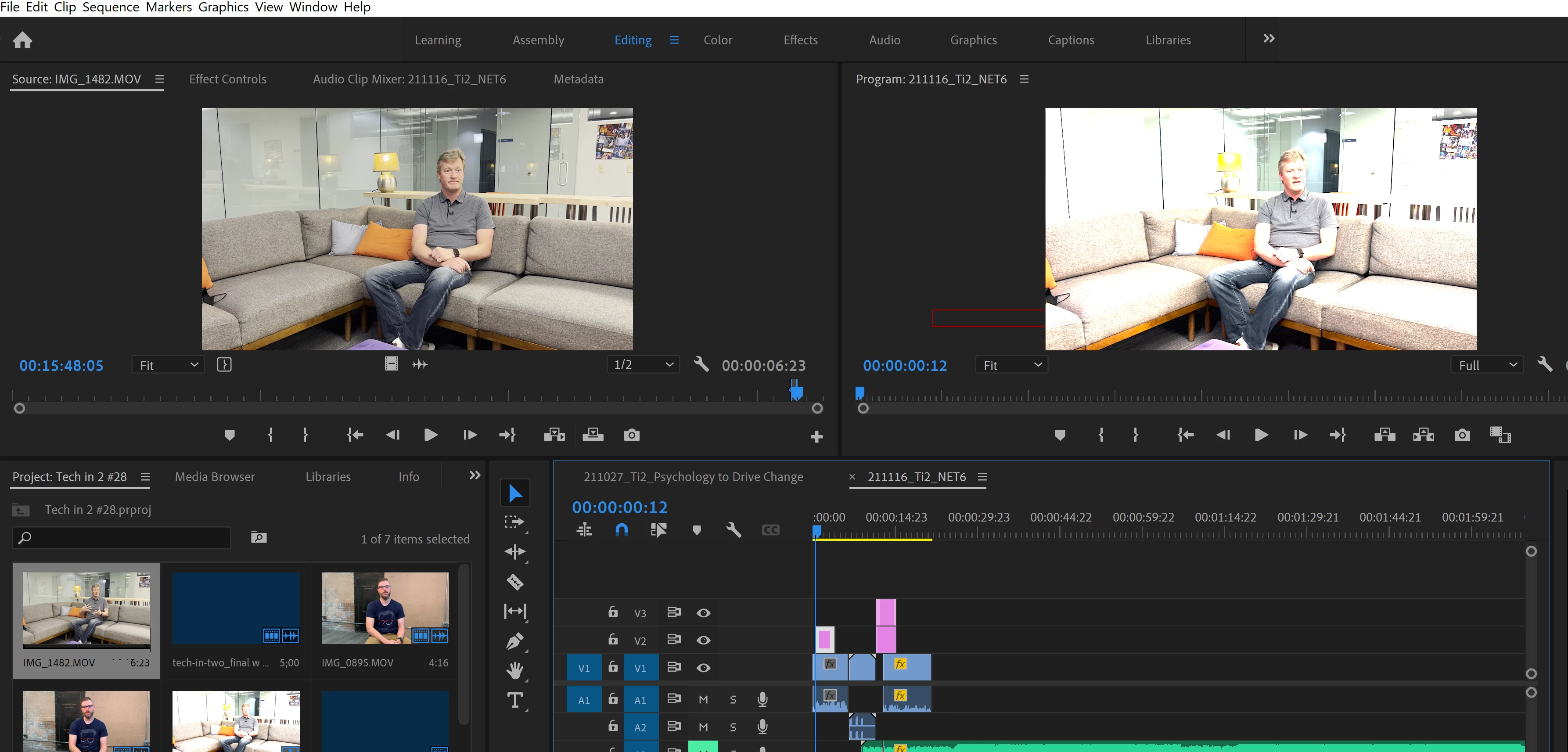
Correct answer rikkd

Right click > Modify>Interpret Footage....Color Space overide to Rec 709.

5 replies

Participant
July 15, 2023

It's JULY 15th 2023 -and I am STILL having issues importing footage. PP was working FINE the last two weeks, then suddenly -I lost an entire project file and now all of my Slog3 media is entirely blown out when modified to the correct color space. I am absolutely SICK of this app -I can't get through a single project without spending a few hours on this site trying to find answers to questions THAT I SHOULD NOT HAVE. You're really going to force me to learn Davinci aren't you???

Participant
July 16, 2023

Select the footage. Right click , click interpret footage. Change to rec 709. 

Participating Frequently
July 16, 2023

nope that will leave video still looking poor. Take it to quicktime and re-export it out and it will finally look the way it should.


Mod note: Edited for content. Refer to Adobe Community Guidelines. We have children reading here.

Participant
August 9, 2022

For me it was going to the Media Encoder > export settings > preset > H624 match source - HLG

Also this youtube was helpful: https://www.youtube.com/watch?v=zLBfRjHFwOU

Kevin-Monahan
Community Manager
Community Manager
August 9, 2022

Thanks for the feedback, Strider!


Kevin

Kevin Monahan - Sr. Community & Engagement Strategist – Pro Video and Audio
Participant
December 29, 2021

I ran into a similar problem today when I moved a clip from one sequence to another sequence where I was building a short film project. Once moved, the moved clip showed in the timeline as blown out whereas the clip in its own original standalone sequence still appeared to be perfectly exposed in the timeline. I Googled an explanation/solution and came across this thread. The problem is, I was still working on PP 2020. I decided to update to the latest version anyway in an effort to try and apply some of the pointers here. Interestingly/annoyingly, both sequence settings are at rec.709 but the original (created by right-clicking and selecting 'New Sequence from Clip') still appears lighter in the timeline than it did in the PP 2020 version but responds well to Lumetri adjustments (ie. it's rescue-able), whereas the clip moved from one sequence to another has clearly lost a load of information as it doesn't respond in the same way to the Lumetri adjustments. Any explanations/suggestions would be hugely helpful. I may be doing something wrong but I'm not doing anything different to how I've used PP for some time and have never come across this problem. Thanks in advance!

rikkdCorrect answer
Participant
January 12, 2022

Right click > Modify>Interpret Footage....Color Space overide to Rec 709.

Participant
February 26, 2022

This worked perfectly. THANK YOU SO MUCH.

Participant
November 30, 2021

I am having the same issue since I updated to the latest version of Premiere in 2021. This is ridiculous. How could such an "industry standard" piece of software get this BAD of an update??? How is Final Cut working these days? Maybe it's time to switch back. I need a stable tool that works consistently. This new updated has rendered Premiere utterly useless. PLEASE ISSUE A NEW UPDATE WITH A FIX FOR THIS!!!! 


R Neil Haugen
Legend
November 30, 2021

The 2022 Premiere Pro version has several major changes in color management, and also several default behavior changes concerning many Log, RAW, and HDR formats HLG and PQ. That's what you've run into.


They have to change the program, to give us editors more color management options. I'm not best pleased with how they're rolling out the changes, but that they must is certain. And so I and others here are trying to get users used to the new process.


I've got a full FAQ for this forum with the complete details, and yes, I think most Premiere users should read the entire thing. These are changes that will only be added to, none of them will go away.


FAQ: Premiere Pro 2022 Color Management for Log/RAW Media


Clips of many Sony, Canon, and Panasonic in log formats are now simply applied to a timeline with "full" tonal and color depth. Unless the user chooses to "limit" the clips in the bin. Select one or more clips, right-click "Modify/Interpret Footage" and you can then set the color management for those clips at the bottom of the dialog.


For most purposes for some time, we'll all mostly be working in SDR (Rec.709) sequences and projects. So the better option will typically be to override to Rec.709.


And an interesting thing I've just learned ... dropping a Log clip on an SDR timeline will get the log-looking image: grayish due to no blacks/whites and little color saturation. Drop the same clip on an HDR timeline, without any conversion, LUT, transform, or tomemapping, and you'll get an image of the full dynamic range of the original log clip and full saturation.


Which is essentially what people are getting, and yea, you're not expecting it. Interpret the footage to override to Rec.709. Then make sure the sequence settings are Rec.709. And you should be fine.


Neil

Everyone's mileage always varies ...
Participant
December 2, 2021

This honestly makes no sense, why would the source and output be completely different. Why would you edit a video and colorgrade just to export it and have everything blown out? Does Adobe expect us to just figure it out for ourselves and still pay them for the software?


So annoying and has completely ruined my workflow into now have=ing to search the internet to see if there is a fix to this mess that utterly shouldn't be here.

Averdahl
Community Expert
Community Expert
November 9, 2021
quote

When moved to the timeline, it is blown out. Same issue when exporting. Here is a photo for reference. Any help on the fix?


By @tylerp59104425


Read this: FAQ: How to fix saturated/over-exposed HLG clips i... - Adobe Support Community - 12489252

Participant
November 9, 2021

I am having the same issue! The original footage is NOT blown out. Please don't point us to how to fix overexposed footage.  The footage is fine. When it's dropped to the timeline it's like the exposure was pumped up.  At first this only happened on export  but now it's on the timeline too. 

Participant
November 9, 2021

Update:


the link above did fix the timeline issue but it does when I export the "source" window looks fine but the "output" tab and the actual exported file is blown out.