



CVR Editor Guy
Participant
October 2, 2023
질문

Video Clip Has portions of the its Audio in the Timeline Delayed

  • October 2, 2023
  • 6 답변들
  • 358 조회

Hello, I'm working on a Premiere Pro project that only has one video file imported and I notice after cutting the clips with the razor tool there's some portions where the audio doesn't sync with the video. The audio and the video are from the same .mp4 file. I went over to the original file and checked if the audio is delayed but there is no sign of delay. The first couple of cuts of the file has no audio delay but right in the middle that's where the delay occurs. I've had to seperate the video and audio and push the audio 7 frames forward into order for the audio to match the video as intended, but I don't want to go over 100 cuts just to match the audio cut with each video cut. Does anyone know if this is a Premiere Pro issue or if my computer may be the issue. Any help would be great. I've included a screenshot of my issue of where I needed to adjust the audio by 7 frames to match the video.


My details:

Computer: MacBook Pro 16-inch M1 Pro

Premiere Pro Version: 23.6
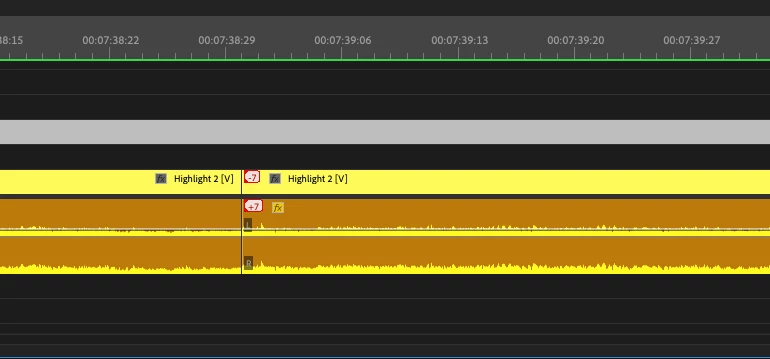
이 주제는 답변이 닫혔습니다.

6 답변

CVR Editor Guy
Participant
October 4, 2023

None of these steps helped fix the issue. I still have to move the audio by 7 frames, on every single clip from the middle to the end.

Peru Bob
Community Expert
Community Expert
October 2, 2023

If it's not a VFR issue, check the Audio Hardware Preferences. Default Audio Input should be set to No Input.

Peru Bob
Community Expert
Community Expert
October 2, 2023
Ann Bens
Community Expert
Community Expert
October 2, 2023

Not a Premiere or you PC is the issue.

You somehow unintentional de-synced the clip while editing.

Need to be careful when editing (e.g. using ALT or uncheck LINKED SELECTION) just the video or audio of a clip. Very easy de-sync the rest of the timeline.

This has nothing to do with VFR.

If it's just one clip:

Right-click on the red number and Move into Sync

If there are many might want to go back in history.


MyerPj
Community Expert
Community Expert
October 2, 2023

You're video file might be VFR - Variable Frame Rate. Editing with such produces unintended results. 


Use Shutter Encoder to convert the files (before editing/importing) to constant frame rate. Maybe try ProRes LT or even PROXY format within Shutter Encoder for easy to edit formats with 'better' files size: https://www.shutterencoder.com/en/


You can use the free MediaInfo program to get info on your clips. Get the program from the link below and using the 'Tree' view post a screenshot of your clip info: https://mediaarea.net/en/MediaInfo/Download


Community Expert
October 2, 2023

What is the source of the video?  Does it have variable frame rate?


If it is, this may help:  https://community.adobe.com/t5/premiere-pro-discussions/faq-how-to-work-with-variable-frame-rate-vfr-media-in-premiere-pro/td-p/10348229