


Participant
February 7, 2018
Answered

Video Not Showing In Program Monitor

  • February 7, 2018
  • 5 replies
  • 44624 views

Hello!

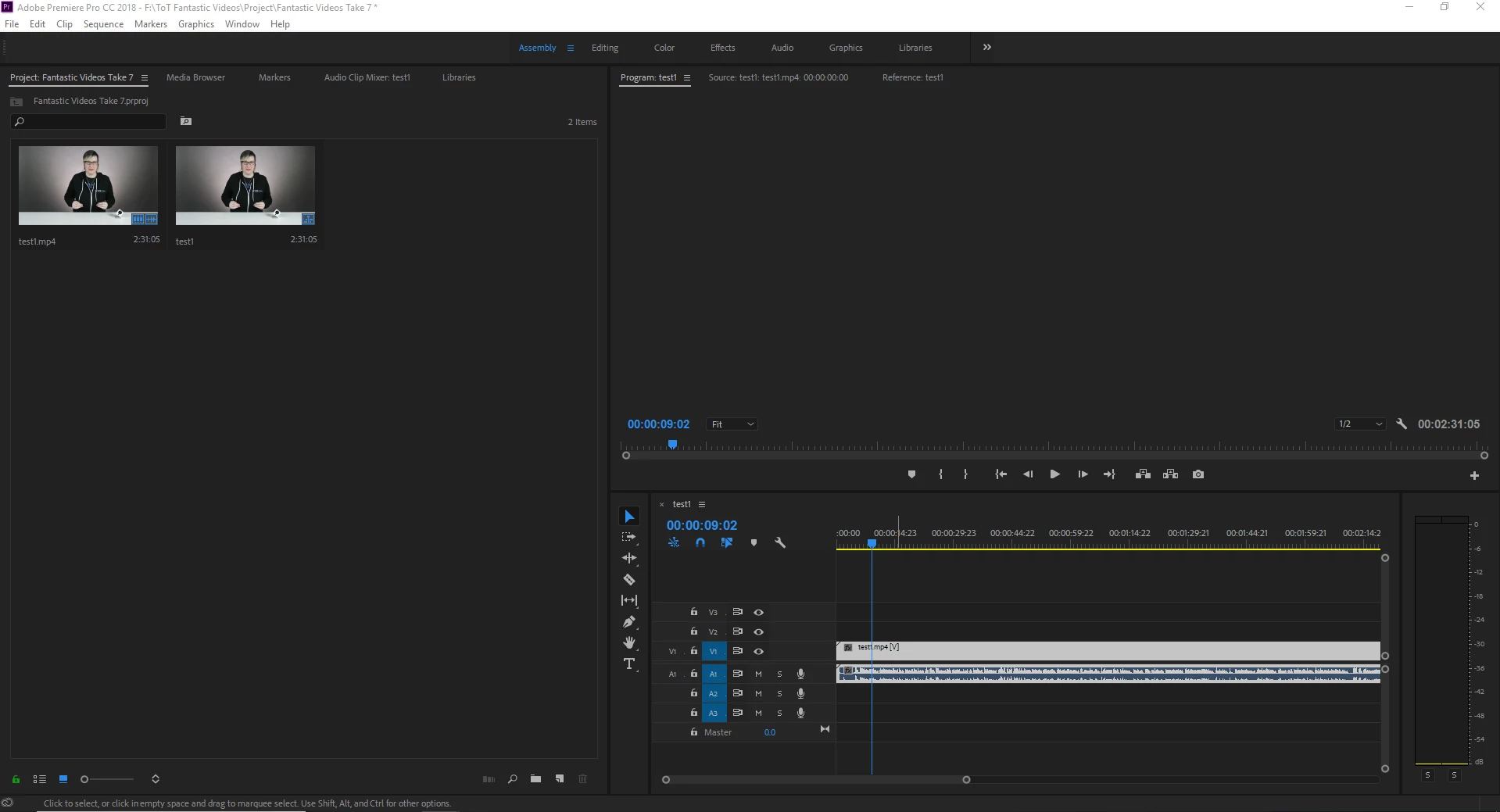
I've been searching the forums for days and have not found a fix for this issue (I may have missed the relevant thread). When I am trying to edit my videos the audio plays but I can't see the video. The program monitor usually has a black screen but occasionally switches to an off-white screen. There does not appear to be a difference other than the color of the screen in these cases that I can notice. Both the video and audio tracks are present and the audio plays without issue. The thumbnails show images from the video clips. I am using mp4 files and they play well in other media players. Unfortunately, clips that used to play in Adobe Premiere Pro CC 2018 now no longer are. I am using Windows 10 and have checked for updates manually.

Things I Have Tried:

  • Deleting and re-importing files.
  • Deleting my project and creating a new one.
  • Uninstalling Premiere Pro CC 2018 and reinstalling it.
  • Updating Flash.
  • Updating my computer.
  • Changing my renderer from GPU Acceleration to Software Only.
  • Resetting my work spaces.
  • Switching off of extended screen (I use multiple monitors).
  • Turning off accelerated Intel h.264 decoding

I have reset each setting I changed when it did not fix the problem. Any ideas?
This topic has been closed for replies.
Correct answer lilyQ

I just started having the same issue as well and cannot for the life of me get it fixed. 


I have used Premiere at a very basic level for many years.  This problem only just started for me - media disappearing from the Program panel.  After reading this thread, I looked at Edit > Preferences > Memory, and changed it from Performance to Memory.  So far so good.

5 replies

Participant
June 18, 2023

Thanks LilyQ, your method worked, except in Creative Cloud Premiere on Mac Apple Silicon Version Memory just shows how much allocated to Other apps, changing this (to 16GB from 12 GB) fixed this. NOt sure if the amount matters just the change, maybe.

Known Participant
June 26, 2018

I have been trying to understand how to fix this but nothing seems working. I have a white screen and the program monitor and source monitor don't work

i7-2630QM 2.00GHz

16GB DDR3

NVIDIA GeForce GT555M

Acer Aspire 8951G-9824

Inspiring
June 26, 2018

The white screen is contained within the monitor(s)?

Click on the wrench icon at the lower right of the monitor and from the drop down menu make sure Composite Video is selected.

MtD

Participant
August 16, 2021

can you tell me how to do this as I am having the same issue


I just started having the same issue as well and cannot for the life of me get it fixed. 

Participant
May 9, 2018

I am having the same issue.

The video files, .mp4s, are importing without a problem.

There is no playback issue on the timeline (it acts as if everything is fine).

There are no audio problems.

I restarted my computer but that did not solve the issue.


I am waiting for a call back from support staff.

Participant
May 9, 2018

UPDATE:

It turns out that the video card on my laptop is not compatible.

Getting it replaced!

GreginSJ
Participant
February 15, 2018

I'm having the same problem.  Did you ever figure it out?

Inspiring
March 12, 2018

I had this issue as well, and went through some of the tried fixes that drcros did also without desired result. Getting ready to run the CC Cleaner app I was interested to see that several old versions of programs still showed up there although I had deleted them previously, and they no longer showed up in my apps folder.

I deleted PrPro, Cloud and Media Encoder via the cleaner app. Reinstalled same. Looked good at first but the moment in viewed a video file that had previously had a Lumetri LUT applied (which LUT was not longer there because I had deleted it along with the program) I could see that file in all its grey glory. The moment I applied the LUT - poof! - black Program Monitor screen again.

Calling Adobe. Will report back.

Inspiring
March 12, 2018

Just had a lengthy online chat with Adobe representative Pawan, who was nice but blames the issue on my GH5 400mbps original files. I am told that no other camera has this problem. Of interest, I was told that the GH5 codec was included in the Oct2017 release of PPro, that the problem(s) were solved.

Please respond here with the camera and codec you are experiencing this problem with.

R Neil Haugen
Legend
February 7, 2018

At this point, I would suggest using the Adobe CC Cleaner tool. The instructions are kind of confusing and I think wrong in one thing, but it's the only way to really get all of a CC app uninstalled and removed such that a re-install won't find and use that bit. And some of the bits the Adobe apps put outside the Program folder can be the things that cause some of the weird stuff. And it's good to copy your preferences folder to another location. This is the info on what's in preferences and how to find those folders:

User Preferences Location/Setting/Use: https://helpx.adobe.com/premiere-pro/using/preferences.html

When you download & install the CC Cleaner Tool, the instructions say to uninstall via the CC Desktop app then run the cleaner. Most of the time when I've done that, and others I know, then run the tool ... it says it can't find the app to uninstall. So ignore that instruction.

Run the app, and it comes up in an old DOS style mini-window with y/n or number responses the only controls. After the first screen or to, it says something about Remove at the top and lists any non-CC apps and then all CC apps under one heading. It looks like it remove everything ... not so. Select the 2018 CC apps thing, then of the 2018 CC apps, it will ask which one you want to remove. You type a number, hit enter, then it asks you if you really want to remove that one, type a y, and it goes to work.

When done, reboot the computer, and from the CC Desktop app, download a fresh copy of PrPro and install. Let's see if that fixes this.

Neil

Adobe CC Cleaner Tool

https://helpx.adobe.com/creative-suite/kb/cs5-cleaner-tool-installation-problems.html

Everyone's mileage always varies ...
drcrosAuthor
Participant
February 7, 2018

Thank you for the time and suggestion, Neil! This didn't end up fixing the problem but I'm glad to know how to use Adobe's CC Cleaner tool.

Adobe Premiere Pro is up and running after killing every Adobe process that I could find and Windows surprising me with an update. Not sure what fixed it out of this but glad it's running again!

R Neil Haugen
Legend
February 7, 2018

Just glad you're running.

Neil

Everyone's mileage always varies ...