


Rodrigo Suarez
Participating Frequently
December 21, 2023
Question

Video Transition missing Error (no third party transitons)

  • December 21, 2023
  • 2 replies
  • 1738 views

Hi everyone, 

I am getting this error when I open all my projects that have transitions.
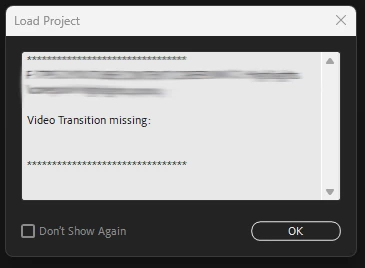
 

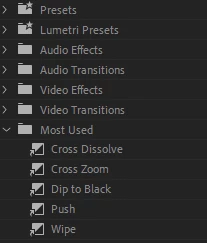
These are the only transitions I use (no third-party transitions). 
 

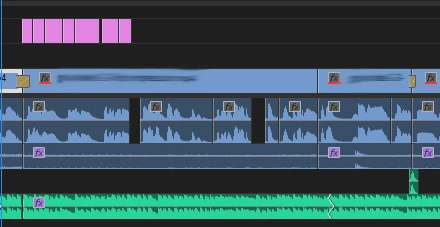
I can still see the transition on the project timeline, even though it's not reproduced on preview or when the project is exported.  

- Windows 11

- Premiere Pro v24.1
 

When I first place the transition, everything works fine. After saving and reopening the project, the error comes up and I have to delete and place all transitions again. 


If I place the transitions and export the project without closing the project, the exported file will reproduce the transitions perfectly. 


Would be thankful for any help on how to fix this problem/bug. 

This topic has been closed for replies.

2 replies

Ann Bens
Community Expert
December 21, 2023

If you zoom in on the transition you will see which one is used.

Rodrigo Suarez
Participating Frequently
December 21, 2023

Sorry, I don't understand how this will solve the problem, but here's a print screen of a zoomed-in transition. 


Rodrigo Suarez
Participating Frequently
December 21, 2023

You will need to replace them manually.


I do, but when I save and open the project again, the same thing happens. 

Peru Bob
Community Expert
December 21, 2023

Delete the Media Cache and Media Cache files:
https://community.adobe.com/t5/premiere-pro/faq-how-to-clear-your-media-cache-in-30-seconds-in-premiere-pro-2020/m-p/11017257/thread-id/260446?page=1

If that doesn't work, try resetting the preferences:
https://community.adobe.com/t5/premiere-pro/faq-how-to-reset-trash-preferences-in-premiere-pro/td-p/8236158?page=1

If that doesn't work, try resetting the Workspaces:
Reset a workspace
Reset the current workspace to return to its original, saved layout of panels.
1. Do one of the following:
• Click the Workspace menu icon and select Reset to Saved Layout.
• Choose Window > Workspace > Reset to Saved Layout.
from here:
https://helpx.adobe.com/premiere-pro/using/workspaces.html

If that doesn't work, try Preferences > Audio Hardware and set Input to None.

If that doesn’t work, try updating or rolling back your graphics driver directly from the video card manufacturer’s site. If NVIDIA, do a clean installation of the latest Studio Driver (NOT the Game Driver).

If that doesn't work, try creating a new project and import the old one into it.

Rodrigo Suarez
Participating Frequently
December 21, 2023

I tried all 6 suggestions and nothing worked. Honestly, feels like generic solutions for when a bug/problem can't be identified.