Inspiring
February 26, 2018
Answered

Why is text getting "cut off" in Essential Graphics, no matter what I do?

  • February 26, 2018
  • 3 replies
  • 104527 views

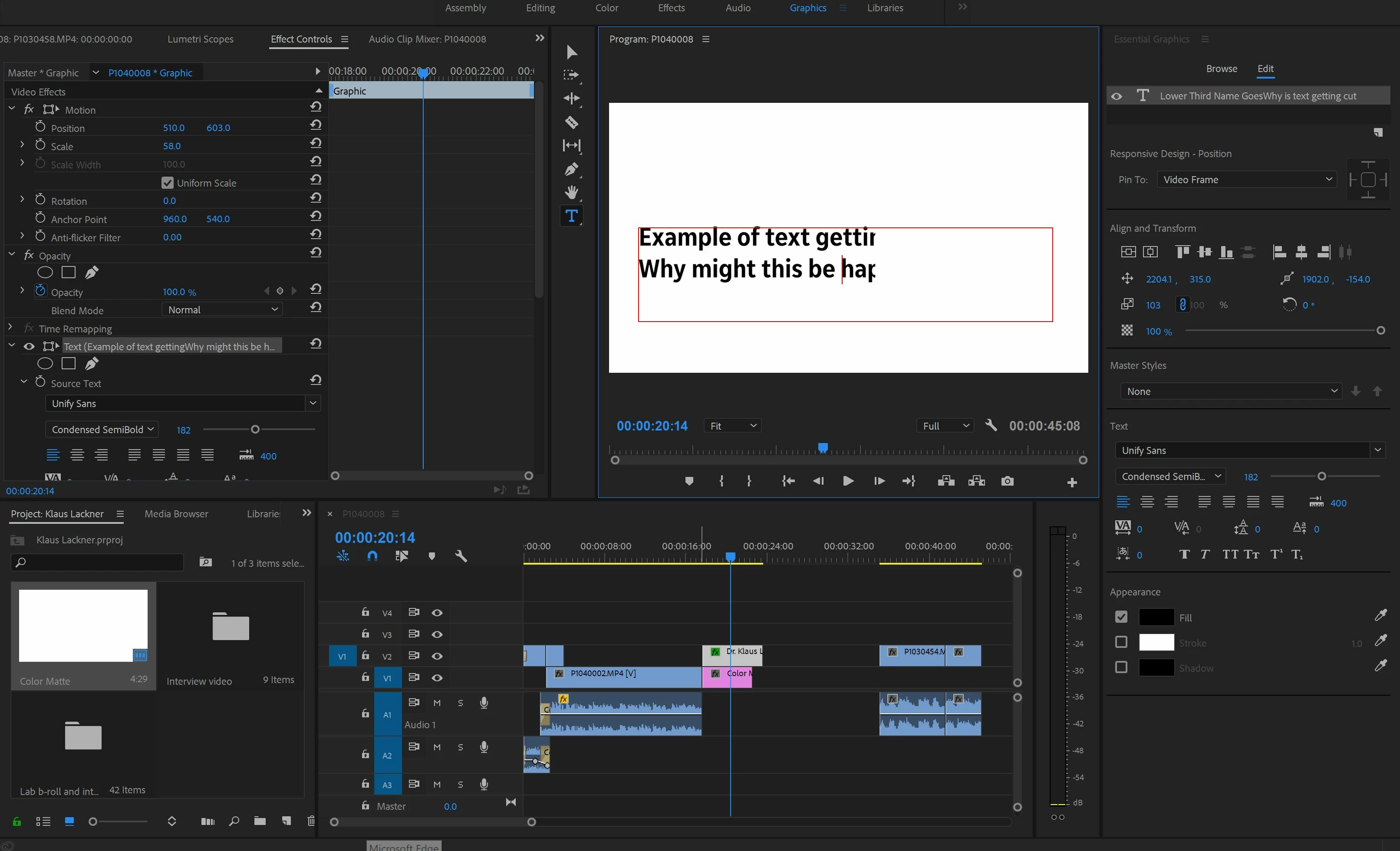
I've found that any time I create a text box in the essential graphics panel, my text keeps getting cutting off, as you can see here. I don't have any masks involved or anything like that, and I'm assuming this is a glitch rather than a feature. This has happened across multiple projects multiple times. Anyone have a solution/workaround for this? Is Adobe aware of the issue? This is really making my job difficult.

For reference, I'm running the lastest version of Premiere Pro CC on the lastest version of Windows 10 (1709). My hardware is a 2017 Surface Book 2, and I'm running on an i7-8650U, 16GB RAM, and a NVidia GTX 1060, so this isn't a power issue.

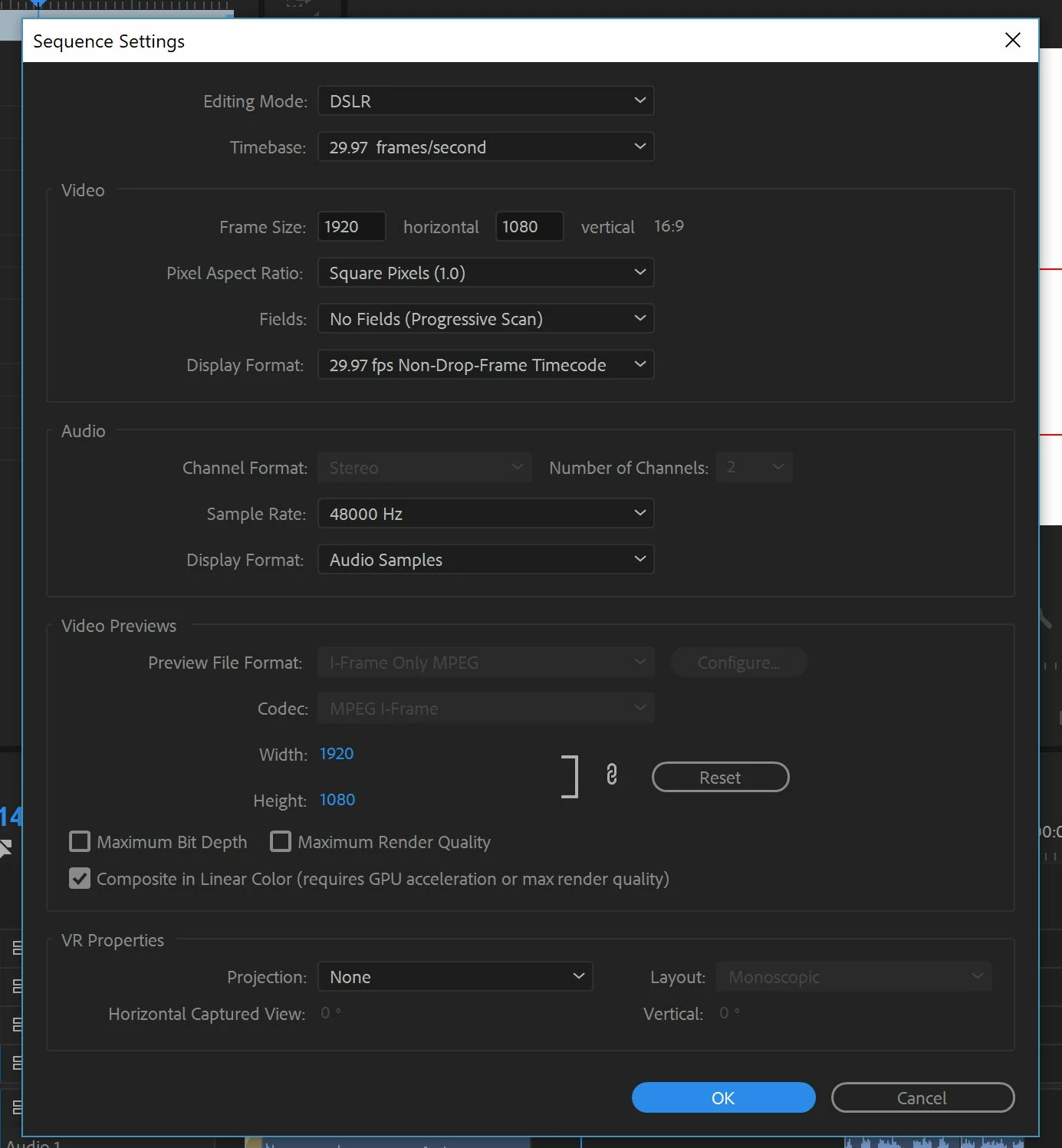
Here are my sequence settings as well--although this is happening across multiple sequence types. Thanks in advance for your help.

Correct answer ndserpa

I think the problem is coming in modifying the graphic that has the issue.

You were aware, I take it, that the anchor positioning of that text box you showed in your post was actually way off to the right, and animated into the screen somehow?

Neil


Interesting! It looks like I solved the issue. The anchor points were part of the issue, but apparently not the only component. Here's how I fixed it:

--Dragged the questionable graphic to the timeline and expanded the text and shape so both were getting cut off (apparently it was affecting other elements in the graphic as well.

--Reset all anchor points to their default position of 960,540 (the master anchor point was there, but the text and box surrounding it were not.) This ended up pushing bot the text and the shape off screen, so I edited the position parameters on each individual element to bring them back to where I want them. They were still getting cut off on the right side.

--I noticed that everything was scaled oddly--the graphic itself was scaled to 50, but individual elements were scaled to 200! So I reset everything to 100. This made everything super big and moved the elements partially offscreen again.

--I then reset the default positions at a graphic-wide level and an element level, to 960/540, which put everything in the top left corner. The text was hanging off screen.

--When I attempted to bring down the whole graphic at once with the master graphic, the text was still being cut off, so instead of adjusting position at a graphic level, I undid my last action and positioned elements where I wanted them at an element level.

Lo and behold! Everything was where it belonged! (I swear, I wasn't inebriated when I designed the graphic...)

TLDR/TIL: The issue was that I had moved the "frame" in which graphics are visible--which, by default, is apparently only as big as the frame of the background--and was attempting to move individual elements like text and shapes outside of that frame, which led to portions of each element getting cut off. This could have been avoided if I had adjusted the position of individual elements first, instead of accidentally adjusting what looked like all the elements at once, but was actually the frame.

Thanks for your help, apologies for my ignorance.

3 replies

Participant
July 26, 2022

I didn't have time to read through all these paragraphs for the answer so I found it on YouTube, all you have to do is go to the effect controls, then under {video} motion, drag that to the edge of where you are closest to where it begins to cut off then go to the top {graphics} motion and move it around until it doesn't cut off. Done. 


Basically, the lower motion control is for the whole frame which you want to set to a large area or the whole frame to avoid this issue. The top <motion> control is for the visible text or graphics.

Participant
August 9, 2022

This helped me, thank you! 

Inspiring
December 28, 2020

When modifying text (scale-rotation etc) you have to use the transform that is a subsection of the "text" in the effects control panel. If you use the standard "video" section to accomplish transforms, things get clipped.

Participant
January 28, 2021

an easy solution I found, is to change the font! 

Participant
February 9, 2022

The solution I found was to delete everything under that potion of the timeline and start over.

R Neil Haugen
Legend
February 26, 2018

Well, what I can see is you've got a graphic over a color matte, with animation on the graphic. Not particularly anything there that should be causing the cut-off ... but curious. If you try this over a general video clip rather than matte, with a new line, what happens?

What happens if rather than defining a box, you just click a spot, start typing, and use the Enter key to create new lines? And use the text controls for center, alignment & such to set positions?

Neil

Everyone's mileage always varies ...
ndserpaAuthor
Inspiring
February 26, 2018

As far as I'm aware, it doesn't matter what the background is. I've tried layering it it over a video, still, or no background, and it would still get cut off.

At least in this instance, deleting this text box and clicking on the screen and starting to type did nothing to fix the issue. The alignment buttons, when clicked, move the entire text box, and sometimes will reveal the missing text. For example, if I were to select the text box and click left-align, the whole text box would shift to left so that part of it is off-screen, and the text that is currently invisible would become visible, because it is on the left portion of the screen. It's almost like there's an invisible, uneditable mask that starts in the middle of the screen.

I should note that there have been times I haven't run into this issue, and everything works properly. I just created a new graphic that does not have the issue. I thought that it might have something to do with Creative Cloud for a while, because I noticed the issue happening when I attempted to use a graphic I had created, exported to my essential graphics library, and re-downloaded, but I just attempted to replicate the issue by repeating those steps, and everything was fine.

So, it could just be an issue with certain graphics I've created, perhaps. The example I posted earlier was me modifying a graphic that has the issue, and not an entirely new graphic. But I'm still not sure what's causing the issue in this instance. Is it a limitation with Premiere?

R Neil Haugen
Legend
February 26, 2018

I think the problem is coming in modifying the graphic that has the issue.

You were aware, I take it, that the anchor positioning of that text box you showed in your post was actually way off to the right, and animated into the screen somehow?

Neil

Everyone's mileage always varies ...