

Evangelist ittsui
Community Expert
Community Expert
May 25, 2024
Open for Voting

Clip status indicators using Fx badges should be reinstated.

  • May 25, 2024
  • 35 replies
  • 7463 views

In Premiere Pro ver24.4.1, the specifications of Fx badges for clips on the timeline have changed.
I think it's a very stylish visual.
however···
In previous versions, the color specifications for Fx badges were as follows:

No changes → Gray
Changes due to motion have been added → Yellow
Changes due to effects have been added → Purple
Changes due to motion and effects have been added → Green
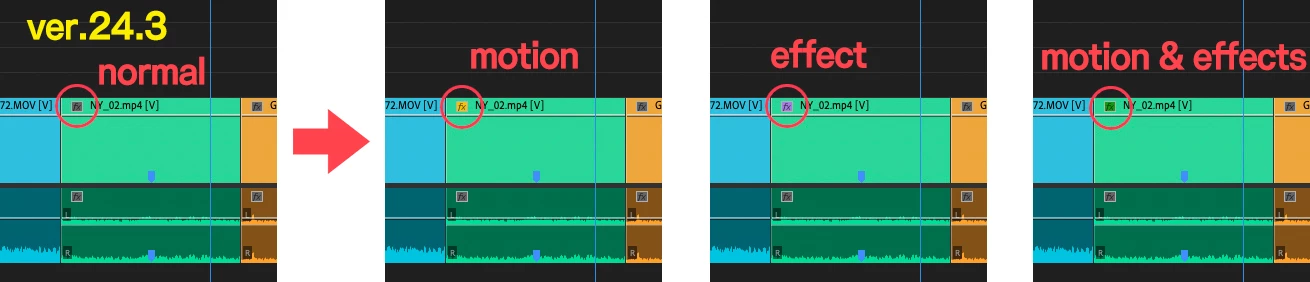
I was able to see at a glance what adjustments had been made to the clip.
In ver24.4.1, only two types can be determined: "Changes" and "No changes."
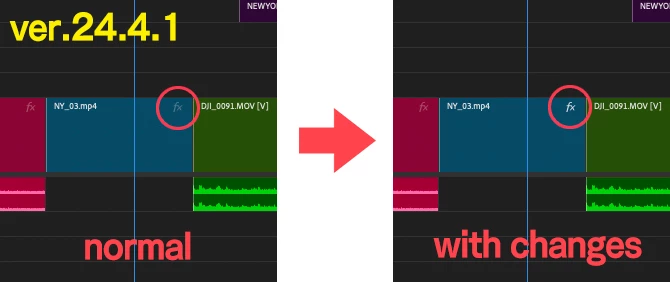
Change the color of your Fx badge to increase your work efficiency.
I have had the experience of being helped by this specification many times, so I would like you to return to the original specification.
 
 
クリップのFxバッジによる状態表示を復活させるべきだ。

Premiere Pro ver24.4.1でタイムライン上にあるクリップのFxバッジの仕様が変更になりました。
とてもおしゃれなビジュアルだと思います。
しかしながら・・・
以前のバージョンでは、Fxバッジのカラー仕様は以下の通りでした。
 
何も変更がない→グレー
モーションによる変更が加わっている→黄色
エフェクトによる変更が加わっている→紫色
モーションとエフェクトによる変更が加わっている→緑色
 
クリップにどんな調整がされているかがひと目で認識できていました。
ver24.4.1では「変更がある・変更がない」の2種類しか判別しかできなくなっている。
 
Fxバッジの色が変わることで、作業上の効率が上がります。
この仕様に何度も助けられた経験があるので是非元の仕様に戻していただきたいです。
 

35 replies

whamalamaboom
Inspiring
August 25, 2025

I'm adding to this. I have projects where I do voice work and the genre means it's very common to have one voice that's clear and another that has effects applied. I used the colors to quickly glance at the timeline to jump around to that specific character's dialogue and quickly adjust effects knowing to click on all of the clips of that color to apply changes. 


Now, I have no idea what clips are what and literally have to scroll through and listen to everything repeatedly to make sure I'm picking the right piece of dialogue to update. I used the color coding as quick reference for a lot of things, but this is the thing that it saves me the most time on. I had to resort to using timeline markers, which is obnoxious given how many there are and the fact that I used markers for other things that they're now useless for because there's so many.


This change is a nightmare for those projects and honestly makes me not want to use Premiere if it's going to add hours to my workflow because they removed something useful. I installed Davinci last year because Premiere keeps making changes that make things take longer while never adding things I ask for unless I missed it (like a shortcut key to move a clip to the playhead location). I never got around to using Davinci but maybe I need to start.

Known Participant
February 19, 2025

The new FX badge is still annoying - especially clicking on it, inadvertently, when timeline is small invokes effects panel (so timeline loses focus, zoom keys stop working etc).


BUT 


Listify is a great little extension from editing tools.io - including list of effects in timeline. It's the 'edit index' that PP should have natively


lehestro
Inspiring
February 18, 2025

Can't agree with this more, and thanks for cleanly illlustrating the problem. Hopefully the devs will take notice. 


It just makes no sense to me to create an update with less functionality than the one before. Functionality and workflow optimization should be the guiding light. Everything is just... extra.


Not that I mind a nice GUI 🙂 but I'd take a fugly app that sings when I use it over a pretty one that chokes. 

Ann Bens
Community Expert
Community Expert
December 21, 2024

It's a big pain in the butt.

Don't use the new FX badge, have it turned off, as it's completely useless to me.

Community Expert
December 20, 2024

Completely agree, I hate these workarounds but that's what we have for now.

Another tip: if you would like to know which effects are applied to a bunch of clips, select them and choose Edit > Remove Attributes, you will have a list of applied effects to these clips.

Inspiring
December 20, 2024

Thanks, but as this was just an example I only mentioned 1 effect. I would have to search all of them one by one and it is still time comsuming. 

Community Expert
December 20, 2024

@Hardi5CAE , yes, changing badges colors affected us hugely. Anyway, in your case you may find the "Find in Timeline" function to be useful: press ctrl+f, set the search to "Effects", type warp stabilizer, and press find, the CTI will jump directly to the next clip where warp stabilizer is applied. You can also press "Find All" and all the clips with warp stabilizer will be selected.

Inspiring
December 19, 2024

FX badges used to have colors for different adjustments added to clip, so I was able see when I had used an effect on a clip. But now I have no idea, if the clip has anyting othes than motion on it. 

Example: I have a 42 min HD timeline. The clips are filmed in 4K and have been fit to frame, so they all have motion active and therefore the fx badge is white. Now some of the clips have warp stabilizer on them, but that does not transfer to xml when I send the sequence to colorist and they send it back to me. I used to be able to see which clips have effects I need to copy on to the graded sequence,, but nowI have to go throug all the clips one by one to see where the effect has been used. 

It makes the workwlof much slower. 

Participant
December 19, 2024

Is this adjusted in 2025? Updated to the final version of 2024... no fun!

Participant
December 13, 2024

Reiterating the desire for color-coded FX badges to be brought back into Premiere, please. They are essential to my workflow to be able to identify which clips do/don't have effects on them.