


- Home
- Premiere Pro
- Discussions
- All audio clips on Timeline One are stuck and cann...
- All audio clips on Timeline One are stuck and cann...
All audio clips on Timeline One are stuck and cannot be moved, lengthened or shortened

Copy link to clipboard
Copied
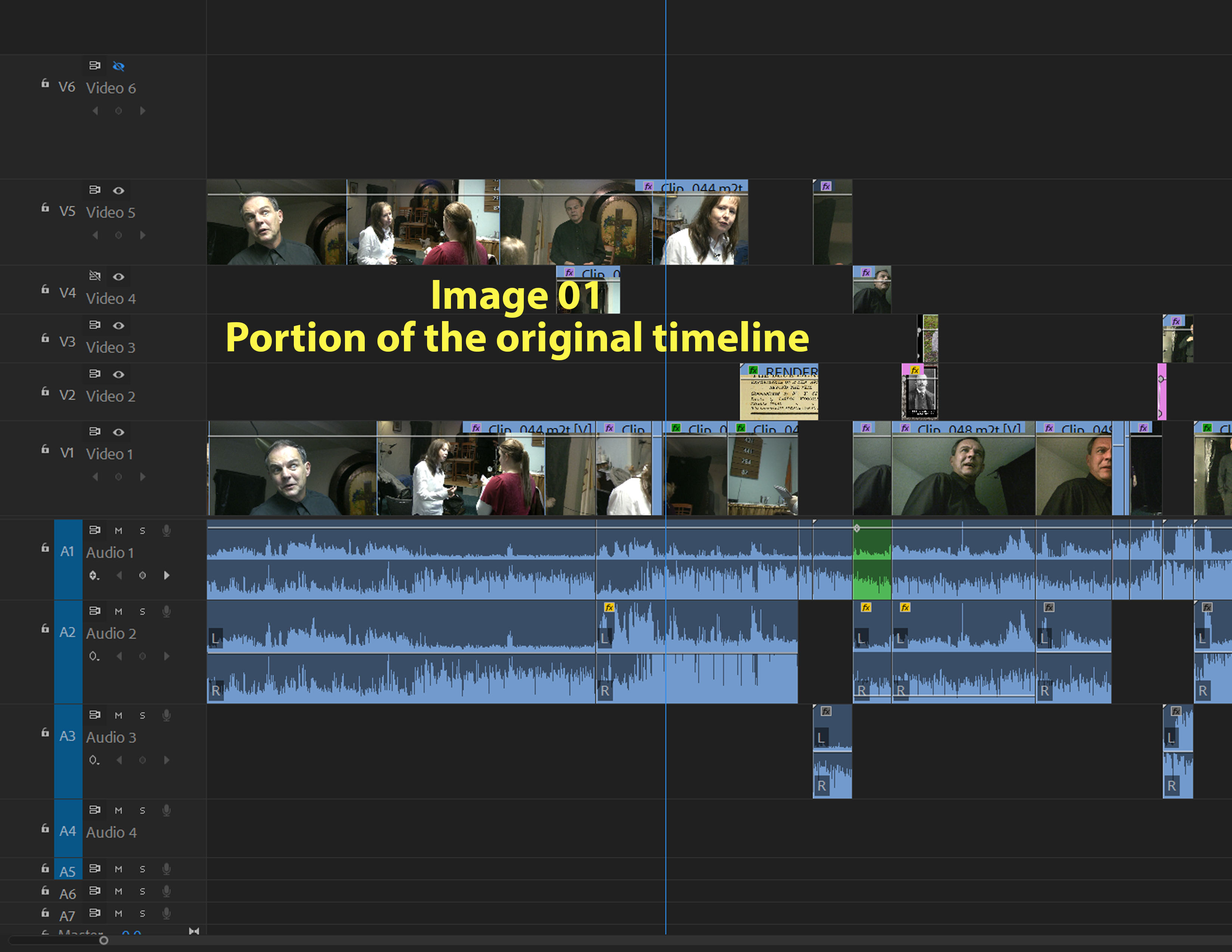
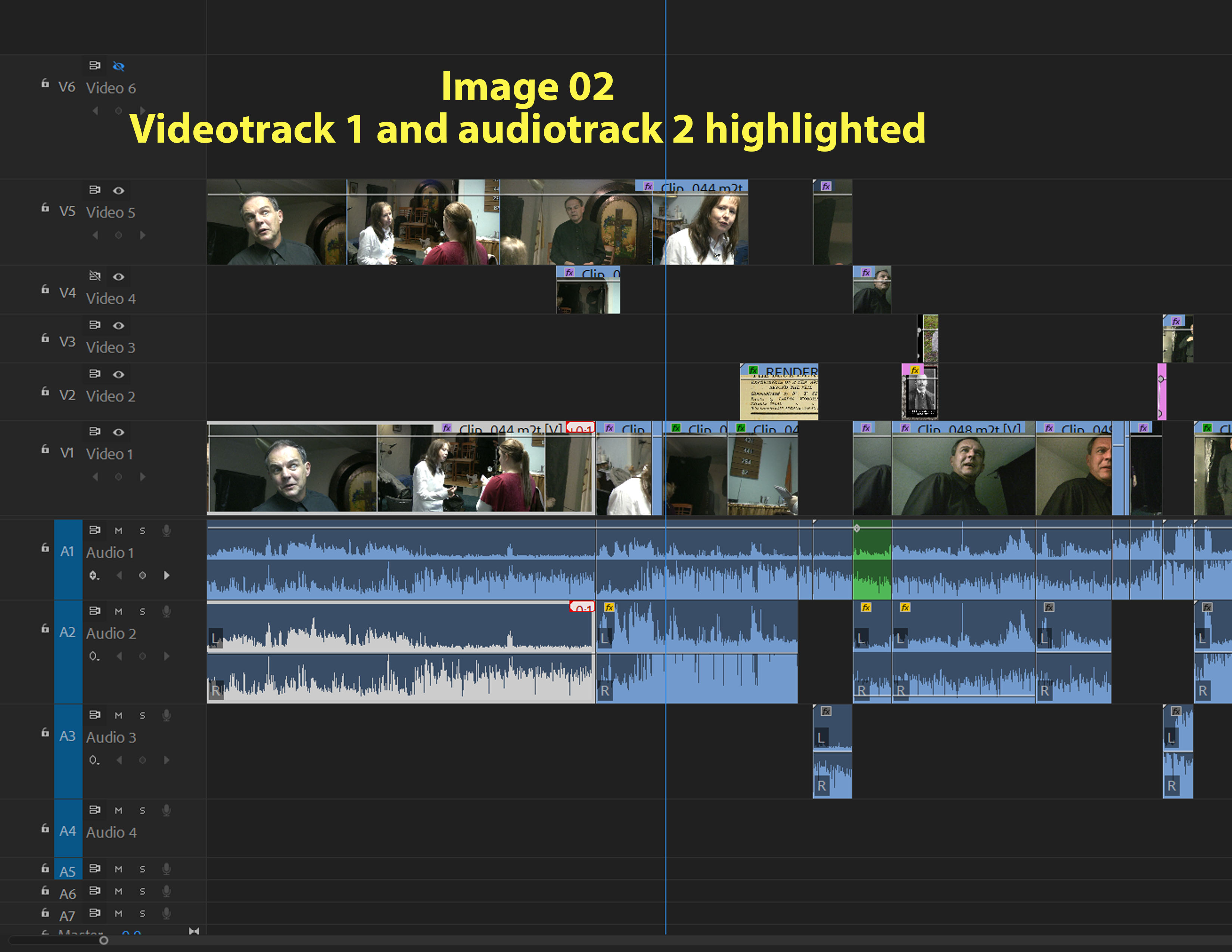
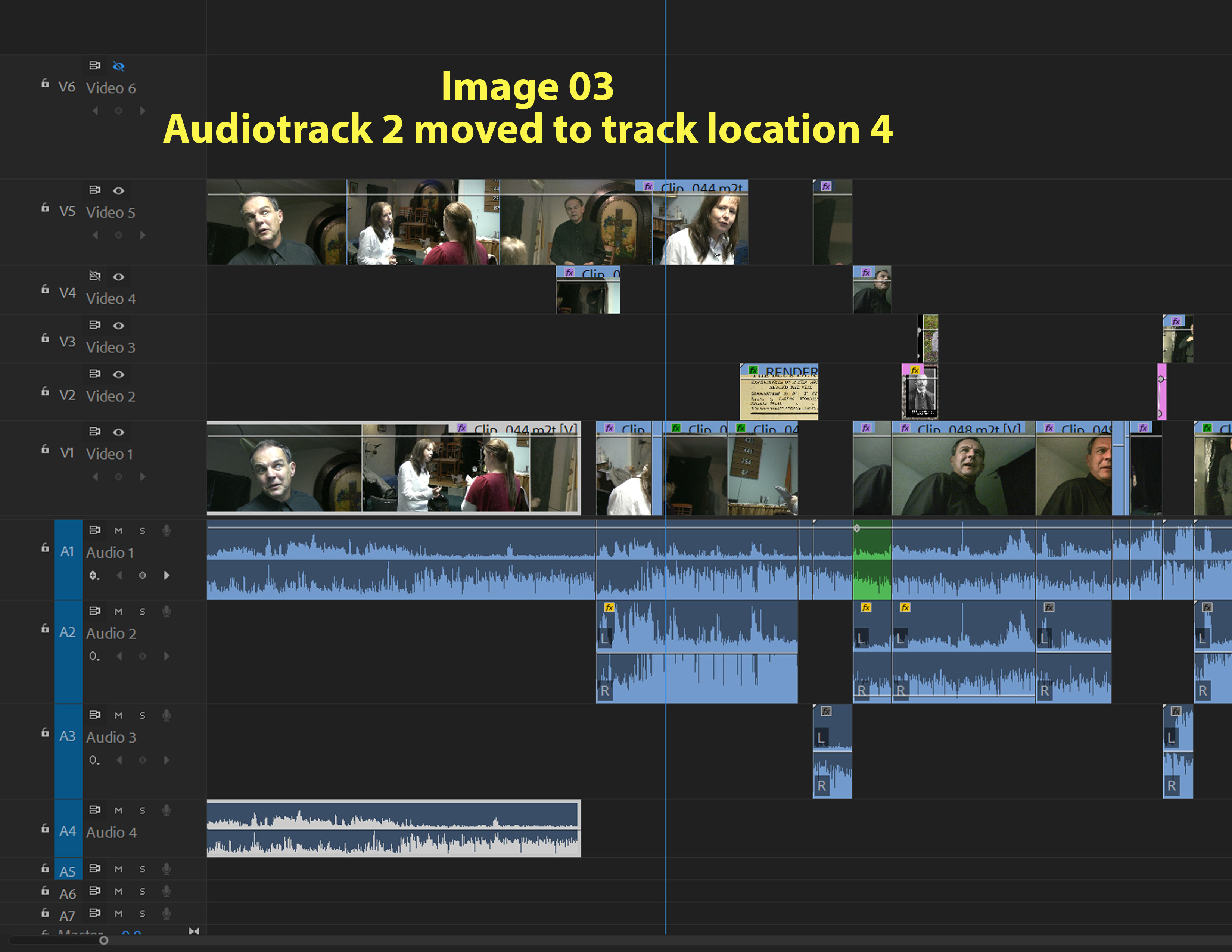
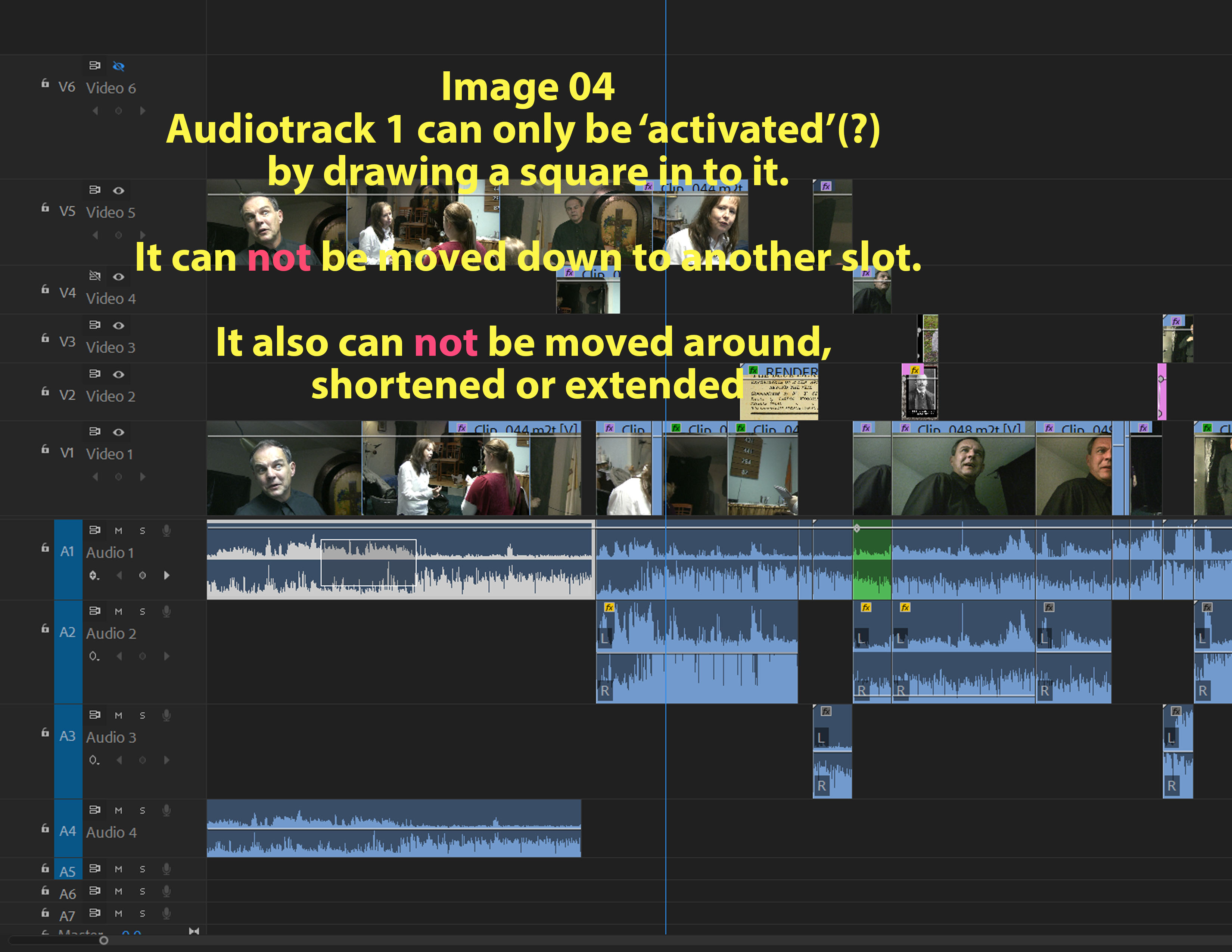
The problem: About a year ago I recovered (via OnTrack) a very large project from an earlier Premiere Pro CC version. This project has now been imported to version 2018. Routine, so far. The problem is that all clips on audio Timeline One (there are several audio timelines) seem stuck. However the audio plays back just fine. Individual clips on Timeline One can be deleted via a small work around, by drawing a rectangle via mouse right on that clip and clicking ‘delete’. But the clips cannot be moved, shortened or extended. All clips on Timeline One are locked, but they can be deleted via the above method, which is not at all what is wanted. Regular editing is thus no longer possible on that track. I prepared a set of eight screen captures that document the problem in some detail.
I want to show the problem to the community, hoping for a moderately easy fix, maybe via a screen captured tutorial.
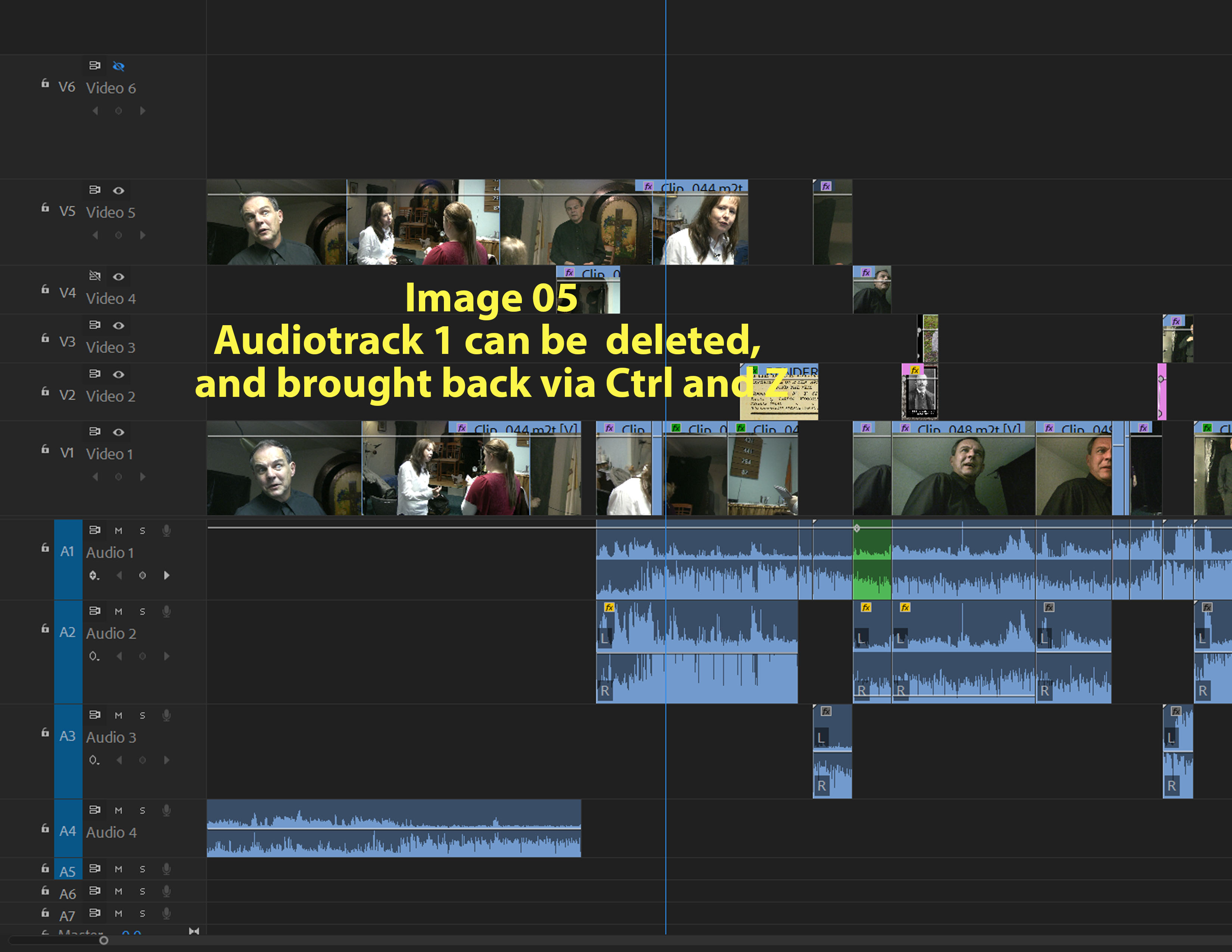
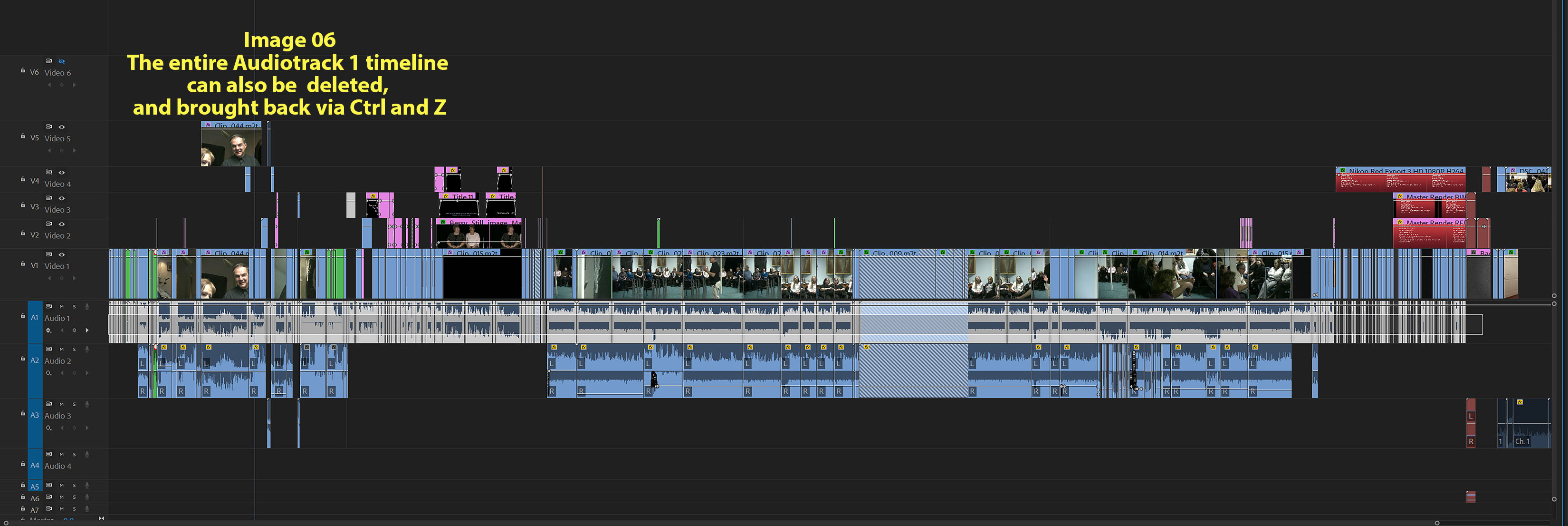
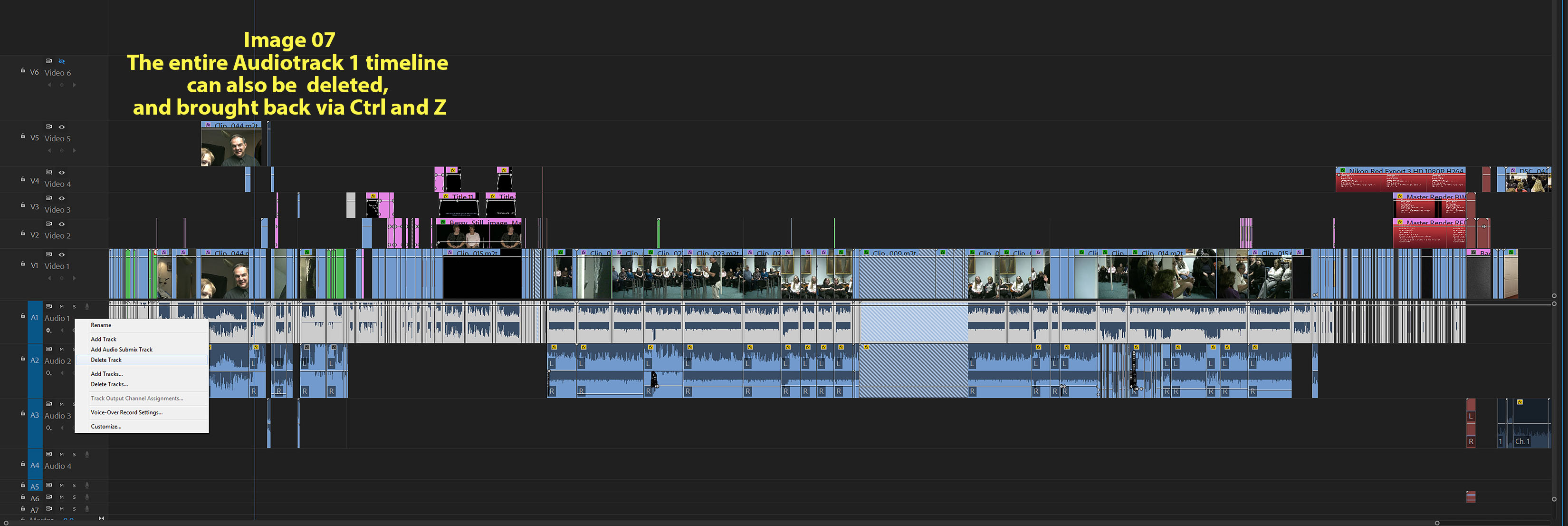
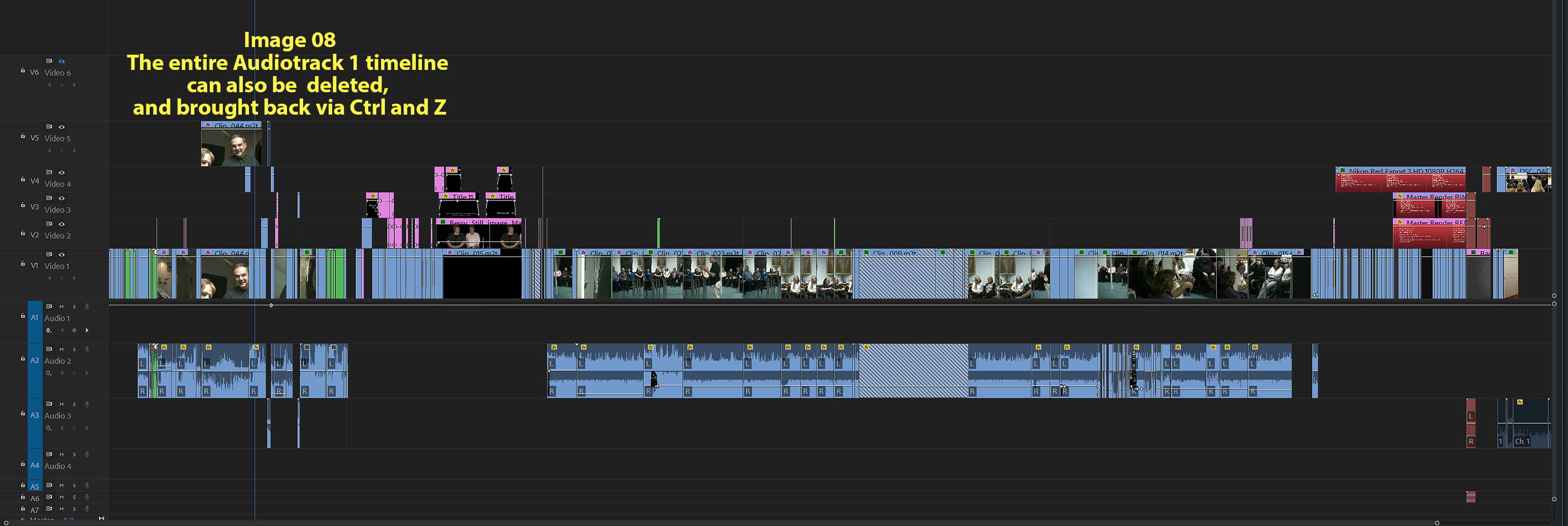


 5
Replies
5
5
Replies
5


Copy link to clipboard
Copied
Hi Amadeus%20Rottweiler,
Sorry for the frustration. Have you tried unlinking audio and video and then trying?
Thanks,
Kevin
Copy link to clipboard
Copied
Yes that's the first thing. The audio timeline ONE was/is not to linked to
the video track one to begin with. Video track ONE can be moved and edited
at will. Audio Track ONE remains frozen. Audio track TWO can can be moved
and edited as needed.
On Fri, Nov 2, 2018 at 7:42 PM carolinesears <forums_noreply@adobe.com>
Copy link to clipboard
Copied
Hi Amadeus%20Rottweiler,
Did Jim's advice solve it for you? Let us know.
Thanks,
Kevin
Copy link to clipboard
Copied
A 'Premiere CC' instructor at the public library in Orlando was able to
solve the problem. By (mouse)drawing a rectangle across the entire audio
timeline ONE, then copying that limeline, followed by disabling ALL audio
timelines, followed by creating a NEW audio timeline, followed by pasting
the copied timeline number one data over into the new audio timeline etc.
and AII IS NOW WELL. The nightmare had a happy ending. Thank you all who
contributed.
I'm presently moving back to Michigan. Let me know id anyone wants a screen
captured tutorial update. But please be a patient.
<https://www.avast.com/sig-email?utm_medium=email&utm_source=link&utm_campaign=sig-email&utm_content=webmail&utm_term=icon>
Virus-free.
www.avast.com
<https://www.avast.com/sig-email?utm_medium=email&utm_source=link&utm_campaign=sig-email&utm_content=webmail&utm_term=link>
<#DAB4FAD8-2DD7-40BB-A1B8-4E2AA1F9FDF2>
On Mon, Nov 5, 2018 at 6:47 PM Kevin-Monahan <forums_noreply@adobe.com>

Copy link to clipboard
Copied
Be sure you don't have Track Keyframes selected for display on Track 1. That will prevent any type of clip selection.


Get ready! An upgraded Adobe Community experience is coming in January.
Learn more
 AdChoices