Participant
January 2, 2019
Answered

Audio waveform not showing visually

  • January 2, 2019
  • 47 replies
  • 319056 views

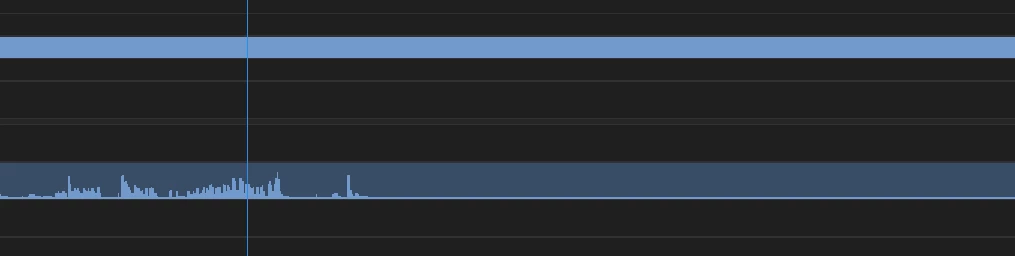
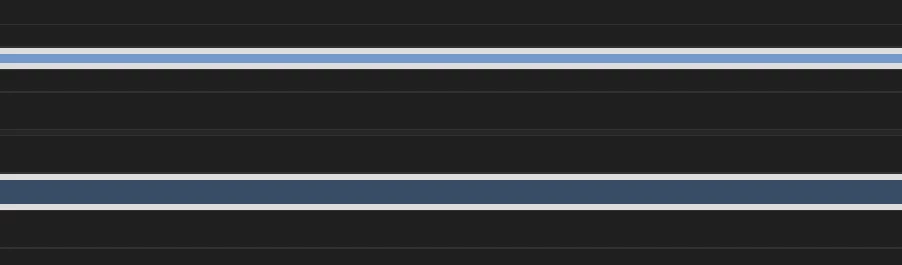
Having issues with this since updating to 2019. Basically, after importing a clip into the timeline everything is as it should be (video plays, audio plays) but the audio waveform does not show up until it's played through so I cannot visually see the audio waves unless I play/skip through the whole clip, which obviously makes editing a lot slower.

Attached an example. Image 1 is the clip just imported to the timeline and image 2 is after playing through a few seconds (as you can see the audio only shows up after I've played through the clip and the remaining audio waves are still blank)

Any help would be appreciated!

Using Windows and Adobe Premiere Pro 2019.
Correct answer just take actioi16874188

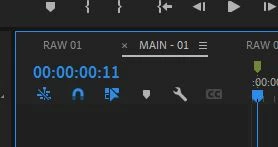
Another option is to click on the timeline display settings button - it's the wrench icon in this pic.... There you'll see an option to turn the waveforms on or off. 

47 replies

Participant
November 12, 2025

Sorted!

I tried all the trash preferences stuff, nothing worked.

I solved by loading the audios on Audition, by simply clicking right button and Edit Clip in Adobe Audition. 

Participant
October 4, 2025

Old question, but I stumbled onto it today and found my own unorthodox solution after none of the suggestions here worked. Right-click the audio that isn't showing a waveform and click "Edit Clip in Adobe Audition."


If you're like me and none are showing: Select all —> Right click any audio file —> Edit Clip in Adobe Audition. That forced all the waveforms to show up for me. Then just crtl-z and they'll revert to their original titles/names, but the waveforms stay.

MattVisual
Participant
October 2, 2025

All these answer mean nothing. Adobe is buggy trash. Right click and render audio after clearing your cache and restarting.

Participant
April 25, 2024

So after trying everything mentioned in this thread and screaming at the computer... I noticed a little spinny loading thing top right of the screen (I'm working with big clips) and then I saw the "generating peak file" progress bar in this screen shot. My waveform wasn't there because I didn't let it load 🙊 sorry for shouting at you!


Digirock
Inspiring
December 8, 2023

Hi there. 
Checking this post in Dec 2023 and man, this is still a thing!
Using Premiere CC 2023 up-to-date on a M1 Max 64GB computer and this is still going on!
In my case, specifically, I got to solve fast simply by closing and opening Premiere again, without even rebooting the computer.
Well, it's a good thing though this doesn't happen too often.

Cheers.

Participating Frequently
February 5, 2024

It happens to me too often. It's so annoying. I've tried everything: clear chache, restart app, reset preferences...

It happens always on sub sequences, not on direct raw video.

Participant
September 6, 2023

Using Adobe premiere CS4, right click on the audio track of the video and select audio gain. Next select set game to 24 DB for example, click ok and then it will rebuild the peaks to where they can be seen. It is very annoying thing to discover this almost 4 years after having the software but there it is.

rachelcenter
Legend
September 6, 2023

i'm not a big fan of audio gain because it can inflate the visual size of waveforms making it tougher to cut music when the peaks and valleys arent as visually definitive any more

Participant
December 9, 2023

Hi. I totally agree. I'm happy it's there though for quieter classical tracks you can find the beats easier. Rock on and edit the world!

Participant
July 3, 2023

I tried all the tips suggested here but the only thing that solve was: (For mac users)

- Close premiere Pro
- Go to Apps folder and find Premiere 
- Right click on Premiere icon / Get Info
- Mark "open with Rosetta"
- Open Premiere / open your project
- You'll see the waveforms showing up
- Close the software
- unmark "Open with Rosetta"
- Open Premiere again and it should be solved.

This type of error is a significant setback for video editors. Sad to still have to deal with these problems and palliative solutions that look more like a puzzle game 😕😕

Participant
November 15, 2023

Oh boy. You almost solved my problem. Unfortunately Adobe learned of this workaround and eliminated rosetta capability. so now it's back to being unfixable.

Participating Frequently
April 4, 2023

Same for me along with audio random dropouts. I'll have waveform but no audio, then audio with no waveform, then audio and waveform together. Been fighting with audio drop outs for 4 months. Trashed Pref., and tried everything else in the books. Everything! I dont want to move to Resolve but I do need reliable software. 

Alex Fritz
Participating Frequently
January 31, 2023

Try restarting your PC. A good restart fixes many issues. I have this bug a lot and a restart fixes it most of the time.

Participant
January 2, 2023

Here's a fix that is not very satisfying, but it works every time for me, when I'm importing an mp4 video/audio into Premiere Pro. (Mac instructions follow). In the Finder, just open the mp4 file in Quicktime and confirm that you can play video and audio in Quicktime. Close Quicktime, then drag the mp4 file into the timeline in Premiere Pro. That's all!