

davidp48412263
New Participant
February 5, 2018
Answered

Directory access error. Please make sure your user directory isn't locked.

  • February 5, 2018
  • 19 replies
  • 66917 views

Hi,

Just tried to open Premiere Pro CC but got this error message this was working fine not long ago. I have tried photoshop and seems to work fine.
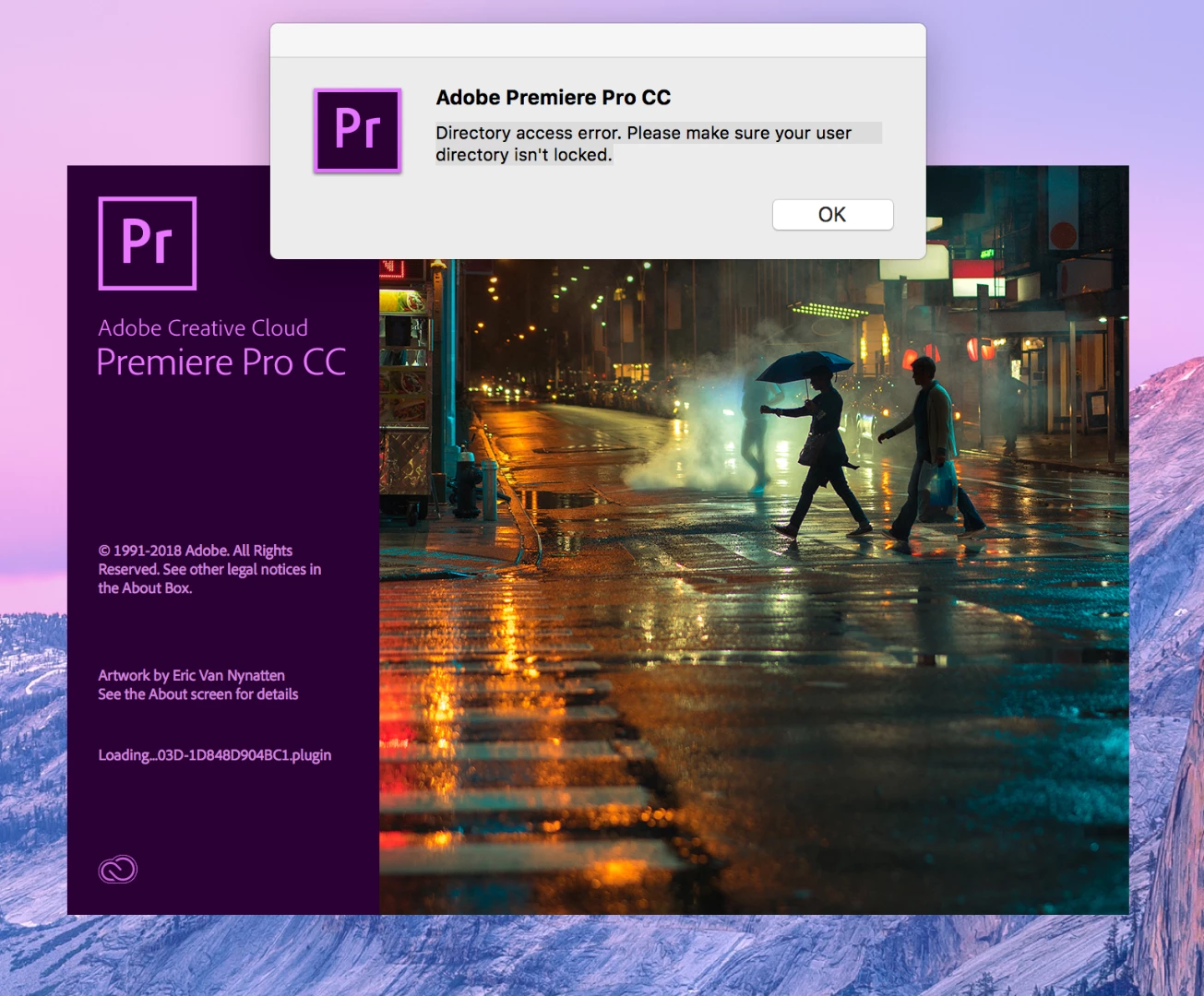
Thanks

Correct answer Trent Happel

This error will come up when your Documents folder and/or its contents (including the Adobe folder) may not be modifiable. Make sure that you have permission access to make modifications in the Documents folder and all of it's sub folders.

For example, go to Documents  and open the Adobe folder. Try to add a file to the Adobe folder and Premiere Pro folder. If you get a warning that you don't currently have permission to access this folder, then you need to change the permissions so that you have rights to modify these folders.

19 replies

New Participant
January 4, 2019

I get this on my macbook pro.  Tried uninstalling and installed creative cloud and premiere and that did not fix it.   I've checked the file info on the Documents folder and set it read+write for everyone.  Still get the error.  Photoshop and other CC apps work - just premiere.  Works fine when I install on my Windows 10 box. 

Inspiring
December 29, 2018

Guys all you need to do for this is right click the Documents folder and click on properties/security click your account, click edit, and allow full access.

New Participant
May 17, 2020

Yeah, if only was that easy

BobbyeA
New Participant
October 12, 2018

I have found that if you run as administrator, it will run. If this user isn't supposed to have administrative rights (or domain rights), then you can use an application called Application Tool Kit to only run this particular software. I've tried the other things suggested and they didn't work, but running it as admin worked for me.

New Participant
May 17, 2020

I only run as administrator and I still have that problem

New Participant
August 24, 2018

We just encountered this error and after troubleshooting we realized it was due to the copy protection on a set of third-party audio plugins from Izotope. We had to uninstall the plugins and Premiere worked normally again. There was apparently an incompatibility with the copy protection on the plugins.

Stefan Möhl
New Participant
September 6, 2018

which iZotope plugin does effect the error?

Participating Frequently
June 22, 2018

I'm also having this issue on Windows 10.

I've recently bought the entire package, and this was one of the main things I was after. I tried uninstalling everything, reinstalling, checking the access and security permissions, and I just cannot fathom why it refuses to open. It's giving the the directory error each and every time.

It would be helpful if Adobe could find a fix!!!

erwinv42424880
New Participant
April 26, 2018

I have about the same problem. The folder in which I keep my film files is not shown at all in the media browser of Premiere Pro. For a week ago I did not have that problem (my laptop had a repair last week, but that can't be the problem). And although the footage saved into the projrect is perfectly alright, the images cannot be found. And like said I cannot find the path / folder at all.

And as mentioned in other comments, with PS or LR I don't have that problem.

New Participant
April 6, 2018

I tried changing permissions on various directories and files as suggested above, but I was still unable to get past the error popup.  In the end I just right clicked on the application and selected the option to run as an administrator.  Going to assume this is a Windows 10 security issue.  Unsure how the Mac users get past this issue, perhaps there is a similar way to run an application with elevated rights.

Legend
April 6, 2018

Couple things that might help are Step 3D, 3G and 3H below.

Unofficial Premiere Pro Troubleshooting Guide

ValVesa
New Participant
February 16, 2018

I have the same exact issue but on a Windows 10 Pro laptop. Anyone knows why?

My folder permissions are fine.

Known Participant
March 14, 2018

I also discovered this same issue on my Windows 10 laptop today.

Roughly following the advice on this site, I opened Windows Explorer and found the folders that Adobe Creative Cloud created when installing Premiere Pro CC (in my case, under: This PC > (C:) > Program Files > Adobe), right-clicked that Adobe main folder, chose Properties, clicked the Security tab, clicked on my name in the top half of the window to highlight it, clicked the Edit button, again selected my name in the top half and then marked the "Full Control" checkbox in the bottom half.  I then OK'd all of the way out again.

That has now worked, and I can now launch Premiere Pro CC at last!

Trent HappelCommunity ManagerCorrect answer
Community Manager
February 5, 2018

This error will come up when your Documents folder and/or its contents (including the Adobe folder) may not be modifiable. Make sure that you have permission access to make modifications in the Documents folder and all of it's sub folders.

For example, go to Documents  and open the Adobe folder. Try to add a file to the Adobe folder and Premiere Pro folder. If you get a warning that you don't currently have permission to access this folder, then you need to change the permissions so that you have rights to modify these folders.

New Participant
February 12, 2018

I'm having the same problem. I've confirmed I have permissions to access the Adobe folder and contained documents, but I don't have a Premiere Pro folder at all in the Documents folder after installation.