Participating Frequently
January 13, 2017
Answered

Exporting .mov file at 1080p

  • January 13, 2017
  • 3 replies
  • 24730 views

I'm editing with Adobe Premiere Pro CC 2017 on a PC. The original footage I'm editing is .mp4 4K, 23.976 timecode and I'm trying to export as 1920x1080 HD .mov.

When I select Quicktime in export settings the maximum resolution I can get is 720x480 by default. Does anyone know if it's possible to export a higher resolution .mov file? ​Thank you!

This topic has been closed for replies.
Correct answer Richard M Knight

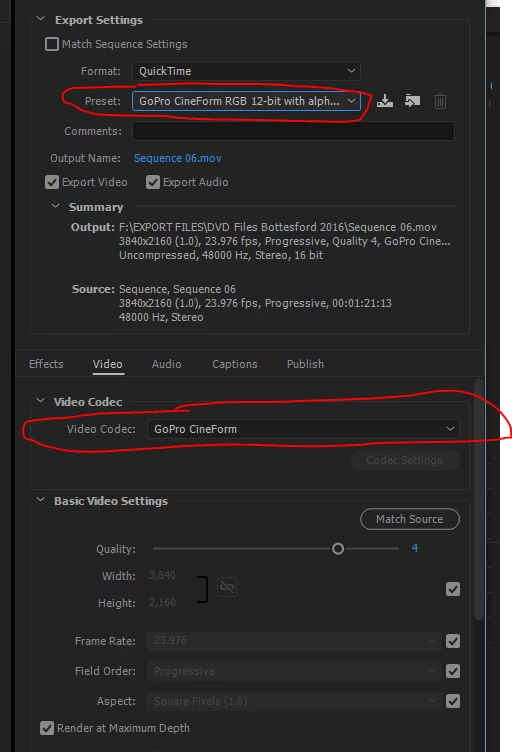
You might have to change the video codec, a Mov file is just a wrapper. This is one option:

3 replies

Kevin-Monahan
Community Manager
Community Manager
September 8, 2023

Hi @shanemwhitaker,

I saw your message. You are having trouble exporting in HD. Right? Can you post a screenshot of your Sequence Settings? That may help us understand what's going on with your export. Hope to help!


Thanks,
Kevin

Kevin Monahan - Sr. Community & Engagement Strategist – Pro Video and Audio
sheltiehouse
New Participant
February 5, 2018

I know this is an old post, but I was having the same issue myself and this post got me about 80% of the way there (for which I'm very thankful!).  I was also having trouble with my voice-over audio sounding muffled with the AAC compression settings in the regular H.264 Format options.  I thought I'd add some screen shots of the settings I used for anyone else who might stumble on this. 

Start with these settings to get a 1080 size video.

Then, change the video codec (codec, not Format) above to H.264 (otherwise it won't play on most players).

Finally, if you want to keep your audio from being compressed or downgraded at all, switch this to 32 bit (or whatever settings your original audio file was saved in).

Then you can save all this as a preset to use in the future.  Hope this helps. 

New Participant
April 27, 2018

Like to add: you need to do this in the media encoder. The h264 option is not (for me anyway) available in the export window in Premiere. Just set it to Queue and the Media Encoder will launch, change the codec to h264 and hit play =)

Richard M KnightCorrect answer
Community Expert
January 13, 2017

You might have to change the video codec, a Mov file is just a wrapper. This is one option:

Participating Frequently
January 13, 2017

Thanks for your response! Do you know if using the GoPro Preset & Codec results in any loss of quality?

Participating Frequently
January 13, 2017

You probably had the default NTSC DV preset selected, which is standard-def only. I should ask - what do you want to do with the exported file? Cineform is an excellent quality, however the files will be quite large compared to the camera originals.

If you intend to upload to website, YouTube, share with a friend, etc. then you would likely want the H.264 format (.mp4). For creating a Master copy of a finished video, Cineform would be a very good choice. Note that Richard's screen grab is just an example - which included Alpha Channel. For regular video, use GoPro Cineform YUV 10-bit preset.

Thanks

Jeff