

R Neil Haugen
Legend
October 2, 2019
질문

FAQ: Setting up for HDR work in Premiere 2020 [updated fall 2020]

  • October 2, 2019
  • 17 답변들
  • 88805 조회

[Edit 24 March 2020: BlackMagic Desktop Video software from ver. 11.5 allows certain BM gear to work with Premiere's HDR signal.]


[Edit 11 November 2020: media and timeline color space settings, and removal of the Lumetri 'HDR' settings.]


Setting up Premiere 2020 for working with HDR Media


You can work with HDR media in Premiere, including exporting to HDR, IF ... you set up your media and sequence color space options (new in Fall 2020), you have the right gear to get the HDR signal out of your computer, a true HDR monitor, and understand the process and the steps required. This discussion will cover both the hardware and options within Premiere to be able to work fully with HDR material.


Media and Sequence Color Space Settings


In the fall 2020 release, they added color space settings at the bottom of the dialog panels for clips in a bin using the Modify/Interpret Footage. And also in the Video section of the Sequence dialog. Here's the Modify/Interpret Footage dialog:
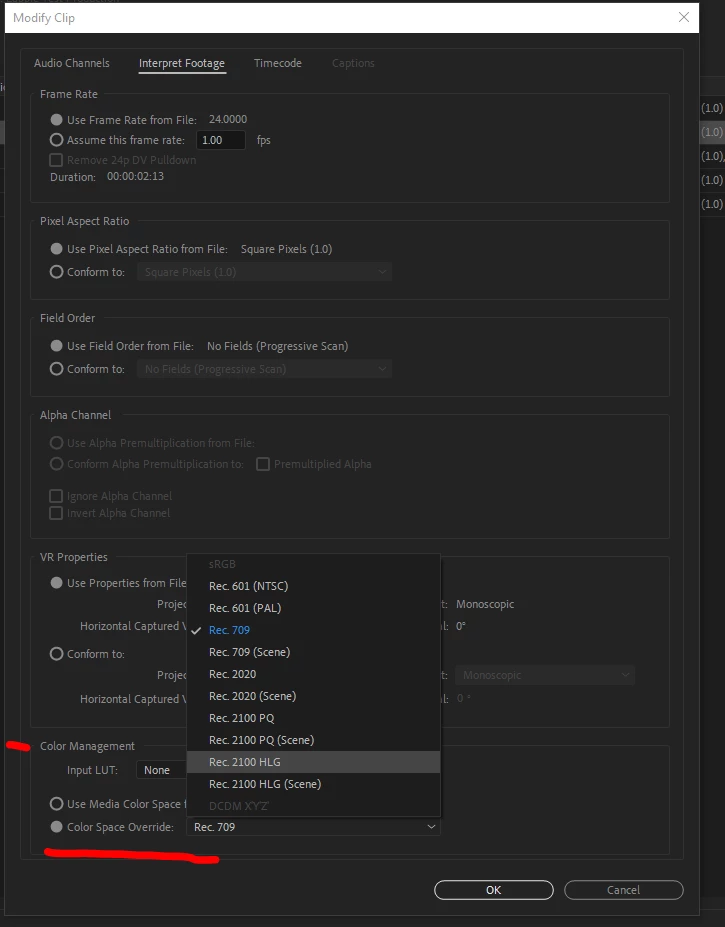
There are now Rec.709, Rec. 2020, and Rec.2100PQ  and HLG, all in both 'normal' transforms and also Scene Referred (only, skipping the Display transform.) 


And the Sequence Settings dialog, showing the new Working Color Space options:
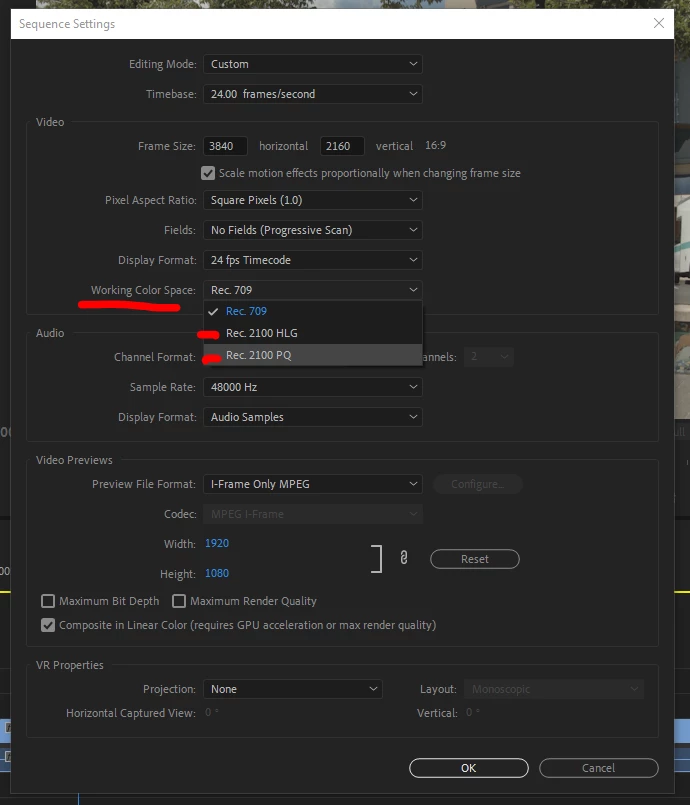
 

Use the new options above to properly tell Premiere how to 'view' your media, and your sequences. It will by default assume Rec.709, so it is up to the user to select the option if you are not working in Rec.709. Remember also to set the scopes for HDR color space as discussed below.


Monitor Setup for HDR Work


The internal monitors in Premiere Pro 2020  are still internally "wired" to display images using the main broadcast standard, Rec.709. Which is SDR or "standard dynamic range". This means the internal monitors such as the Program monitor panel and Transmit Out are expected to be used on a monitor set to video sRGB, Rec.709, gamma 2.4, and 100 nits max brightness. This of course will not work with HDR material, as the values above 100IRE/nits simply clip out.


Further, Premiere does not send a signal with HDR metadata attached through the normal video-out process from your computer. So first, you must have a device that can "see" the Premiere Pro HDR signal, and send that via HDMI with proper metadata to a proper HDR capable monitor.  The cost of the external gear to connect your computer to the monitor runs between $645 for the BlackMagic Decklink Pro 8k to $3,900 for the Avid DNxIQ.


Of course, any "professional grade" HDR monitor is still well above $10,000 USD, with most of the monitors Netflix and DolbyVision list as "acceptible" costing between $20,000 and $30,000 USD.


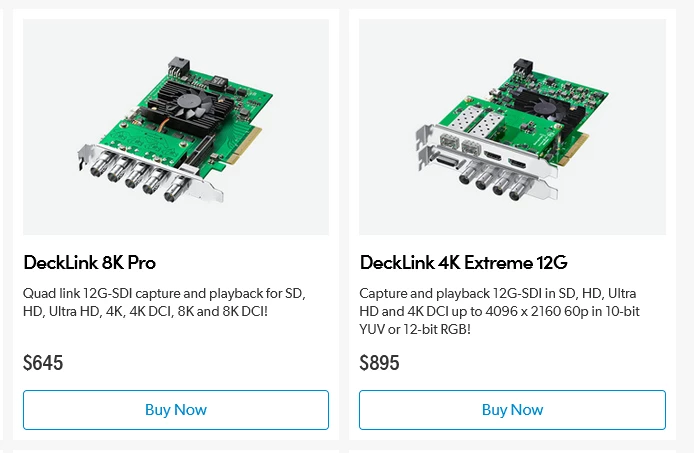
As of today, 11 November 2020, the full list of HDR signal connecting gear from BlackMagic includes the  UltraStudio 4kMini ($995USD), UltraStudio 4k Extreme 3 ($2,995USD), DeckLink 8K Pro ($645USD), and the DeckLink 4K Extreme 12G ($895USD).
 

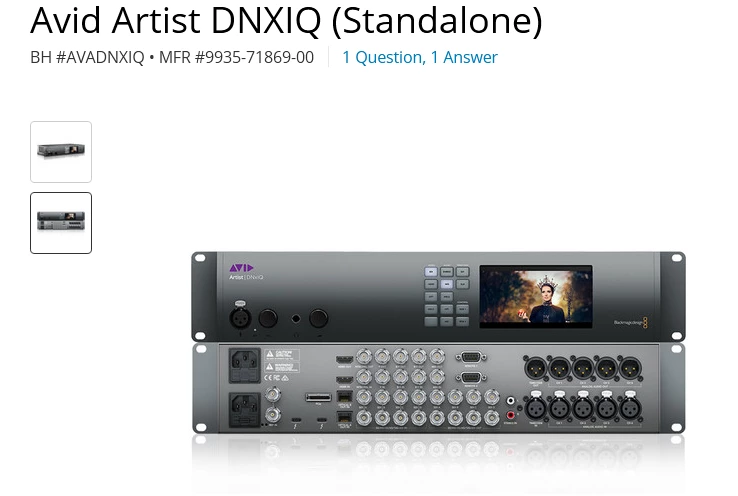
Also, using the BlackMagic Desktop Video software, are the Avid DNxIQ ($3,900USD) and DNxID ($999USD).
 

For AJA devices, it's still the following two pieces depending on whether you are on a Mac or a PC.


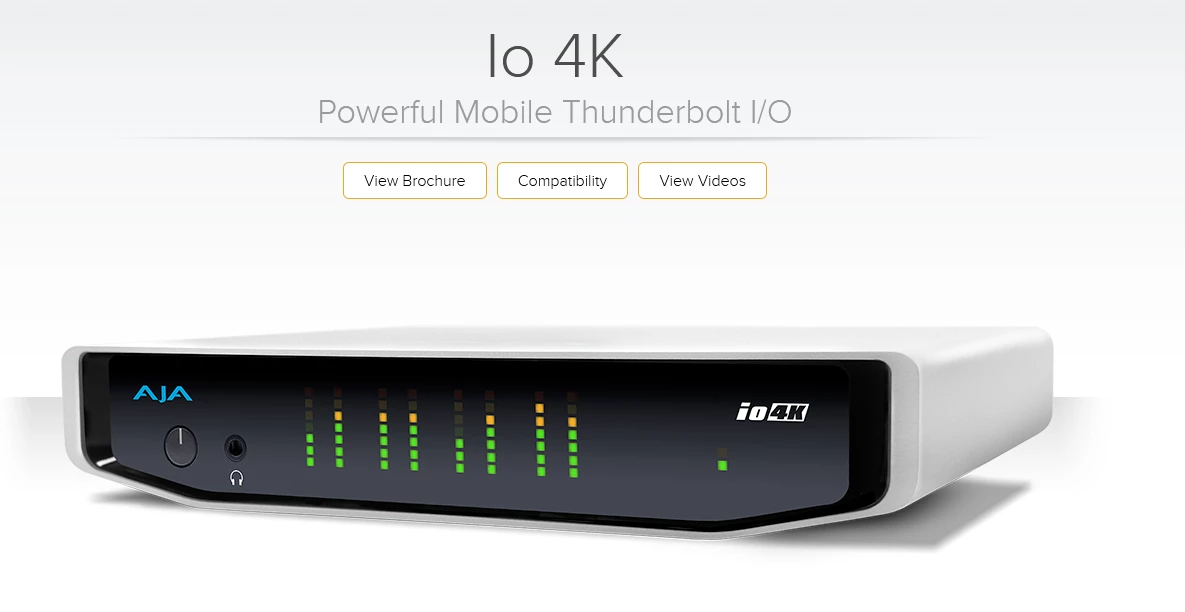
For the Mac OS, you must use either the io4K or io4K+ external box.
https://www.aja.com/products/io-4k
 

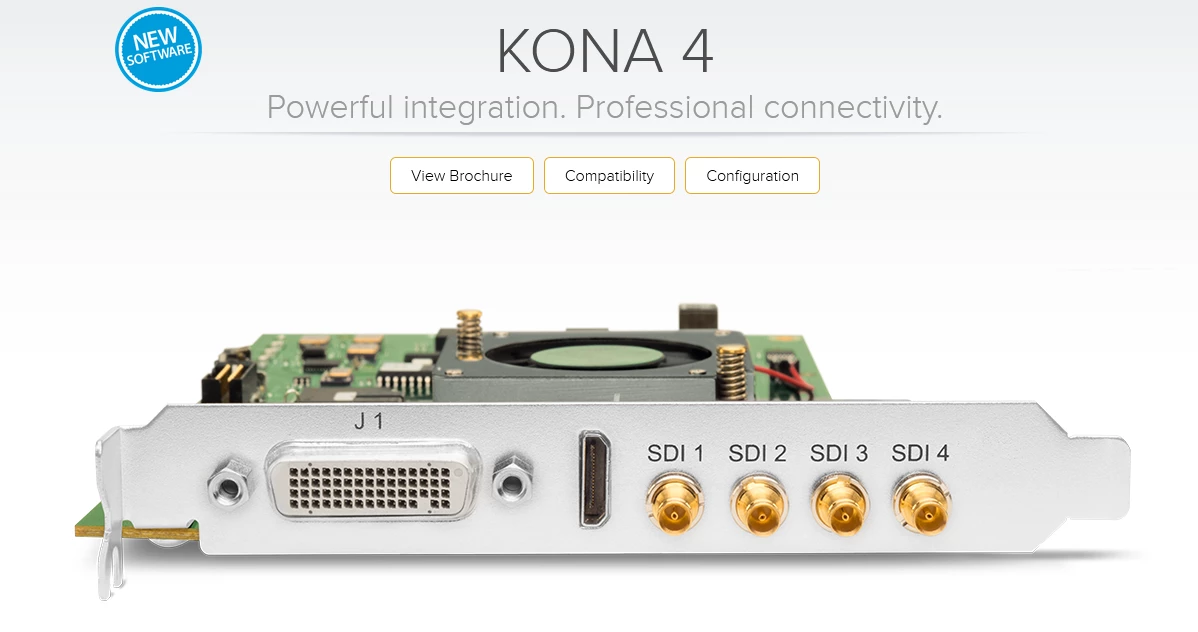
For the PC user, you must use either the AJA Kona 4 or Kona 5 PCIe internal card.
https://www.aja.com/products/kona-4
 

From the AJA devices, you must use an HDMI cable from the device to the HDR capable monitor. I don't know yet about connections from the BM devices to the monitor.


From the AJA or BlackMagic software controls, select the Premiere HDR signal.


Setting up the Lumetri Scopes Panels


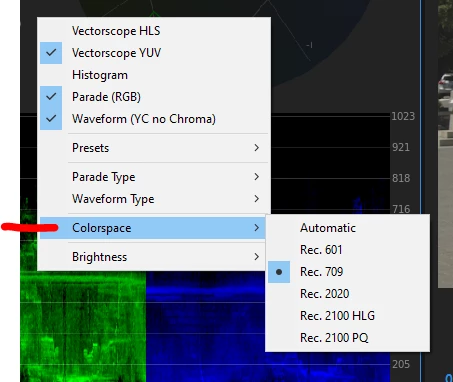
The manner of setting the Scopes color space also changed with the Fall 2020 release of Premiere. Go to the Lumetri Scopes panel, right-click, select Color Space, and there are now options for Rec.601, 709, 2020, and in Rec.2100, both for HLG and PQ.
 

Working in HDR with the Fall 2020 Changes


With the above things 'set' to your needs, you should now be able to work in HDR. If you have done so previously, you will note that they have removed the Lumetri menu "HDR" option along with the HDR whites pivot sliders and the fourth Whites color wheel from the Color Wheels & Match tab. So all image data from black through peak whites is handled through the 'standard' Lumetri tonal/color controls.


Edit away!


At this point, you are ready to do any editing you wish, using any workspace or tools within Premiere. Including of course color corrections with the Lumetri panel. All other functions of Premiere work the same as with SDR material. Although you may find some effects are not suited for HDR work, the vast majority work the same with HDR material as they do with SDR.


Just remember to pay no attention to any of Premiere's "internal" monitors, Source, Reference, Program, or Transmit Out. View images only on your separate HDR monitor running through the AJA gear, and judge values by the Lumetri scopes, which work quite well.


As always for professional work, TEST each step in miniature before committing large projects to a workflow!


Exporting HDR Media from Premiere 2019

[Edit: 11 November 2020 changes not shown in chart!]

[There are PQ and HLG options more than shown in the following chart, and those will be added and the chart updated soon. This should still be enough information to get you to and through the options now available.]


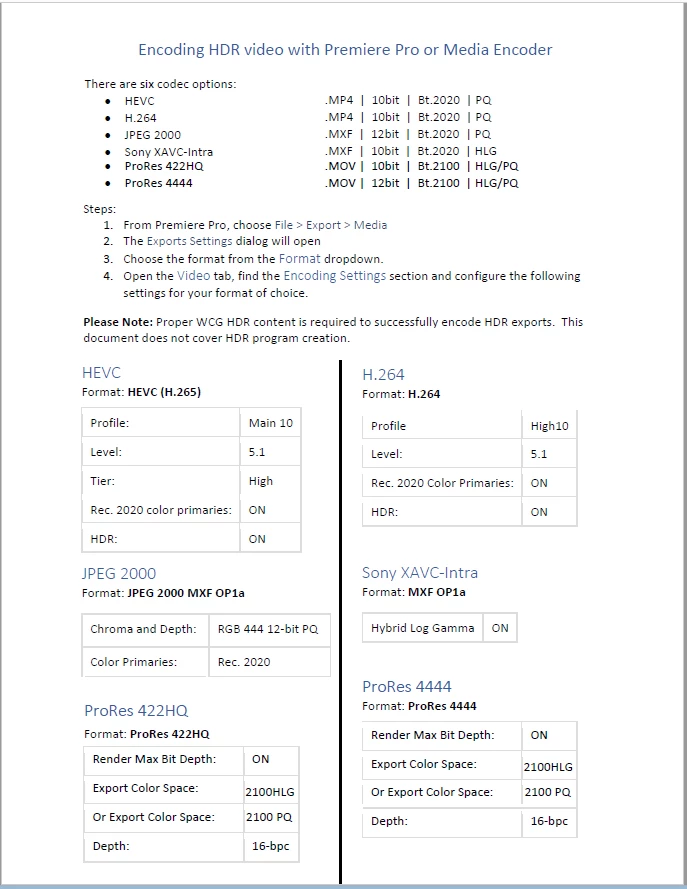
For exporting in HDR, see the following chart.  The top part gives the basic data for the (24 March 2020) six export options. The items in the boxes in the lower section are options you need to select down in the Video tab on the right side of the Export Dialog box. The left box is the option to select, the right box is the value to use for that option.


To set some of the options in the Video tab, such as "Level", you may need to first uncheck the Level box. Then other options appear. As for example, the H.264 export. Down in the Video tab, uncheck "Profile", then from the drop-down select "High10". Make sure "Level" is set to at least 5.1.


After selecting High10, two options appear below ... "Rec.202 Color Primaries" and a grayed-out "High Dynamic Range". Select the "Rec.2020 Color Primaries" option and the High Dynamic Range box comes active and should also be selected.


The process is similar with the other three formats. Note, the XAVC option requires the selection of an XAVC-Intra option from the MXF-Op1a preset drop-down list.


There are five export possibilities in PQ, three in HLG. Four options are 10 bit, two are 12 bit.


R. Neil Haugen

October 1, 2019

[edited] 24 March 2020


With special thanks to Francis Crossman for his hours of help in working all this data out and training me how to do this!


And to Patrick Palmer for graciously making Francis available to me. I couldn't have mastered this without their help!


이 주제는 답변이 닫혔습니다.

17 답변

wideoszym
Participant
February 21, 2022

Hello.

I have Blackmagic Minimonitor 4K. Does card support HDR in Premiere Pro?

I can display SDR (Rec709) images on my SDR/HDR monitor but I can't HDR. I've tried everything but it doesn't work.

Connecting: HDMI 2.1

Files: Prores 422 (not HQ)

HDR gamma: PQ

Premiere: v 22.2.0

Blackmagic: newest driver

Monitor: Atomos Neon (HDR PQ, HLG)

Known Participant
May 26, 2021

Any idea why when I export my 2100PQ material to HEVC the HDR metadata isn't there?  So I use HEVC, Main10, tried several levels 5.1 to 6.2.  I set the luminance settings and light levels and average but when I try and look at the resulting file thru ffprobe unlike the source, I do not see any values.  So like:


{
"frames": [
{
"media_type": "video",
"stream_index": 0,
"key_frame": 1,
"pkt_pts": 0,
"pkt_pts_time": "0.000000",
"best_effort_timestamp": 0,
"best_effort_timestamp_time": "0.000000",
"pkt_duration": 1001,
"pkt_duration_time": "0.041708",
"pkt_pos": "15449",
"pkt_size": "453452",
"width": 3840,
"height": 1750,
"pix_fmt": "yuv420p10le",
"pict_type": "I",
"coded_picture_number": 0,
"display_picture_number": 0,
"interlaced_frame": 0,
"top_field_first": 0,
"repeat_pict": 0,
"color_range": "tv",
"color_space": "bt2020nc",
"color_primaries": "bt2020",
"color_transfer": "smpte2084",
"chroma_location": "left"
}
]
}


is what I get but with the original file comes out with:


"frames": [
{
"media_type": "video",
"stream_index": 0,
"key_frame": 1,
"pkt_duration": 50050,
"pkt_duration_time": "0.041708",
"pkt_pos": "0",
"pkt_size": "4095",
"width": 3840,
"height": 2160,
"pix_fmt": "yuv420p10le",
"sample_aspect_ratio": "1:1",
"pict_type": "I",
"coded_picture_number": 0,
"display_picture_number": 0,
"interlaced_frame": 0,
"top_field_first": 0,
"repeat_pict": 0,
"color_range": "tv",
"color_space": "bt2020nc",
"color_primaries": "bt2020",
"color_transfer": "smpte2084",
"side_data_list": [
{
"side_data_type": "Mastering display metadata",
"red_x": "34000/50000",
"red_y": "16000/50000",
"green_x": "13250/50000",
"green_y": "34500/50000",
"blue_x": "7500/50000",
"blue_y": "3000/50000",
"white_point_x": "15635/50000",
"white_point_y": "16450/50000",
"min_luminance": "50/10000",
"max_luminance": "40000000/10000"
},
{
"side_data_type": "Content light level metadata",
"max_content": 349,
"max_average": 86
}
]
}


So the whole bottom part is missing no matter what I do.

R Neil Haugen
R Neil Haugen작성자
Legend
May 26, 2021

Did you set the other needed things also from that chart?


Neil

Everyone's mileage always varies ...
Known Participant
May 26, 2021

As far as I can see:


Format: HEVC

Start with selecting Preset 4K UHD

Render at Maximum Depth checked

Main 10 selected

Level tried 5.1, 5.2, 6.2

Rec 2020 Color Primaries checked

High Dynamic Range Checked

Include HDR10 Metadata Checked

Master Display Color Volume Color Primaries Rec2020

Luminance Min: 0.005

Luminance Max: 4,000

Color Light Levels Maximum: 349

Average: 86

Bitrate CBR

Target Bitrate set to 15

Quality set to Higher

Use Maximum Render Quality Checked.


Not sure what I'm missing.


Q-tro
Participant
March 23, 2021

Hi, 
Trying to following this guide but I'm stuck at the first step.

The Color Grading tab is greyed out for me, cannot find a way to enable it like the following image
https://community.adobe.com/t5/image/serverpage/image-id/169446iE6EC6DADF3E0BF25/image-size/original?v=1.0&px=-1

I've tried this with different source files but no luck.
What is strange is that I can edit the tab and also see Lumetric Color HDR checkbox on a different machine with the same exact specs as mine (same HDR monitor, GPU, OS, Premiere version, setup - we are not using any external signal connecting gear).

Could somebody give me a push into the right direction?
What I want to do is convert and SDR video into HDR.

R Neil Haugen
R Neil Haugen작성자
Legend
March 23, 2021

That color management bit is only available at this time for RED and XDCAM media. Which is why it's grayed out for everything else.


To convert SDR into HDR is simply to stretch the media brightness out somewhat. Most colorists recommend not to go crazy ... very few TVs actually work clear up to 1,000 nits at the moment, so 700 nits is actually useful for a lot of things. And again, that's the pure speculars, not the "bright but with detail".


You can set in the Project settings panel whath the HDR 'bright' setting is, and the 203 nits is realistically the most widely used setting.


Currently, sequences can have a working color space that includes several different versions of PQ and HLG, as they don't have any form of DolbyVision available. The scopes can be set to HDR, in several flavors.


Exports can be to HDR again in several flavors.


But you cannot correctly see the image inside Premiere outside of Rec.709 settings. So to see what you're working with, you must use the i/o device from BlackMagic or AJA to get the proper signal to your monitor.


Neil


Everyone's mileage always varies ...
R Neil Haugen
R Neil Haugen작성자
Legend
February 3, 2021

Ahhh ... VFR. Premiere Pro can sort of handle some VFR media, but not that well. Pretty much most of use ACPs suggest using HandBrake to convert the VFR to CFR before importing the clips into Premiere. You need to make sure the little circle by "CFR" is checked as well as set a specific number frame-rate in the box.


I've not done any HDR through Handbrake though ... wonder how it does, and what it does, with wider DR media?


Neil

Everyone's mileage always varies ...
Participant
February 1, 2021

Hey everyone,
doing a test projet to evaluate HDR Workflow in PP, and i cant seem to get a proper HLG output from a BM UltraStudio Mini 4k. My Proxies are ProRes LT HLG, one half in a .mov container other half in a .mxf container (to test with avid later). The Colorspace Options are greyed out in the "Interpret Footage" pop up for the MXFs, the MOVs have it. So far so weird, switching the Timeline Setting from 709 to HLG does absolutely nothing. Only way to view the HLG properly is to set everything to 709 so it seems to do a passthrough of the HLG and also 2020 colors look fine then for some reason. That does not help at all though when it comes to output a HLG File. Any ideas what i'm doing wrong? Thanks!

Participant
February 1, 2021

Got it. BM card needed an update.

R Neil Haugen
R Neil Haugen작성자
Legend
February 1, 2021

So many  moving pieces to get all this to work at the moment. Sigh. Glad you got it sorted though!


Neil

Everyone's mileage always varies ...
Participant
January 29, 2021

@R Neil Haugen 1st of all - Thank you, this post is really helpful and well written.

I have an issue related to this when exporting my media with HEVC format above. 
Basically, it gets blown out @ export.

My goal is to take the original HDR media, edit, color, and deliver in compressed consumer format for youtube and wistia. I am flexible on the delivery as long as it looks 'good' on these platforms.

Can you help me here?
What other information can I provide for you?

Thanks for your contributions thus far. Super helpful.

Source Media:
» Image Size: 3840 x 2160
» Frame Rate: 29.97
» Codec Type: HEVC 10 bit 4:2:0


Sequence Settings:


Here is a screenshot ( I know it's not ideal) but may illustrate the problem better.


R Neil Haugen
R Neil Haugen작성자
Legend
January 29, 2021

What are the two screenshots from? Remember, Premiere's internal monitors cannot show HDR images. They clip out at around 102 IRE really. Up to now,  you have had to view the material either using an AJA or BlackMagic exterior device to send a 'raw' HDR signal to your HDR monitor.


Now, on Windows, you may be able to set Windows to it's HDR mode for a monitor, and use the Transmit Out from Premiere to see an HDR image on that monitor. I've tried that once, it was a bit odd to set up, but seemed to work. I think it was the Public Beta 14.9 though.


Neil

Everyone's mileage always varies ...
Participant
February 2, 2021

@R Neil Haugen Gotcha and thank you.
I understand about not seeing the material in HDR as I edit unless I have the proper setup. 
The 1st screenshot is how the material looks in the premiere (not HDR) and the second is after I export it using the H.265 settings you posted above. 

The only HDR screen I have is my iPhone 12 screen. 
Please don't judge. lol. 

All I am looking for at this point is to be able to shoot in HDR, do some basic adjustments in the premiere, and export in consumer format. 

When I look at the H.265 rendered file on my iPhone 12 with the HDR screen am I seeing HDR?
If so, I would think it would look different than the clipped screenshot above (in my computer monitor).

I am looking at the Azus monitor suggested in this thread (understanding its limitations) and the AJA set up. Would this be enough to start seeing HDR as I edit?

Thank you.


R Neil Haugen
R Neil Haugen작성자
Legend
December 6, 2020

That looks to be a scren-capture of some kind, so I've no clue what this image has for color space or gamut, nor dynamic range.


Nor what your montors are set to. From your comments I doubt you've actuall calibrated and profiled them with a puck & software app like i1 Dislay Pro. NO monitor comes out of box with correct Rec.709 setting including brightness and I don't care if they have a pretty certificate. None that I've ever seen reviewed by a decent pro have been correct outta the box.


So unfortunately the comparison of what they look like on your different monitors tells me nothing of use.


Neil

Everyone's mileage always varies ...
R Neil Haugen
R Neil Haugen작성자
Legend
November 11, 2020

I just updated the main information as of this morning, 11 November 2020.


The Export charts still need full updating, and we will get to that as soon as possible.


Neil

Everyone's mileage always varies ...
Participating Frequently
December 5, 2020

Salut,

J'ai un problème avec mon dossier 

Lorsque je mets mes médias dans Adobe Premier Pro, j'ai ça, des couleurs de saturation

original 

adobe premier pro définit par défaut 


Je n'ai pas la possibilité de mettre en hdr. Avez-vous une solution?


R Neil Haugen
R Neil Haugen작성자
Legend
December 5, 2020

HDR is dynamic range .... not necessarily color space and especially not saturation. Though that is oft involved.


And I have no idea from your images what the file properties are, what the color space of the file is. It's the properties of the file that woud matter here. How was that created by the way? Screen capture?


And what is your OS? What is your color calibration for your monitor?


Neil

Everyone's mileage always varies ...
R Neil Haugen
R Neil Haugen작성자
Legend
February 18, 2020

Just edited this as BlackMagic has released their newest version of their Desktop Video software, ver. 11.5, which they announced adds HDR functions to their gear when working with Premier Pro.


Thank you, BlackMagic!

Everyone's mileage always varies ...
R Neil Haugen
R Neil Haugen작성자
Legend
November 25, 2019

I have here an image of the Premiere and AJA settings used by Lars Borg, chief Adobe color scientist. I hope this is of help.


Neil


Everyone's mileage always varies ...