


- Home
- Premiere Pro
- Discussions
- How do you copy keyframes from one project to anot...
- How do you copy keyframes from one project to anot...

Copy link to clipboard
Copied
I'm including a track from a previous project that I want to be animated the same way as it was in a previous project.
Is there a way to save those keyframes as a preset? Or can I copy that animated track to another project? Animating it again is tedious and I feel like there's got to be a better way to do it.


 1 Correct answer
I figured it out, but the process was a little different for me.
I had to import the entire project, creating a folder for the imported items in the project panel. Then, I clicked on the old sequence in that folder to load it into my timeline. Then, I found the clip I wanted to copy the keyframes from and copied the attributes. After that, I clicked back to my original sequence in the project pane to load my new project back into the timeline and pasted the attributes with the keyframes I needed
...
 4
Replies
4
4
Replies
4


Copy link to clipboard
Copied
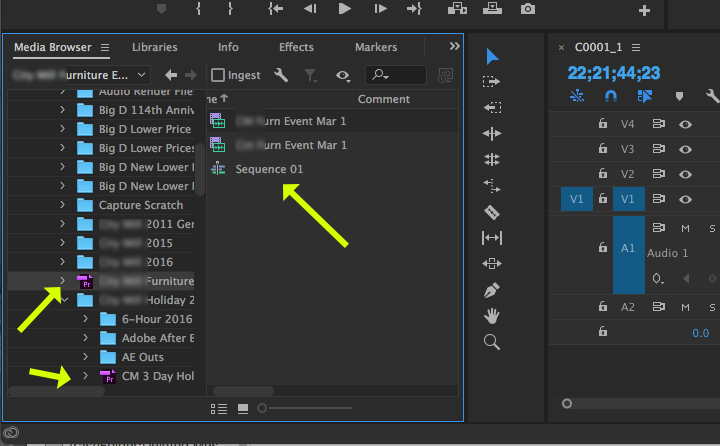
Open the sequence from the previous project in your new project by going to the media browser, finding the project and drilling down to the sequence. Once you've navigated to the sequence that contains the desired animation, import it.
Once the old sequence appears in your new project you can copy and paste the animation from the clip in the old sequence into the new.
MtD
Copy link to clipboard
Copied
When I navigate to the project in the Media Browser, I see nothing.

Copy link to clipboard
Copied
Hmmm . . . I navigate to where my project file is stored, then select it to see the sequence(s) it contains:
MtD
Correct answer by
Aronos
AUTHOR
Copy link to clipboard
Copied
I figured it out, but the process was a little different for me.
I had to import the entire project, creating a folder for the imported items in the project panel. Then, I clicked on the old sequence in that folder to load it into my timeline. Then, I found the clip I wanted to copy the keyframes from and copied the attributes. After that, I clicked back to my original sequence in the project pane to load my new project back into the timeline and pasted the attributes with the keyframes I needed onto the appropriate clip.
I'm not sure why my process differed from yours, but it worked nonetheless. lol
Thanks for the help MtG.


Get ready! An upgraded Adobe Community experience is coming in January.
Learn more
 AdChoices