


Krispy38
Participant
June 22, 2017
Question

Premiere MultiCam (Missing Angle)

  • June 22, 2017
  • 13 replies
  • 9263 views

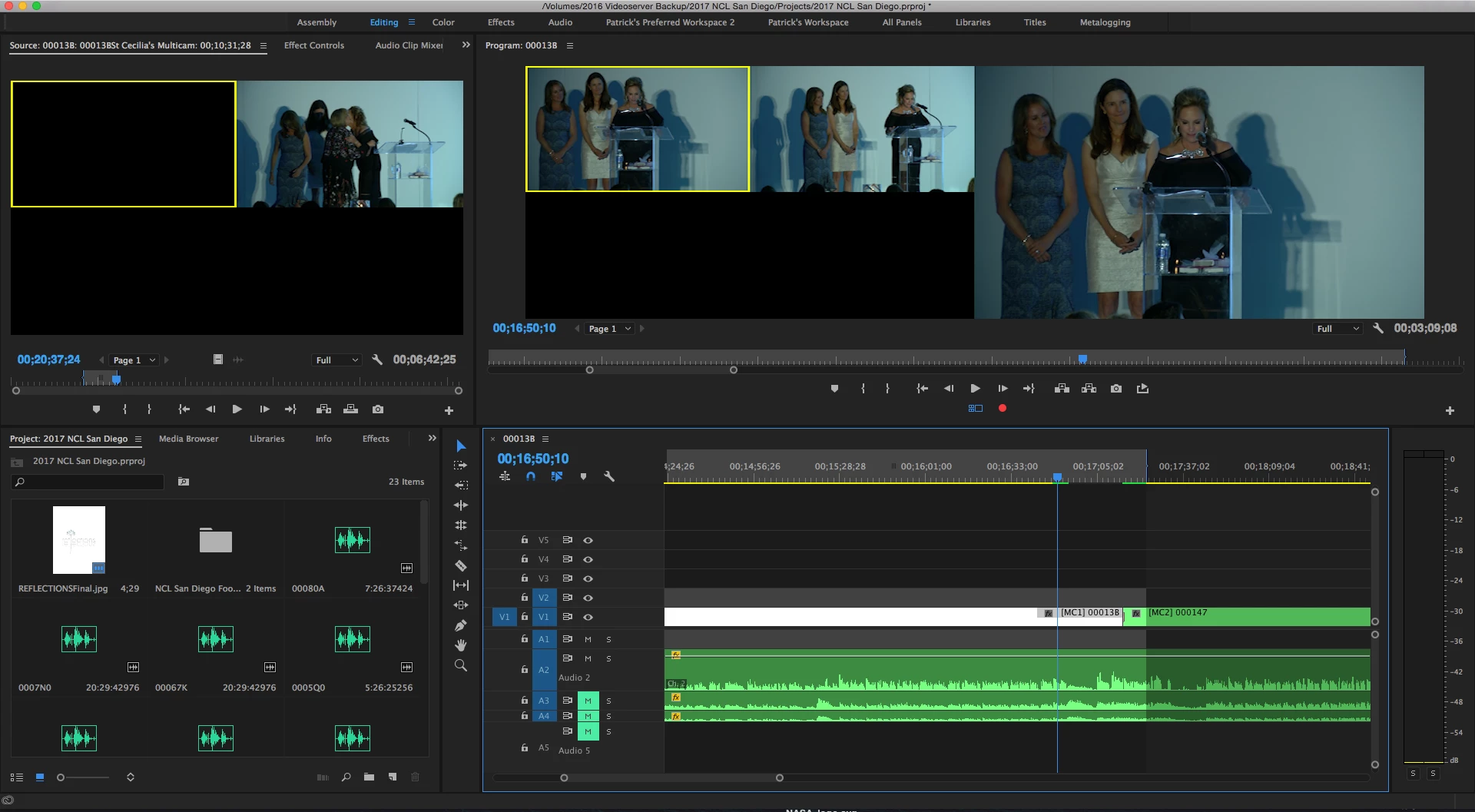
So essentially, we've been working on this 2 hour recording for a while now. We made a multicam sequence out of two cameras. For the past 6 exports, the video exported fine, everything was showing up. Well, the client wanted some more changes. GOing to work on it today, I find that one of the cameras in the multi cam shows up for the first 15 or so minutes in the sequence and then it just cuts out, showing up as black. Whenever it cuts back to that particular camera on the timeline, the frame on screen is just black until it cuts back to the other camera, showing up. I don't know what exactly changed or happened since the last time this file was worked on but wondered if anyone has encountered something like this.

EDIT: Looking deeper into the project, I noticed something odd. The timeline is broken up into two multicam sequences, since we had to stop recording half way through the show and continued recording. I noticed that the same thing happened in this sequence as well. Camera 1 shows up fine on the timeline for 16 minutes, then just cuts out. It's Camera 1 on both sequences. When I go into my bin with the videos, I see the raw clips and can see the video right there. Maybe premiere is having a hard time with the sequence, maybe my work machine can't handle the load, or something.

Possible solution: Would I be able to re-link or just substitute the camera angle with a duplicate of itself so it fixes the problem? Would it still keep the cuts I already made on my timeline?
This topic has been closed for replies.

13 replies

Participant
November 9, 2019

I have figured out a fast work around for me. Hopefully it works for you all to.


Open the orginal multicam sequance on the timeline make sure there is an open track above the issue track. Go to the camera view that is missing and hold "ALT" then drag that camera angle to the above new empty track. For some reason in duplicating that track it snaps out of it. Then I just delete the old one. 


This saved me hours of having to clean up long forum video podcasts. 


Hope this helps!


-Will

Richard-AVC
Participant
August 23, 2022

This one worked for me. Still find I'm bumping into this problem/bug more than I should be...


Thank you.

Participant
December 14, 2018

I've had the same thing happen multiple times but finally figured out what to do without having to exit and relaunch premiere.  Just right click on any of the clips in the timeline that has your multi-cam sequence in it and click:  Multi-camera > enable.   Even if enable is checked, just click it anyway and your clip should reappear again.  

Inspiring
April 16, 2019

I am having this problem too! Very frustrating!  I tried clicking on multi-camera > enable, and it appeared to work to relink those cuts, but when I looked closer later, it had just filled it with my first stream, not the close-ups that were in those spots, so it ended up with all the cuts having the same angle. AAAH! Good thing I noticed before I saved it or the whole edit would have been gone. Then I tried duplicating the multicam timeline and flattening it. That one now has some there, some missing some showing in green (multicam) and some in blue (flattened), and when I try to go to multicam > flatten or enable, it is greyed out. So I can't do anything with that.

I guess I'm going to have to buy a whole new computer just to use Premiere now, because I can't upgrade the system any more and can't update to the latest version of Premiere (currently using CC 2018 12.1.2 build 69).  Any chance of a fix for this?

Participant
September 11, 2018

This answers the question. The problem is caused by a bug separating communication with the show/hide function on each track.

Steps to re-create: Hide all the tracks in your MC timeline (where all the source files are located)

2: Go to Multicam Sequence, show's them missing right?

3. Save and close

4. Open up project, uncheck hide tracks and they do not appear in your Multicam Sequence.

5. Save and close.

6. re-open, they're all there.

Done.

Done with Premiere Pro CC 12.1.2(bld 69)

Participant
July 19, 2019

A variation of this worked for me. Hiding all the clips in the multicam sequence, closing and opening the program. Unhiding all the clips and then closing and opening again - and voila, the black clips were fixed. Get it together Adobe....

Participant
September 9, 2018

Just experienced this problem today working on the first multi-cam I've done in six months. I'm using 2017 PP because 2018 PP has so many effing bugs.

I found a workaround as some of the others seem to have. Just so we're on the same page, let's review how the multi-cam sequence is created. First, I load all four angles onto a timeline. I'll sync everything and then drag the sequence onto the New Item folder at the bottom of the project window. That creates the nested video and audio tracks.

The problem first appeared when I added a video track to the nested sequence and added some additional assets (still pics, titles). One of the four camera angles disappeared. First, went back in the history then closed the project, and reopened it. All angles were there. Added the assets and again, the fourth camera angle disappeared. I opened the original sequence, cut the missing camera angle then pasted it back. On the muti-cam sequence, the missing angle came back. Saved the project. Rendered out fine after that.

Davinci Resolve will soon have a new user. This is the end of the line for me.  

Inspiring
June 30, 2018

Well..I can't say why but when I was ready to process I do a computer reboot and when I reloaded the project all was present.  Hope that helps for a quicker solution.

Inspiring
June 30, 2018

Well..I can't say why but when I was ready to process I do a computer reboot and when I reloaded the project all was present.  Hope that helps for a quicker solution.

Participant
June 2, 2018

Hey Peeps, thanks to all those above who have posted help!

I also was suffering from this. For some reason the "turn all on and save and restart Premiere" didn't work as well for me... it just left me with the 'media pending' screen instead of black.

My fix was to unlink the faulty Multicam from its audio (I'm using a single audio source, may not be ideal for some using follow audio), and copy the edited video track.

I then created a new Multicam sequence from my original sync sequence and unlinked the video from the audio, deleted the video and pasted in my edits from the faulty edit.... voila!!! All channels back and exactly the same edit I had before.

Maybe this might help someone like it helped me.

Cheers and happy editing!

Terry

Participant
December 9, 2017

Hello,

I have the exact same problem, it's happened fairly often to me on multiple wedding and event edits. One solution I've found is to flatten the multitrack after you edit it. Still far from ideal.

Participant
August 7, 2017

Hey Guys,

I've had this issue as well and its incredibly frustrating.  I hope Adobe will fix the issue cause to me it is obviously a bug to do with the muting and unmuting within a nest while working with multicam.  I've been able to fix the problem by finishing my multicam edit with the clips missing in playback and then flattening the multicam.  Even though clips were black with multicam enabled, once I flattened the sequence they unmuted themselves and are in the sequence again. I was then able to do edits with the clips that were missing as needed to finish my project.  Hope this can help others dealing with this, cause I was pulling my hair out trying to get this to work and ready to just start over and lose all my work as I was also on a deadline.

Participant
August 4, 2017

I'm experiencing this right now and am on a deadline. No fun. I've restarted and trashed preferences with no luck. It seems that any channel that was muted when I last saved and quit Premiere is stuck. Actually, I've noticed that the channel mute button doesn't work at all on any of the four channel I have in that sequence. The files that are live and visible and displayed properly but you can't mute them, and same the other way around.

Please, please, Adobe, I need your help.

Participant
August 7, 2017

Hey guys, I figured out a workaround. After 45 minutes with Adobe support, they had no option to help recover my project. I edit very lengthy multicam projects and just like the others in this thread, I was experiencing some kind of miscommunication between the "eye"/mute/channel off icon (whatever it's called) and my project was completely ruined. In hopes of somehow recovering my project I feared saving anything, and every time I unsuccessfully tried to fix the project, I'd quit without saving. I then decided to try turning on (unmuting) every video channel, which did nothing in the project, but then saved and quit. When I opened my project back up, all files were visible! HALLLLLLEEEELLUUJAJAHAHAHAHAH.  Adobe, please fix this problem. Others, until it's fixed, just save and reopen and it appears to work.

Participant
December 13, 2017

i just tried the "turning all channels on and saving" and it worked, thanks for saving the day

was about to bin the lot and start again!