


New Participant
February 10, 2018
Answered

Project Window Stuck Off-Screen. Any ideas?

  • February 10, 2018
  • 35 replies
  • 80915 views

-- I'm running Premiere Pro CC 2018 on a macbook pro 15" running High Sierra 10.13.3 --

I had previously opened Premiere at home with my dual monitor setup. Now I'm on the road and when project opens the top windows are off-screen:
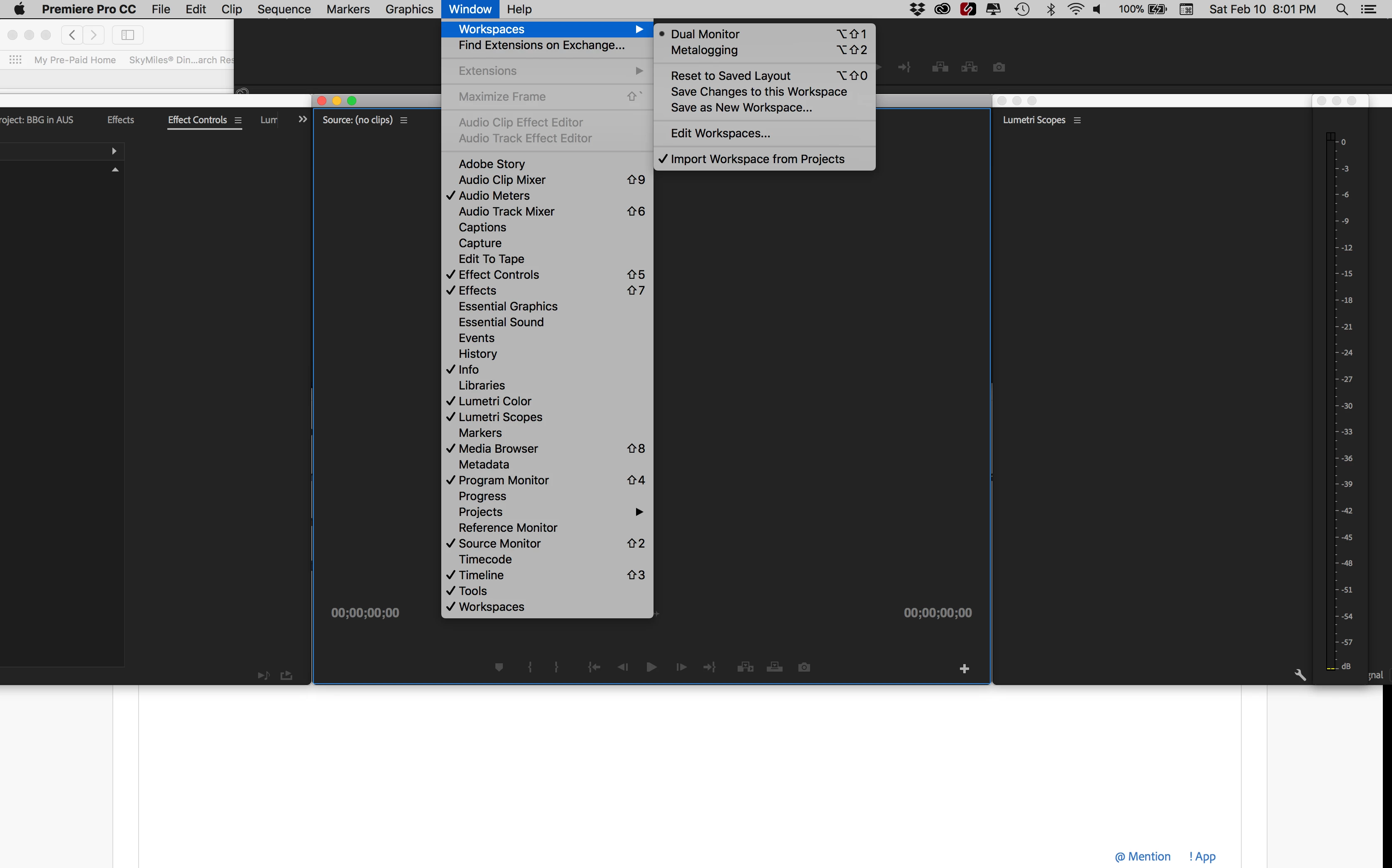
When I select a different window arrangement, it gets worse:
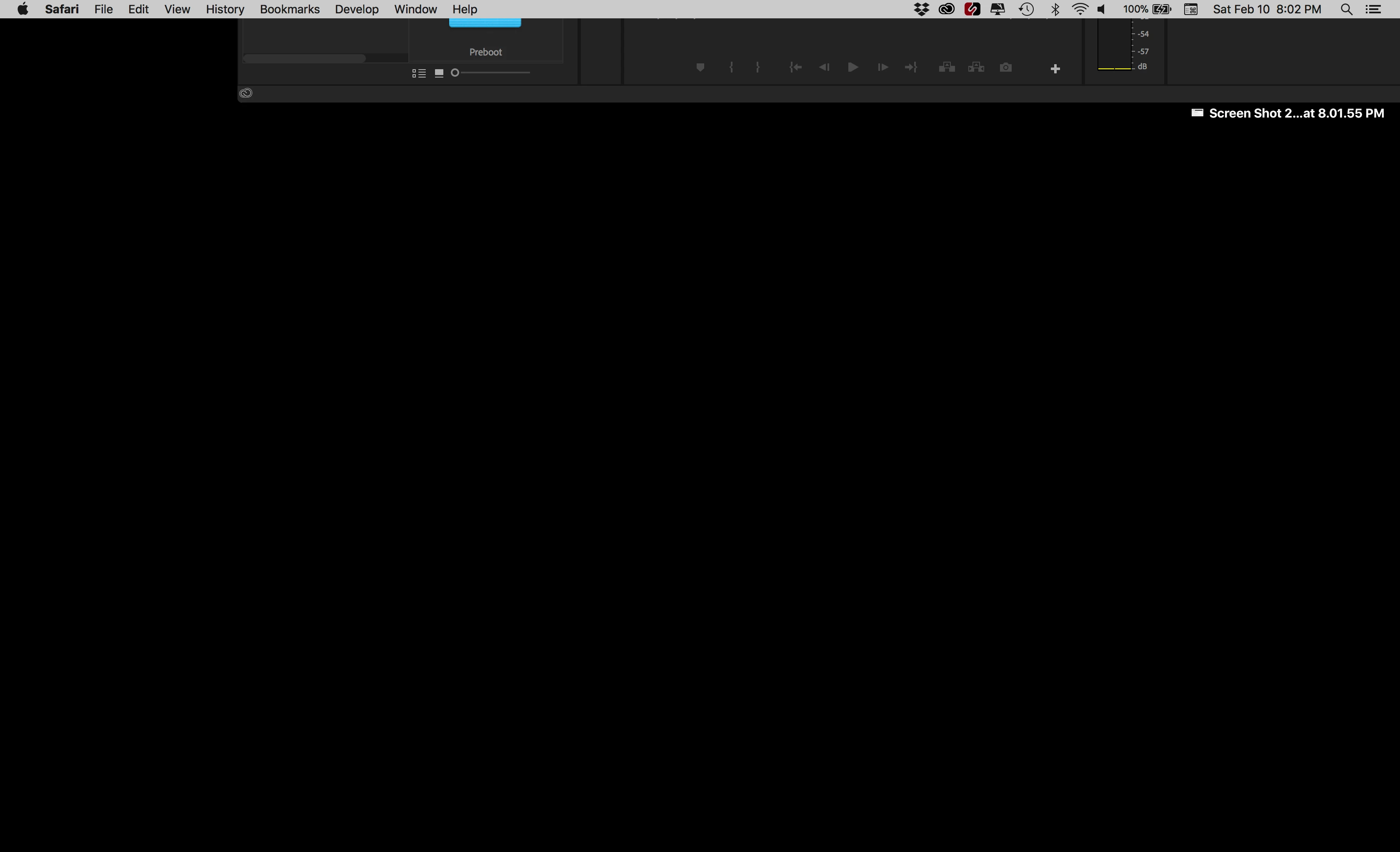
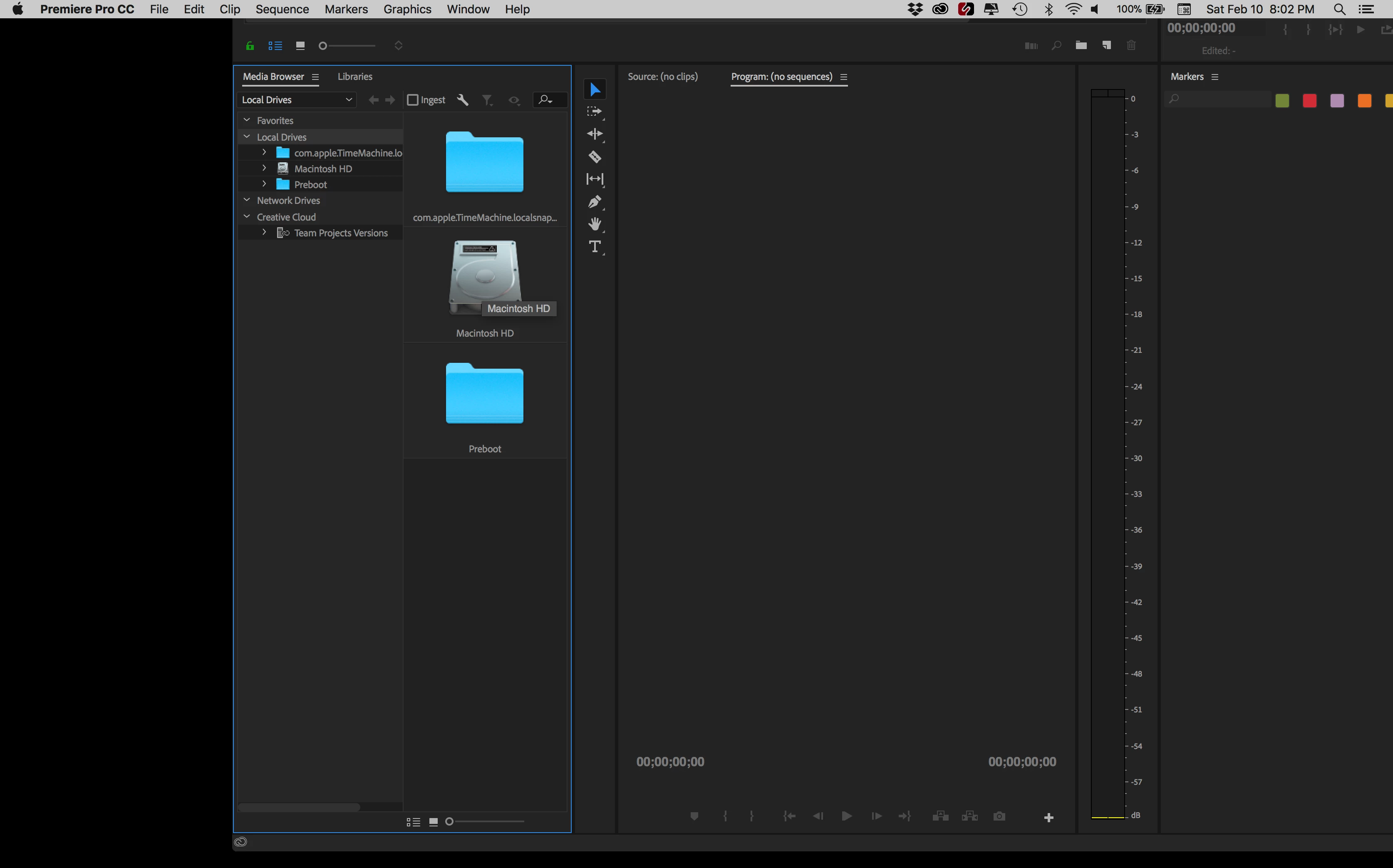
I can drag the bottom of the window and resize it but I can't get to the top to arrange it.
Here's how I have attempted to fix it:

- Hooked up an additional monitor. When monitor is attached I can move windows, but the moment I unplug monitor, the windows go back to original off-screen position (no matter where I had placed them while add'l monitor was running).

- I uninstalled and reinstalled Premiere. Same problem as before.

- I restarted Premiere while holding the option key (to trash preferences). Problem still there.

- I created a new project. No change in problem.

Anybody have a good idea? Thanks!

Correct answer trashcaneron

Command+\ worked for me, just brings the entire app to take up the whole screen (in Premiere), easy. THIS is the correct answer. The answer that is marked correct requires you to delete your preferences which is totally unecessary. 

35 replies

Mo Moolla
Brainiac
November 10, 2018

Window --> workspace --> reset layout. It will resize according to your native resolution

johnd1975
Participating Frequently
October 16, 2018

SOLUTION (MAC) :

-Uncheck your dual monitors in Preferences

-Shut down Program

-Restart program holding down the Alt key to reset preferences.

My window configs were also still there, only thing i had to do was reset my keyboard layout back to FCP7.

Hope this helps....

Telfer
Known Participant
September 28, 2018

Windows 10 Solution

I stumbled upon a shortcut that seems to fix the issue in Windows 10. The shorctut is Ctrl+\

It brings back Premiere windows to centre if they are off screen and further application maximazes the windows to full screen. From what i Gather this is not a premiere Shortcut - so must be a windows one - but strangely it works ony on premiere - it is not effective with explorer or firefox etc - so this is a bit strange. Can anyone check this out and corraborate?

New Participant
October 19, 2018

command + \ for the mac! thanks!

Telfer
Known Participant
October 20, 2018

So it is a Premiere shortcut after all as it is cross platform. - I could not find it in premiere keyboard shortcuts panel but it works.

Given that I think it is safe to say that the solution to original post - are those keyboard shortcuts.

Windows - Ctrl+\

Mac         - Command+\

New Participant
September 26, 2018

Hey all - There are a bunch of solutions for this problem that have been listed on this blog.  I discovered another one this morning that seems to be the simplest. 

BACKGROUND;

I'm running CC 12.1.1 on a Mac Tower running Sierra 10.12.6.  I have 3 monitors with menu bar on the center monitor.  I keep my Project Panel on the Left Screen along with various other panels. Center is my Source,Program and Timeline Panels.  Right screen is my 'client monitor' along with other stuff.

PROBLEM:

When I open a new bin on the Project Panel by Double clicking, the top 2/3 of the window are off screen.  No amount of Double clicking on the panel, or anything else will reset it back on screen.  I tried some of the other workarounds listed above and while they work, they are a bit cumbersome.

SOLUTION:

This morning I discovered that if I move the program panel to my center screen and then open the bin, it stays on screen. Little bit of a bug, but a workable enough work-around that doesn't really mess up my flow too much. 

Hope this helps.

thejorge21
New Participant
September 2, 2018

[SOLVED] I have 2 monitors connected to my MacBook and I just ran into this problem today.

This is how I fixed it:

System Preferences -> Displays -> *go to the monitor that has the window problem* -> select "scaled" for display -> select an option with more space (make the display as high res [small] as possible).

This will shrink down everything on the screen, resulting in the premiere window to be brought down from above the menu bar.

jsolterbeck
Known Participant
September 4, 2018

Agreed, that would work providing your monitor had a higher resolution setting.  Unfortunately, my desktop monitors run at highest res.  Another user pointed out you could actually make the resolution smaller, and it would force the window to pop onto the screen fully.  But no matter what you do from there, even saving that as a layout, once you go back to your working resolution the bins still open off screen.

thejorge21
New Participant
September 5, 2018

I forgot to add that once the window pops onto the screen fully, you need to resize it - I usually make the premiere window as small as possible - and then I change the settings back on my display and correct the window to it's original size.

Telfer
Known Participant
August 30, 2018

Windows workaroud I use is to open Nvidia panel - or windows monitor panel configuration - I find nvidia panel is faster for me to use.

1. Go to multi monitor configuration - I have it selected so when i open the panel it shows up on default.

2. Grab the affected monitor and pull it in the needed direction - then apply (if your Premiere window went up - pull the monitor up - you have to eyball the needed push ammount

2. After applying - the upper section of the premiere window should be visible. grab it and move it back

3. As this operation should take aprox 5 second , the popup window for permanently applying monitor layout changes should stil be up - click "no" and you monitor layout configuration goes back to normal.

Basicaly whenever You change the layout of  your monitors, every premiere window (exluding primary monitor) will stay glued in one place and not adjust itself to new layout.  Pretty annoying behavior.

Also, at least in windows - secondary premiere windows do not have buttons to minize or maximize. So the very usefull win 10 feature of draging windows into corners (or up) and docking them accordingly does not work for premiere's secondary windows. I can only speculate that those things are conected and this is not just a bug but something that premiere's code just cant do for now. That is automatically adjusting windows when layout or resolution changes and minimimizing and maximizing windows on the fly.

jsolterbeck
Known Participant
August 30, 2018

Is OSX, you can often double click a window anywhere, and it will do something.  Get smaller, get bigger, something.  In Premiere, this is also semi-true of the off-screen windows: when you double click it on whatever part of the pane is visible, it will resize.  The only problem is, amazingly, it won't resize the top.  It just resizes the rest of the window to fit the monitor and leaves the top bar out of reach.  So it clearly knows you're trying to resize the window.  That's maybe the most infuriating part of the whole thing for me.

New Participant
August 30, 2018

For Mac users:

Go to System Preferences > Display  and set the smallest resolution (as image below)

It will set the all windows smaller so it is easier to see the bottom

jsolterbeck
Known Participant
August 30, 2018

This is accurate, except you wouldn't actually stay at that resolution to work.  So as soon as you switch back to the resolution you actually want, it just moves the window off the screen again.  Unfortunately it doesn't leave your bin at that new location.

New Participant
November 9, 2018

For me changing the resolution then changing it back reset the window to how I wanted it. An easy fix after all.

Lach

New Participant
July 11, 2018

leeca77 Changing the main screen didnt help me but let me to this trick:

1- Go to System Preferences

2- Lower the resolution of the screen (A) that hosts the off set window

3- You should now be able to see the full premiere window (i was)

4- Move the off set window to the other screen (B)

5- Reset the resolution of the screen (A)

6- Move the premiere window from screen B to screen A

7- Re-Save your workspace

shecky2000
New Participant
August 23, 2018

cedricl36658071solution above did the trick for me.

Known Participant
August 27, 2018

This question hasn't been answered - only time consuming work-arounds for a surprisingly basic software error from Adobe.  Work-arounds destroy productivity and interrupt creativity, and in the end productivity is the main goal.  Forget the bells and whistles if the basics are not right - project windows that disappear partly off screen are immensely frustrating as you can just imagine the top of the frame out of reach and what should not take a thought now becomes a major waste of time to fix every time it happens (which is often in this new upgrade).

I am using two screens (24inch with display port connections - set to optimal resolution on my Mac tower (2008) with Nvida Geforce 680 2G GFX card.), and Version 12.0 Haberdasher of Premiere Pro CC.

I like to edit by opening the rushes bins in thumbnail view so I can scroll through the shots quickly - something I like about PPCC very much. Each rushes bin contains about 70 clips. But I tread with eggshells now to do this as most times they fly off the edge of the screen - the white bar at the top is off the screen - so you're stuck. Opening the bins at the highest level* from the project window in the 'Assembly Workspace' seems to keep the windows contained within the screen - but again I don't want to be even concerned with this level of stuff. It worked before in previous updates, so what's changed? Adobe please sort and test out your upgrades for at least the basic features before release.

* So my bins are imported as folders that mirror how I imported them from the camera - I give a name and date to the top level folder and beneath that is a numbered 'DCIM' bin - which is how the cameras record the movies onto SD cards. If I open the top level named folder and make it show the thumbnail view then it's OK but if I do it with the DCIM bin, a level below,  then the window with all the picture clips often (but not always) gets partly stuck off screen. My work around, which as you guess I find very disruptive, is to change the workspace to something else than the saved one and then return to the saved one.

New Participant
June 21, 2018

using Ae and 3 screens on MacBook, pretty busy studio need multiple screens, and this stupid bug happens, tried fix around no luck fix it @Adobe,

New Participant
June 21, 2018

Actually, I've found that changing the main screen on the mac, System pref>Displays, stops it being an issue with Ae, ni hope that might help others as a workaround

September 25, 2019

works for me every single time. much appreciated.


running macbook pro 15 (mid 2015), with two additional displays.

enzogreco81
New Participant
May 18, 2018

Have the same problem on my MacBook Pro and After Effetcs.

The work around with the right click dock works on the single screen mode.

If you attach a second screen the workspace keeps getting out of screen.

I use macOS High Sierra version 10.13.4 and After effects version 15.1.0

@Adobe: please fix this! It makes working on After Effects totally impossible.

enzogreco81
New Participant
May 18, 2018

I had success doing the following:

1. installing the latest update (don't know if this was important)

2. launch After Effectsd

3. selecting the bottom bar of AE so it turns blue.

4. Normally it only lets you resize the program.Somehow I could reposition everything sao the top bar was again accesable

Hope this works for everyone else as well.

Good luck.

ps. would still be awesome if AE simply would not allow the software being resized out of the screen resolution.