


Inspiring
Mar 18, 2021 9:31 PM UTC
Answered

SRT import with right-to-left language (e.g. Hebrew, Arabic) - text is reversed

Hi. I'm creating subtitles in Premiere Pro 2021 by importing prepared SRT files and creating a subtitle track by dragging the SRT files onto the timeline.

The SRT files contain subtitles in several languages, among them are Hebrew and Arabic, which are oriented right-to-left. 

For the left-to-right languages everything works great.

But right-to-left languages are appearing with all characters in reverse order.

"This is not good" appears as "doog ton si sihT"

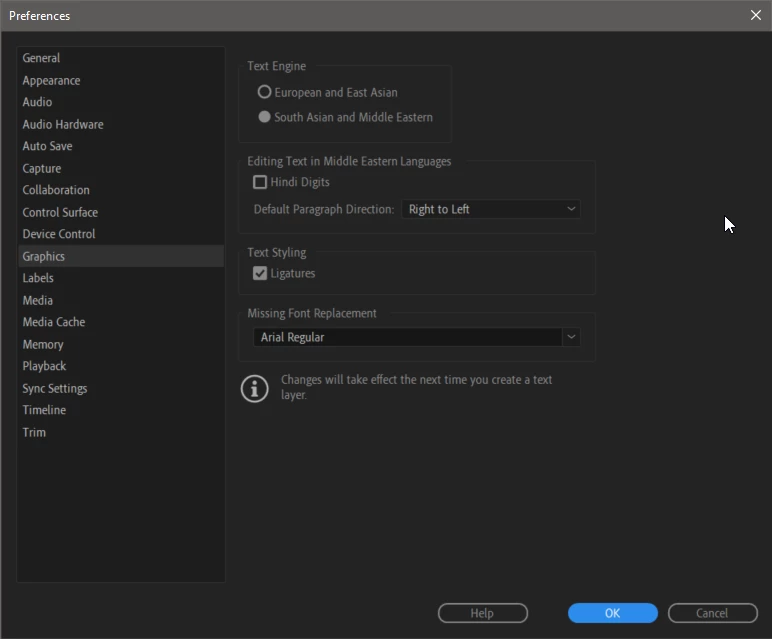
In Preferences > Graphics

I've set Text Engine to "South Asian and Middle Eastern"

I've set Default Paragraph Direction to "Right to Left"

(see image below)

I restarted Premiere and re-imported the SRT file.

These steps did not help.

Does anyone happen to know how to fix this issue?
 

There was a time when Adobe software didn't support right-to-left languages (in Photoshop, Illustrator, etc) and the result was the same as what I'm seeing now in Premiere Pro subtitles. Back when this was happening in Photoshop and Illustrator, I recall having to use 3rd party software to reverse the character order of the text, so when pasted into the applicaitons, the text actually appears correctly. This work-around is not a good option for me this time. I really need some sort of solution that isn't too time-consuming.

Any help here would be highly appreciated. Thanks!

Kevin J. Monahan Jr.
Kevin J. Monahan Jr.Correct answer
Legend
Mar 18, 2021 10:26 PM UTC

Our engineer Trent had the correct answer:

Do you have South Asian and Middle Eastern set in your Caption Track Settings? Right-click on the Caption track header, choose Track Settings... and then under Styling Options > Text Engine, click button for South Asian and Middle Eastern. Then click Ok button.

Kevin Monahan - Sr. Community and Engagement Strategist – Adobe Pro Video and Audio

19 replies

Participant
Feb 12, 2022 10:09 AM UTC

This had worked for me in 2021 and I never had to change anything again. However, it looks like they have removed these options in the 2022 version. Which means if I direct this Discussion Page to someone new, he/she might not be able to do it.

Translate
Luis Cameraman
Participant
Oct 19, 2021 10:17 AM UTC

Very hepful! 

Translate
Kevin J. Monahan Jr.
Kevin J. Monahan Jr.Correct answer
Legend
Mar 18, 2021 10:26 PM UTC

Our engineer Trent had the correct answer:

Do you have South Asian and Middle Eastern set in your Caption Track Settings? Right-click on the Caption track header, choose Track Settings... and then under Styling Options > Text Engine, click button for South Asian and Middle Eastern. Then click Ok button.

Translate
Kevin Monahan - Sr. Community and Engagement Strategist – Adobe Pro Video and Audio
gigi75
Participant
Jun 3, 2021 9:15 PM UTC

Just lost a couple of hours fighting with this same issue.

Thanks so much for the answer! It worked like a charm

Translate
Inspiring
Mar 18, 2021 10:01 PM UTC