

Known Participant
May 24, 2023
Answered

How to expose Scale within the Transformation 2D node

  • May 24, 2023
  • 1 reply
  • 2713 views

Trying to expose the Scale with in the Transformation 2D Node, any help? 🙂

Thank you

Pina

Correct answer davescm

Hi

You need to create a function to drive the scale matrix. To do that :


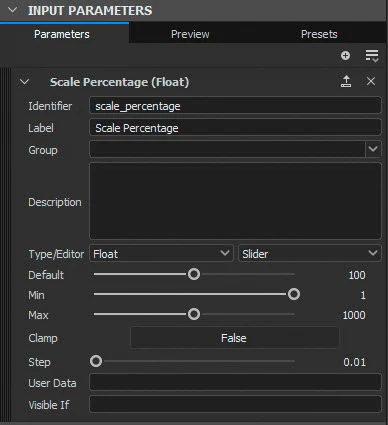
Add an input to your graph. I've called mine Scale Percentage and given it the identifier scale_percentage.
 

In your transform 2D node at the top right of the transform matrix controls click and choose 'Empty Function'


Add the following function nodes to the function :
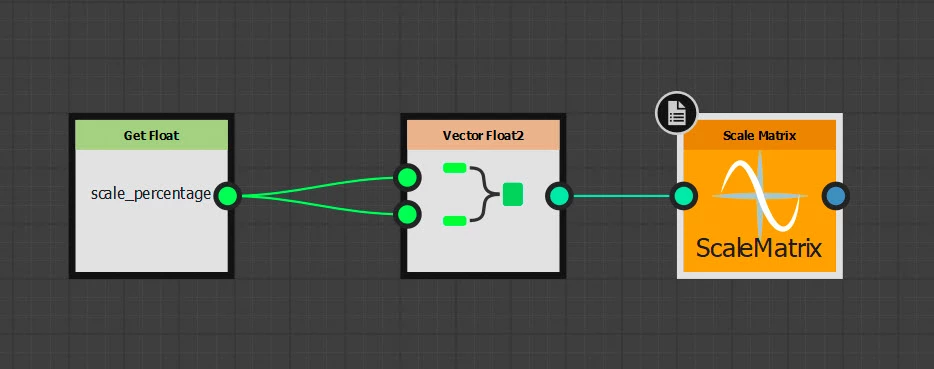
In the Get Float node properties choose the scale_percentage input that you just created.

Right click the Scale Matrix node and click on 'Set as Output Node', it will turn yellow as in the screenshot above.


That is it. The exposed input you made will now control the scale.

Note : I have used just one control - if you want X and Y to be separate just add a second input and use two 'Get Float' nodes in the function graph.


Dave

1 reply

davescm
Community Expert
davescmCommunity ExpertCorrect answer
Community Expert
May 24, 2023

Hi

You need to create a function to drive the scale matrix. To do that :


Add an input to your graph. I've called mine Scale Percentage and given it the identifier scale_percentage.


In your transform 2D node at the top right of the transform matrix controls click and choose 'Empty Function'


Add the following function nodes to the function :

In the Get Float node properties choose the scale_percentage input that you just created.

Right click the Scale Matrix node and click on 'Set as Output Node', it will turn yellow as in the screenshot above.


That is it. The exposed input you made will now control the scale.

Note : I have used just one control - if you want X and Y to be separate just add a second input and use two 'Get Float' nodes in the function graph.


Dave

PaneerAuthor
Known Participant
May 24, 2023

also for some reason it asks me to choose float 4.

davescm
Community Expert
Community Expert
May 24, 2023

In the first step I described , set the input as a Float (not Float2, Float3 or Float4). Remember at that stage you are merely adding a graph input it is not yet associated with the Transform Node. That comes later when you add the function.

In the function itself use Get Float (again not Get Float 2 , Get Float 3 or Get Float 4).

I've attached the sbs from above so you can see the exposed input and the function that uses it.


Dave