Ayush Bakshi
Inspiring
August 11, 2023
Answered

Pixel Processor. How to compare two images and get integer value out of it?

  • August 11, 2023
  • 2 replies
  • 1062 views

Hey people! (Check attached video)

I know the solution must be simple but I've spent more than what I expected on this seemingly innocent situation. :'(


TLDR; I want my filter to be aware of user input.

If it's color with alpha certain action happen

If it's color with no alpha some other action happen

If it's greyscale(R=G=B) some other action happen


I tried digging in the internet, switches, and so many hours..

Plz help :'(
This topic has been closed for replies.
Correct answer davescm

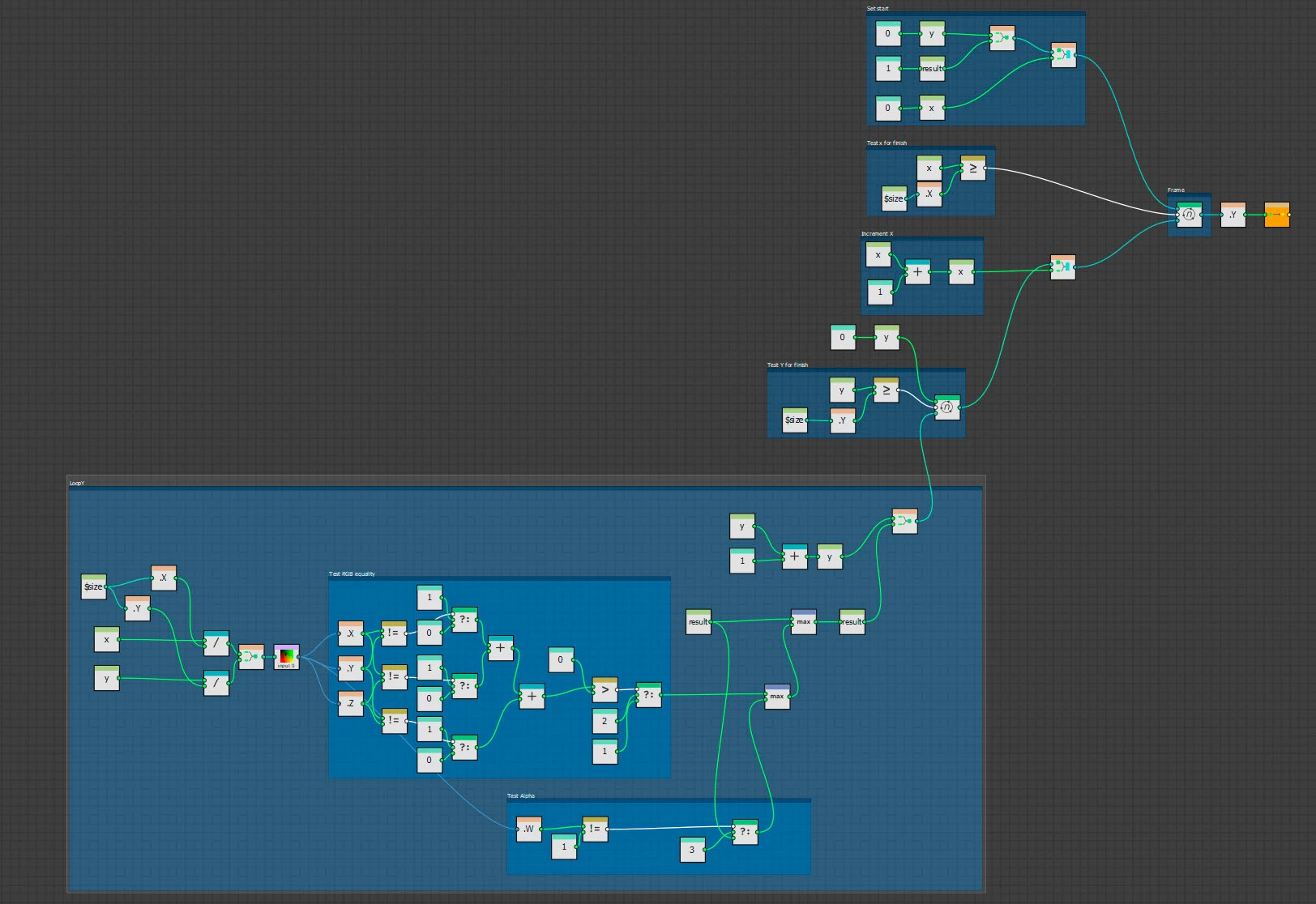
You can do what you want with a Value Processor and loops

The example below tests every pixel in an input and returns a single integer value based on the tests.


If any pixels have alpha less than 1 it returns 3 indicating the alpha channel is being used

If any pixels have RGB values that are not equal it returns 2 indicating colour is being used

Otherwise it returns 1 indicating greyscale - note this will return 1 for both single channel greyscale and R=G=B colour in every pixel and no alpha present.

I've attached the sbs so you can use it or adapt it.

Dave

2 replies

davescm
Community Expert
davescmCommunity ExpertCorrect answer
Community Expert
August 12, 2023

You can do what you want with a Value Processor and loops

The example below tests every pixel in an input and returns a single integer value based on the tests.


If any pixels have alpha less than 1 it returns 3 indicating the alpha channel is being used

If any pixels have RGB values that are not equal it returns 2 indicating colour is being used

Otherwise it returns 1 indicating greyscale - note this will return 1 for both single channel greyscale and R=G=B colour in every pixel and no alpha present.

I've attached the sbs so you can use it or adapt it.

Dave

Ayush Bakshi
Inspiring
August 12, 2023

Hey! Thank you so much for the effort.
That's exactly what I needed.

I knew the actual answer is in the loops but unfortunately I can't be on the latest version yet to utilize those gorgeous splines and loops :'( (version controlling in pipeline).


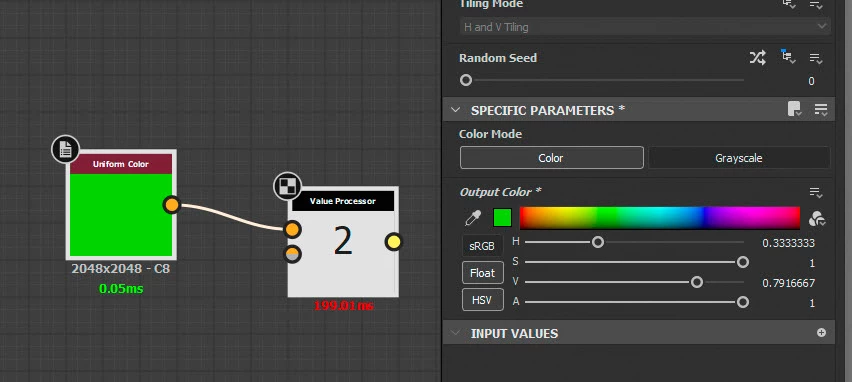
But hey! I found a convuluted answer that is working for me. It's in no way as efficient and precise as yours (the actual way).. but it's the best I came up with in my current time constraints. Have a look!

davescm
Community Expert
Community Expert
August 12, 2023

Without using loops, your method is clever and will work and may be ideal for practical images. It may though miss a situation where just one pixel, or a spread of single pixels, was different and all the rest R=G=B. That is the advantage of sampling them all and storing the result rather than introducing blurring.

I hope you get to use the new version soon as loops opens up a few opportunities which were not previously available.


Dave

Ayush Bakshi
Inspiring
August 12, 2023

Now that I try this again I think the reason the result ain't a uniform color is because the 'Or' and 'And' operator is happening per pixel.

I think it's not possible to compare 'whole' image and result can only be achieved for each pixel.