


Michela Di Stefano
Inspiring
January 14, 2023
Answered

CUSTOM MASK INPUT IN DECAL DOESN'T OVERLAP PERFECTLY

  • January 14, 2023
  • 1 reply
  • 1794 views

I'm creating a fabrics with pattern and I want to apply glitters only to some details of the pattern itself.
I use the .svg file created in Illustrator (here attacched) and the color pattern, black and white pattern are esactly the same. They overlap perfectly.

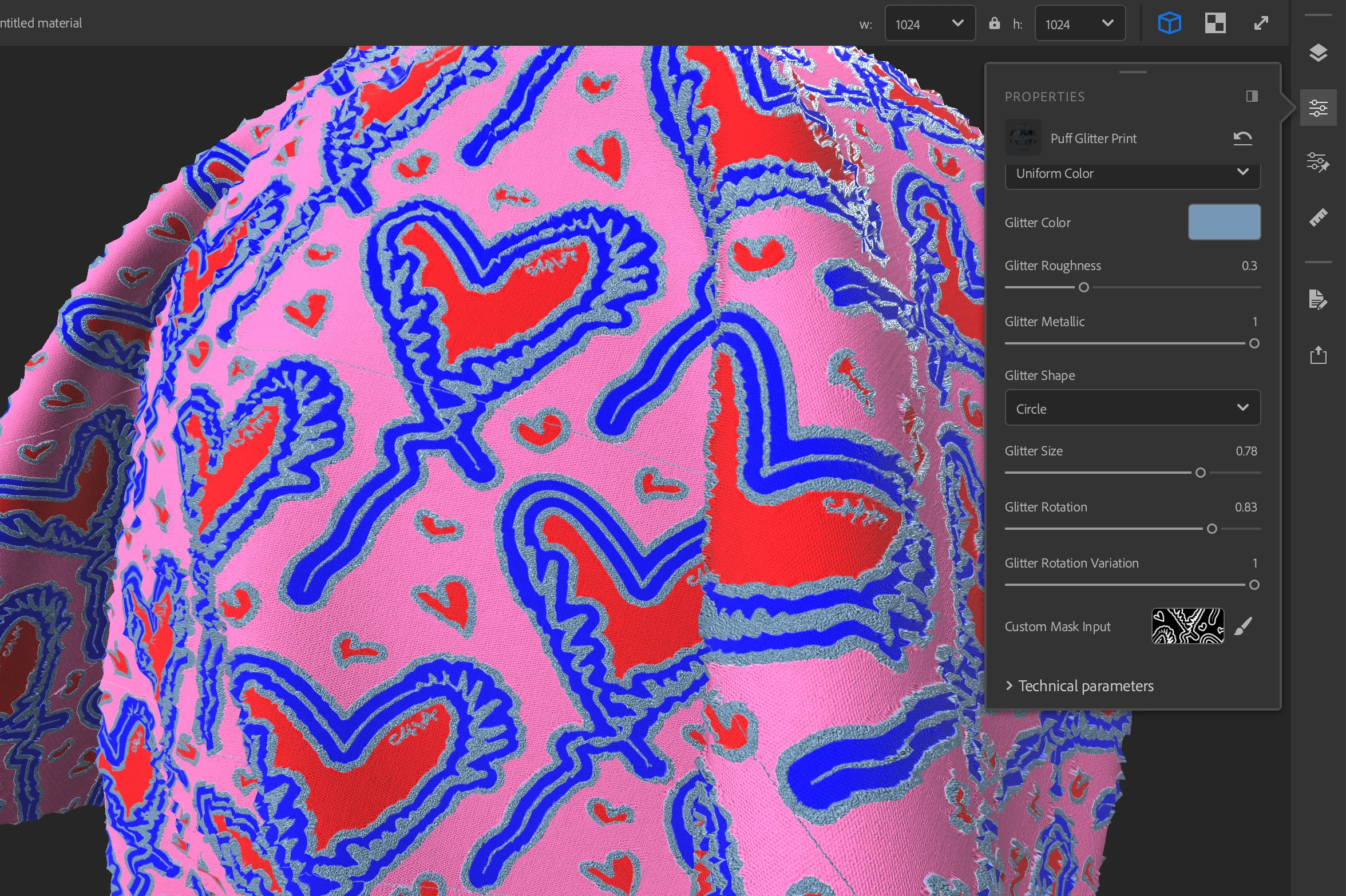
When I use the B&W pattern to apply glitters using a Custom mask input feature, the mask doesn't match in any place but only in some part of the pattern.

You can see the screenshot here attacched and the Sampler file I used to create the fabric material.

You can download all the original files  here below.

This is an education project not a commercial project.

Thank you in advance for any help and suggestion to solve.
This topic has been closed for replies.
Correct answer Michela Di Stefano

Thank you Ares, effectly if I use a .jpg file it works! (see the screen shot attacched) My .svg are exported in the Export for screen where you can export in a lot of formats every artboard! 
Have you some idea about the code for an .svg that could work?  
Thanks.

1 reply

Ares Hovhannesyan
Community Expert
Community Expert
January 15, 2023

I get the same result as you. I check also your both SVG's and find out that they look different in their size without clipping in Adobe Illustrator. May be the reason is in final SVG code as they can be compiled differently from Ai? I haven't check the code but is it possible for you to export them as png or jpg and test again?

Thank you

Michela Di Stefano
Michela Di StefanoAuthorCorrect answer
Inspiring
January 15, 2023

Thank you Ares, effectly if I use a .jpg file it works! (see the screen shot attacched) My .svg are exported in the Export for screen where you can export in a lot of formats every artboard! 
Have you some idea about the code for an .svg that could work?  
Thanks.

Ares Hovhannesyan
Community Expert
Community Expert
January 16, 2023

SVG code works but in your case have some components that differs for this too files.  For exporting SVG you can also use "Save As" option in Illustrator that allows to control many parameters of SVG files. See How to save artwork in Illustrator (adobe.com).

There are many resources for starting going deeper into SVG code and how it use. You can start here https://youtu.be/K_7kCH5KuGU

But for your task with Sampler you can achieve better result using jpg file. Using SVG files in Sampler allows you to build bridge between Sampler and Illustrator (editing and saving  SVG file in Ai can be viewed in Sampler).