






Design the future of fashion, win Firefly Pro 👗✨
Announcements
Recently active
About this articleRead time: ~3 min Published: May 18, 2026 TL;DR: See an unfamiliar Adobe charge on your statement? Use the Adobe Charge Finder tool to identify it , enter your card and transaction details exactly as they appear on your statement, and it'll show the linked Adobe account, subscription type, and date.Spotted an unfamiliar charge from Adobe on your bank or credit card statement? You’re not alone, and in most cases, the charge can be traced and resolved within minutes. Use the Adobe Charge Finder tool to identify the transaction, locate the associated Adobe account, and take the right next step. We know how unsettling it feels to see a charge you don’t recognize. That’s why Adobe has streamlined the process of identifying unknown charges, so you can quickly confirm whether the transaction came from Adobe, trace it to the right account, and resolve it without the back-and-forth. With the Adobe Charge Finder tool, you can look up any Adobe charge using the transaction ID fr
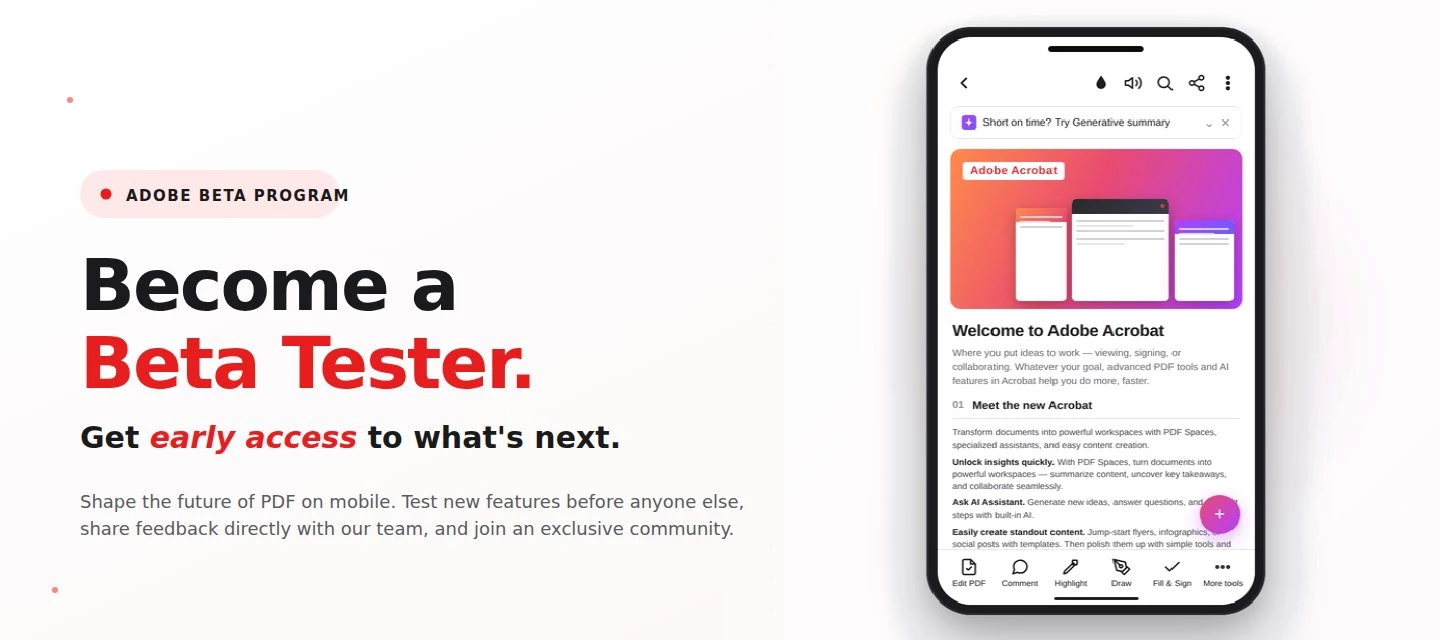
About this articleRead time: 3 min.Published: May 21, 2026 Author: Amal Jaiswal – Community Manager TL;DRThe Adobe Acrobat Reader Android beta program gives Android users free, early access to new Adobe Acrobat Reader features via Google Play. Enrolment takes one tap, it's reversible anytime, and your in-app feedback routes directly to the Adobe Acrobat Reader product team.Adobe Acrobat Reader beta access is an opt-in Google Play testing track for the app on Android that lets everyday users try new features before public release. If you sign PDFs on the bus, scan receipts at lunch, and mark up docs at midnight, this is your backstage pass. What is the Adobe Acrobat Reader beta program?The Adobe Acrobat Reader beta program is the side door into the app on Android, a free testing track on the Google Play Store where the features land before they hit everyone else's phone. Beta testers get pre-release builds straight from the team, a dedicated in-app feedback form wired straight to the p
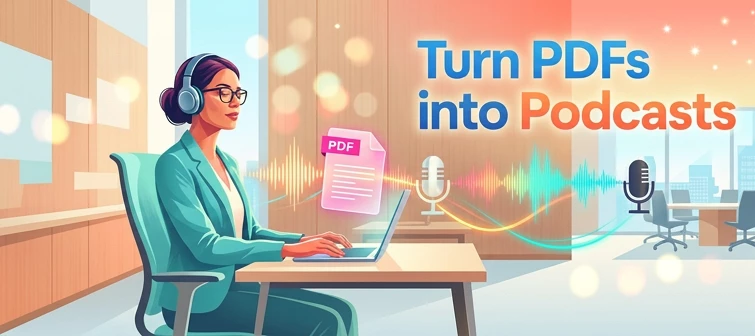
About this articleRead time: ~3 min Published: May 8, 2026 TL;DR: Podcasts in Adobe Acrobat mobile turns the documents inside a PDF Space into AI-generated audio you can listen to on the go. Pick Highlights for a quick summary or Deep dive for a longer walkthrough then edit the transcript so it sounds exactly how you want. Reading a 40-page spec. or listening to it like a podcast while you walk to your next meeting? That’s the move. Acrobat on mobile now lets you turn the contents of a PDF Space into a custom AI-generated podcast built around the focus you define, for the audience you choose, on iOS and Android.We would love to hear what’s working, what’s weird, and what you wish it did next. Drop your thoughts in the reply, we are listening. What is “Podcasts” in PDF Spaces?Podcasts in PDF Spaces is an AI Assistant feature in Adobe Acrobat on mobile that converts the documents grouped inside a PDF Space into a listenable, audio-first version of that content. Each podcast is generated
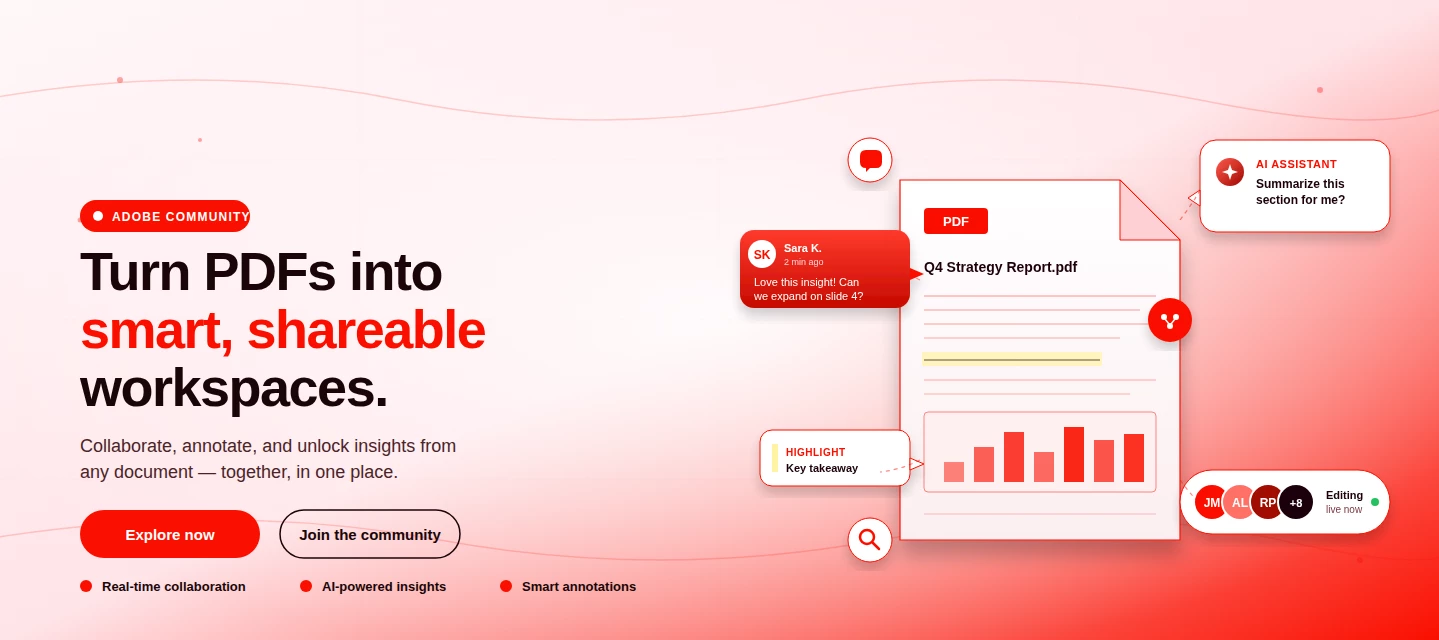
About This Article Read time: ~3 minPublished: May 8, 2026 TL;DR: PDF Spaces in Adobe Acrobat Mobile brings PDFs, photos, webpages, and notes into one AI-powered workspace you can customize and share right from your phone. Add your sources, let AI Assistant summarize and answer questions grounded in your content, then share with role-based permissions.Nobody wants to open multiple PDFs on their phone to find one paragraph. That’s the whole problem PDF Spaces solves. Instead of a folder you scroll past, you get one workspace where AI reads everything for you, and you just ask. This post is part announcement, part open discussion, we want to hear what’s working and what we should improve next. What is PDF Spaces in Acrobat Mobile?PDF Spaces is an AI-powered workspace inside Adobe Acrobat Mobile (Android and iOS) that lets you collect PDFs, scanned documents, photos, webpage links, and text snippets into one place then use AI Assistant to summarize, answer questions, and generate two
We truly appreciate the time you've spent with Acrobat Mobile or Scan. While we’re sad to see you go, our priority is to make cancellation simple, transparent, and respectful of your time. Before you proceed, here’s what you need to know about refunds:If you cancel within 14 days of your original purchase, you’ll get a full refund. If you cancel after 14 days, your subscription will remain active until the end of the current billing period, but no refund will be given. For full details, please review our Subscription Terms & Cancellation Policy. Here’s how to cancel based on your subscription type:On Android: Use our automated cancellation form to submit your request. It only takes a few moments. On iOS (iPhone or iPad): To cancel your subscription, follow the instructions outlined in the help article. On Desktop (Acrobat Pro): You can cancel anytime through your Adobe Account by following the steps in this guide. Wondering about your account, payment, or plan? Ask away right he
Adobe: Your Feedback, Our Improvement Dear community members, Acrobat Reader mobile app now has a redesigned and more intuitive interface. And we've updated the Acrobat Android Help to guide you through the exciting features of this new interface. We aim to provide the best support, ensuring you get the most out of our app. That’s where you come in! We'd be grateful if you could spare a few moments to share your thoughts on the usability and effectiveness of the Acrobat Reader Android Help. Your feedback is crucial in enhancing the overall user experience. Consider these questions while giving your feedback: How easy was it to navigate the help? Did you find the information quickly and easily? Were the explanations and instructions clear and understandable? Does the help cover all essential aspects of the application? Were there any topics or features missing from the help? Overall, how satisfied are you with the application's help? Share your thoughts
The Adobe Fill & Sign app will soon be retired and no longer receive updates or support. We encourage you to migrate to the Acrobat Reader Mobile app to access the Fill & Sign feature for form-filling and signature workflows. Switch to the Acrobat Reader Mobile app The Adobe Fill & Sign app launch now displays a dialog that notifies you about the upcoming change. Select Go to Acrobat Reader to explore the Fill & Sign functionality within the Acrobat Reader app. You may choose Maybe later to continue with the Adobe Fill & Sign app until the app is retired. The Acrobat Reader Mobile app offers a more comprehensive set of features that cater to a broader range of PDF-related tasks. Advanced PDF viewing: The Acrobat Reader app allows you to explore PDFs in advanced modes, locate specific topics within PDFs, and enhance readability through Liquid Mode. Annotation and collaboration: Acrobat Reader Mobile app's annotation features are great for re
AI Assistant is now available on Acrobat Reader mobile! Experience the power of AI Assistant for Acrobat, now accessible on Acrobat Reader mobile and across all devices. Seamlessly integrated into the Reader mobile app, AI Assistant elevates your productivity wherever you are. With AI Assistant on mobile, you can use voice commands to quickly understand your documents. AI Assistant can also create content for emails, study guides, blog posts, and more, all on the go from your phone. Level up your productivity and try AI Assistant for Acrobat on Acrobat Reader mobile or on your favourite Acrobat app today! Resources: AI Assistant for Acrobat User Guide Use Case Video Library For more information and FAQs, visit adobe.com Community Resources: AI Assistant for Acrobat is now available on all devices! Give us your feedback on the new Acrobat GenAI
Are you tired of dealing with the hassle of printing, signing, and scanning documents? A digital signature is a secure electronic signature that verifies the authenticity and integrity of a document. It is created using a certificate-based digital ID issued by a trusted third-party certificate authority (CA). How Digital Signatures Work? Digital signatures use advanced encryption technology to create a unique digital document fingerprint. This fingerprint or hash is then encrypted using the signer's private key, which only the signer can access. When the document is received, the recipient can use the signer's public key to decrypt the hash and verify its authenticity and integrity. How to Sign Using Digital Certificates You must first obtain a digital ID from a trusted CA to sign a document using a digital signature. Once you have your digital ID, follow these steps: 1. Open the document you want to e-sign in. 2. Sele
Adobe Document Cloud storage is migrating to Adobe Cloud storage, which will streamline file storage and increase the efficiency of file operations in Acrobat. The change involves infrastructure optimizations and improvements, unlocking new value in Acrobat, including advanced collaboration workflows, support for deep integrations with third-party collaborative apps, and enterprise-wide adoption of PDF services. Benefits of Adobe Cloud Storage Efficient Storage: Enhances storage efficiency and file-handling capabilities. Seamless Sharing: Facilitates smooth collaboration between users on shared documents and creative assets. Better Performance: Reduces latency in cloud-based operations and workflows involving documents and creative assets. Scalable Infrastructure: Provides better controls and a regional data centre, accelerating enterprise adoption. Unified View: Presents a consistent user experience on shared assets for Adobe Creative Cloud and Acrobat users. Global Presence: Adobe c
We have received several reports where some individuals in the community are posing as Adobe Employees. These individuals are falsely representing who they are to gain your trust, and possibly access to your computer or personal information by offering to help troubleshoot issues. Here are 3 easy ways you can identify Adobe Staff: ➊ All Adobe Staff have a RED ADOBE BADGE below their profile picture and an Adobe logo after their username. This staff badge is visible on Adobe Staff profile pages, original posts, and reply threads. ➋ Genuine Adobe emails are always __________@adobe.com ➌ Adobe Staff will never ask you to share your passwords or sensitive information in the Adobe Community. Adobe employees will always direct you to communicate through an official Adobe channel to set up support sessions. Report abuse or suspicious behavior to phishing@adobe.com
Remix with Firefly Community Gallery
Thousands of free creations to fall in love with and remix in Firefly.
Already have an account? Login
Enter your E-mail address. We'll send you an e-mail with instructions to reset your password.