



DISCUSS: Collaborate without conflicts using Team Projects in Premiere Pro
You can now collaborate without conflicts using Team Projects in Premiere Pro. You can share your project and hand-off your changes to co-editors, assistant editors, producers etc. without having to worry about conflicts.
Once you perform any edit operation (trim, move a clip, delete etc.) on your sequence in a Team Project, the sequence will be locked and only you can edit that sequence till you publish your changes. Your collaborators will have view-only access to your sequence and can playback/seek/scrub, copy and paste clips, and duplicate your sequence. However, they cannot edit your sequence while you are editing till you publish your changes.

The sequence above shows that you are editing a sequence and can publish once you are done editing
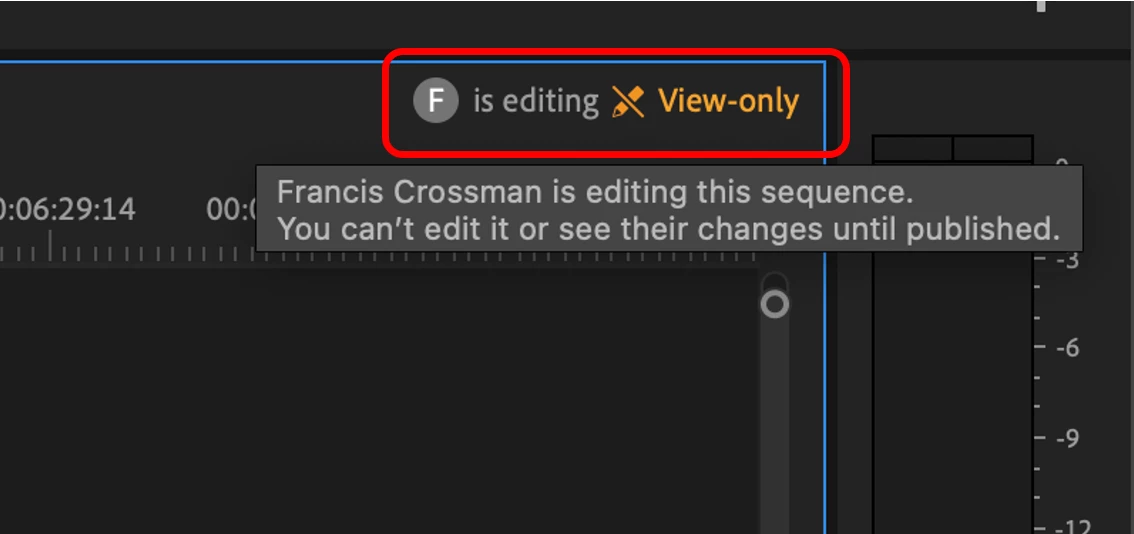
Your collaborators in Team Projects can see that the have view-only access till you publish your changes
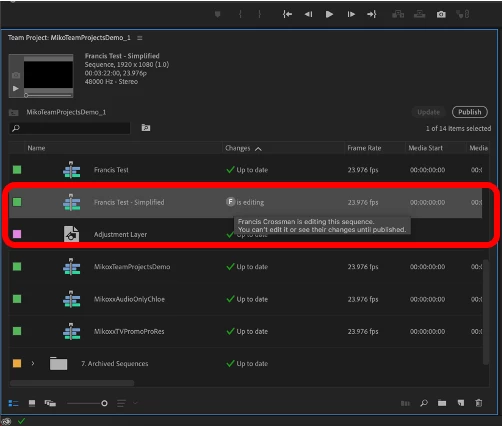
You can also see who is editing a sequence in the Project Browser
Once you publish your changes, your collaborators will receive your edits and can now edit the sequence that you were working on.
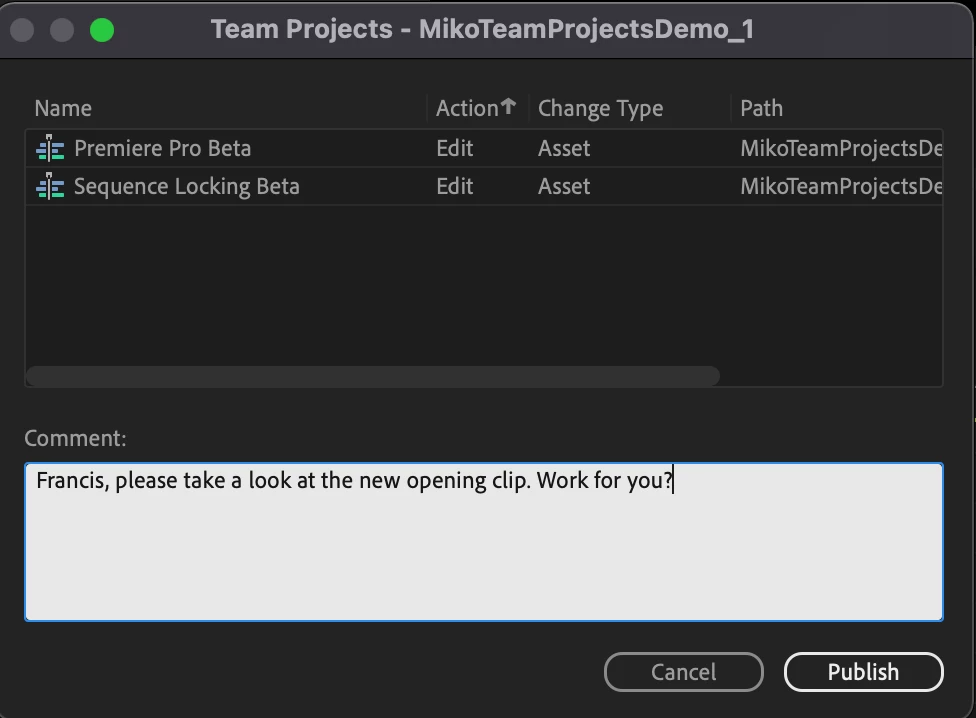
A publish updates your collaborators with your changes and makes the sequence available for editing
In order to start collaborating, create a new Team Project and invite collaborators to that project.
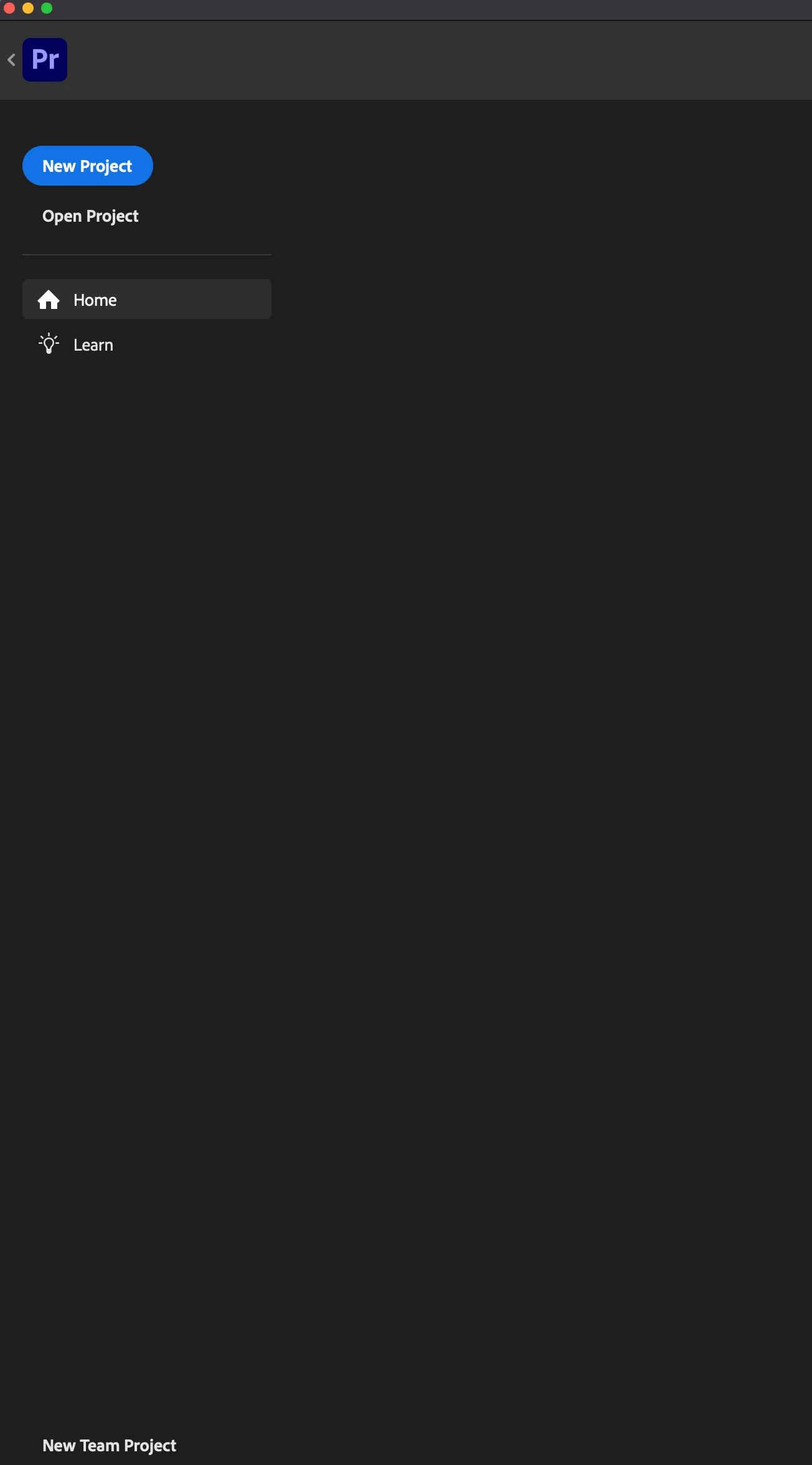
Create a new Team Project in the Home Screen in Premiere Pro
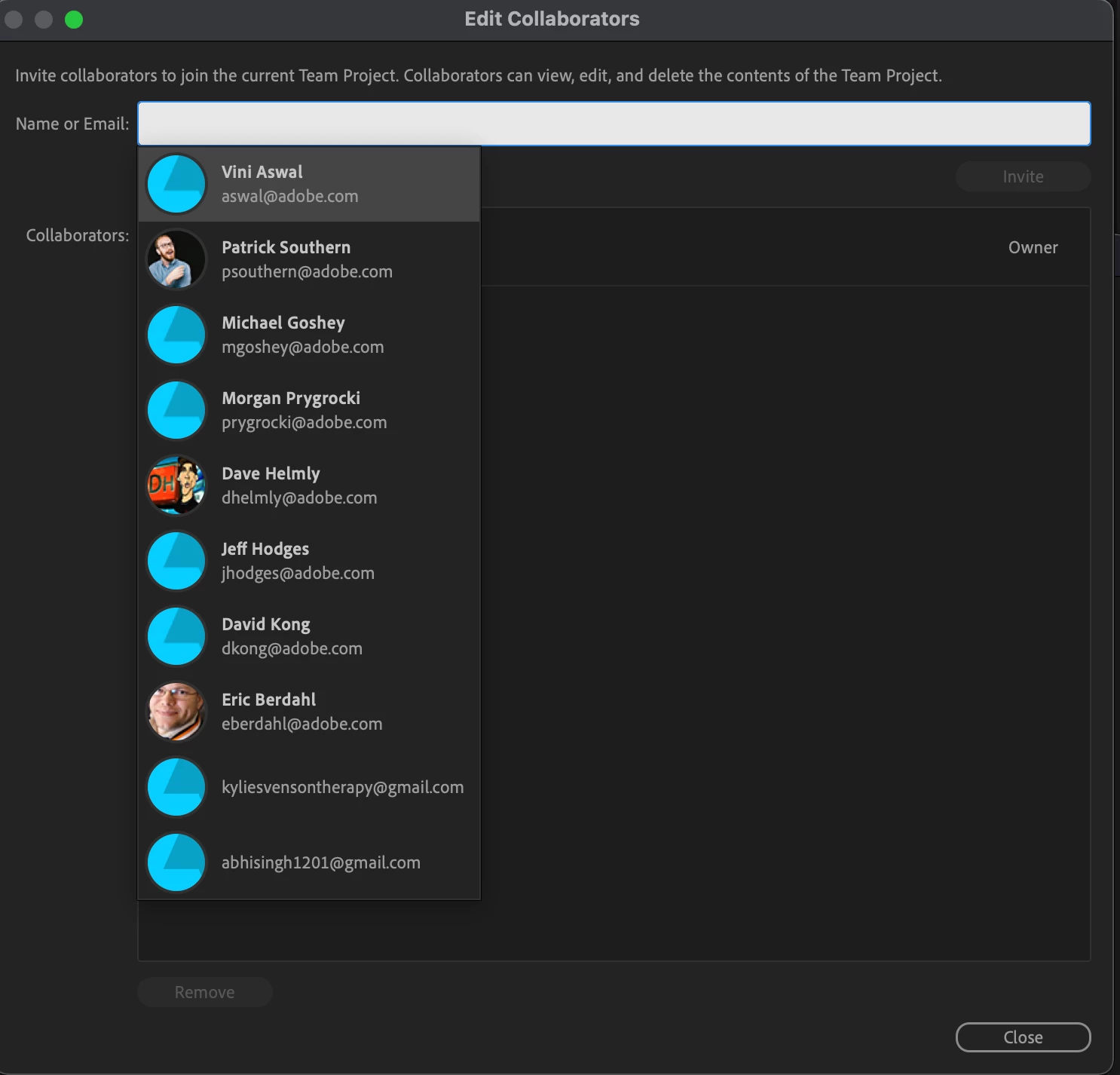
You can invite collaborators using the Invite icon on the top right header of Premiere Pro when using Team Projects.
Known Issues
Please only use this feature with Team Projects that are created in Beta and only collaborate with users who are also using the Beta.
We would love to hear your feedback on this feature. Please join the conversation below.
Abhi Singh
Senior Product Manager
Cloud Platform for Video
 AdChoices