




Now in Beta: Filler words and other Text-Based Editing updates in Premiere Pro
Earlier this year we debuted Text-Based Editing in Premiere Pro which makes editing video as simple as copying and pasting text. We’ve been excited to see all the ways you’re utilizing this workflow to speed up your rough cut – and we’ve been listening to all the feedback. Now in Premiere Pro (beta) we’re bringing you some of the top feature requests so far: filler words, bulk actions (like remove all pauses), and multichannel audio support.
(If you’re new to Text-Based Editing, check out our HelpX page or explore the workflow with Valentina Vee’s complete beginner’s guide to Premiere Pro.)
Filler Words
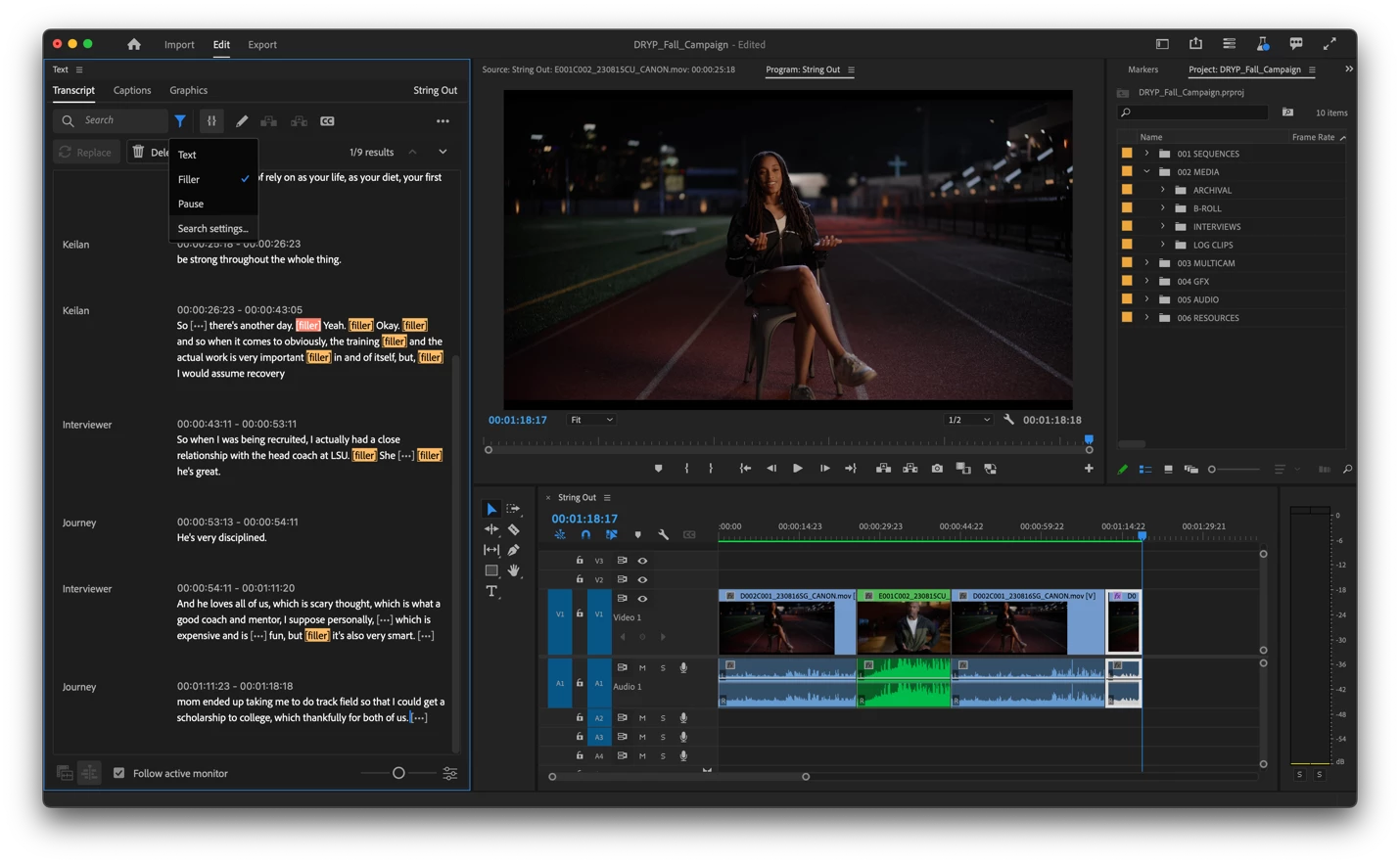
Text-Based Editing now allows you to detect “uh” and “umm” filler words, so your transcript is more accurate. Just like with pauses, you can click on a filler word and delete it from your sequence transcript. Because we serve an international audience, Filler words are language agnostic so that they work in all 18 languages supported in Speech to Text.
When you transcribe a sequence, you will now see a localized version of “[filler]” to identify these filler words. If you’ve previously transcribed a clip or sequence, you’ll need to re-transcribe to add filler words to it.
Bulk Actions (including Remove All Pauses)
Now you can get rid of all those filler words, pauses, or any other words you don’t want to keep in your sequence transcript in a single click. This is an easy way to clean up everything from long silences to brief pauses in an instant.
Open the transcribed sequence you want to trim. In the Transcript panel, click on the filter icon and choose filler or pause.
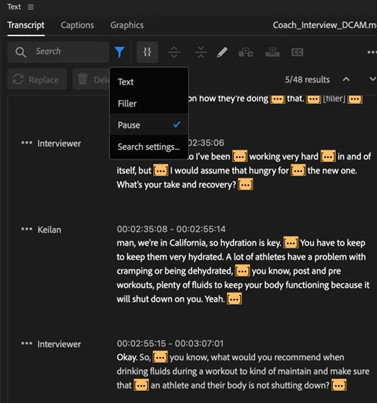
Every instance of filler words or pauses will become highlighted in the transcript. Click Delete and select Extract (to ripple edit and close gaps) or Lift (to delete and leave gaps). You can Delete all at once or delete one by one.

If you only want to get rid of long pauses or fillers, open up the overflow menu->Transcribe view options. You can change the length of pauses and fillers. The transcript will update in real time.

You can also search for text and delete it, as well as replacing instances of text displayed on the source or sequence. For example, you can find and replace every instance of a proper noun which may have been transcribed incorrectly.
Transcript View Options
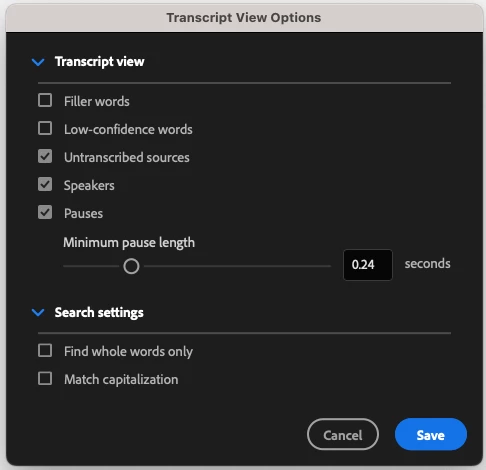
You also have more control over what you see in the transcript. Click on the three dots at the top of the Transcript window and select Transcript view options. You can add visual indicators for low-confidence words, adjust pause length, and display or hide un-transcribed sources, filler, pauses, and speakers.
You also have more control over search settings with the ability to narrow a search to whole words only or match capitalization.
Multichannel Audio Support
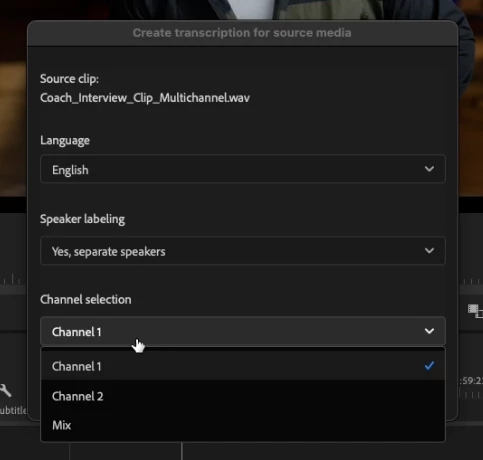
Some audio files have different microphones recorded on separate channels. With multichannel audio support in Text-Based Editing, you can choose to re-transcribe an audio file using a specific channel or a mix of all channels. This feature works with audio files in a multichannel mono format.
After importing a multichannel mono audio file, right click on the file in the Project panel and choose Transcribe or Re-transcribe. You will now see a channel selection drop down so you can choose if you’d like to transcribe a mix or specific channel.
These great new Text-Based Editing updates are now available in Premiere Pro (beta). Let us know in the comments below how they’re working for you. In particular, we want to know how filler words are performing in non-English languages. We also want to know what we can add to make your workflows feel more smooth and speedy, so keep the requests coming!
 AdChoices