
Inspiring
October 21, 2020

P: Poor photo in the library and develop module - smart previews

  • October 21, 2020
  • 162 replies
  • 9592 views

I have a problem with version 10.0,
the photo is of poor quality in the library and in the develop module. I use smart previews (the disk with the original photos is disconnected).
smart previews in version 10.0 have poorer quality than in version 9.4
When I install the older version (9.4), the same photo with the same preset is of better quality (also smart previews).

It looks like there is a higher grain in the photo
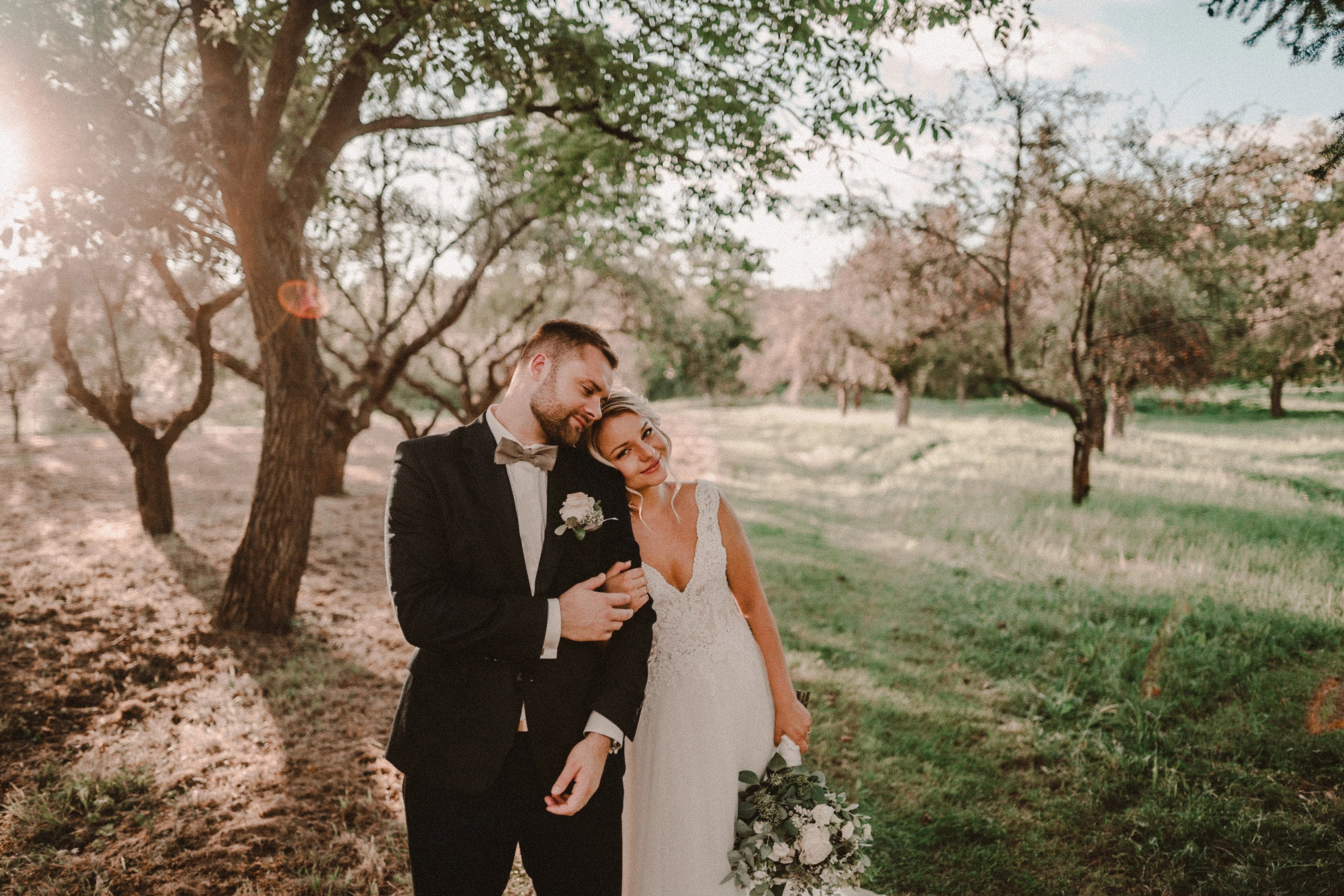
Here are photos exported from smart previews.

Tested on: Mac pro 2013 (6core, 16gb ram, D500)

Macbook Pro 2014 2,7 ghz 4 core, 16gb ram


10.0:
9.4:
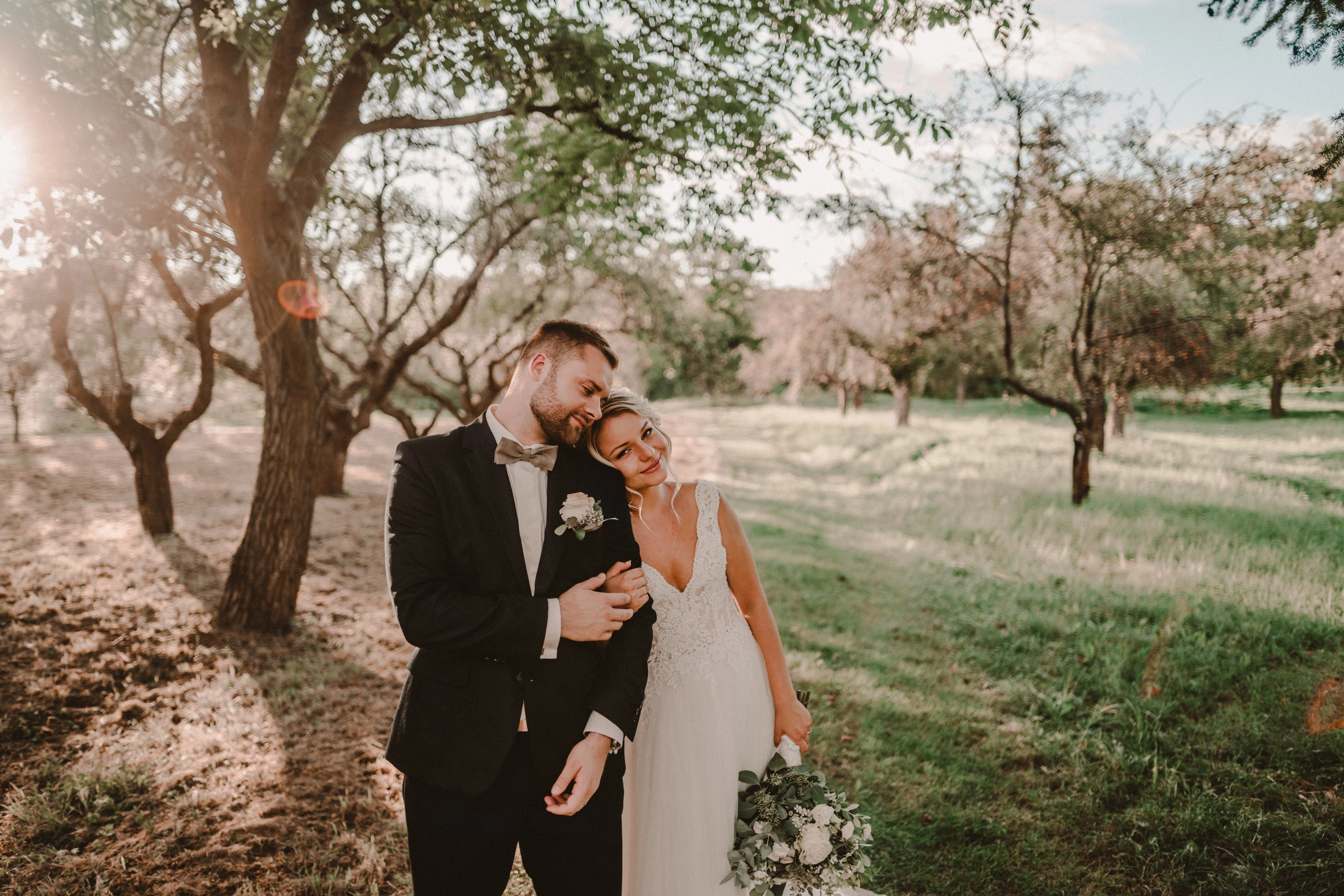
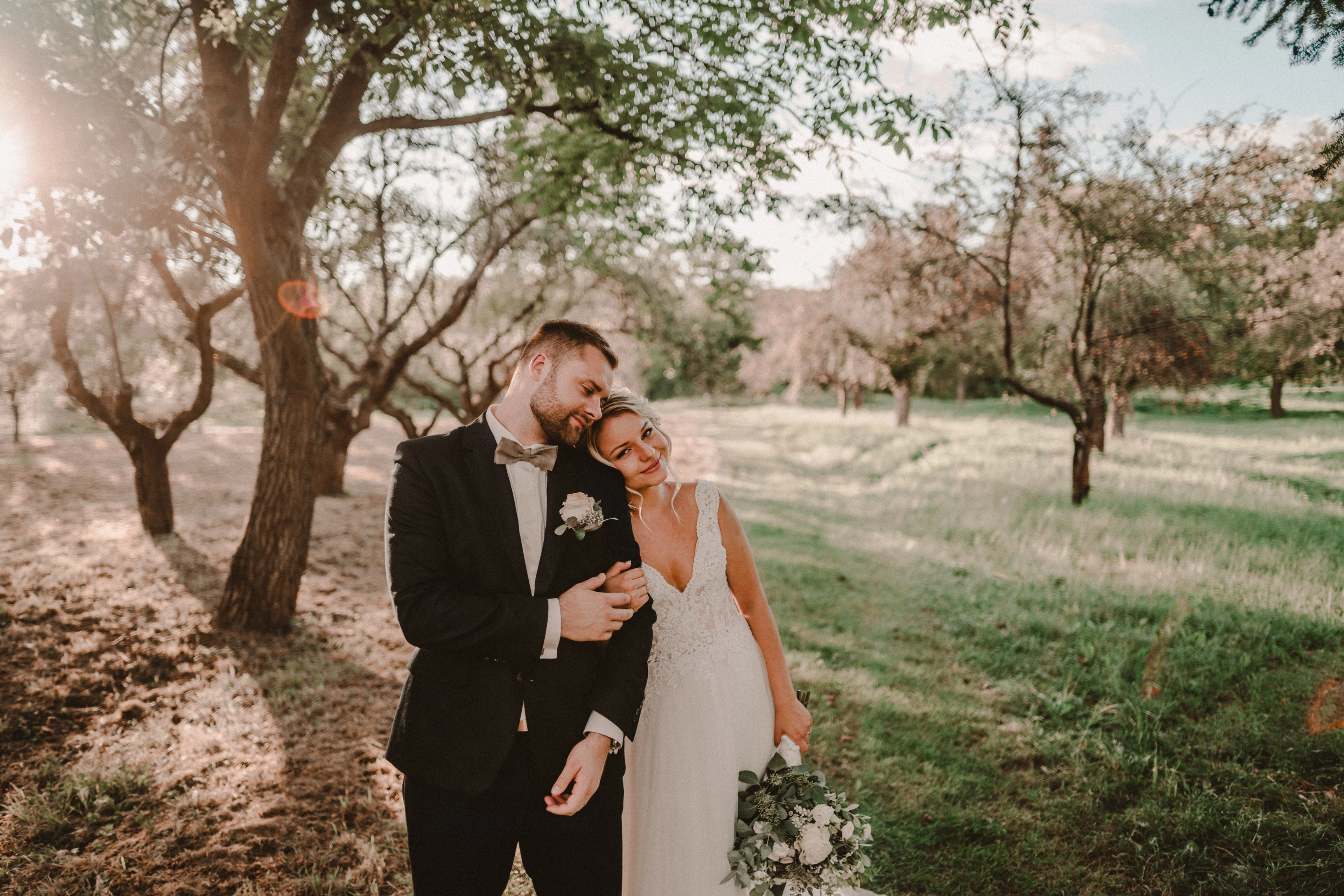
Photo exported after attaching a disk with the original photo:
This topic has been closed for replies.

162 replies

kimballisms
Inspiring
October 27, 2020

Again, be useful if those making these reports would let us know if and how they are using Smart Previews. 

The OP said in his first post this was a case of using smart previews while the original was disconnected.

Nice work Todd Shaner!

TheDigitalDog
Inspiring
October 27, 2020

@todd_shaner_6660895 

I do agree that using some grain edits seems to be key but I think more testing is in order from those reporting these issues. 

FWIW. None of my testing was done with Smart Previews 'disconnected' from the original. Again, be useful if those making these reports would let us know if and how they are using Smart Previews. 

Author “Color Management for Photographers" & "Photoshop CC Color Management/pluralsight"
Todd Shaner
Legend
October 27, 2020

I believe I've found the cause of "poor quality" when using Smart Previews with the original files disconnected. In the case here and the other mentioned post Grain Effect was applied. It appears the Grain Effect tool applies a fixed size grain pattern regardless of the image file's resolution. So a 24 megapixel image file and a 4.3 megapixel Smart Preview will have the same size grain pattern mask applied. When viewed on screen the grain in the smaller Smart Preview image file will appear much larger and more pronounced.

To test this I created 6000 x 4000 and 2560 x 1707 test files, which are representative of the OP's raw file and Smart Preview size.  Inside LrC I applied the same Grain settings to both files. The below comparison clearly demonstrates the issue.

I tried matching the above test files and the required settings are not very intuitive. One possible solution would be for Adobe to add "automatic scaling" to the Grain tool so that it applies the same results, using the same settings, regardless of image size. 

6000 x 4000: Amount 100, Size 50, Roughness 50

2560 x 1707: Amount 35, Size 0, Roughness 100

(Right-click and select View Image)

Todd Shaner
Legend
October 27, 2020

After some more testing the above mentioned Smart Preview behavior is by design. Adobe added caching of full-size Develop module previews to allow reviewing multiple image files with minimal preview building delay.

After disconnecting the original image file you will need to view a different image file in the Develop module and then go back to the test file, which should now show a reduced size Smart Preview image.

TheDigitalDog
Inspiring
October 27, 2020

To go back, use Creative Cloud application, next to the product you want to revert, click on... pick "other versions"

Author “Color Management for Photographers" & "Photoshop CC Color Management/pluralsight"
arjunhaarith
Adobe Employee
Adobe Employee
October 27, 2020

Hi @MokusoUK ,

Do you have this preference (Use Smart Preview instead of Originals for image editing) checked ? If yes, could you uncheck that and let us know if you are still facing this issue ?

Thanks,

Arjun

Participating Frequently
October 27, 2020

*shmeckles Hey, is this easy to do? I didn't even know you could do this. I definitely want to do this until the issue is fixed. Thanks!

Participating Frequently
October 27, 2020

*shmeckles Hey, I didn't even know you could do this. Is it easy to roll it back? I definitely want to do this until the issue is fixed. Thanks! 

Inspiring
October 27, 2020

This happened to me, so you're not alone. Fixed it by reverting back to the previous version of Lightroom (9.4). Not the best fix but hey it's worked and I am a professional photographer too so I know what it's like to be editing millions of images 🙂 

Todd Shaner
Legend
October 26, 2020

"So the question perhaps for Adobe is, what initially is used for the preview before the ACR cache updates a higher quality preview in Develop or ACR, could it be very low rez or 'corrupted', thus for some users, it shows a poor quality. "

Once I was able to duplicate the issue I found a Smart Preview anomaly.

1) With the original raw file connected build a Smart Preview and Zoom to 100% view in both Library and Develop modules. Make sure you allow time for the preview build to complete in each module.

2) Set Zoom back to Fit view and switch to the Develop module.

3) Take the original file offline by changing its name to _DSB0864.dng.HOLD.

4) In the Develop module apply any setting change such as a change in the Basic panel.

5) Switch back to the Library module and Zoom to 100%. Observe the 100% preview is now smaller and matches the Smart Preview image size.

6) Switch back to the Develop module and Zoom to 100%. Observe the preview size is the same as the full-size original file and it remains the same size when applying edits in the Develop module.

Apparently the camera raw cache is not being updated and one would expect the image quality to be poor since the original file is missing, but that's not the case on my Windows 10 system. I tested the above workflow steps using LrC 9.4 and it exhibits the same behavior. Next I checked the much older LR 5.7.1 and it behaves as expected with the Develop module 100% (1to1) preview the same size as the Smart Preview when the original raw file is taken offline.

Not sure what to make of this, but clearly something has changed in the camera raw cache behavior.