


Inspiring
August 18, 2019

P: 1 Syncing Photo Never Syncs

  • August 18, 2019
  • 57 replies
  • 1911 views

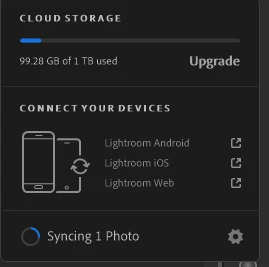
I have a problem with Lightroom CC (for Windows 10) perpetually showing that it is "Syncing 1 photo" (see screenshot below).

It seems that all my photos are synced, however. When I filter to show "Syncing" photos, no photos appear (see screenshot below). All my photos are in albums, and all my albums have the blue icon indicating that all photos in them are "Synced and stored locally." All my devices with Lightroom installed (including on the web) show the same number of total images.

I checked my diagnostic log. Under "Sync/Error Assets" an asset ID is listed. I found that asset ID in Managed Catalog.mcat and noted the associated filename. A photo with that filename no longer exists in Lightroom CC or my local backup drive. I had permanently deleted that file (i.e., I deleted the file and then also permanently deleted it from "Deleted Items"). When I tried to re-import an image with that same filename (just for testing purposes), Lightroom CC warned me about the duplicate image.

It seems that there might be a catalog database entry, but no image file to sync, hence the perpetual syncing. Does anyone know a way to remedy this situation (without taking unnecessarily drastic measures)? Thank you!

Steps I have taken unsuccessfully, thus far: Restart the program, restart my computer, pause/resume syncing, uninstall/reinstall Lightroom CC, install the prior version (2.3). Someone on a support chat suggested that I delete the local Managed Catalog files and let everything re-sync down from the web, but I do not want to do that if I don't have to (that solution seems unnecessarily drastic for such a relatively minor glitch).



 Note: This conversation was created from a reply on: Lightroom CC: Syncing stuck forever.

This topic has been closed for replies.

57 replies

nokietje
Participant
May 19, 2021

Ok, thanks. I don't really need the backup as finally everything is stored on my desktop using Lr Classic (and that one is backed up both offsite and offline regularly). I only use my laptop With Lr CC for quick culling and editing when I'm not at home.

So in the end, the easiest solution was actually to delete this folder (I'm on Windows) AppData\Local\Adobe\Lightroom CC and everything was rebuilt with no issue from the cloud, and the synced files that were stuck, are gone now.

Thanks for your help!

Inspiring
May 18, 2021

Sure thing. I just copy the Lightroom Library.lrlibrary file in my Home>Pictures folder (Mac OS) to my external drive(s). This contains all the original images + edits.

My approach to storage & backup is:

  • iMac stores "main" library where all original images are uploaded & stored
  • Adobe cloud server of course also stores all originals (and edit data)
  • Lr library file is periodically copied to 2 external hard drives (one of which is always stored at a different physical location)
  • MacBook - stores Smart Previews only
  • Lr Mobile on iPhone and iPad - stores Smart Previews only
nokietje
Participant
May 18, 2021

ok, thanks. need to look into that then. I didn't know there was an official way of backing up your catalog in Lr, including all the editing. I thought you could only save the originals but not with the edits (like when exporting your catalog in Lr Classic). Thanks for the help, will see if that works.

Inspiring
May 18, 2021

@nokietje Yup I'm only referring to Lightroom CC / cloud-based (which is now just called "Lightroom") for my solution above - this entire thread is in the context of the cloud-based version (not Classic).

nokietje
Participant
May 18, 2021

Are you referring to Lr CC or Lr Classic CC? It looks like you are referring to Lr Classic (but maybe I am wrong), while I am talking about Lr CC. Just want to be sure that we are talking about the same thing here.

Inspiring
May 17, 2021

I can share what worked for me. Some details: I'm on a Mac, and I have Lightroom set to store originals locally in prefs. And of course the originals are also on Adobe's cloud server.

Remember to back up your Lightroom Library before doing this - just to be safe. If you're not confident about how to do anything I suggest here, please don't proceed.

  • back up local Lr library to an external drive, then disconnect external drive when copy is done
  • delete local Lr library / empty computer's trash
  • restart computer
  • launch Lr, it will re-download all originals from the cloud server (I keep originals on my iMac)

After a week of trying other solutions with no success, this was the one that worked for me.

nokietje
Participant
May 17, 2021

Is there something more you can share about this? I have exactly the same with 8 files, also Pano files with the same info in the log, also recently deleted from the cloud, trash is empty.

Inspiring
May 13, 2021

Will do, THANKS so much Rikk. I'll get this posted this morning asap.

Rikk Flohr_Photography
Community Manager
Community Manager
May 13, 2021

@ccirelli You should probably start a new thread too avoid confusion.  Please include complete system info

OS

Version

Lightroom Version:

a screenshot of https://lightroom.adobe.com

Thanks.  

Rikk Flohr: Adobe Photography Org
Inspiring
May 12, 2021

@Rikk I'm having the same Issue (perpetual sync of 2 files), and ran through every suggestion here. I got to the point where Syncing and Error Assets still show a count of 2 - but now there are no filenames in the report.

I'm happy to send a full diagnostic report to you if you feel you can help me resolve this issue. Thanks very much!