


Inspiring
August 18, 2019

P: 1 Syncing Photo Never Syncs

  • August 18, 2019
  • 57 replies
  • 1911 views

I have a problem with Lightroom CC (for Windows 10) perpetually showing that it is "Syncing 1 photo" (see screenshot below).

It seems that all my photos are synced, however. When I filter to show "Syncing" photos, no photos appear (see screenshot below). All my photos are in albums, and all my albums have the blue icon indicating that all photos in them are "Synced and stored locally." All my devices with Lightroom installed (including on the web) show the same number of total images.

I checked my diagnostic log. Under "Sync/Error Assets" an asset ID is listed. I found that asset ID in Managed Catalog.mcat and noted the associated filename. A photo with that filename no longer exists in Lightroom CC or my local backup drive. I had permanently deleted that file (i.e., I deleted the file and then also permanently deleted it from "Deleted Items"). When I tried to re-import an image with that same filename (just for testing purposes), Lightroom CC warned me about the duplicate image.

It seems that there might be a catalog database entry, but no image file to sync, hence the perpetual syncing. Does anyone know a way to remedy this situation (without taking unnecessarily drastic measures)? Thank you!

Steps I have taken unsuccessfully, thus far: Restart the program, restart my computer, pause/resume syncing, uninstall/reinstall Lightroom CC, install the prior version (2.3). Someone on a support chat suggested that I delete the local Managed Catalog files and let everything re-sync down from the web, but I do not want to do that if I don't have to (that solution seems unnecessarily drastic for such a relatively minor glitch).
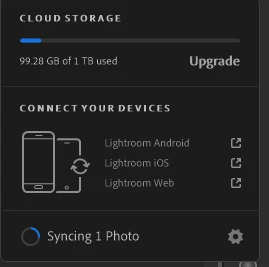



 Note: This conversation was created from a reply on: Lightroom CC: Syncing stuck forever.

This topic has been closed for replies.

57 replies

scot.hacker
Inspiring
May 5, 2021

I was having this same issue. Thanks to this thread, I was able to generate a Diagnostic Log, search for "Error Assets" and find a filename. Then search LR for that filename, delete it, then go to Deleted, find the same file, and delete it for good. 

Oddly, as soon as I did that, the issue reoccurred with another one from the same HDR bracket set, so I had to do it again. Someone upthread also mentioned that they triggered the problem with an HDR set, so maybe that's a clue for the engineers. 

Known Participant
April 23, 2021

Thank you @Rikk , Script worked instantly.

Known Participant
April 23, 2021

@Rikk You got it on your email.

Rikk Flohr_Photography
Community Manager
Community Manager
April 23, 2021

@dwbmb A diagnostic log would be needed to diagnose.

Close Lightroom 

Open Lightroom

Do nothing for 60 seconds and confirm the sync is still stuck

For LrDesktop

Go to Preferences

Account Section

Hold down the [Opt/Alt] key to make [Diagnostic Log] button appear.

Rikk Flohr: Adobe Photography Org
Known Participant
April 23, 2021

I ran into this issue once more. But this time there is nothing hidden in trash, no syncing issue in LR web and Reset Lightroom preferences did not work too. In log I found in Syncing and Error asstets this:

I do remember the photo of this file name. I deleted it like 2 days ago. So LR is trying to sync something that does not exist (nor in trash which is empty).

Inspiring
March 26, 2021

@Rikk I'm facing the same issue: 1 photo stuck in sync, no photos show up when I filter on "syncing" sync status, no sync issues show up on LR web, all deleted photos have been permanently deleted. Can I send you my log? If so, how?

Inspiring
February 19, 2021

@Rikk  i facing the same issue too. how do i send you the log? email?

Participating Frequently
October 10, 2020

@david_quillman I did few more iterations and removed few more and now I'm finally fully synced. Thanks man.

Participating Frequently
October 10, 2020

@Rikk I've emailed you my log.

Participating Frequently
October 10, 2020

@david_quillman I did that a few times, each time getting more and more images in the report... so far I only reduced the counter of un-synced photos from 5 to 4...