


Inspiring
August 18, 2019

P: 1 Syncing Photo Never Syncs

  • August 18, 2019
  • 57 replies
  • 1955 views

I have a problem with Lightroom CC (for Windows 10) perpetually showing that it is "Syncing 1 photo" (see screenshot below).

It seems that all my photos are synced, however. When I filter to show "Syncing" photos, no photos appear (see screenshot below). All my photos are in albums, and all my albums have the blue icon indicating that all photos in them are "Synced and stored locally." All my devices with Lightroom installed (including on the web) show the same number of total images.

I checked my diagnostic log. Under "Sync/Error Assets" an asset ID is listed. I found that asset ID in Managed Catalog.mcat and noted the associated filename. A photo with that filename no longer exists in Lightroom CC or my local backup drive. I had permanently deleted that file (i.e., I deleted the file and then also permanently deleted it from "Deleted Items"). When I tried to re-import an image with that same filename (just for testing purposes), Lightroom CC warned me about the duplicate image.

It seems that there might be a catalog database entry, but no image file to sync, hence the perpetual syncing. Does anyone know a way to remedy this situation (without taking unnecessarily drastic measures)? Thank you!

Steps I have taken unsuccessfully, thus far: Restart the program, restart my computer, pause/resume syncing, uninstall/reinstall Lightroom CC, install the prior version (2.3). Someone on a support chat suggested that I delete the local Managed Catalog files and let everything re-sync down from the web, but I do not want to do that if I don't have to (that solution seems unnecessarily drastic for such a relatively minor glitch).
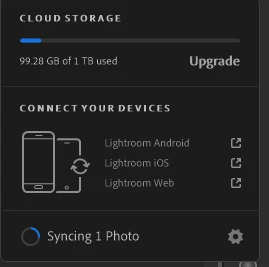



 Note: This conversation was created from a reply on: Lightroom CC: Syncing stuck forever.

This topic has been closed for replies.

57 replies

Inspiring
September 5, 2020
Dear David, 

thank you for the assistance.

I followed every step and searched in this log but there are no Syncing and Error Assets... Find- instruction also give 0 as result

Kind regards,
Dieter
davidq67361217
Known Participant
September 2, 2020
Here's how I fixed it:

Lightroom: Fix Never Ending Sync

  1. In Lightroom Desktop

    1. Edit > Preferences...

    2. With your cursor on Account..... ALT > Click

    3. Click on “Diagnostic Log”

    4. In the Dialog Box that appears Click “Generate Log”

    5. When you see a new Dialog Box that says “Diagnostic Log Generated”

      1. Click on “Show in Explorer”

    6. Open Log in Chrome (or some other method you use to open text files.) by double clicking on it.

    7. Click on... “Collapse ALL Sections”

    8. Scroll down to “Syncing and Error Assets”

      1. You should see a table with the photos that will not sync.

      2. Search LR for the photos in the table

      3. Export the problem photos Original or TIFF

      4. Delete the photos from LR

      5. Permanently delete the photos from the Deleted Album

  2. Done


Inspiring
September 2, 2020
Also facing this issue—stuck on 1 photo syncing forever. Haven't been able to track down any sync errors or corrupted files (although my library is ~70,000 so hard to find by scrolling if that's the only way left). Any ideas?
Rikk Flohr_Photography
Community Manager
September 1, 2020
You have Lightroom Classic - the thread to which you posted was for Lightroom Desktop - a different product.

Please reference the new conversation here: Lightroom Classic: 10 Pictures do not sync.
Rikk Flohr: Adobe Photography Org
Inspiring
August 31, 2020
Lightroom Classic version: 9.4 [ 202008061458-dbb2971e ]
License: Creative Cloud
Language setting: en
Operating system: Windows 10 - Business Edition
Version: 10.0.18363

Rikk Flohr_Photography
Community Manager
August 31, 2020
Dieter,

Please go to Help>System Info... and get us the exact installed version number of your software. 
Rikk Flohr: Adobe Photography Org
Inspiring
August 29, 2020
Hi all,

I'm facing the same issue since a couple of days.

Followed instructions from above, deleted the pictures that was causing the issue, restarted LRC but now syncing is stuck on 10 remaining pictures with no apparent sync issues/ errors.

As some people indicated in the past: I'd be glad to hear any tips from you guys, or better yet, some help. It's a complicated issue, and I'd be very happy to make peace with my ever-turning syncing symbol.

Kind regards,
Dieter


keithg-no1holywood
Participant
June 26, 2020
I have this issue. I found that using LRweb there was a file stuck trying to sync from an old phone. I have deleted that issue in LRWeb but it has not fixed my desktop machine on Windows 10. What can I do to get rid of the issue
Rikk Flohr_Photography
Community Manager
January 15, 2020
Glad you resolved it.
Rikk Flohr: Adobe Photography Org
Participating Frequently
January 15, 2020
Thanks Rikk! Problem is solved. It was just a matter of spotting the picture causing the trouble.