

luisnbispo
Participant
December 14, 2022

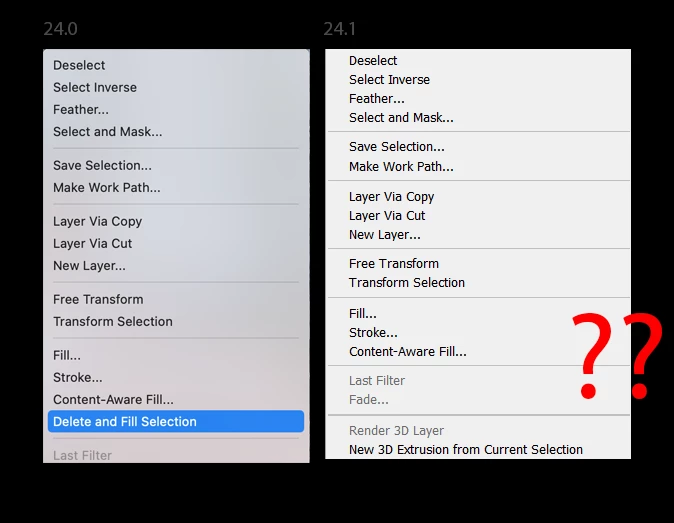
P: 24.1 - Where has Delete and Fill context menu gone?

  • December 14, 2022
  • 84 replies
  • 18635 views

I just updated photo shop today two version 24.1 and I have noticed delete and fill has been removed. This is really disheartening because it works so much better than content aware fill. Normally you can right click on the selection to access this, but I have looked through all the menus and have not found it since this update.


This topic has been closed for replies.

84 replies

HooliganImages
Inspiring
December 28, 2022

and its Adobe Photoshop Version: 24.1.0 20221206.r.166 be4691b arm64

Kevin Stohlmeyer
Community Expert
Community Expert
December 28, 2022

The screenshots are on my Mac, but I have used it on both environments as of last week.

HooliganImages
Inspiring
December 28, 2022
Windows or Mac?
Kevin Stohlmeyer
Community Expert
Community Expert
December 28, 2022

I'm not experiencing the same issues here is my process using current Photoshop builds (not beta):

Using Object Selection Tool, make selection.

Hit Shift+Delete while the object is selected and Delete and Fill runs without a prompt:

With a regular selction tool (in this case the rectangular marquee) select your area and then right-click the selection to bring up the contextual menu:


Area fills as expected.


HooliganImages
Inspiring
December 28, 2022
Yes. Following your description. This “bug” is what this thread is about.
Kevin Stohlmeyer
Community Expert
Community Expert
December 28, 2022

@HooliganImages Were you using the Object Selection tool when doing shift+Delete?

HooliganImages
Inspiring
December 28, 2022

@Kevin Stohlmeyer yes we all believe that's supposed to happen, yet for many of us it isn't.  I just selected an object and the fill dialog came up with Shift-Delete on my Mac, and there is no item in the Context Menu.  

Kevin Stohlmeyer
Community Expert
Community Expert
December 28, 2022

If you do Shift+Delete with a regular selection tool (Not Object) it will bring up the Fill Menu.

Kevin Stohlmeyer
Community Expert
Community Expert
December 28, 2022

@Mariusz5D34 https://helpx.adobe.com/photoshop/using/whats-new/2023.html#one-click-delete-fill

The new feature is contextual - it depends on what tool you are using to make the selection.


Simply use the Object Selection Tool to make your selection and use the following keyboard shortcut to remove it:

  • macOS: Shift + Delete
  • Windows: Shift + Backspace

If you're working with the Lasso Tool or any other Photoshop toolright-click the mouse to access the contextual menu and select Delete and Fill Selection to delete unwanted objects from your image. 

Kevin Stohlmeyer
Community Expert
Community Expert
December 28, 2022

@D.Calafato please open a new thread regarding your issue with the Materials panel. Your original post was merged with the first issue regarding Delete and Fill.