
David Nogol
Participating Frequently
October 19, 2017

P: After latest update, "select and mask" tool gives program error

  • October 19, 2017
  • 59 replies
  • 1253 views

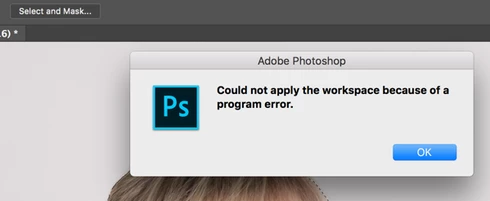
After the Photoshop CC 2018 update, I am getting "Could not apply the workspace because of a program error" after clicking "select and mask" button. Before update, it worked perfectly. Have somebody same problem?
This topic has been closed for replies.

59 replies

stevec79386788
Participant
November 4, 2017
Fixed it for me to but then it came back. Changing to 8 bit mode fixes this but we shouldnt have to do this. Im paying money for this..... Fix it Adobe.
Participant
November 3, 2017
This is such a nightmare.  How in the world are we supposed to get anything done with such a major flaw.  Very sad.
Inspiring
November 2, 2017
Preference reset fixed the issue...
Inspiring
November 2, 2017
Same error and changing to 8 bit worked - thank you!!
Inspiring
November 1, 2017
Hi Nicollet,
i investigate in the last days a little bit. The failure only occurs if in selection tool the (in german) Kantenerkennung, in mask selection tool is changed for examble to 10 px. And the settings are saved. If i use a saved file of the preferences without this change of the "Kantenerkennung" everything works fine.
Inspiring
November 1, 2017


When I open an image in LR CC  Classic 2018 and select "Edit in Adobe Photoshop 2018" it opens fine (via Camera RAW etc).

However, when I select an area and click on Select and Mask, the error "Could not apply the workspace because of a program error." appears.  Opening the file directly works fine.

Hannah Nicollet
Community Manager
Community Manager
October 31, 2017
Hey Everyone,

Thanks for the helpful feedback. We're working on an update to address this issue in the very near future. In the meanwhile, uncheck "remember settings" or using 8 bit are both viable workarounds.

Thank you,
Hannah Nicollet
stevec79386788
Participant
October 31, 2017
Resetting preferences worked but then it came back. Changed to 8 bit mode and now works ok.   Try it guys
stevec79386788
Participant
October 31, 2017
same error. changing to 8 bit mode fixed this.
rogéz
Participating Frequently
October 30, 2017
Like mentioned above (thanks alot!) follow these steps:
(do this with an non-important image)
  1. convert your image to 8bpc
  2. make a selection
  3. refine your selection
  4. uncheck "save settings" and hit ok
  5. convert your image back to 16bpc
  6. make a selection
  7. refine the selection (now it works!)
  8. you can safely check "save settings" again
  9. hit ok
  10. fixed!