


Participant
February 28, 2018

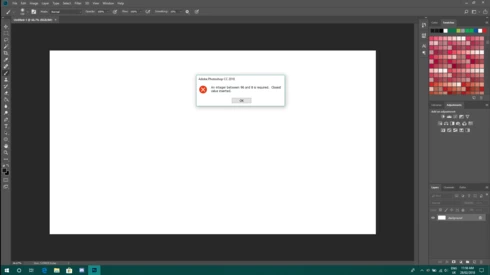
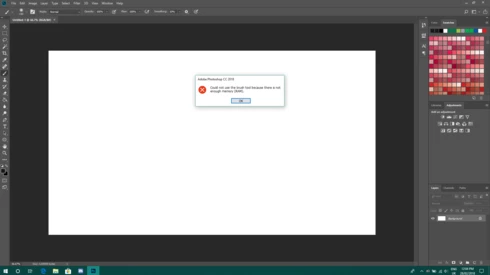
P: An integer between 96 and 8 is required. Closest value inserted. "...not enough memory (RAM)"

  • February 28, 2018
  • 132 replies
  • 3186 views

Photoshop has become suddenly unusable. Almost every tool gives me an "Out of memory (RAM)" error and when I try to open the Performace pane I get the error in the title. I cannot get inside the settings, as this error keeps on popping up. I tried everything (reinstalling PS, deleting everything (including preferences), updating PS, updating Windows 10, switching to the latest Insider Preview). Nothing fixes this error.
This topic has been closed for replies.

132 replies

Inspiring
June 5, 2018


since three days photoshop doesnt work anymore. if i want to use something there is a warning message that there isnt enough ram. But my pc has eough. there where no problem at all in the last 12 month. so yesterday i cleaned my pc and resetet the windows system. today i insatlles photoshop new, but its the same problem. what can i do?
Inspiring
June 5, 2018


My photoshop will not let me do anything. When I go to save or do anything in photoshop it says "Could not complete your request because there is not enough memory (RAM)" 
HELP What do I do??? 
Hannah Nicollet
Community Manager
Community Manager
June 5, 2018
That file is version specific. I installed 2015 on my test machine and the file you should have (and where you should make the change) is 90.0. As far as the DWORD, that isn't a reference to your 64-bit OS. In other words you can just follow the instructions. You want the 32-bit DWORD.
Inspiring
June 5, 2018
Added in the 120 folder.  I have a 64-bit system, so do I select 32-bit DWORD or 64-bit QWORD?  Workaround instructions show a 32-bit solution.
Hannah Nicollet
Community Manager
Community Manager
June 5, 2018
Glad you noticed that Michel. We might want to add that to the helpx document that pertains to Photoshop too while we wait for the update to come out. Offhand I wasn't aware that installing from the Windows App Store would configure files differently. However I think there might be a connection to your version and the difference in file configuration. I'll test it by installing 2015 on my Windows test machine to see what files are created. At any rate, I spoke with the developer who worked on this issue and we don't see any harm in creating the that file and then proceeding with the other steps, so please try that and let us know how it goes, David.

Regards,
Hannah
Inspiring
June 5, 2018
Same for me, David.
Inspiring
June 5, 2018
Thanks...IDK.  I don't want to mess with Registry until I hear from and Adobe or MS programmer
Inspiring
June 5, 2018
With Elements Windows store version, the folders are missing, so the help file requires creating those missing folders:
https://helpx.adobe.com/photoshop-elements/kb/integer-50-8-required-closest-value-inserted-photoshop...

Note:

If you have installed Photoshop Elements from Windows App Store, then you will not have the above-mentioned folder structure. You must create the specified folder structure within HKEY_CURRENT_USER\Software\ folder in your registry. The Photoshop Elements version number depends on the product’s version installed on your system. For example, for 2018 the folder name should be 16.0, for version 15 the folder name should be 15.0, and for version 14 the folder name should be 14.0.

Maybe it's the same in Photoshop?
Inspiring
June 5, 2018
Yes, I can get to the registry file as directed, but there are only folders labelled 90 and 100.
Hannah Nicollet
Community Manager
Community Manager
June 5, 2018
Hi David,

There is no 120 folder, so you can navigate here?HKEY_CURRENT_USER\SOFTWARE\Adobe\Photoshop\