
Participant
August 4, 2021

P: Color Distortion When Opening Images saved from Facebook in Photoshop 26.5

  • August 4, 2021
  • 75 replies
  • 28835 views

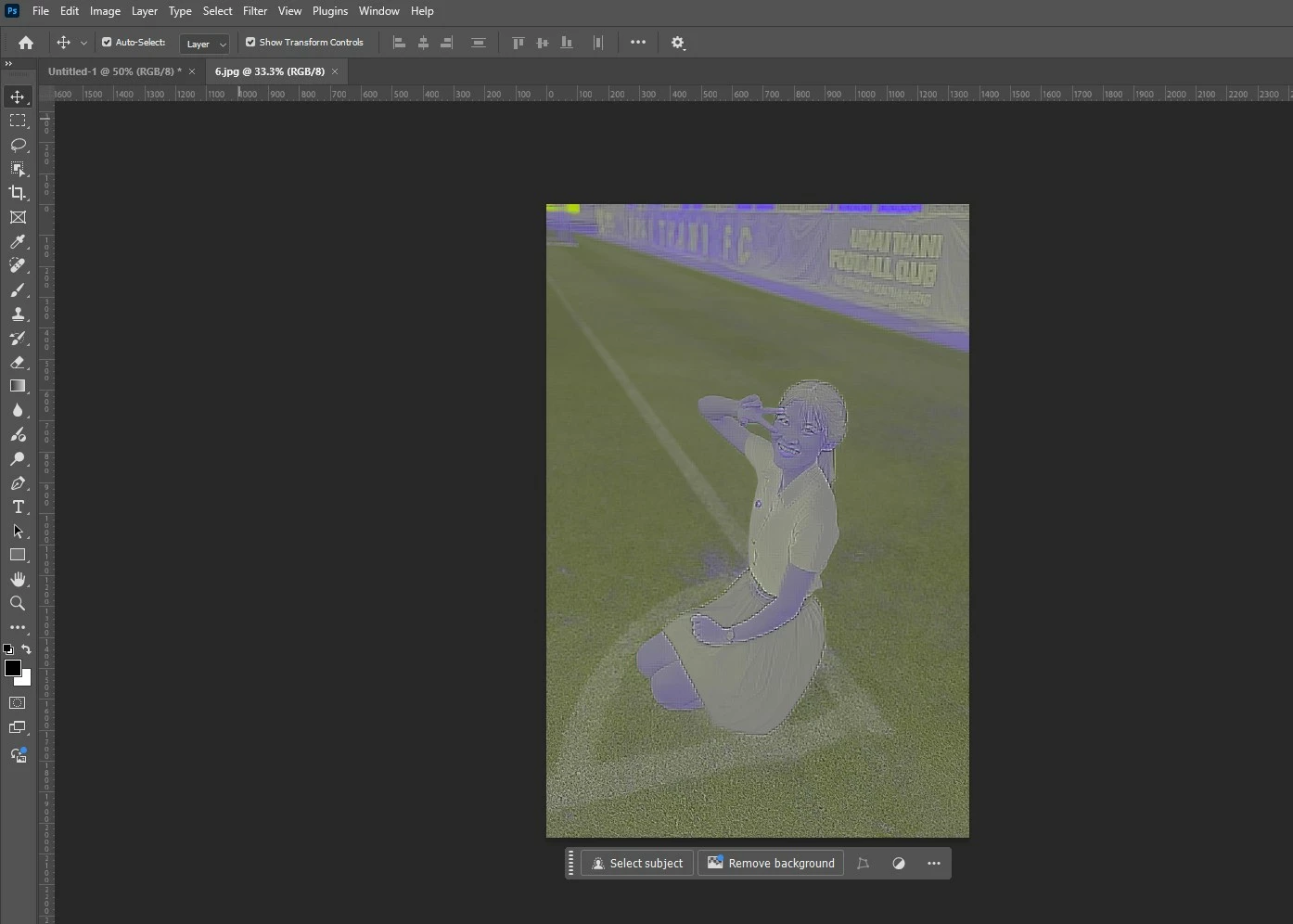
After updating to the latest version of Photoshop, we encountered an issue where images saved from Facebook from the previous year display color distortions when opened in the program. However, images saved recently from Facebook open without any issues and display correctly.


75 replies

Participant
July 7, 2025

Any word on a fix yet?

Sameer K
Community Manager
Community Manager
July 8, 2025

Hi All! The team is still working on this. Please refer to the pinned comment to use Camera Raw to render your JPEG images in Photoshop. 


Thanks!
Sameer K

Participant
July 6, 2025

Hello, I've been trying to open up images in Photoshop for the past two days with mixed results. All are jpg images, but some of them appear discolored and pixelated (attached).


I saw another forum post regarding a similar issue, and the moderator said to "Reset Preferences on Quit" and  in Photoshop settings under Edit > Preferences > General 


I also tried changing the settings under "Technology Previews" and checked all the boxes as detailed in another post, but that didn't work either. 


D Fosse
Community Expert
Community Expert
July 6, 2025

Known issue with jpegs downloaded from facebook, reported many times. Don't know if the problem is facebook or Photoshop, but apparently they should be OK if you open them in ACR first.

Participating Frequently
July 1, 2025

Anyone find a solution for this issue? I'm having it also.

Participant
July 1, 2025

On Windows, you can work around this if you open the image in the Windows photo viewer, right click -> Copy from there, then open Photoshop, create a new document (it will automatically use the same resolution as the image you just copied), then paste it inside of the new document. It should look normal now.

Inspiring
June 25, 2025


In Photoshop and Indesign same thing. Can't use photos saved from facebook

Tom Carroll - Fatherheart
Participant
June 18, 2025

this is the only thing that worked for me.

Participating Frequently
June 15, 2025

Why are my phtotos not uplaosing with color and half the photo lined out? 

jane-e
Community Expert
Community Expert
June 15, 2025

@brita_6711 


What site are you trying to upload your photos to? Can you show screenshots of what you are seeing before, and after you do the upload?


Jane

Participating Frequently
June 17, 2025

I am trying to upload, drag and drop a photo inot Photoshop. 

The photeo was a JPEG of an art I created and I downloaded it from my website. 

Windows 11 do not know what version of photoshop but I did install Photoshop form Google playstore yesterday. 

Thank you. 

Peer Norway
Participating Frequently
June 15, 2025

I have been experiencing the same issue as the rest of you. Been having it for many months now on a photos downloaded from Facebook (unsure if this might happen elsewhere too). I have noticed that most photos uploaded on photo editing groups does not have this problem - and folks there uploads the original file from their computer. 

One way around this is to also open the picture in finder and then mark the photo and paste it over the photo in Photoshop and then save it will solve it - it will not appear with this distortion. However I am unsure if there might be affecting the "quality" and resolution so I save it as a new file with a slightly new name (maybe adding "-B" to indicate it is n ot the original picture file you uploaded), but I do notice the bit size of this "new" photo goes up...

By the way @Sameer K does this only happen from photos uplaoded from Facebook ? I know that FB tends to downsize (dimentions) and resolution - so maybe that might explain why these things are happening (that it might mess up something else with the files somehow).....

Participant
June 15, 2025

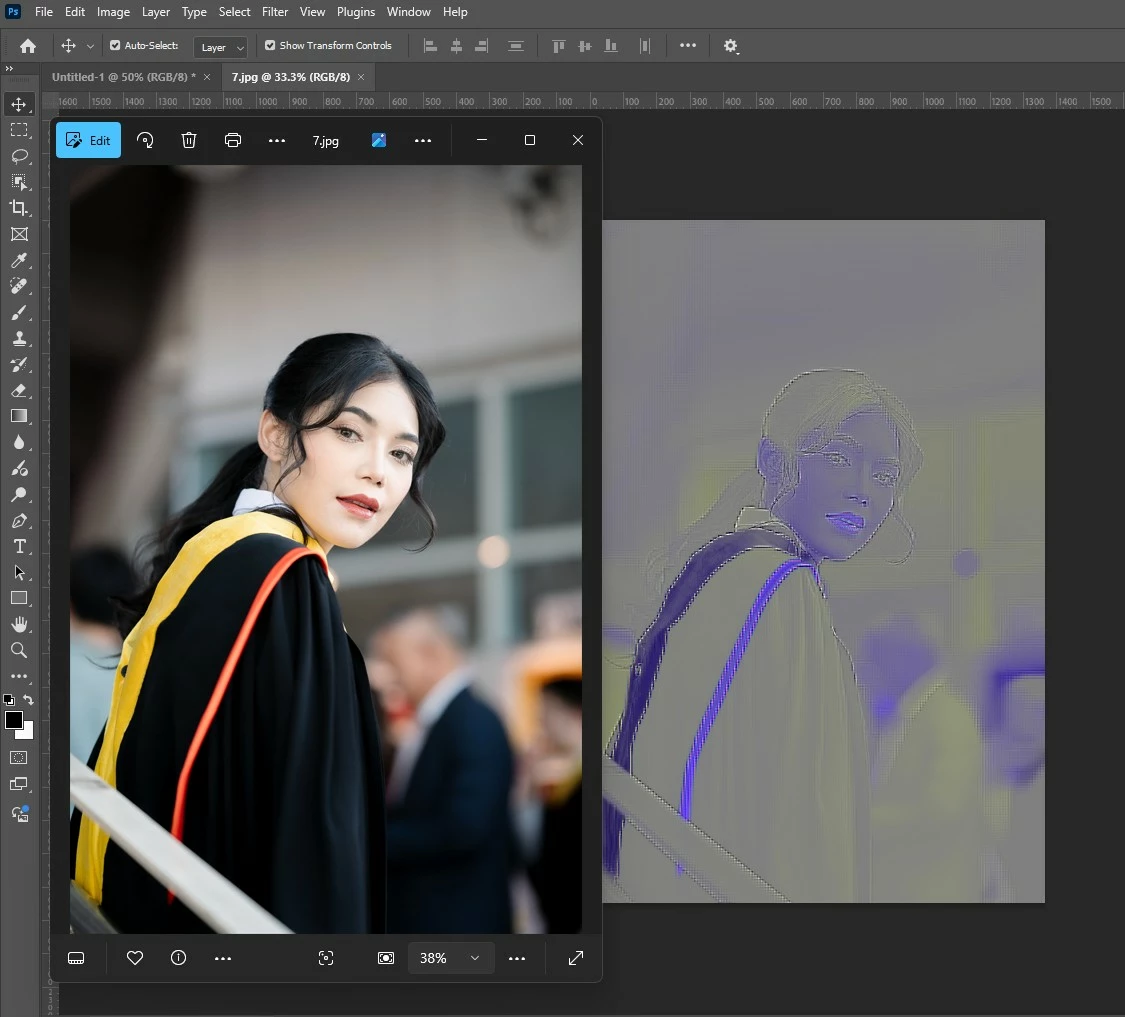
Hi, could you help please. I have an issue where photoshop is opening JPGs with strange grey lines down one side and a blueish colour in the background. It appears to be only some images. I have checked guide lines etc and also layers.


The jpgs open fine in other image programs as per the attached image.


Any suggestions most appreciated please.

Photoshop

Windows Photo:


Glenn 8675309
Legend
June 15, 2025
A purple tinge on images opened in Photoshop often indicates a color management or color profile issue, specifically a mismatch between the image's embedded profile and the monitor's profile. This can also be caused by lens issues like chromatic aberration, or in rare cases, file corruption.
 
Here's a breakdown of potential causes and solutions:
1. Color Profile Mismatch:
  • Explanation:
    Photoshop uses color profiles to ensure accurate color representation. If the image has an embedded profile that doesn't match your monitor's profile, you'll see incorrect colors, potentially a purple cast. 
     
  • Solution:
    • Assign a Profile: Go to Edit > Assign Profile and select sRGB IEC61966-2.1 or another appropriate profile like Adobe RGB. 
       
    • Convert to Profile: If the image is in a different color space (e.g., CMYK), go to Edit > Convert to Profile and choose a suitable target profile, like sRGB. 
       
2. Broken Monitor Profile:
  • Explanation:
    Your monitor's color profile might be corrupted, leading to inaccurate color display in Photoshop.
  • Solution:
3. Chromatic Aberration (Lens Issue):
  • Explanation:
    This occurs when different colors of light don't focus at the same point, often seen as purple fringing around high-contrast edges, especially with cheaper lenses. 
     
  • Solution:
    • Software Correction: Photoshop's Camera Raw filter or other plugins can help reduce chromatic aberration. 
       
    • Preventive Measures: Use better lenses or avoid shooting in harsh light conditions that exacerbate the issue. 
       
4. File Corruption:
  • Explanation:
    While less common, file corruption can sometimes cause color distortions. If you suspect this, try saving the file to a new location. 
     
  • Solution:
    • Save As: Go to File > Save As and choose a new location and file name to save a copy. 
       
    • Recovery Software: If the issue persists, consider using dedicated PSD file repair tools. 
       
5. JPEG Handling in Camera Raw:
  • Explanation:
    In some cases, a specific setting in the Camera Raw preferences related to JPEG handling can cause purple casts.
  • Solution:
    • Camera Raw Settings: Go to Preferences > Camera Raw and check the JPEG handling settings. Try setting it to "Automatically open all supported JPEGs". 
       
6. Other Potential Issues:
  • CMYK Color Space:
    .Opens in new tab
    If the image is in CMYK mode, blue tones can be shifted towards purple due to the limitations of that color space. Convert to RGB for editing and then back to CMYK if needed. 
     
  • Layer Effects:
    .Opens in new tab
    Check if any layer effects (like Neon Glow or Halftone Pattern) are causing the purple tinge. Disable or adjust these effects to fix it according to the Adobe Community. 
     
If you continue to experience issues, provide more details about the specific images and your workflow, and we can troubleshoot further. 


Participant
June 11, 2025

My Photoshop just started importing my photos weirdly. I bring them in from a folder where they look fine and then they get imported and look like this 

Doesn't matter what format, jpeg, png's etc. What's happened?

kglad
Community Expert
Community Expert
June 11, 2025

in the future, to find the best place to post your message, use the list here, https://community.adobe.com/

p.s. i don't think the adobe website, and forums in particular, are easy to navigate, so don't spend a lot of time searching that forum list. do your best and we'll move the post (like this one has already been moved) if it helps you get responses.


<"moved from using the community bugs">
