


Inspiring
November 7, 2019

P: Layer Effects on Groups Clipping Error

  • November 7, 2019
  • 40 replies
  • 2757 views

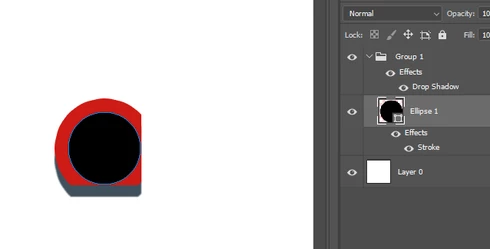
In the new Photoshop CC 2020 version, there's a bug with layer effects in groups. They seem to clip other layer effects within the group in a rectangular shape.

To reproduce:

- Create a new document
- Create a circular shape as a new layer
- Apply a stroke layer effect to the shape layer
- Put that shape layer in a group
- Apply a drop shadow layer effect to the group (play around with the distance value to make the effect more obvious)

Result: the layer effects are cropped in a rectangular shape

I tested it in Photoshop CC 2019, it works fine there.
This topic has been closed for replies.

40 replies

Participant
December 12, 2019
I just installed 21.0.2 and I'm having the same issue. 

To reproduce:
1) start a new document.
2) create a small ellipse in the center of the document.
3) create a group and move the ellipse layer to the group.
4) move the layer mask of the ellipse shape to the group (Cmd + Shift, then click drag the layer preview image onto the group)


Result:
The ellipse is now masking the group which contains a fill layer, however instead of the fill layer going to the edges of the canvas, it stops at the edges of the ellipse.


Side note: Why does having the path operator set to Combine Shapes "punch out" the group? I would expect Subtract Front Shape to do that, but I get the opposite expected result. Also I noticed when playing around with the Fill layer left over from the ellipse that it sometimes won't even show up when moved around the layer stack.

Switching to Legacy Compositing is still a workaround. But the path operators are still behaving in the opposite manner of what one would expect.
Legend
December 11, 2019
This issue should be fixed in the 21.0.2 update that was released yesterday.
Inspiring
December 6, 2019
Thanks for the response.  I was hoping the latest update had this fixed but still not yet.  

The workaround works, but is annoying, I feel that frustration from the above comment.  New feature request:  Can you please introduce a master "Legacy Everything" checkbox in Preferences?
Inspiring
December 5, 2019


Annoying bug I've been running to and I just figured out how to repeat it. In Photoshop, folders are not considering a containing layer's stroke effect as part of the bottom or right of an layer.

So, for instance, if I have text with a stroke on it and place it into a folder in order to enact a layer effect drop shadow on the text (including the stroke) Photoshop will crop the stroke out of the folder on both the bottom and right sides to the original text.

Rotating the image, always the bottom and right of the stroke are cropped.

Should be an easy to repeat and fix bug.
schmar
Inspiring
November 21, 2019
Technicly I think the layer is cropped to it's actual content to improve performance or better: to hide the lack of programming skills. And as this buggy mess is now set by default, it's messing everything up. I hope at some day you finally recognize that there are mostly professional users out there who rely on your tools every day and for them it's pure hate when basic functions, which have been there for years, are going to be changed without any sense, like this layer bug or the transformation tool which doesnt scale proportionally while holing Shift etc. Sure I can change that in the settings but why should I? It was working fine for ages!
Inspiring
November 19, 2019


Stroke FX of any object is cropped when you add Color Overlay FX ob a parent group

Steps to reproduce:
  1. Create new document 72px/inch sRGB any dimensions
  2. Create a rectangle vector shape layer
  3. add Stroke FX
  4. Set Stroke params to  width=10px, color=white, position=outside
  5. Wrap this layer into a group
  6. Add Color Overlay FX on a group
  7. Set fx params to color=red, blending mode=multiply
Expected result:
The whole shape has to be multiplied by colour.

Actual result:
Shape including a stroke is multiplied by colour but the bottom and right pixels are cropped.

PSD demo: https://dl.dropbox.com/s/tmsfyfxqcescdl4/StrokePlusColorOverlay.psd


Inspiring
November 18, 2019


In PS 2020 there's an extremely annoying bug (the latest update as of 11.28. still has it):

If a group has any clipping masks attached (even an empty layer) it will crop the layer styles of the group's layers.


Inspiring
November 13, 2019


Photoshop 2020 clips nested Layer Styles to the right and bottom of the element (see attached). Help!


Inspiring
November 12, 2019
I have the same happening with 21.0.1. Just a drop shadow and inner shadow layer effect on a layer group. Ungrouped and applied layer effects to individual layers, box goes away.

Changed the Preferences > Performance > Legacy Compositing and restarted and that works as well.
Inspiring
November 12, 2019
For text, it is for instance, impossible to define the position of shade with the mouse!

It is necessary to close again the filter and to open it again and at this instant, the displacement in the mouse is once again possible???

Yves Crausaz, Suisse, retraité actif dans le monde de la photo et des arts graphiques.