


Inspiring
December 1, 2015

P: Liquify lightens result on 16 bit/channel images

  • December 1, 2015
  • 231 replies
  • 4091 views

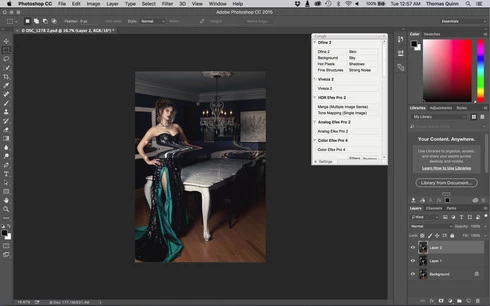
I am having issues with the new upgrade to Photoshop CC 2015 on Mac El Captain. The only thing I did was upgrade from a working CC 2015 to the new version. Using the liquify tool give the following look. There is a box around the area liquified that is lighter than the other areas. When I turn of Use Acceleration in Graphics Processor, it is better but .... I didn't have to do this in the prior version i.e.. Yesterday.

New Update: The Squiggly waist is the liquified:
This topic has been closed for replies.

231 replies

Known Participant
December 4, 2015


Downloaded and installed the latest version of Photoshop CC this morning and this afternoon while using the liquify tool, after I finished with that tool and clicked OK, it took me back to the photo but there is a lighter colored box around the area that I used the liquify tool on. Any help would be greatly appreciated. Thanks
Known Participant
December 4, 2015
Any update on when this will be fixed. Same issue with Windows 10.
Inspiring
December 4, 2015
but the new UI is so pretty!
Inspiring
December 4, 2015
Just do what I did and roll back to the previous release. Better than trying a workaround I left a how to roll back post a free posts up
Inspiring
December 4, 2015
Even with pressed option (Alt) key while starting Liquify I meet the following:
When I mask the area which I do not want to be affected with Liguify, Photoshop crushes.
Here is crush report:
Google
martins32745202
Participant
December 4, 2015
So,

lots of new version, lots of bugs or "features" which seems to be great according programmers or management, but is really NOT GOOD for profi work. PSD, the same LR..

I think than adobe HAVE TO return to his former position of SOLID partner or - lost his position be leader in the market.

Workaround for Mac users (I do it and it is ok) - if U use Time Machine or have backup BEFORE the last PSD update - then:
- quit PSD
- go to Application folder, find Adobe Photoshop CC 2015, rename app to Adobe Phoshop cc 2015.xxxx (for instance)
- copy older app from backup to appropriate folder in Application
- start PSD and make sure this is the old one - liquify have white background

Enjoy (and sorry 4 my "massa-bob-english")
Participant
December 4, 2015
1. Graphic Processor is ON, Liquify on a Smart Object.
- 16bit:


- 8bit from 16 bit:


- 8bit:


2. Graphic Processor is ON, Liquify on a new layer.
- 16bit:


- 8bit:


3. Graphic Processor is OFF, Liquify on a Smart Object.
- 16bit:


4. Graphic Processor is OFF, Liquify on a new layer.
- 16bit:


5. If you made Liquify on a 16 bit Smart Object when Graphic Processor is ON, and then reopened and converted it to 8 bit when Graphic Processor is OFF.
- at first changed mode (16 bit to 8 bit) inside Smart Object and then the whole document:


- changed mode from 16 bit to 8 bit only inside Smart Object:


- converted image into 8-bit image, while inside the Smart Object is 16 bit:


6. If you made Liquify on a 16 bit new Layer when Graphic Processor is ON, and then reopened and converted it to 8 bit when Graphic Processor is OFF:
Inspiring
December 4, 2015
No worries. I had to do it myself to avoid the not so good "workarounds"
Participant
December 4, 2015
Saved me bro! Thanks alot 🙂
Inspiring
December 4, 2015
Jitka use this solution to roll back:

http://www.comeseemy.photos/blog/2015...