

Jeff Arola
Community Expert
Community Expert
March 15, 2022

P: Photoshop 23.2.2 Share Button is distracting

  • March 15, 2022
  • 170 replies
  • 20901 views

In photoshop 2022 (version 23.2), photoshop implemented a Blue Share button in the

top right corner of the app workspace that is supposed to turn into a button of the sme color as

the other tool options bar icons.


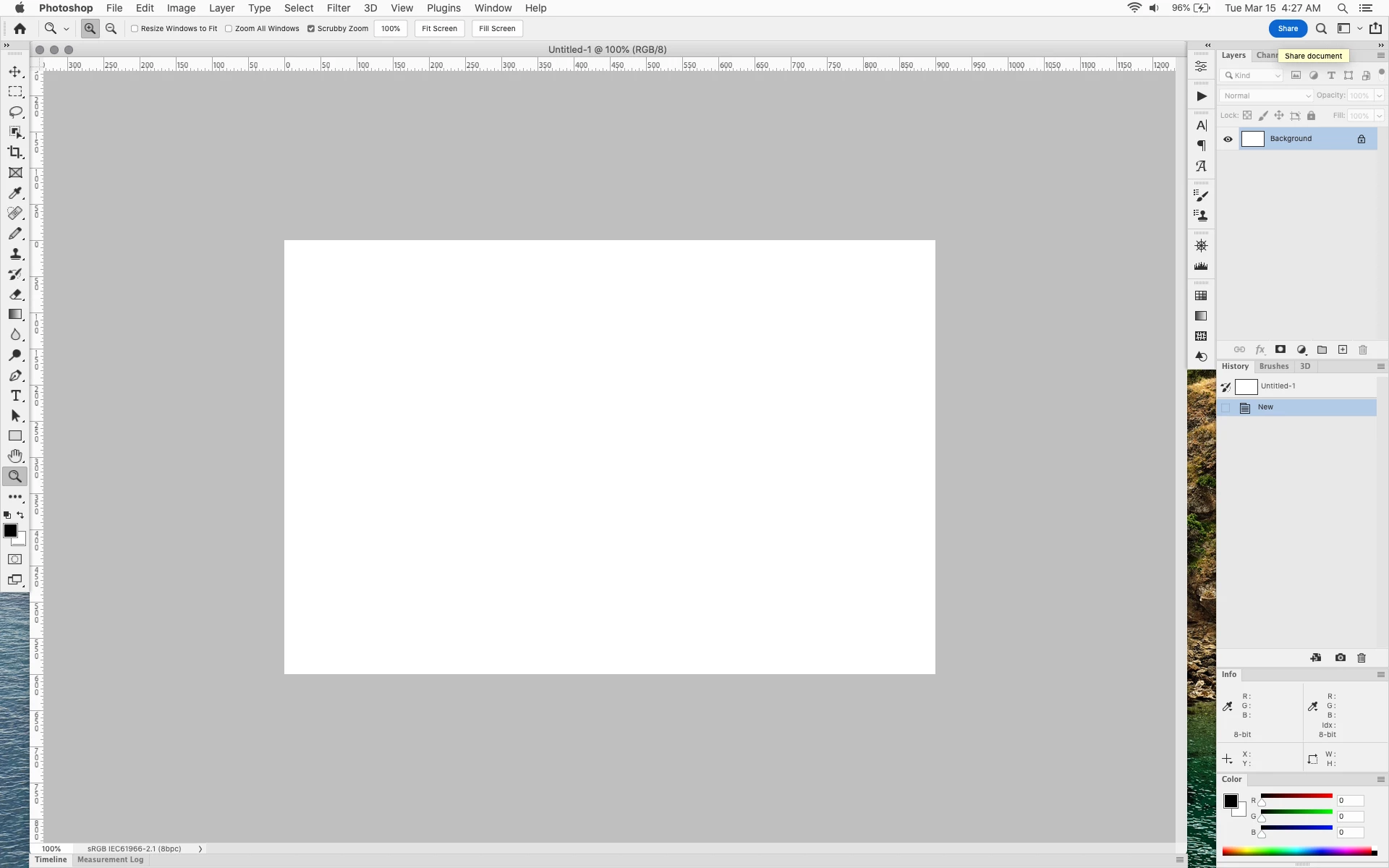
With the latest 23.2.2 update the Blue Share button does not go away after first use as described

on this page under Easily find the Share button


https://helpx.adobe.com/photoshop/using/whats-new/2022-1.html


I reset the photoshop preferences as i do after every photoshop update by trashing the preferences folder.


Share button that the Blue Share button is supposed to appear as after first use
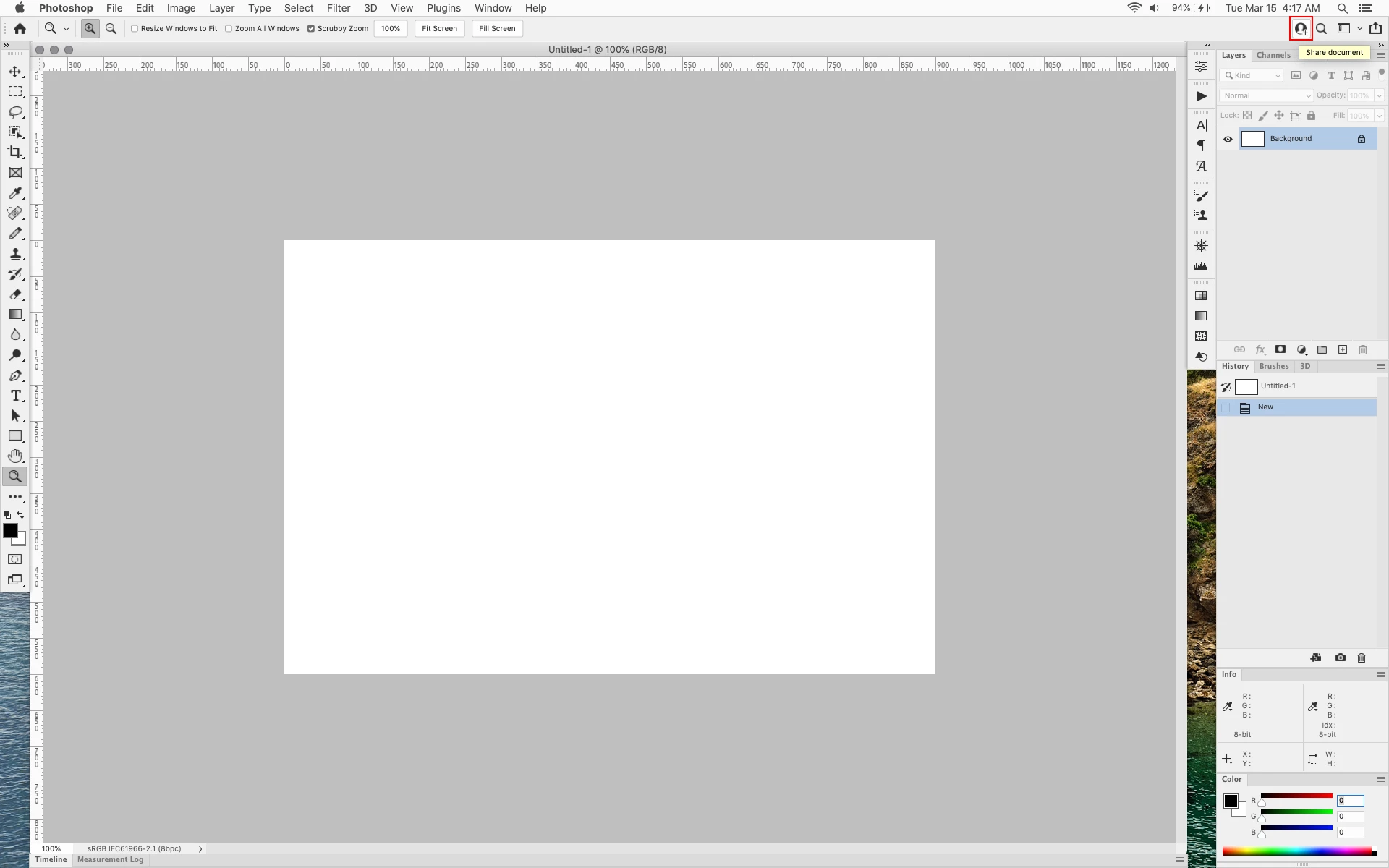


In the 23.2.2 update the button still stays as a Blue Share button after first use


170 replies

Participant
March 31, 2022

I can't remove this annoying large Blue share button from options panel

I recently updated Photoshop to 23.2

Here is some tech data:

Adobe Photoshop Version: 23.2.2 20220304.r.325 49bf0ec x64 Number of Launches: 193 Operating System: Mac OS 12.3.0 System architecture: Intel CPU Family:6, Model:12, Stepping:0 with MMX

Please help me! It's really distract me in dark interface mode.

How I can turn it off? Or change this ugly blue color?

Trevor.Dennis
Community Expert
Community Expert
March 31, 2022

I don't know how to completely remove it, but if you click on it to open the share panel, and then click Cancel it changes to a much less in-your-face icon.

I also wondered if there was anything in the Creative Cloud app. we used to be able to enble file sharing there if my memory is right.  I can't see that now, nor can I see anything that might affect the blue icon.  I'll be interested to see if anyone else has information on the share icon

Participant
March 31, 2022

Unfortunatelly this solution has been worked before update? Now I click on share button, click Cancel and .... nothing. Big blue Share button still here. I even tryed run Photoshop with Rosetta. Same thing.

What verion do you have?

Kurt Lang
Known Participant
March 27, 2022

For now, you need to fix it yourself. You can use the script written by jazz-y.


UIColors


Click on the green Code button and download the .zip file. Open the .zip file, open the resulting folder, and place the file UIcolors.jsx in the /Applications/Adobe Photoshop 2022/Presets/Scripts folder. You will need to enter you admin password to copy the .jsx file into the folder. Launch Photoshop and click File > Scripts > UIColors.


Since I've already manually changed the values with TextEdit, it comes up showing the third dot of each item with my values, which correlates to the third row of values in the UIColors.txt file. The altered rows are White, ShareButtonShareButtonRollOver and ShareButtonSelectedRollOver.


Change those buttons to whatever color you want. When done, click the Save UIColors.txt button. Click Save in the standard file box that appears, then Replace.

_______________________________________________________________________


Or, you can manually change the colors yourself. Here's my instructions again from page 2 of this topic.

I've modified this somewhat to make it a bit easier, and have discovered since then you don't need to modify as many lines.


Without much work, the user can fix this themselves. The link for the text file from Github in this topic is where this secondary method came from, but you don't need to download anything, and as with the script, you can make the button color any RGB value you want. These instructions are from a Mac. Sorry, I can't tell you the correct path to the file in Windows.


Close Photoshop!


1. Open this folder:


/Applications/Adobe Photoshop 2022/Adobe Photoshop 2022.app/Contents/Required/


To get there, you'll have to right click on the Photoshop app and choose Show Package Contents.


2. Copy the file UIColors.txt in the Required folder to your desktop. Make a backup of this file in case you ever want to go back to the original values.


Open your desktop copy in TextEdit. Do a search for Share. That will jump you right to the section you want to change. You only need to change the third line of each button label. Here, I changed the RGB values to 100 so the blue background of the button would be a darkish gray.

Do the same with White if you want to mute the word Share down. As with the blue backgound, you only need to alter the third line. I made it a lighter gray than the background so it would still be readable.


Save your changes.


3. Go back to the desktop copy of UIColors.txt you altered and copy that file into the folder where the original is. Choose to replace the original file and enter your admin password to complete the action.


Now when I open Photoshop, I get this nicely muted Share button.


You might want to save your alterted copy of UIColors.txt as an update to PS may overwrite your file. Then you can replace it without having to do all of the steps again.

sidanderson
Participant
March 27, 2022

Accepted!

I can't work on latest version with this button. It looks like selected text, and my mind always want to tap Esc.
Please fix it.

patrikl
Participating Frequently
March 23, 2022


Yes. Please Adobe remove this button color. It's disturbing. At least make it as the rest of the GUI - gray.

Thank you.

Patrik

Participating Frequently
March 20, 2022

i appreciate everyone trying to help people mitigate this issue for themselves until ADOBE ACTUALLY FIXES IT... but this is an issue that adobe must address themselves. its UNACCEPTABLE for adobe to expect users to come across a random support thread in this forum and make convoluted changes to configuration text files to get rid of this issue... and im sure these changes won't last and in a few versions we'll need another custom change to get this effect again.


its VERY SIMPLE for adobe to add a TOGGLE TO THE PREFERENCES PAGE that allows users to disable this button once and for all if they, like I, never want to see it again.


COME ON ADOBE. this better be fixed in the next version. your CUSTOMERS are paying you to not have to deal with issues like this.


BE BETTER.

Legend
March 20, 2022

@Kukurykus , as far as I understand, global colors are rarely used anywhere. Perhaps they were originally added to perform some color calculations at the interface level (this is supported by the fact that earlier in the application descriptor you could see all these colors, but now only the interfaceRed and interfaceWhite properties remain there. Other global colors are not mentioned. These variables are only for reading (I experimented with this before), but they are clearly taken from UIColors.txt, since by changing the global Red and White we will get a similar change in the values ​​in the descriptor)


modified UIColors.txt:


White:[
[0.00778198242188, 255, 60.0224304199219, 1],
[0.00778198242188, 255, 60.0224304199219, 1],
[0.00778198242188, 255, 60.0224304199219, 1],
[0.00778198242188, 255, 60.0224304199219, 1]
]


interfaceWhite from application desc:


    "interfaceWhite": {
        "_obj": "interfaceColor",
        "interfaceColorBlue2": 60,
        "interfaceColorBlue32": 60,
        "interfaceColorGreen2": 255,
        "interfaceColorGreen32": 255,
        "interfaceColorRed2": 0,
        "interfaceColorRed32": 0
    },


At the moment, I found that white is only used in the memory allocation sliders (RAM and GPU) 

Kukurykus
Legend
March 20, 2022
Kukurykus
Legend
March 20, 2022

So before introducing 'Share' button the 'white cell' was not used to anything yet (we could easily notice)?

Kurt Lang
Known Participant
March 20, 2022

Found your script. Much, much easier way to do the same thing. Thanks for that effort!

Kukurykus
Legend
March 20, 2022

I had no interest to change anything, but thought adding new cell named ShareButtonText could be solution.