


Participating Frequently
November 19, 2019

P: Spherical panoramas 3D view low quality

  • November 19, 2019
  • 72 replies
  • 4317 views

i work with 360 panorama images taken with dedicated cameras
and sometimes i need to edit the pictures (remove tripod, fix other parts)

all worked fine with this workflow:
3D - spherical panorama from layer - making the needed changes on a new layer - merge down the new layer - export panorama.

but recently i noticed that when opening the panorama image in 3D view, the details become pixelated horribly.
and so if i make a change (healing brush), that part of the image will not be the same quality as the rest.

strange thing is that if i just export the image without changing anything, the quality is still perfect!

see the attached image, all i did was copying my head next to the original, using the workflow above, and exported the pano.
as you can see, the left is sharp (even though in 3D view it LOOKED pixelated!) and the copied one on the right IS pixelated.
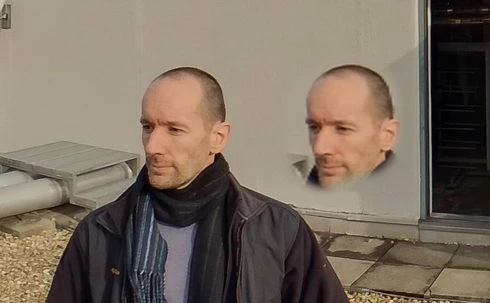
so it seems to me that the 3D view is the problem.

noticed after installing PS 2020.
but even when i try it in 2019 (which worked fine before) now it's the same issue there as well.

72 replies

Participant
July 21, 2020
Andrew, you and the entire team at Adobe are useless.. Just really want you to know that.
Participant
July 21, 2020
This truly and insanely ridiculous. I seriously cannot believe that this is still an issue after so damn long. I have been patiently waiting update after update for it to get fixed, which really shouldn't be difficult to do since they had it right at one point in time. Like how difficult is it to go look at your code from a previous version for the 3d module and just see where you messed up. For everyone looking for a better solution, use Affinity  Photo, you can do the work just fine in there. Soon Affinity will become the preferred image/design software just like Davinci Resolve is taking Premiere Pro's place, Adobe should go sit in the corner and die.
Inspiring
July 20, 2020
I see what you mean yes... Up until now I mostly only concerned myself with the upload on matterport side, thats why I fixed the export quality. 

Not sure if this might make a slight difference, it did for me:
Change the FOV back to correct size? Mine kept jumping to 8mm, however It should be 1.

Does that help you? There is still def a quality loss, but for my workflow it is good enough...
Roei Tzoref
Legend
July 19, 2020
in the meantime until PS will fix this annoying bug, I made this tutorial to show how to fix a panorama in a lossless workflow with after effects:
https://drive.google.com/file/d/1MKBfw8YsIrj9Mj2cb2C395iYjZLWtFxX/view?usp=drivesdk

you could use clone in after effects too, but wanted to show how you could use photoshop tools to fix/enhance a panorama without losing quality. you import the image to after effects, create a comp from it, use the vr comp editor to create a 2d edit. in the edit find the location you want to fix. lock the camera. export a frame to photoshop. fix it. import it back. place it in the comp. export the output comp. 


kerenyizAuthor
Participating Frequently
July 19, 2020
hei Andrew,
the team is still investigating the issue, for 5 months now...?
Roei Tzoref
Legend
July 19, 2020
Ae can do this. you could create a vr comp and export to photoshop, fix, then place it back . you can also use the stamp tool right in Ae if you want
kerenyizAuthor
Participating Frequently
July 19, 2020
Stephanie,
thanks, it helps with the final export size,
BUT it is not the issue i reported.

the issue is with step 5) "New panorama from selected layers".
when you use that, it opens a low quality canvas, meaning the clone stamp tool is useless, as it is copying a low quality part of the image.

with the latest versions (like, last 2 years...) of PS:
no matter what you do before and after, step 5) 6) ruins everything.

can't you see the quality difference when you try?
do you use the latest version of PS?

if you use an old version, f.e.: v19.1.2 2018 - no issue.
after that, Adobe ruined it, and never fixed.
Inspiring
July 19, 2020
Hi There. Not sure if my problem and solution relates to yours, However, I notices that the 3d export is insanely small. If I input a 11mb Jpeg, I export a 1.2 Mb Jpeg from 3d. Its very noticeable in most 360 viewers.

My solution, and hopefully yours, is:
1) Import Raw with Camera Raw. Do all the fiddling there.
2) Do not Open Object as smart object! After Camera raw, just click normal "Use object" (Do net click "Alt"-"USe Object".
3) Edit the Photo as a flat image. (Do the photoshop stuff you can now.
4) Flatten the layers to one layer.
5) Go to 3d, select the "New panorama from selected layers"
6) Image is now 360, do the Nadir and Stitch line fixing now. 
7) Once done, DO NOT click Export 3d! dOn't even look at it... just leave it alone!
😎 Below your layers, Double Click on "Spherical Map"\
9) This gives you a new tab, that is not 360, but a flat Equirectangular image again.
10) Go to normal Export as: "Whatever you want"
11) Resolution and file size makes sense again.

Hope this helps...

kerenyizAuthor
Participating Frequently
May 19, 2020

21.1.3

issue NOT fixed.
FU Adobe.
Inspiring
May 16, 2020
I have the same issue. I’ve had to switch to affinity photo to do 360 edits now and it works so much better. But I know and like photoshop so I would prefer to use it.