


Participating Frequently
November 19, 2019

P: Spherical panoramas 3D view low quality

  • November 19, 2019
  • 72 replies
  • 4319 views

i work with 360 panorama images taken with dedicated cameras
and sometimes i need to edit the pictures (remove tripod, fix other parts)

all worked fine with this workflow:
3D - spherical panorama from layer - making the needed changes on a new layer - merge down the new layer - export panorama.

but recently i noticed that when opening the panorama image in 3D view, the details become pixelated horribly.
and so if i make a change (healing brush), that part of the image will not be the same quality as the rest.

strange thing is that if i just export the image without changing anything, the quality is still perfect!

see the attached image, all i did was copying my head next to the original, using the workflow above, and exported the pano.
as you can see, the left is sharp (even though in 3D view it LOOKED pixelated!) and the copied one on the right IS pixelated.
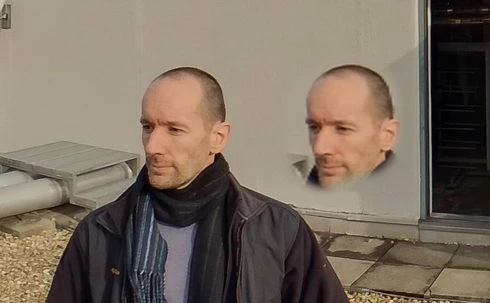
so it seems to me that the 3D view is the problem.

noticed after installing PS 2020.
but even when i try it in 2019 (which worked fine before) now it's the same issue there as well.

72 replies

kerenyizAuthor
Participating Frequently
January 7, 2020
update:
advice from Adobe chat support:
"For Photoshop 2020 version 21.0.2, GPU also needs to be updated, please check with your GPU update once."

i did that, checked, updated - and it made NO CHANGE.
the problem still exists.

Known Participant
December 14, 2019
That low quality is not only a problem with sperical panos, but also with 3D postcards and textures in general. 3D has many, many bugs right now!
kerenyizAuthor
Participating Frequently
December 14, 2019

new update: PS version 21.0.2

3D is still pixelated


hey, Adobe stuff, this is a bug report.
can you see? will you fix it?

Inspiring
December 5, 2019


Hi, In Photoshop  CC 20.07 I've been experiencing problems with 3D panorama workflow. When I create a new Spherical Panorama  from equirectangular image. The quality of the preview is very low. It looks like all the image is in pixels. In this preview mode I cannot use photoshop tool to retouche the image, because I cannot see details of image. Any workaround ideas?
Inspiring
December 4, 2019
Thanks for the great info Zoltan and agree with the annoying part. If it was working before, why mess it up?? This is really hindering our creation process for 360 images! 
kerenyizAuthor
Participating Frequently
December 4, 2019
As I mentioned above, version 2018.v19.1.2 works perfect for this method of panorama editing.
Get that somehow, if you know what i mean.

I pay Adobe's annual plan for 3 years now,
so it's really annoying that they screw some functions up like this.
Known Participant
December 4, 2019
Are there any other programs that allow you to edit a panorama like this?  Most of what I've found so far only allow stitching images together.  It would be nice if Adobe would just make a separate program just for spherical panoramas, since Photoshop can't seem to cut it.

I may try After Effects and see what I can do there.  I've done plenty of panos in AE, but with motion graphics.  I haven't really had to duplicate or remove anything from an image.  But AE does have some of the same features, so it might be worth a shot.
kerenyizAuthor
Participating Frequently
December 4, 2019
to see the details better:


this is just awful.
kerenyizAuthor
Participating Frequently
December 4, 2019
so, this is PS version 21.0.1
i just made a better example to show the problem:


method:
open equirectangular panorama image - 3D - Spherical Panorama - New Panorama Layer From Selected Layer(s) --- (at this point i can only see the shitty pixelated image) --- create new layer - Healing brush tool (replace mode) - (copying the roof line, the cupola, etc) - merge down - Export Panorama.

Now. As for the resolution question:
imported image size: 6720x3360 px
exported image size: 6720x3360 px

so no issue there!

As for the quality though:
the copied parts are blurry, pixelated (as copied from the shitty 3D view), the rest of the image is just like the imported image, sharp.

Why is there no option to address issues like this directly to Adobe?
Known Participant
December 4, 2019
I'm having the exact same issue.  If I draw some lines with a brush, it looks great when I export.  As usual, the preview window looks like garbage, but on export it turns out fine.  But, if I copy a selection and merge it down, the copy looks much lower quality than the preview, and noticeably lower quality when exported.