Victor5CD3
Known Participant
January 14, 2026

Performance issues with the new video card.

  • January 14, 2026
  • 28 replies
  • 1346 views

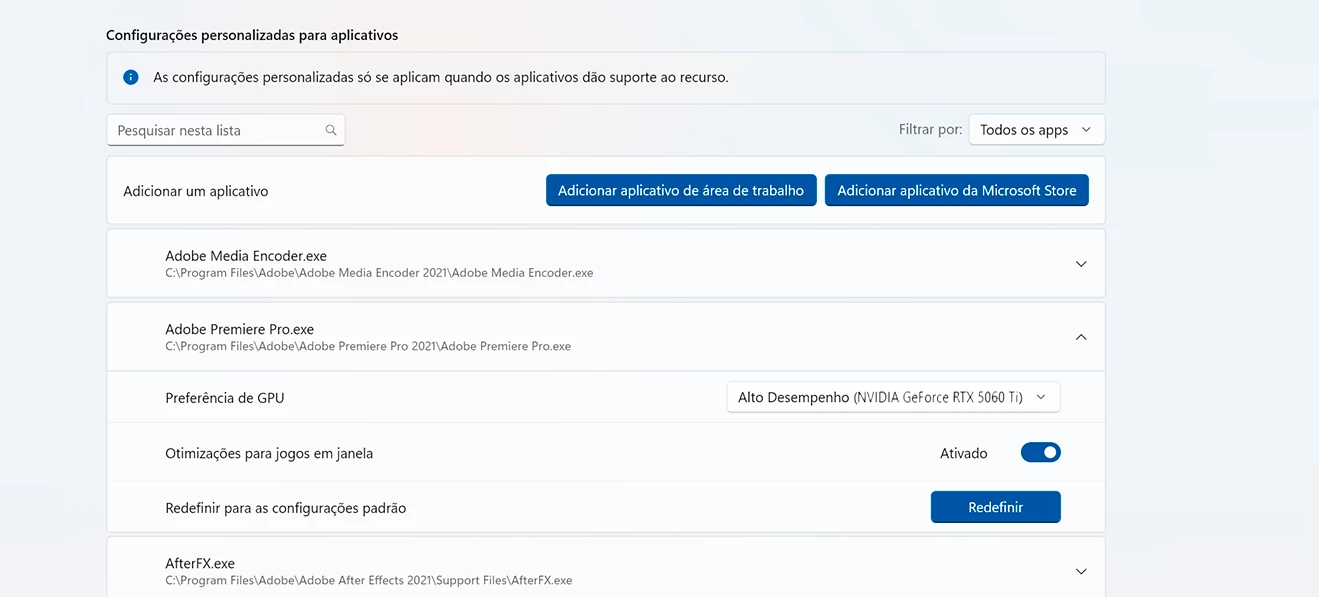
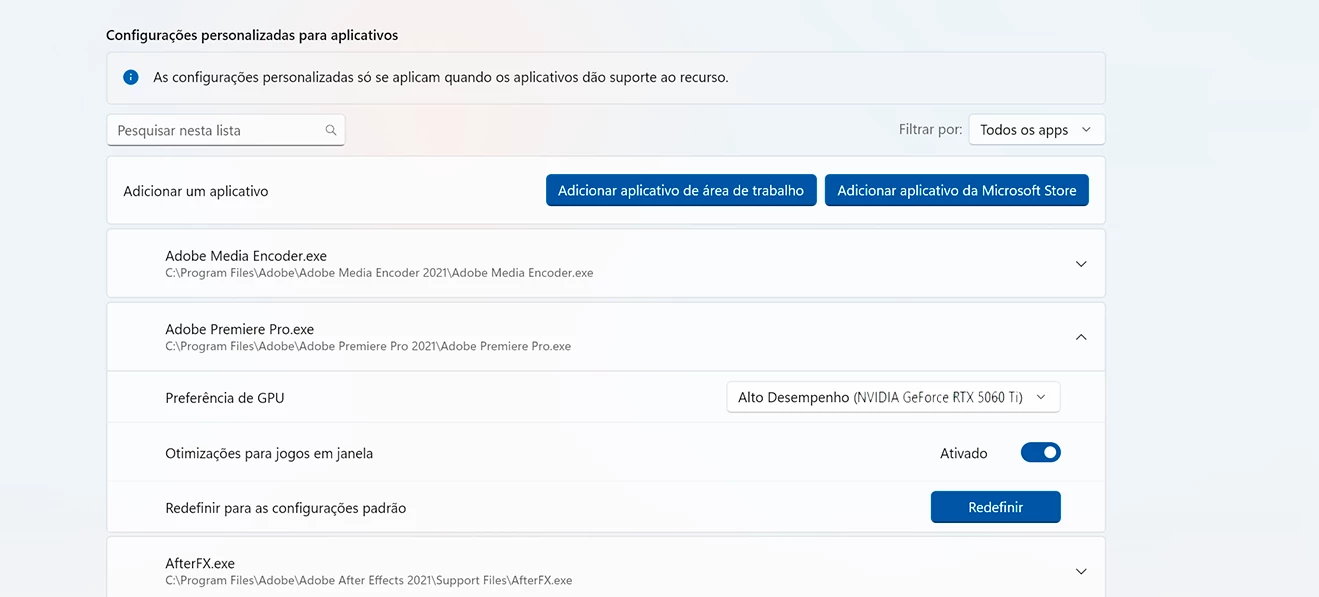
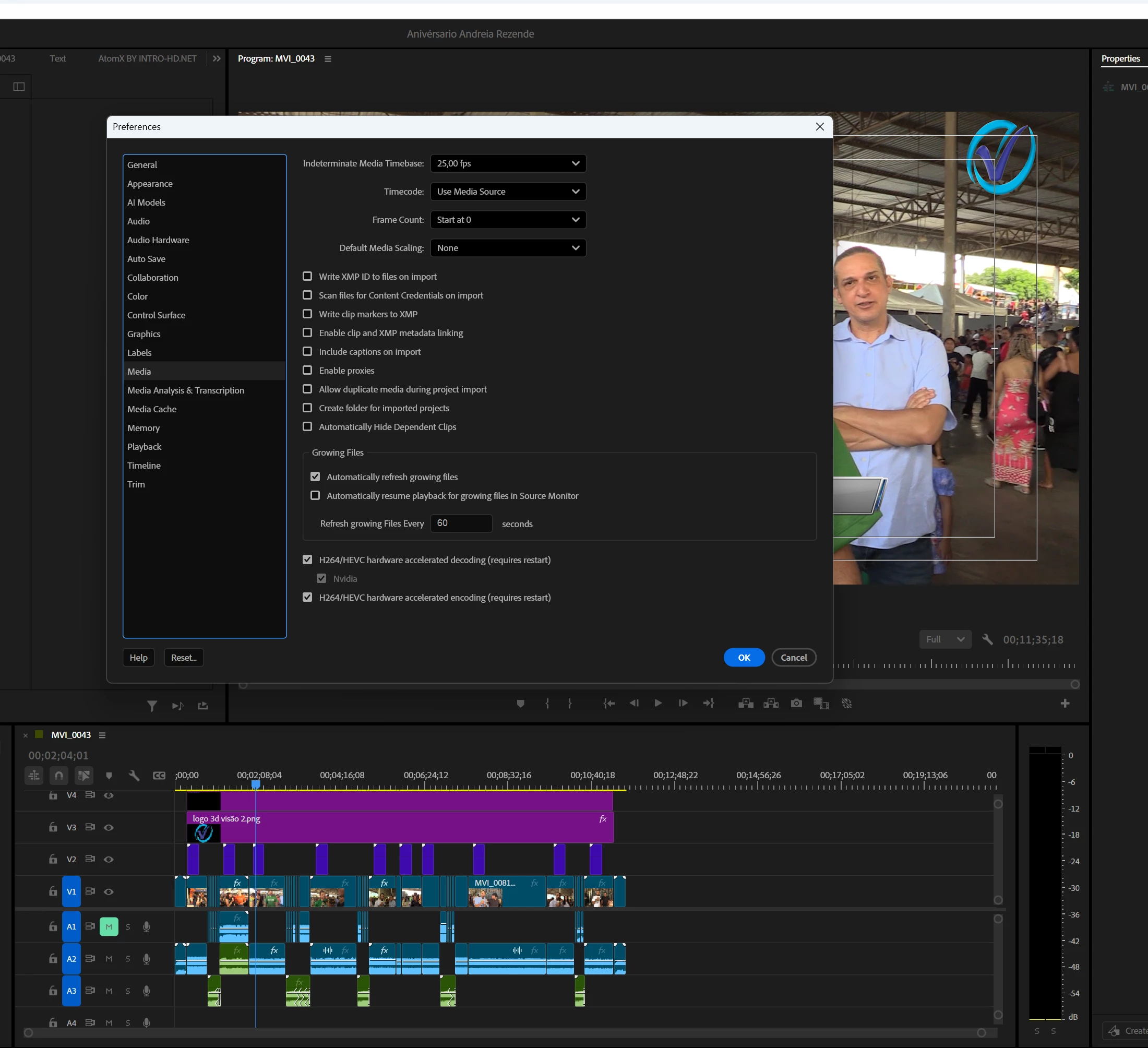
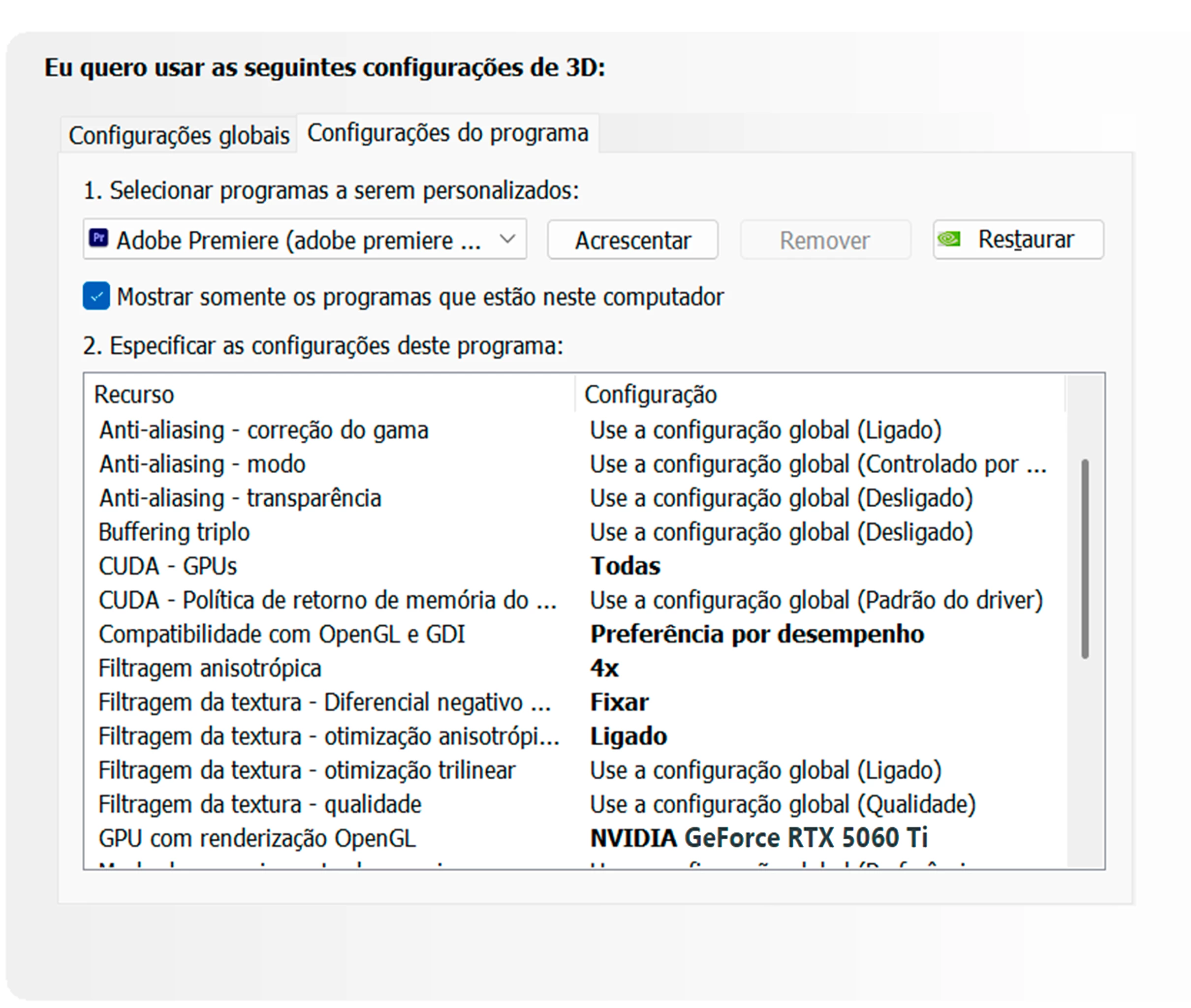
As I recently reported here on the forum, I bought a new video card, the RTX 5060 Ti. I was having problems with crashes and black screens during export, which was resolved with the new Nvidia driver from January 5th. However, I hadn't checked its performance in the Windows Task Manager. Today, while editing a video of just over 10 minutes in Full HD, I decided to open the Task Manager to check its performance. I saw that it was being used between 19% and 22%, and the processor was under higher load, sometimes reaching 100%. The usage between CPU and GPU should be balanced. The low video card usage is extremely frustrating. I am waiting for an Adobe moderator to tell me something. I respect the export process, which took 12 minutes to complete, and the video card usage varied between 19% and 22%. Below are some screenshots of how I configured the video card after installation. Remember that the old driver was uninstalled using DDU, resulting in a completely clean installation, following Adobe's standard recommendations for Premiere users. I'm waiting for someone from Adobe to respond.painel de controle Nvidia.pngwindows nvidia.pngwindows nvidia.pngCaptura de tela 2026-01-14 172808.png
28 replies

Victor5CD3
Known Participant
January 15, 2026

Thank you so much, Jamie Clark from Adobe support, and everyone who tried to help me. The Premiere 25.6.4 update really solved my problem. Sure, there were a few times when the CPU reached 100% usage during the rendering process, but the usage stabilized at certain points. Also, the GPU (graphics card) showed 36% and 50% usage at some points during rendering in the Windows Task Manager, but CPU usage decreased significantly and rendering became much faster, taking just over 6 minutes. Not to mention that all my projects are on version 25.5 and opened perfectly in this 25.6.4 version without me having to do anything. It took a bit of work to reinstall and configure everything again, but it was worth it. I'm very happy. If the Adobe team could further optimize Premiere to make it even better, that would be great. Many users have older computers with PCIe 3.0 and 4.0 that work fine and just want to upgrade the video card, which was my case. [See screenshot, Jamie.]premiere.png

Build CPU Ryzen 5700X,64 GB ram,Nvidia geforce 5060 Ti 16 Gb,SSD nvme 1tb + ssd sata 2Tb HD Disc 2Tb Win11 24h2
Victor5CD3
Known Participant
January 15, 2026

Thank you for your attention Jamie, I will update and post the results here. I hope it works this time. Good night.

Build CPU Ryzen 5700X,64 GB ram,Nvidia geforce 5060 Ti 16 Gb,SSD nvme 1tb + ssd sata 2Tb HD Disc 2Tb Win11 24h2
Victor5CD3
Known Participant
January 15, 2026

RjL, what you reported and I discussed with the technician where I bought the video card, he informed me that the bandwidth on the PCIe is not the limiting factor. He asked me to send my machine to him for analysis because they can only work on and configure it with the machine in hand. He told me that the store sells machines with configurations identical to mine and zero problems. I told him that a moderator from Adobe support was assisting me and that I would wait for Adobe's final opinion before sending it to them. It's very frustrating to go through this, and even more frustrating that it seems Nvidia is going to discontinue production of the 16GB RTX 50 series. Your comments were not encouraging to me at all. Thank you for your attention; I will wait for the opinion of the Adobe support team.

Build CPU Ryzen 5700X,64 GB ram,Nvidia geforce 5060 Ti 16 Gb,SSD nvme 1tb + ssd sata 2Tb HD Disc 2Tb Win11 24h2
jamieclarke
Community Manager
Community Manager
January 15, 2026

Hi @Victor5CD3 - Yes, Update to 25.6.4 and let us know if that helps your issue.

Legend
January 15, 2026

If I wasn't clear enough, it means that the GPU isn't being fed data fast enough by your system to maximize its processing efficiency.

Victor5CD3
Known Participant
January 15, 2026

Hi Jamie, if you're referring to the Premiere version (if that's the screenshot), regarding version 25.6, I tested all its variants up to version 26.3. I don't remember which version of the Studio driver I used, but it was prior to the January 5th update, and it caused problems with crashes and black screens in version 25.6. I also use HEVC. Would it be safe to update my Premiere version to 25.6 with this new Nvidia driver from January 5th? Because of crashes and black screens, I went back to version 25.5, so I haven't tested 25.6 with this driver.Captura de tela 2026-01-15 154724.png

Build CPU Ryzen 5700X,64 GB ram,Nvidia geforce 5060 Ti 16 Gb,SSD nvme 1tb + ssd sata 2Tb HD Disc 2Tb Win11 24h2
jamieclarke
Community Manager
Community Manager
January 15, 2026

Hi @Victor5CD3 - Unfortunately these screenshots don't contain the information needed inside Premiere Please right click your media files and select "Media File Properties..." and then post a screenshot


It does look like your files are in non english folders and I ask if they are HEVC because there was a bug that was fixed in 25.6 where files in non english folders would fail to decode.

Victor5CD3
Known Participant
January 15, 2026

This was my second conversation with the store technician via chat supportt. I used Google Translate to translate what he reported to me through the support chat. I don't know if it's accurate, see below.

Hi, I did an export test using Adobe Premiere itself and noticed that sometimes my processor reaches 100%, checking in the Windows task manager. It was a video of just over 10 minutes, so the use of the video card and processor shouldn't be balanced. You reported that there would be no bottlenecks in the exported video. In that case, the only effects used were color correction in Lumetri Color and Film Impact transitions.

Great observation — this is normal and doesn't indicate a bottleneck in your case. I'll explain exactly why the CPU reaches 100%, even with a strong GPU, and how to check if everything is correct.

🧠 Why does the processor go to 100% during export?

Even using Hardware Encoding (GPU), Premiere does NOT send everything to the video card.

Exporting is divided into stages, and several of them are always handled by the CPU.

Stages that always use the CPU:

Partial video decoding

Timeline organization

Transition calculation

Audio processing

Frame and buffer management

Preparing frames for the GPU

Therefore, high CPU usage ≠ problem. It indicates that Premiere is using the processor to its maximum to speed up the process.

In your specific test:

Video: ~10 minutes
Effects:

Lumetri Color

LUTs

Film Impact transitions

All these effects still heavily rely on the CPU, even when accelerated by the GPU.

Film Impact transitions, in particular, are very CPU-intensive.

And the GPU? Why doesn't it stay at 100%?

In Task Manager:

The overall “GPU” graph does not accurately reflect actual usage.

Premiere uses:

CUDA

NVENC

NVDEC These appear in different graphs.

To see it correctly:

Open Task Manager

Performance tab → GPU

Right-click on the graph

Change to:

CUDA

Video Encode

You will see activity there, even if the “3D” usage is low.

When would there be a real bottleneck?

It would be a problem if:

CPU at 100%

GPU usage almost zero in CUDA and Video Encode

Export very slow (3x, 4x the real-time speed)

This is not your case, based on your description.

How to ensure the best possible balance

1. Check the export method

In Export Settings:

Performance:

Hardware Encoding

Renderer:

CUDA

2. Avoid options that strain the CPU

Disable (unless needed):

Maximum Render Quality

Maximum Bit Depth

3. Film Impact Transitions

These are inherently resource-intensive.

High CPU usage during transitions is expected.

Tip:

Render only the sections with transitions (Render In to Out).

Expected export time (realistic)

With your setup:

10 min of video:

8 to 15 min of export time

CPU at 100% during parts of the process = normal and desirable.

Final Conclusion

✔ No bottleneck
✔ 100% CPU usage is normal behavior in Premiere
✔ GPU is being used, it just doesn't appear as "3D"
✔ Your system is working as it should

If you want, I can:

Show you how to correctly read GPU usage

Tell you which Premiere effects use more CPU vs. GPU

Help optimize Film Impact specifically

Just let me know

Build CPU Ryzen 5700X,64 GB ram,Nvidia geforce 5060 Ti 16 Gb,SSD nvme 1tb + ssd sata 2Tb HD Disc 2Tb Win11 24h2
Victor5CD3
Known Participant
January 15, 2026

Hi Jamie, here are the screenshots of the files. Talking to the technician at the store where I bought the video card, I mentioned that a forum user said PCIe 4.0 could be the limiting factor, but he told me it isn't, that PCIe 4.0 doesn't influence video editing and exporting. It might be a bug in the Premiere version I'm using. He also said that compressed long-GOP codecs are very compressed and, in some cases, tend to be a bottleneck, but in my setup it won't be because it's well balanced. He told me to revert to the previous version of Adobe Premiere, 24.2 or 24.3, which are the versions they have installed on the workstations they assemble and sell. I also mentioned to the technician the effects and plugins I use most: color correction in Lumetri Color, LUTs from Red Giant's Magic Bullet, Atom.x package, some plugins from Morgt, Neat Video, and Warp Stabilizer. I use the last two very little; Generally, when I need to use Neat Video or Stabilizer, I edit the recording separately and then... The technician also told me to leave hardware encoding selected in the export settings and, if I have a media encoder, prioritize exporting through it. I'm not sure if that's correct, but anyway, here are the screenshots you requested. arquivo 1.pngarquivo 2.png

Build CPU Ryzen 5700X,64 GB ram,Nvidia geforce 5060 Ti 16 Gb,SSD nvme 1tb + ssd sata 2Tb HD Disc 2Tb Win11 24h2
jamieclarke
Community Manager
Community Manager
January 15, 2026

Hi @Victor5CD3 -  Thanks for submitting your bug report. We need a few more details to try to help with the issue.  

Can you right click your media files and select "Media File Properties..." and then post a screenshot


Are you working with HEVC files?  Are your media files located in a folder with non-english words?