


Inspiring
October 18, 2011
Released

P: Rotate Brush Tip 'On the fly' (Keyboard shortcut, Mouse-wheel or Click + Drag)

  • October 18, 2011
  • 143 replies
  • 28363 views

This may seem wild, but many ideas might've seem that way when first introduced, so bare with me as I believe it would be rather sexy addition to using brushes in Photoshop.

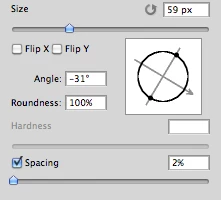
Imagine you choose a brush tip and are ready to use it in your art. But it's not quite right and you could use the Brush Tip to rotate few degrees. So you go to your Brush Palate and Brush Tip Shape Palate and manually rotate the wheel in that Dialog Box or type the number of degrees in a Angle Box(°).
Then you go back to your art and continue using the newly set up brush. Until - you need to adjust the rotation of the Tip again, and again... you get the point.

Wouldn't it be fantastic if we can rotate the Brush Tip 'on the fly' without having to go to the brush palate over and over again, just like we can now change it's size and softness?

Perhaps Left Bracket and Right Bracket would rotate the brush Tip CCW and CW by a 1° (by 10° with Shift) or in increments you set up in Preferences?
Wouldn't that be something?
I am aware of similar function can be achieved using the Pen Tool. This idea however would be available for both, Pen and Mouse and for all Tools using Brush Tip, including Stamp (Clone) Tool.
If this is already possible and I was living in the dark, please enlighten me.
143 replies

StrongBeaver
Legend
February 5, 2014


Rotate a brush with a keyboard short-cut or a combination of mouse and keyboard shortcut.
StrongBeaver
Legend
February 5, 2014
I made the same request, lets hope Adobe listens !
Participant
November 9, 2013


I want to rotate my brush with my Wacom Intuos5 ring. To do that, I need to be able to use keystrokes to change the rotation angle of the brush. Looking in Edit > Keyboard Shortcuts > Tools we have "Brush Hardness" and "Brush Size"* but no option for "Brush Angle". Huge bonus points for adding keyboard controls for "Brush Roundness", too, but that's not as important to me.

Thanks!

*these are handled well by Wacom

I'm using Photoshop CC 14.1.2 x64 (Windows)
Participating Frequently
July 22, 2012
might help someone else who uses brush angles
Participating Frequently
July 22, 2012
still no brush SIZE adjustment/control on mouse wheel while cursor is on workspace (not anywhere in the menu or some sidebar) - Xmas perhaps?
Inspiring
July 22, 2012
-go to Brush Palate and Brush Tip Shape Palate and manually rotate the wheel in that Dialog Box or type the number of degrees in a Angle Box(°)
set your Angle, for example 90°

-go to Brush Presets and save your brush without capture brush size in preset

-repeat with different Angle (90°,65°,45°,25°,0°,-25°,-45°,-65°,-90°)


-now you can use , and . to change that brush

-if you have two or more brushes you can use "tool presets" with 0° as the default

I hope this can help
Inspiring
July 22, 2012
-go to Brush Palate and Brush Tip Shape Palate and manually rotate the wheel in that Dialog Box or type the number of degrees in a Angle Box(°)
set your Angle, for example 90°

-go to Brush Presets and save your brush without capture brush size in preset

-repeat with different Angle (90°,65°,45°,25°,0°,-25°,-45°,-65°,-90°)


-now you can use < and > to change that brush

-if you have two or more brushes you can use "tool presets" with 0° as the default

I hope this can help
Participating Frequently
June 29, 2012
still no brush size adjustment/control on mouse wheel - Xmas perhaps?...YEARS LATER AND NO NOTICE
Admired_yogi157F
Known Participant
June 26, 2012
Nick, the results of that method are unsatisfactory, as you end up having to hold the pen at goofy angles to draw. It becomes a situation of the software controlling you instead of you controlling the software. Thanks though.
Inspiring
June 26, 2012
If you're using a pen tablet (that supports tilt) to draw, there's a workaround you can use. In the "Shape Dynamics" options inside of the brush settings, change your Angle Jitter Control to "Pen Tilt". This will change the rotation of the brush based on the angle in which you hold your pen. 🙂