Hey!
Thank you for reaching out and hope you are doing well.
Adobe Scan now gives you an option to save the scanned document as an image. Once the document is saved as PDF, use the following steps:
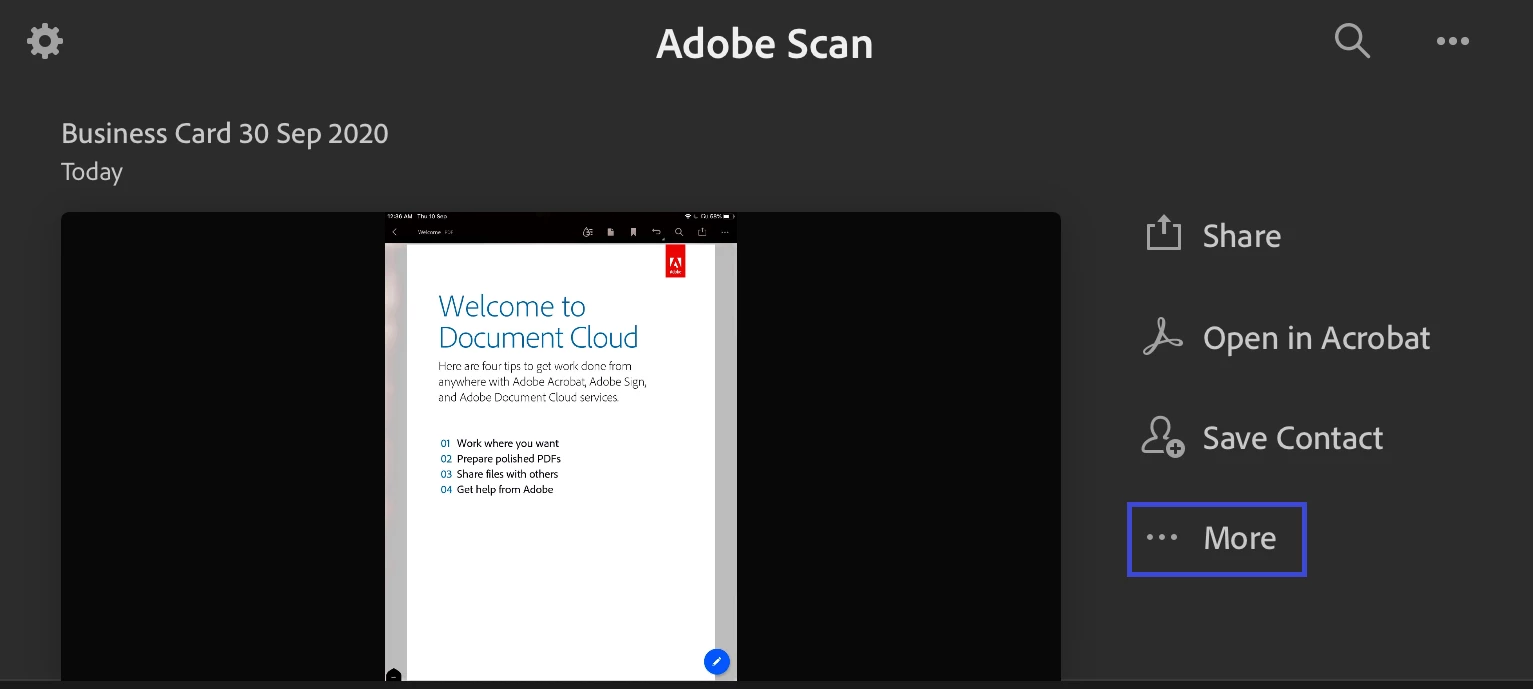
- Go to the home icon in application and select the file from the list appears.
- Tap on More option with three dots
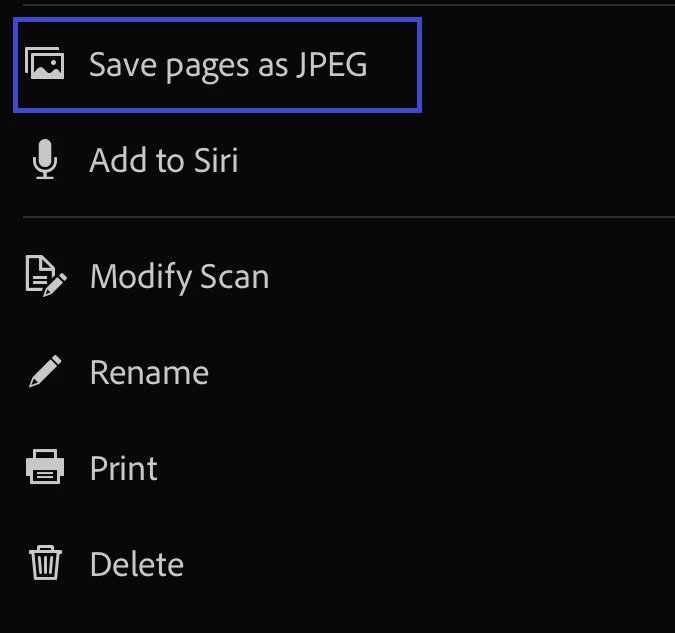
- Select “Save pages as JPEG”.
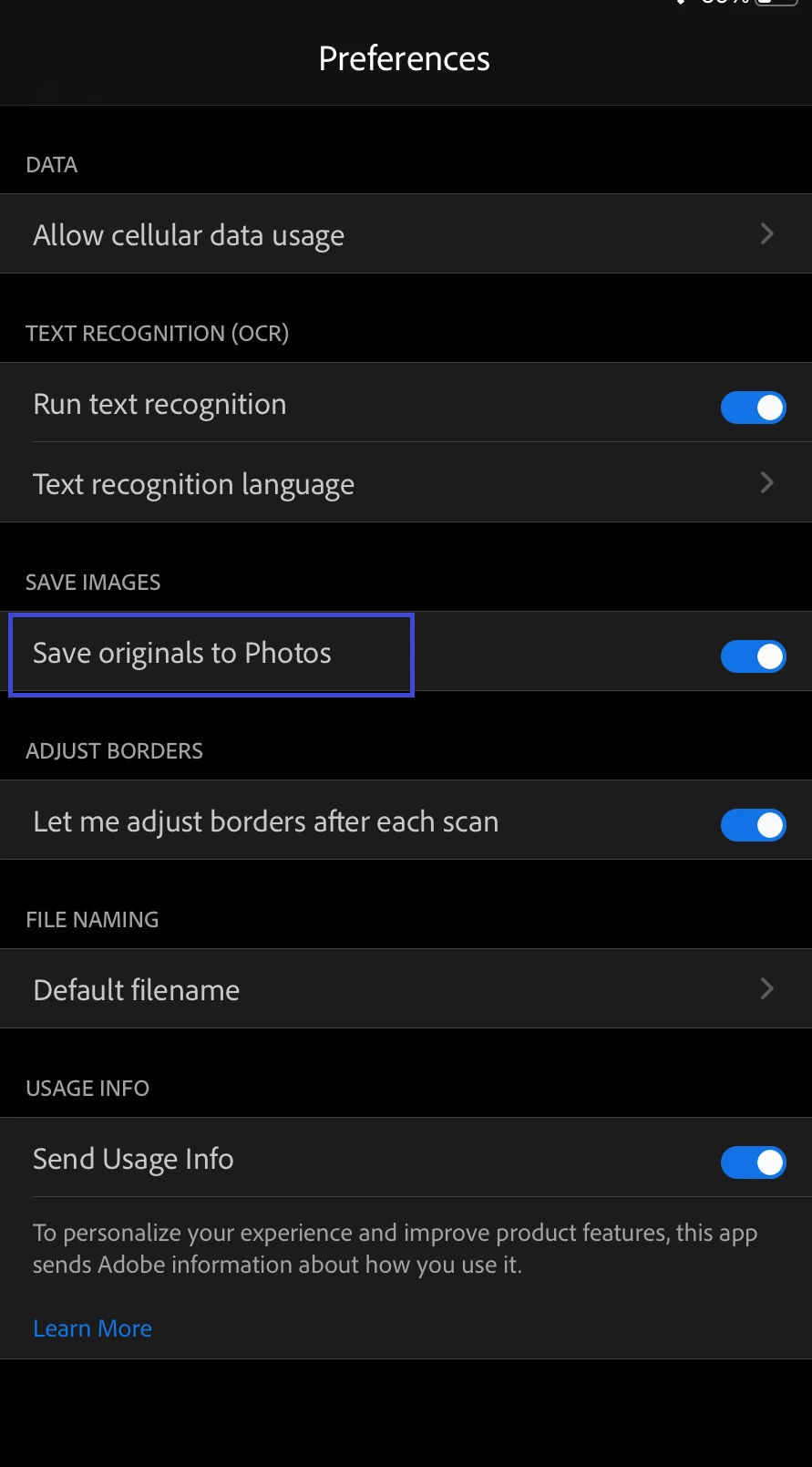
If you wish that when you scan the document, it also get saved as an image on the device, you may enable the option "Save original images to Gallery" (Android) or "Save originals to Photos" (iOS) under Adobe Scan preferences. It will save an image of the document automatically on the device gallery or photos folder. Use the steps as mentioned below to enable the option.
- Launch Adobe scan and go to Home icon.
- Tap on the three lines (on Android) or gear icon (on iOS) at the top left corner of the screen.
- Select Preferences
- Enable the radio button for "Save original images to Gallery" (Android) or "Save originals to Photos" (iOS)
Then all the scans will automatically save on your device as images.
Hope the information helps.
Thanks,
Meenakshi



 AdChoices