
Leeseystaffs
Participant
March 25, 2020
Question

3D Object Rotation Glitch

  • March 25, 2020
  • 2 replies
  • 7716 views

Hello,


I'm a bit of a novice when it comes to after effects so hoping someone can explain to me where I'm going wrong.


I've created a 3D object from a 2D shape following an online video which I will include the link for below, however when I then rotate the object to get the desired effect I'm noticing a glitch occurs when the shape lines up with the camera at 90°, as shown in the image below.
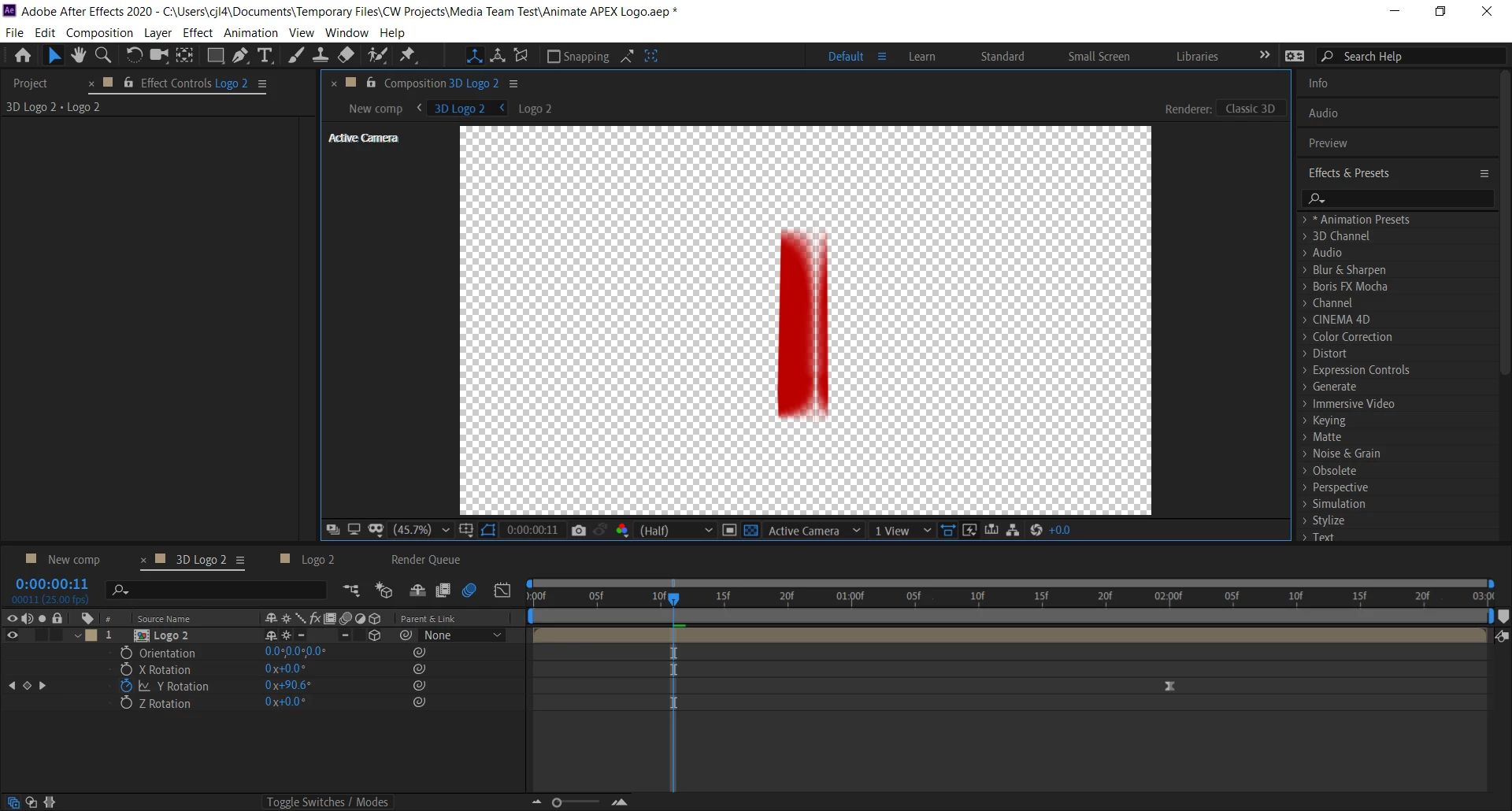
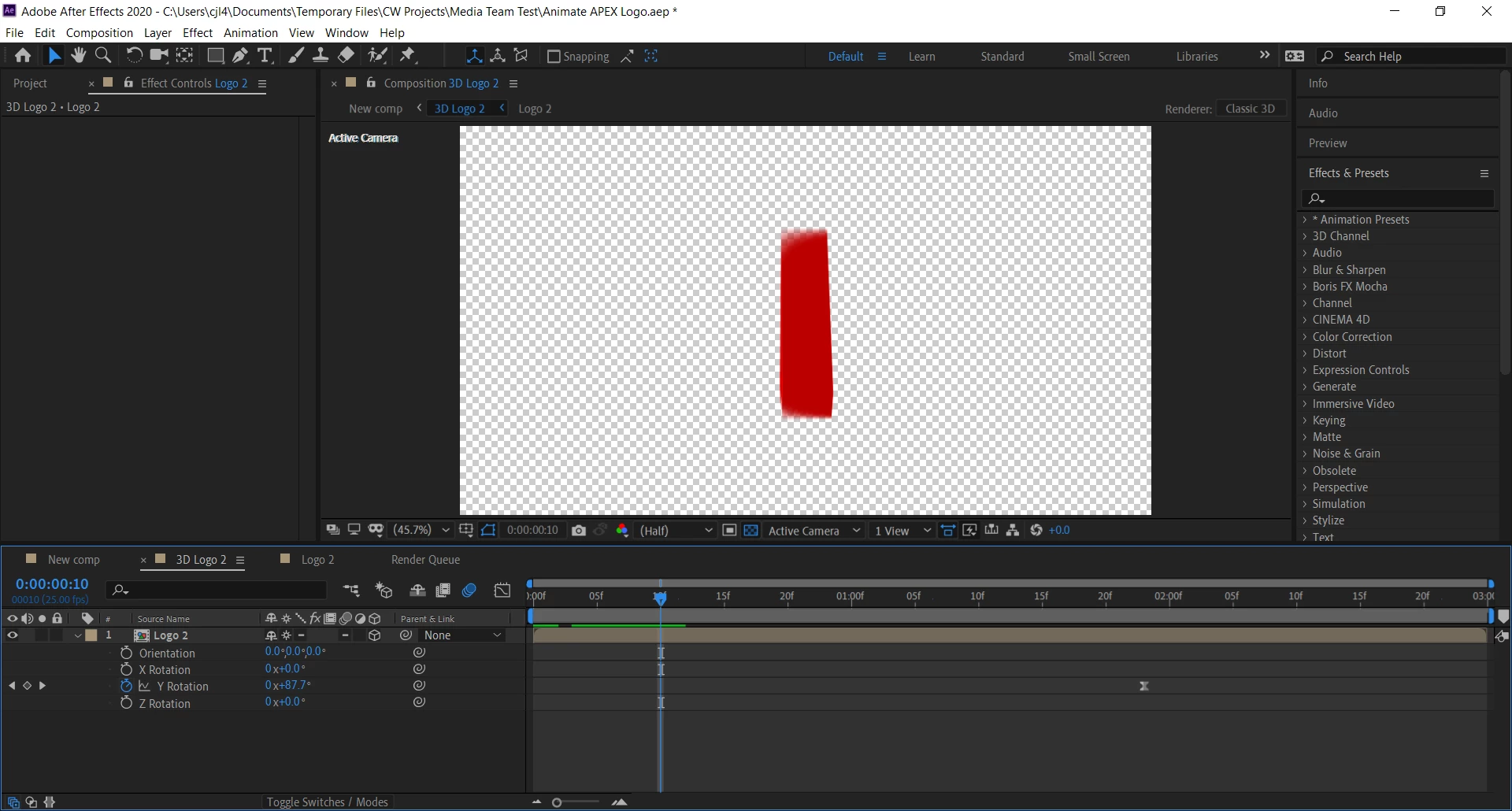
 

If I adjust the keyframe so the object doesn't quite line up at 90° then the line doesn't show up but I still get a softening around the edges which is noticeable when rendered out. 


Video link for creating 3D object - https://www.youtube.com/watch?v=Rcq3uq2WNsI


Any ideas?


Thanks in advance.


Chris


2 replies

Participant
November 15, 2020

Not sure if you've worked this out yet but I had a similar problem recently and have found a work around. Go one frame before the object hits 90 degrees and add a keyframe then move forward a frame to where the object hits 90 degrees, but add a new keyframe with a value slightly over 90 degrees, something like 92 or 93 degrees, so in the sequence the object moves quickly over that 90 degree angle. There's still a bit of blur but if you look at the object on full resolution you can see it's barely noticeable. Hope this helps!  

Community Expert
November 15, 2020

That's a very mediocre tutorial. I'd give it a D for workflow. The OP's problem is motion blur and inefficient use of 3D on the pre-composed layer as shown in the tutorial. 


The efficient way to do this kind of animation is to parent the stacked 3D layers in the Pre-comp and do the rotation there. The way to fix the motion blur problem at 90º is to apply Bilateral Blur to the 3D layers using an adjustment layer. See this thread for more info: Text Characters Uniform 3D Rotation


Here's a couple of screenshots that might help. 


Participant
May 7, 2021

Is there a video tutorial for that please?

Inspiring
March 25, 2020

This is likely happening because you have Motion Blur enabled. Turn the layer switch off (The three circles on the left of the Parent column) and see if the problem goes away. If you're doing a slow spin like this you likely don't need motion blur, but if you are there are ways to get around it, but without seeing what your logo is actually composed of it's hard to suggest anything.

Shahriar Khan
Participant
March 21, 2023

Hi, sorry for bothering you but I am having a small issue that I am unable to fix on my own. I also didn't find a solution for it anywhere. My problem is with rotating a 3D extruded ellipse shape (Y-Axis). Once the shape is bolder, maybe 200px worth of depth, rotating it vertically makes it move a little on the left and right automatically. It rotates like dancing. Is there any way to make it rotate but stay in the same position? I've tried all possible ways to rotate it like playing with camera angel, null object, and directly. 

What I am trying to do is something like this- https://shortest.link/knut
My problems are attached here. Take a look, please. You will know why it gives a feel of dancing once you see the screenshots. Note: I only edited the rotation, didn't touch on position. so I think it shouldn't have moved on my doings. its doing itself. Hope you will understand and give me a solution. Thanks

Inspiring
March 22, 2023

It's always best to make a new post for new problems. This lets other people with the same issue find similar posts, but it also is easier for anybody to answer. 
Rotation happens about your anchor point, so it's likely not in the exact center of your shape. Adjusting this so it's directly in the center of your extrusion (so 100px backwards) will likely fix your issue.