
Participating Frequently
September 27, 2020
Answered

Illustrator files importing at 10% size

  • September 27, 2020
  • 5 replies
  • 10718 views

I have AI files where both layer content and artboards are 1920x1080. But when I import them into After Effects both comps and footage come in as 192x108px documents. I have done this type of importing for years and I've never seen or heard of this. Each Illustrator file I import was previously exported from a master AI with numerous artboards. The outputted AI files that I'm importing only have 1 artboard each.
Correct answer Rick Gerard

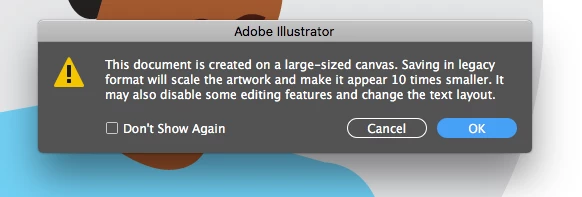
You may have found a bug. When I tried to save your AI file to Legacy AI I got this warning:

Somewhere hidden in the file is the large size canvas info so when you saved the original artwork using each artboard as a separate canvas you got exactly what the warning is talking about. 


I would have to do some more testing, but the only way I can get your sample file to import correctly is to start a new AI document, then copy and paste or drag all of the artwork into the new document.


5 replies

Inspiring
April 3, 2025

Thanks for all the contributions out there which were very helpful in understanding the problem.

But there is another problem that has not been talked yet : the rasterization problem.


In the large canvas file, if you have some rasterized effects (gaussian blur for example), and you copy/paster inside the normal canvas, the effect is 10 times larger!
I didn't understand it at first, and searched for "why is my gaussian blur 10 times larger in another illustrator file?" . And there are some answers saying "change your Document Raster Effects Settings". But this trick doesn't work for this particular matter (changed this setting several times without effect).

I have dozen files with dozens of gaussian blur effects. Any idea to solve it smoothly ? 
Thanks

Community Expert
April 3, 2025

@Alesclandre 


For this, I would try disabling the raster effect on the Illustrator side in a copy of the document (probably with "for Ae" appended to the file name) and apply the effect on the After Effects side.


Participating Frequently
October 17, 2024

Has Adobe decided to fix this yet? Because I'm working with a designer that delivered files to do the same thing again. It's so irritating to have to recreate the volume of files I need to animate today.

Community Expert
October 17, 2024

You don't have to do anything in Illustrator, but add a giant artboard behind the Comp Sized one you use to lay out your artwork in the Hero position. Just open one of the Video Templates and look at the structure. The HD video template has a 1920 X 1080 Artboard (Artboard 1) Centered above a 14400 X 14400 px artboard (Artboard 2), defaults to showing the pixel grid, which I usually turn off, and has Safe Action and Safe Title guides. It works perfectly.


Add Artboard 2 below Artboard 1, and AE will open the AI file as a Comp, retain layer size, properly position all elements in their hero position, not cut off any of the layers, and be ready to use.


The other hint I would give you is to always turn on Snap to Pixel and check the Illustrator files you are creating for video by viewing them at about 400% using Pixel Preview so thin lines don't change color when they are converted to pixels. I should do a tutorial on creating Art for Video because so many people have problems doing that.


Participating Frequently
October 17, 2024

I don't have to "do" anything but these 12 steps on my 18 files each with about 27 individual layers. OR, and I know this is a crazy idea, Adobe could fix this issue that is so well known, they have a not at all useful "what to do when my AI file is 1/10 size" little article. I've been doing this for 15 years, and it's only a problem sometimes, usually when I have a tight deadline. Funny how that is.

My solution has been a mix of:

make the art board 10x size and then scale up (which works for normal sizes like 1920x1080),

or make a new doc with a new artboard and copy/paste everthing to that for the weird ribbon board sizes (like 16000x24).


BUT it's a real PITA. Takes way more time than my usual "import as comp" when the AI files aren't made in that wonky style that only certain of the designers I get files from use.


I tried the "ask the designers to use a different AI file type" which has yet to work.


I just installed Overlord from Battle Axe, and we'll see how that works out. Currently, it brought my files in at the correct size, but everything is a shape layer or live text. This doesn't 100% work well with my workflow which involves reusing a lot of elements across the different animations, but it's better than everything is tiny. It also doesn't work well when designers have put fancy kerning on each individual letter, so I have to make all text an outline for those bits. Another step. Yay.


IDEALLY, Adobe would fix this known issue. But I'm not going to hold my breath.

Sam-Kelly
Participant
December 5, 2023

Damn this is happening to me today, I always use the same workflow and never encountered this 😞


Community Expert
December 5, 2023

Illustrator's Large Canvas Size is not supported directly in After Effects.


Work in a standard canvas in Illustrator or scale the artwork up with Continuously Rasterise enabled in After Effects. 

Sam-Kelly
Participant
December 5, 2023

I use this workflow all the time and I've never had an issue so I'm assuming it's a bug or glitch..
When saving an Illustrator file with multiple arboards out as individual files, then importing these into After Effects as compositions. Instead of bringing them in at 1920x1080 it bought them in at 192x108

I had to create a new illustrator file for each artboard and copy everything in to each one to get around it.

Rick GerardCommunity ExpertCorrect answer
Community Expert
September 27, 2020

You may have found a bug. When I tried to save your AI file to Legacy AI I got this warning:

Somewhere hidden in the file is the large size canvas info so when you saved the original artwork using each artboard as a separate canvas you got exactly what the warning is talking about. 


I would have to do some more testing, but the only way I can get your sample file to import correctly is to start a new AI document, then copy and paste or drag all of the artwork into the new document.


Participating Frequently
September 27, 2020

Ha, nice find it illustrates exactly what's happening. Thanks for troubleshooting this!

Community Expert
September 27, 2020

Double-check the document settings and Artboard size in AI. It should be 1920 X 1080 Points or Pixels.


I'm not seeing any problems on my end. OSX, latest builds of AE 2019 and 2020. Can you share a sample file? Here's one that I just made: AI Test 2.AI


It works perfectly.

Participating Frequently
September 27, 2020

Hi Rick I've renamed and linked a sample file. The files I've been working with are using pixel units. I tried both AE2019 and 2020 on both OSX and Windows, same issue. My workaround for now is creating a new AI file and pasting the contents in. Seems to work. I wonder if there's some weird setting that happened when I exported the multi artboard AI file into a series of individual AI files...