matiasb8189984
Participant
January 12, 2020
Answered

Ray traced Element 3D not working for text shadows

  • January 12, 2020
  • 1 reply
  • 3177 views


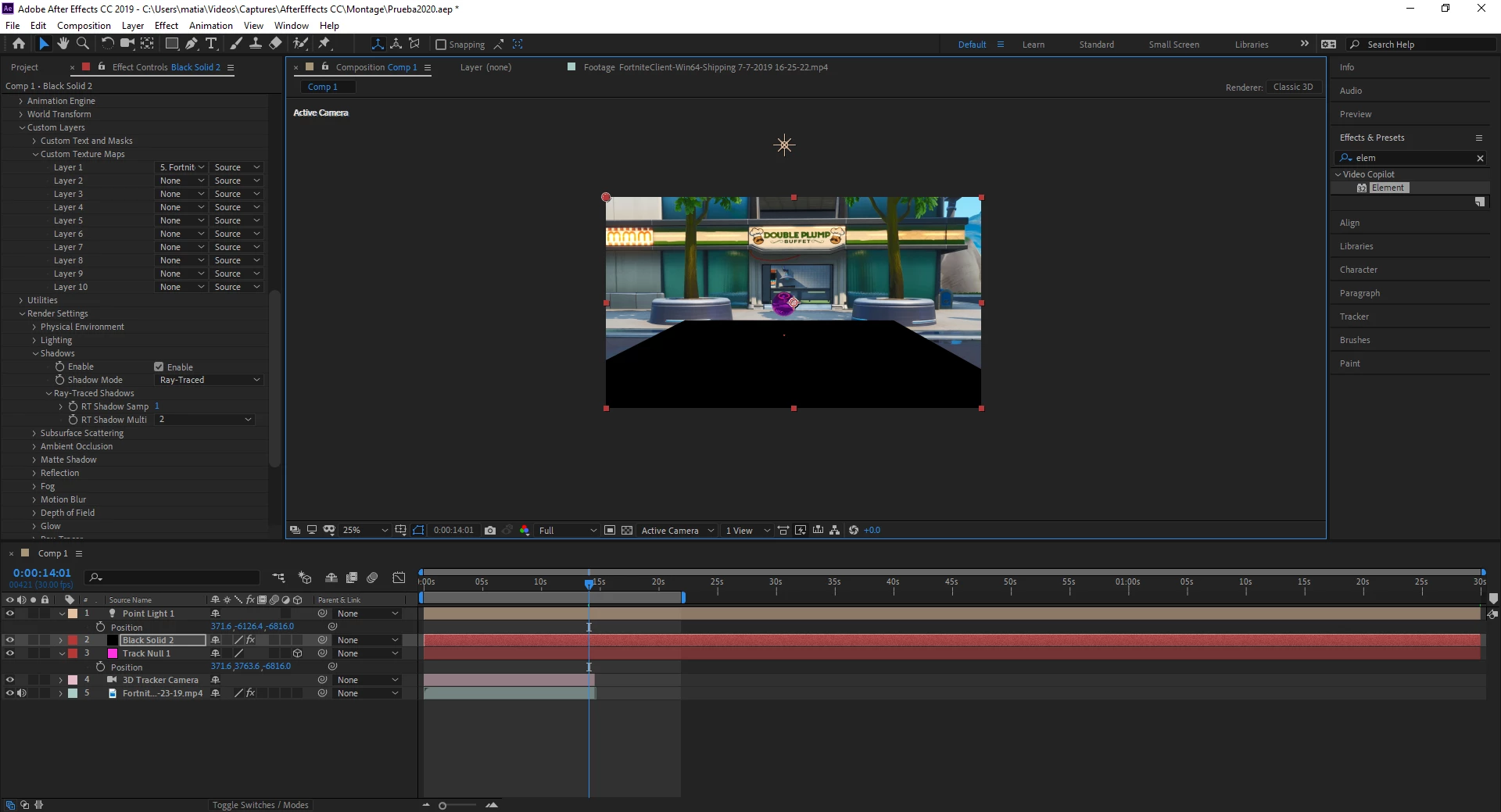
Well, I've been watching a lot of tutorials on ray traced on Youtube to make realistic shadows in AE. But the problem is that in the videos they always put a plane model and then they add Mate shadow. Then they activate the ray traced in Element 3D and put a light. However I get the black plane model instead of the shadow of the text letters. If you can help me, thanks. This is the link to the video: https://www.youtube.com/watch?v=E1ryN_yrsvA&t=1332s minute: 18:54 to 20:46 

Exemple from my result:


This topic has been closed for replies.
Correct answer Rick Gerard

I would only give that tutorial a C. Lots of things in the workflow could be improved and there is a way to accurately position and orient the C4D 3D world with the AE 3D world. None of them were followed. 


I can't tell from your screenshot but I think you fouled up when you created the plane and set up the surface texture.  

Here's a simple Element 3D scene properly set up to cast shadows:
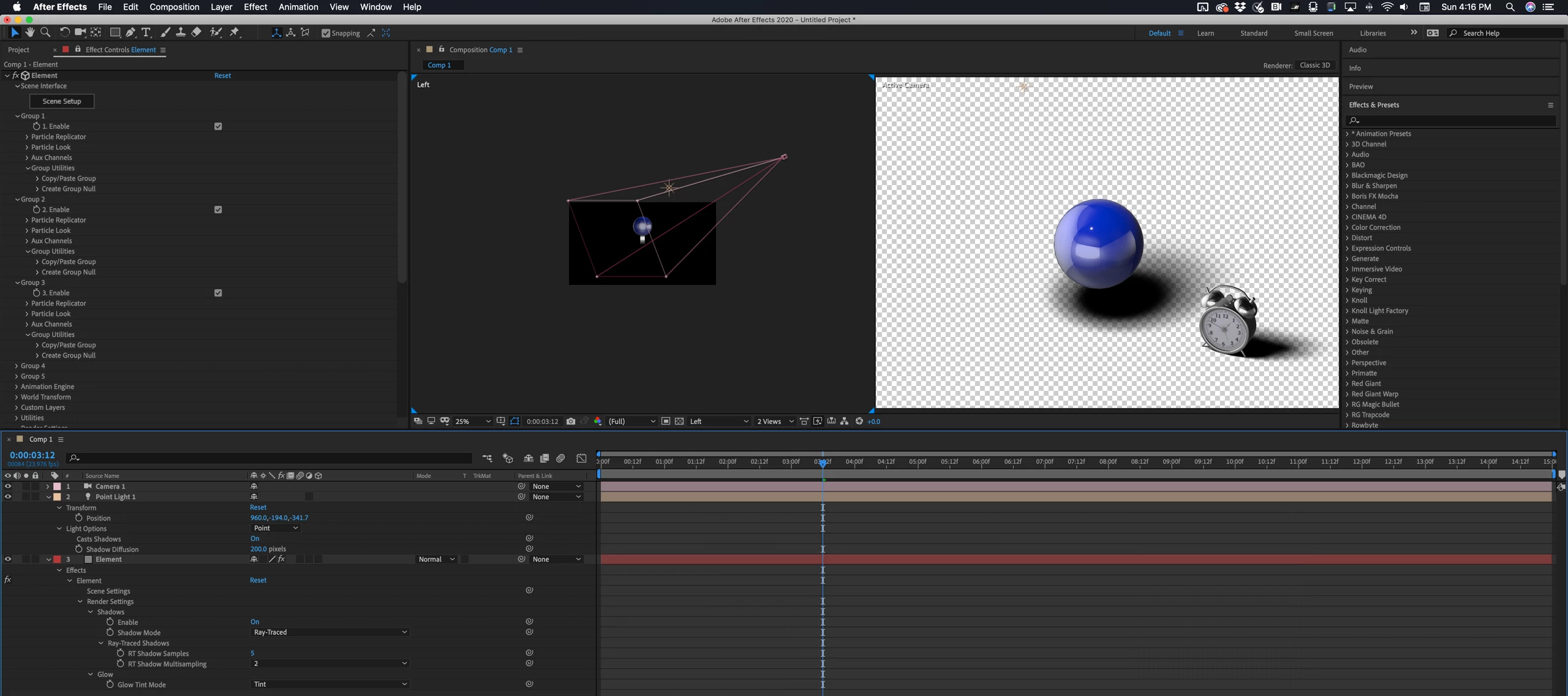
The advanced settings for your Shadow Catcher material should look like this:
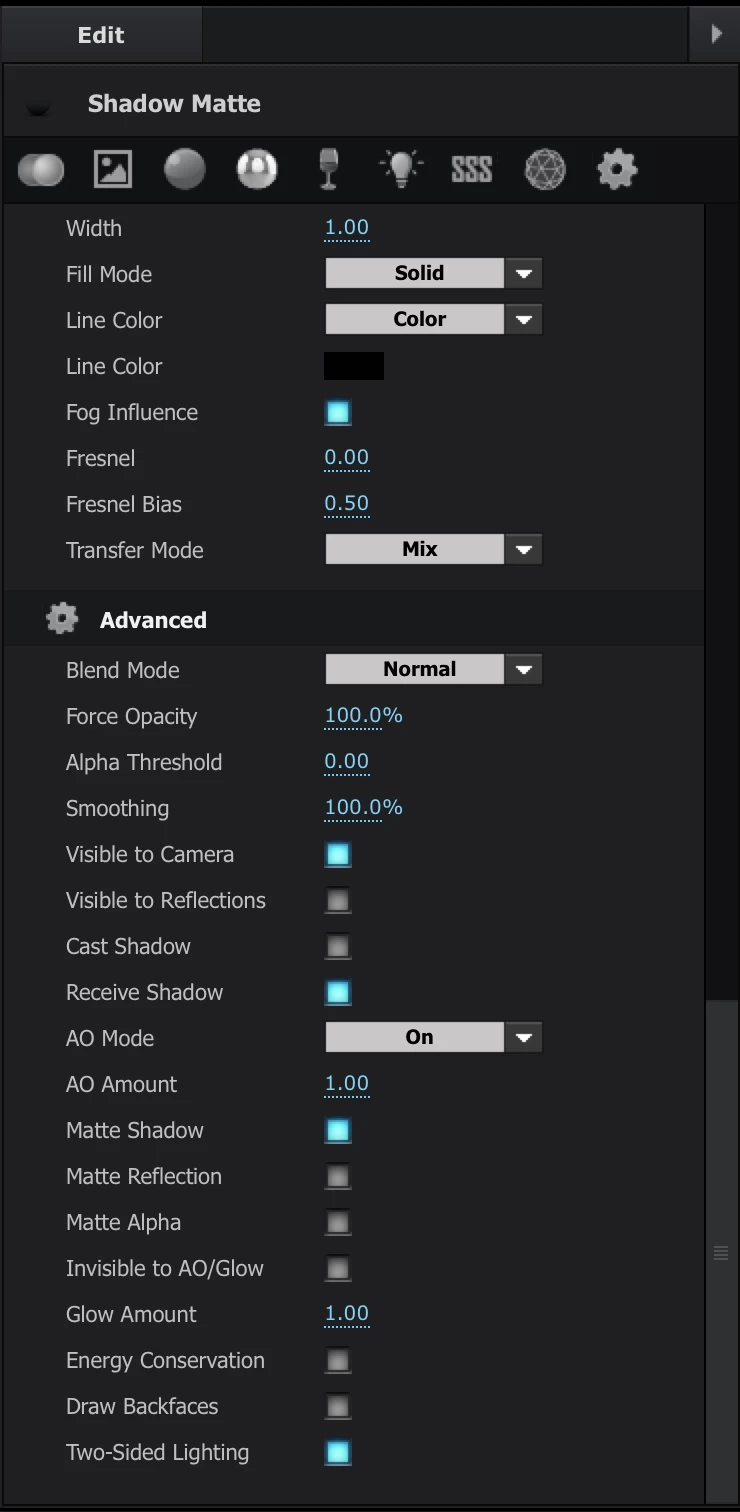
I am showing you all of the settings that are required to make Element cast a shadow. You see every property in the comp that is not at its default value.  (press uu) The second screenshot shows everything that needs to be changed in a default material to make it catch shadows from AE's lights.


I won't go into a better workflow for setting up a camera tracked shot to work with Element 3D, but I will say again that the technique used in the tutorial is pretty darn lousy and it won't work with most camera tracked footage. The presenter just got lucky that the center of the comp turned out to be pretty close to the center of Element's 3D world. There are a lot better tutorials over at Video Copilot. I suggest you spend some serious time there. This is the right way to integrate Element 3D and AE's camera tracker. https://www.videocopilot.net/tutorials/3d_truck_compositing/



1 reply

Rick GerardCommunity ExpertCorrect answer
Community Expert
January 13, 2020

I would only give that tutorial a C. Lots of things in the workflow could be improved and there is a way to accurately position and orient the C4D 3D world with the AE 3D world. None of them were followed. 


I can't tell from your screenshot but I think you fouled up when you created the plane and set up the surface texture.  

Here's a simple Element 3D scene properly set up to cast shadows:

The advanced settings for your Shadow Catcher material should look like this:

I am showing you all of the settings that are required to make Element cast a shadow. You see every property in the comp that is not at its default value.  (press uu) The second screenshot shows everything that needs to be changed in a default material to make it catch shadows from AE's lights.


I won't go into a better workflow for setting up a camera tracked shot to work with Element 3D, but I will say again that the technique used in the tutorial is pretty darn lousy and it won't work with most camera tracked footage. The presenter just got lucky that the center of the comp turned out to be pretty close to the center of Element's 3D world. There are a lot better tutorials over at Video Copilot. I suggest you spend some serious time there. This is the right way to integrate Element 3D and AE's camera tracker. https://www.videocopilot.net/tutorials/3d_truck_compositing/



matiasb8189984
Participant
January 13, 2020

Wow, thank you so much, mister Gerard, have a nice day and really appreciate your time to answer.