
high_flier
Participating Frequently
November 23, 2018
Answered

Vector animation renders in AE pixelated (lower quality) compared to result in 2k

  • November 23, 2018
  • 4 replies
  • 4718 views

Hello

I want to apologise if my question may look stupid cos I am new to AE. I have tried to find the answer, but everything I tried did not help.

I have a clean vector illustration which I animate in AE. After I render my work in 4k resolution in QuickTime Player I see that my illustration looks pixelated.

If I render in 2k format, the quality is perfect for me.
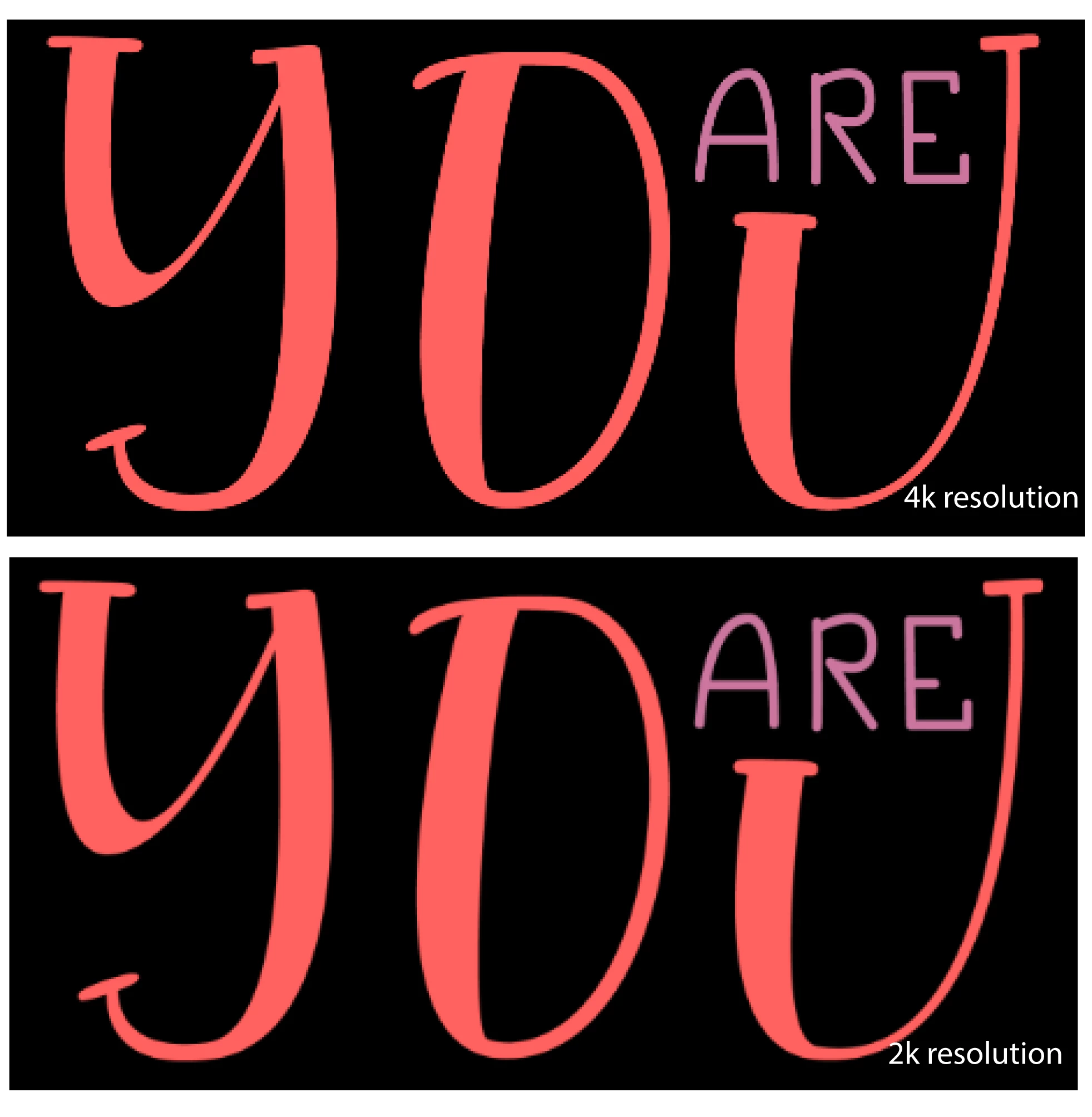
Render settings - Quicktime Apple ProRes 4444 RGB+Alpha 3840X2160

What I tried and did not help:

  • Choosing Continuous Rasterizing
  • Choosing More Accurate Antialiasing
  • Converting Vector layers to Shapes
  • Using different render options

NB I work on Macbook Air Middle 2013, if this matters..

Also NB My animation in 4k has been rejected by ESP Stock for "excessive aliasing"

Please help me to understand why I cannot have the same quality of vector illustration animation in 4k as in 2k ?
This topic has been closed for replies.
Correct answer Rick Gerard

I'm a bit confused. Your original screenshot:

Shows both images the same size. The 4K image should be twice as big as the 2K image. Both of them are being viewed at more than 100% magnification so you are comparing apples and oranges. What does the edge look like at 200% Magnification for both renders? You can't really judge anything if you pixel peep a still frame at magnifications above 200% on an HR display or 100% on a standard display.

If you check rendered file in AE by opening the footage in the Footage Panel and set the Magnification Factor to a 100% and check the edge quality you should see the same quality in both files. One will just be twice as big as the other. If you are seeing the quality change in a media player then the problem does not lie with the video, it is in the media player.

I've never seen a resolution problem like this in a rendered file unless there was some user error in the workflow.

4 replies

Mo Moolla
Legend
November 24, 2018

R Neil HaugenKevin-Monahan​ her output bit rate is 24. If she's outputting at 444 she shouldn't be seeing this.

Any ideas on this one guys?

Tis is my output at. 422 and you can clearly see the 422 at a proper 10bit YUV

Rick GerardCommunity ExpertCorrect answer
Community Expert
November 24, 2018

I'm a bit confused. Your original screenshot:

Shows both images the same size. The 4K image should be twice as big as the 2K image. Both of them are being viewed at more than 100% magnification so you are comparing apples and oranges. What does the edge look like at 200% Magnification for both renders? You can't really judge anything if you pixel peep a still frame at magnifications above 200% on an HR display or 100% on a standard display.

If you check rendered file in AE by opening the footage in the Footage Panel and set the Magnification Factor to a 100% and check the edge quality you should see the same quality in both files. One will just be twice as big as the other. If you are seeing the quality change in a media player then the problem does not lie with the video, it is in the media player.

I've never seen a resolution problem like this in a rendered file unless there was some user error in the workflow.

high_flier
Participating Frequently
November 25, 2018

Thank you! I imported rendered 4k file to AE and it looks good there...so as I understand unless I buy a 4k monitor, I will not be able to check quality of my 4k projects in Media Players like Quicktime.

Mo Moolla
Legend
November 23, 2018

Use VLC Player and do this:

Trust this will assist

Mo

high_flier
Participating Frequently
November 23, 2018

Thank you!

This is the result...

A lot of lost frames. Could you please explain, how to understand this with regard to my problem?

Mo Moolla
Legend
November 23, 2018

Post a screenshot of the Codec Detail not Statistics. The statics is for when you engage playback and VLC is buffering frames so no need to bee too concerned about. I need to see the CODEC details

imeilfx
Inspiring
November 23, 2018

Do you have 4K monitor and do you playback that 4K file in full resolution or your monitor is smaller and player have to rescale video to fit f.eg. HD or smaller? If that is the case that can be just that ... QT Player doing bad job of downscaling your file for playback. Make your player to play at full resolution - you will not see full picture but you should see original quality without downscaling.

Mike_Abbott
Legend
November 23, 2018

Yes - it maywell be a playback issue as imeilfx suggests.
I'm assuming you are working in a 4k (3840X2160) comp in After Effects?

high_flier
Participating Frequently
November 23, 2018

Yes, 3840X2160

and I have an old mac air.. probably this is truly the core of the problem...but I yet have not figured out how to open on my mac 4k without downscaling.

Mike_Abbott
Legend
November 23, 2018

Just a left field thought...
How large is your original vector illustration - in pixel measurements?

If it's relatively small compared to your 4k output, try scaling it up in your vector drawing application - Illustrator I assume, then try that in AE for 4k output.

high_flier
Participating Frequently
November 23, 2018

Thank you for your answer!

Initially I imported illustration with size perfect matching 4k format. Tried making even bigger in AI and than scaling down in AF to match 4k, but still does not help...Compared to result in 2k looks pixelated..